Table of Contents
Introduction
About this guide
This document provides detailed instructions on configuring and using the observation/inspection module for asset management, enabling users to report and track asset conditions effectively.
About Observations and Inspections
The observation/inspection module allows for users to be able record any inspections against an asset. The inspections/observation module in mobile worker allows a user to report and view on the condition of the asset, make notes, and generate further tasks if necessary.
The following topics will be covered in this guide:
- Configuring List of Values (LOV): Users must set up LOVs to provide prepopulated selectable answers for observations, including Observation – Cause, Concern, Further, and Action. Each type has specific codes that need to be followed.
- Setting Up Observations: After configuring LOVs, users can set up their observations to be used on the desktop and MobileOps.
- Using the Observation Feature: Users can utilize the observation feature both on desktop and mobile platforms by selecting assets, adding observations, and attaching relevant details such as risks and tasks.
Configuring Observation LOVs
What are LOVs and what are they used for?
List of values (LOVs) are prepopulated selectable answers within the system. When using observations, the user will not have to type to report, they simply select the list of value that is relevant to the scenario.
Before we configure our observations, we need to configure the list of values (LOV) so when we make our observations, we have the list of values to choose from.
Creating LOVs
Go to Administration > General > List of values:
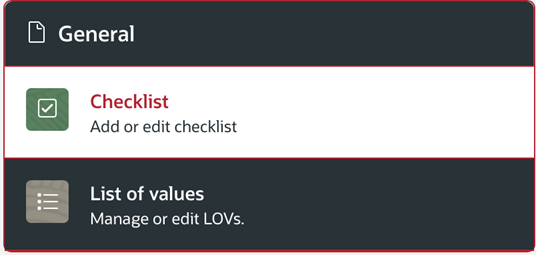
Once you have gone into Admin > General > LOV, you will be taken to the menu as shown below. You may have nothing configured at this stage; you will need to create the following observation LOV’s below:
- Observation – Cause
- Observation – Concern
- Observation – Further
- Observation – Action
- Observation – Concern
- Observation - Component
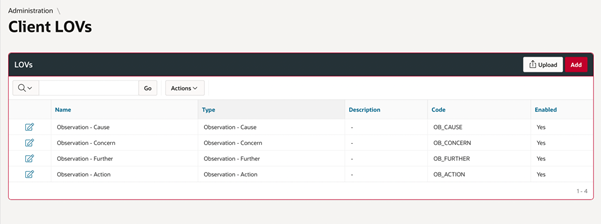
Each one will need to have the types of all the names mentioned above. The type needs to match the names above (in red) however, the names are completely customisable (Recommend keeping the same to avoid any confusion).
The types are prebuilt into your system so you will need to make sure you have all four. Lastly, there is the code, the codes that need to be used are:
- OB_FURTHER = Further Observation
- OB_ACTIONS = Observation Actions
- OB_CAUSE = Observation Cause
- OB_CON = Observation Concern
- OB_ACTION = Observation Action
- OB_COM = Observation Component
Once you click on the edit button you will see a screen like the one below.
Add the name, type and code as mentioned above. At the very bottom of the screen, you will need to add list of values. This list of values will be all the concerns, you can add as many as you need by clicking on ‘Add row’:
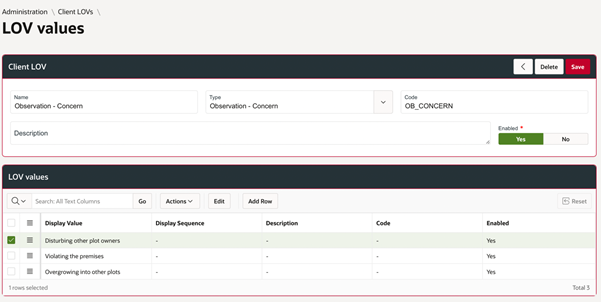
You will need to follow the same method for cause, further and action. For further, we are using this as the reason for the observation i.e., the observation was made for prohibited items, non-cultivation or littering.
Once the LOV’s are setup, you can then go ahead and configure your observations. When configuring your observations what you are essentially doing is giving each reason for observation, causes, concerns and actions. These are all pulled from the list of values that you create prior to setting up the observation configuration.
Importing LOVs
Uploading LOVs in Bulk
If you wish to import these List of Values in bulk instead of configuring them manually, please follow the instructions listed below:
Administration > General > List of Values > Upload

Here, you can view previously upload LOV’s. If you require to upload, then please use the download to get access to the LOV template.
After downloading you will need to enter the required fields.
Configuring Observations
How do I create an Observation?
To start setting up your observations, go into Administration > General > Observation
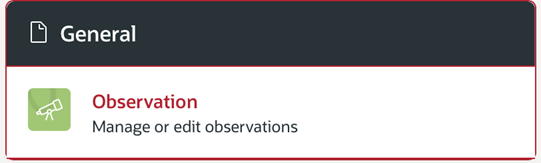
You will need to click on add and add two observations, first one being your observation topic i.e. allotments, and another observation named Visited with a code of ‘VISITED’.
Once you have created both, you will need to click on the edit  of your observation. You will encounter the menu shown below. At this stage you will need to add all the further options you configured previously in your LOV’s by clicking on ‘add’.
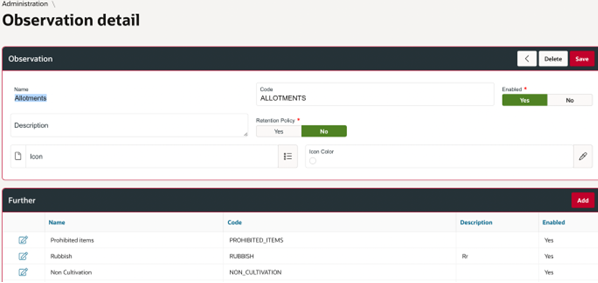
Next, select your ‘further’ options from the list. Adding the code is optional. You will then go down the screen and add in concerns, causes and actions by clicking on add for each section.
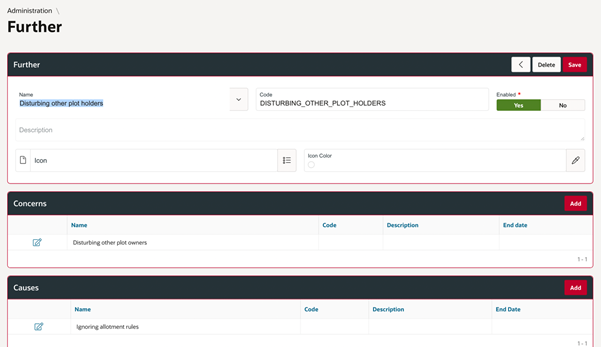
You will need to repeat this step for each further you created under observations. Once you have configured each one like the one in the above photo. you will then be able to use observations on MobileOps or on the assets module on desktop.
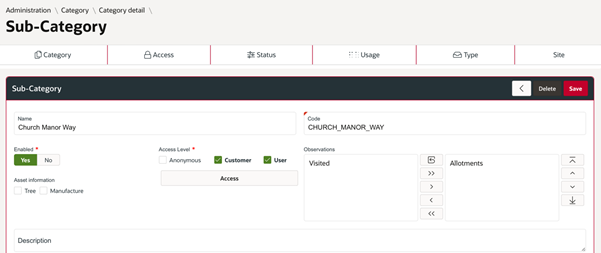
Note: Before you can use the observation feature, you will need to ensure the observation is set against the asset’s subcategory. To do this, you will need to do the following:
1.) Go to Administration>Asset>Category
2.) Next, select the one of the sites within the subcategory
3.) In the sub-category you will need to put your Allotments observation over to the box on the right-hand side (as seen in the picture below).
Using Observations
Using Observations on Desktop
To use the observation feature on the desktop, you will need to add the observation via the Assets module. Go to Assets > *Select Asset* > Go to the ‘Add’ section > Observation, as shown below:
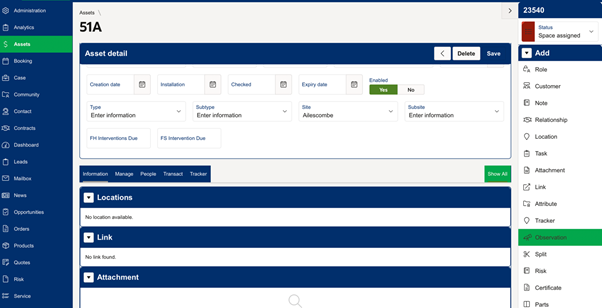
Once you have selected Add > Observation, you will get a popup box:
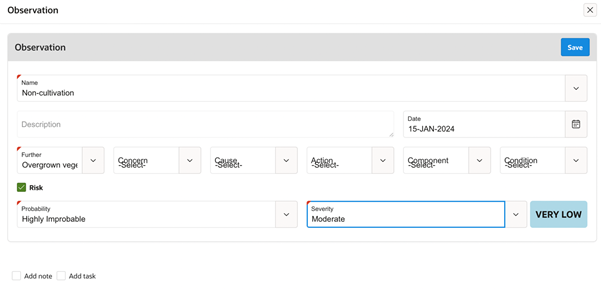
You can then select the options you previously configured to make the observation.
You are also able to add risk, a note and a task that gets attached to the asset you are making the observation against if you require.
Using Observations on MobileOps
To use Observations on MobileOps, you will need to go into the app, and then select ‘inspect’ on the main menu. Here, you can filter the asset you want to view by site, category or type. Once these filters have been applied, select ‘search’:
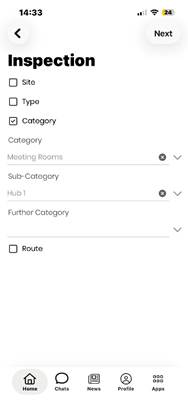
Once you have submitted the filter, you will see the assets that fit the search critera. Select the asset, and then go to Actions > Add Observation. You can also view previous observations against this asset by going to View > Observations
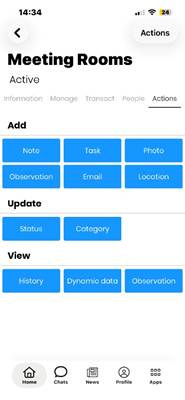
You will then see a screen similar to the one below. Fill out the details of the Observation. You can also add photos, risk, tasks, notes and locations if you wish (which is not mandatory) Once you are done, tap ‘finish’. This will add the observation against the asset, which can also be viewed by tapping ‘view observation’.
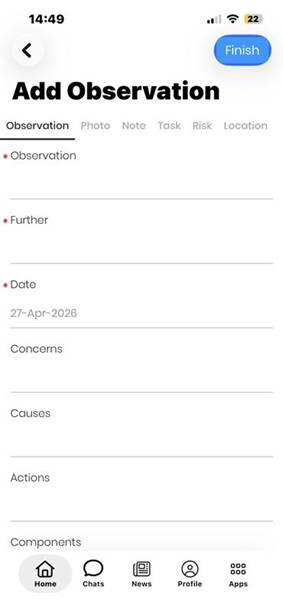
Note: Risks on Observations use the 5*5 Risk matrix calculation to generate risk.
Was this article helpful?
That’s Great!
Thank you for your feedback
Sorry! We couldn't be helpful
Thank you for your feedback
Feedback sent
We appreciate your effort and will try to fix the article