Introduction
About this guide
This guide is intended for council staff who are using administrator access roles for Users.
About the modules
MobileOps sends information to an operative's smartphone or tablet, allowing them to receive public reports and gather more on-site details. Operatives can manage tasks, handle service requests, and conduct inspections.
To access MobileOps, Users will need to be given additional permissions enabling specific modules and features.
Once the application is created, assign the appropriate access role to the appropriate users and groups.
Mobile Ops Modules
Work
When a task is assigned to a user, they can view all details including location, photos, and history. Users can update and complete the task as needed.
Waste
Users have access to collection tasks organized by round and can navigate routes turn by turn while updating collection tasks with relevant information.
Inspect
Users can make observations on assets, add notes and photos, and generate associated tasks through the inspection feature of the app.
Request
Users can submit new service requests, allowing them to report issues or request additional items.
Lone
Allows a User to set an alarm, check in and raise an alarm as necessary when working in a lone setting.
Mobile Ops – User Access
Managing User Roles and Permissions
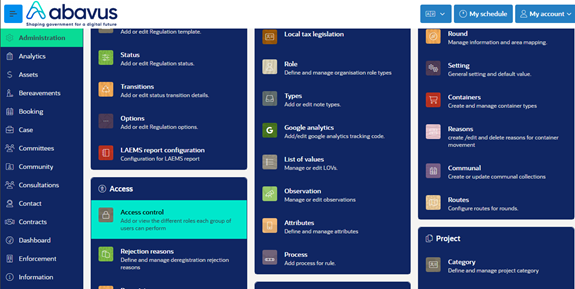
To give an Access Role the ability to use MobileOps, go to Go to the Administration module, then click on ‘Access Control’.
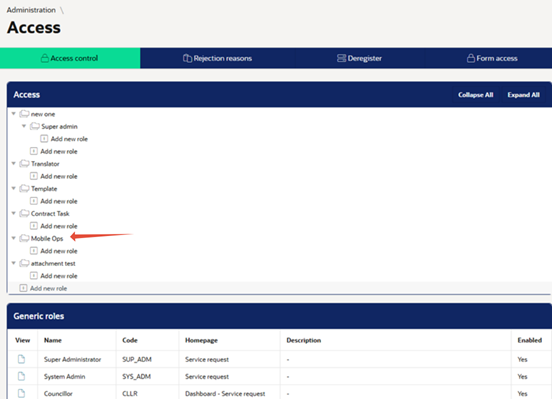
Next, select the access role that you want to enable MobileOps access on. Here, I will click on ‘MobileOps’
Main
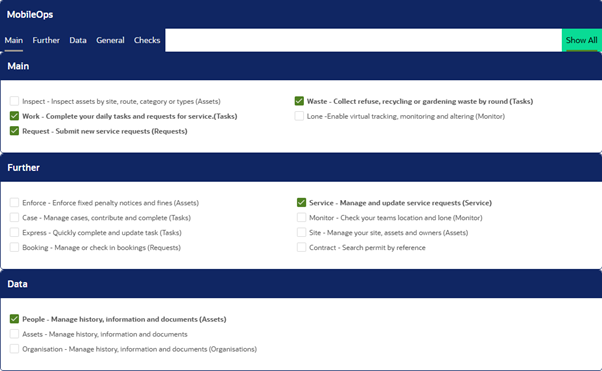
In this menu, scroll down until you see the ‘MobileOps’ region within the access role. Enable the check boxes as required in accordance to the table below.
Permission | Main Page |
Inspect assets by site, route, category or types | ‘Inspect’ |
Complete your daily tasks and requests for service | ‘Work’ |
Submit new service requests | ‘Request’ |
Collect refuse, recycling and gardening waste by round | ‘Waste’ |
Enable virtual tracking, monitoring and alerting | Enables user tracking |
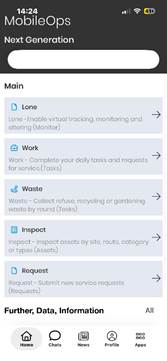
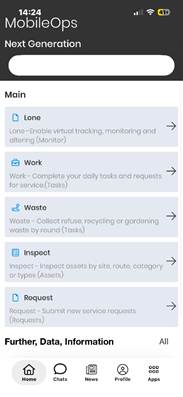
These features will display upon login on MobileOps. For example, if Work, Waste, Inspect and Request are selected, the menu will look like this for users with this access role selected:
Further
Below this, you can select some additional features that can help Mobile Workers. This is under the ‘Further’ region. The table underneath the following images describe each function:
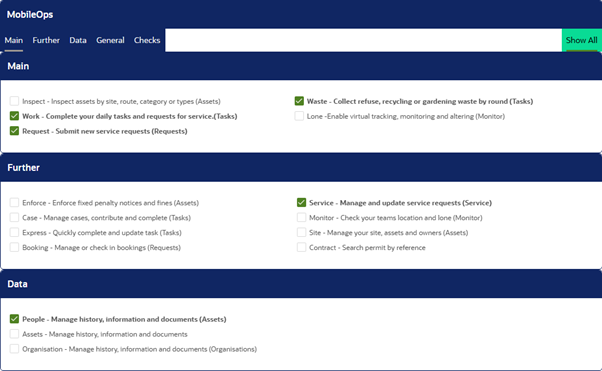
Permission | ‘Module’ |
Enforce fixed penalty notices and fines | Enforce |
Manage cases, contribute and complete | Case |
Quickly complete and update tasks | Express |
Manage or check in bookings | Booking |
Manage and update Service Requests | Service |
Check your teams location and lone | Monitor |
Manage your site, assets and owners | Asset |
Search permit by reference | Contract |
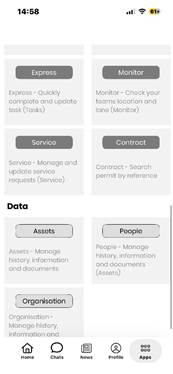
If enabled, the user can access these features via the ‘Further, Data, Information’ menu that appears underneath the Main features:
Data
Below the Further region, data related functions can be found and enabled. These include:
- People – Users can search for an account via name, phone number, postcode or email. Users can also create a new customer account here.
- Assets – This provides a list of assets, with search filters available.
- Organisation – Here, users can search for organisations or create one.
Adding these will allow these features to show for the user under the ‘Further, Data, Information’ menu.
General
The next region down, ‘General’ allows for some miscellaneous features to be enabled for the access role. This includes the ‘chat’ function, and the ‘news’ function, shown at the bottom tab on every menu.
Checks
Lastly, the ‘Checks’ feature can be enabled, which enables pre and post check forms and check lists for the user.
Was this article helpful?
That’s Great!
Thank you for your feedback
Sorry! We couldn't be helpful
Thank you for your feedback
Feedback sent
We appreciate your effort and will try to fix the article