Introduction
About this guide
The guide provides instructions on configuring and adding parts to assets, detailing steps for selecting parts, setting dates, and recording results on the asset detail page.
Pre-requisite - Configuring parts
To add the parts to the asset, you must first configure the parts. You can do this by doing the following:
- Products tab > Add > Select Parts and add a new part
- Add a new Part with required fields including category, name and pricing
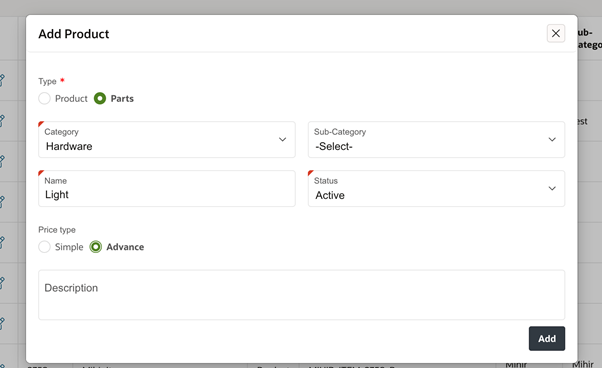
Once configured, then this list will be available on Asset detail page for selection.
Asset – Adding Parts
To add the parts to the asset, please do the following:
- Firstly, go to Asset detail page. Click on Add part from right-side menu.
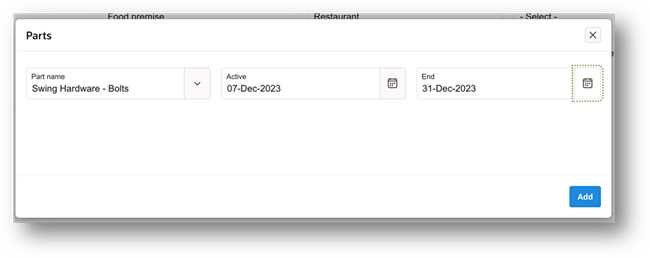
- Next, select the part type name the prepopulated list
- After this, select the start and end date as applicable and add the part. Then, select the Result as Pass or Fail (Fixed values) from the list.
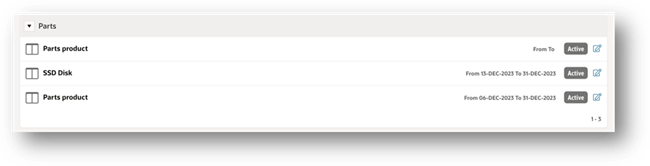
This action will be visible under parts region and under History on Asset details page.
Was this article helpful?
That’s Great!
Thank you for your feedback
Sorry! We couldn't be helpful
Thank you for your feedback
Feedback sent
We appreciate your effort and will try to fix the article