Introduction
About this guide
This document provides comprehensive instructions on configuring routes in the MCS administration section, detailing the necessary steps for setting up routes from scratch. These steps are as follows:
- Accessing the route feature: Users can find the route feature in the administration section under workforce or by using the search bar.
- Configuring route settings: Users must specify the route name, method (Driven, Walked, or Cycled), and can create associated tasks. The start location can be chosen from existing assets, entered addresses, or a map.
- Adding streets/assets to routes: Users need to ensure assets are available in the system and select the appropriate categories and subcategories before adding streets or assets to the route.
- Managing tasks and services: Users can add services to the route, schedule tasks, and view the route's history, audit, and summary. The document explains how to optimize the route for efficiency.
- Viewing route details: Users can view the route in a map format, check the history of changes, and access summaries and audits of scheduled tasks.
- Optimizing routes: Users can rearrange the sequence of streets and optimize the route by applying an optimization feature to enhance route efficiency.
Configuring Routes
Creating Routes fort Assets
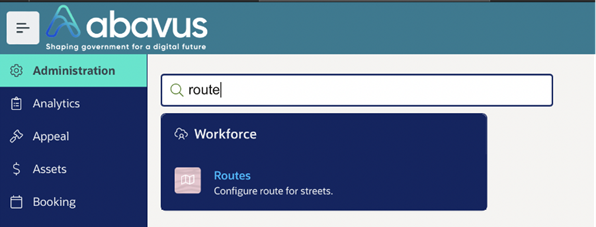
The route feature can be found in the Administration module of MCS under Workforce > Routes, as shown below:
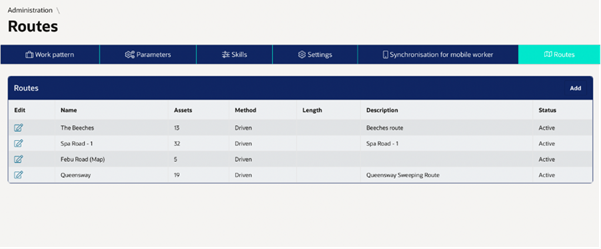
Here, new routes can be created or current routes amended. Click 'Add' on the screen above add new routes or ‘Edit’ to amend an existing route.
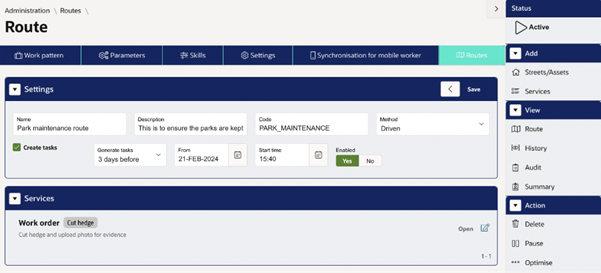
On creating a Route, you will be met with the following screen. Specify the route name in the settings section. The description and code are optional.
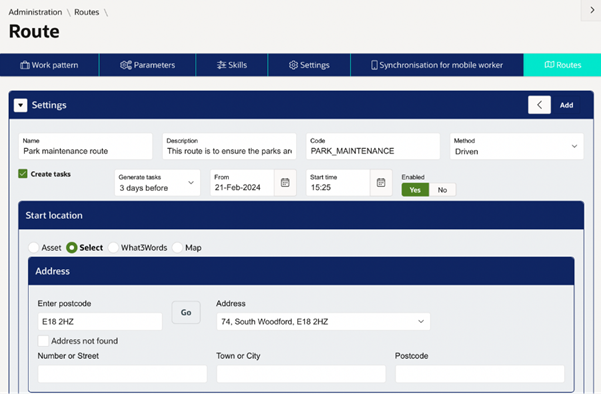
Select the route method: 'Driven', 'Walked', or 'Cycled'.
Select the ‘Start location’ as an existing asset in the system, an address using a postcode or what3words, or selecting it on a map. This location will be used as the starting location for the route.
Before adding streets/assets to your route, ensure that the relevant assets are available in your system ensuring the following two points:
- Assets will need to belong to an Asset sub-category which is configured with a ‘Highways’.
- Assets will need to be imported/created using the ‘Import via NSG’ functionality. This ensures the correct geolocation for the Asset is assigned.
To add streets/assets to the route, click 'Add' on the right side and select 'Streets/Assets'.
Select the catalogue and subcategory (or further category if configured) to view the streets/assets required click 'Go'.
The streets or assets within the chosen category, as shown here:
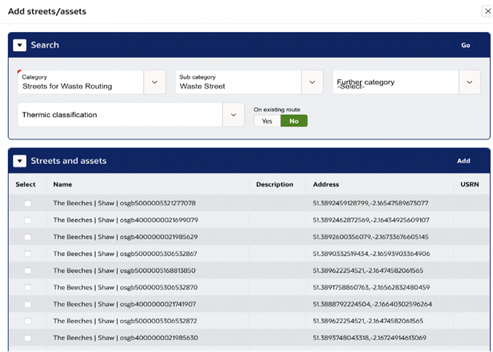
Select the assets you want on your route by clicking the tick-boxes and then ‘Add’.
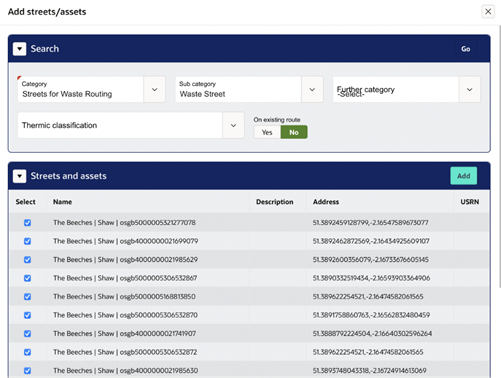
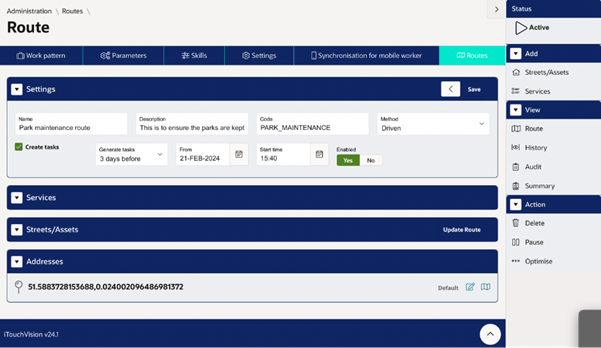
The assets will be added against the route:
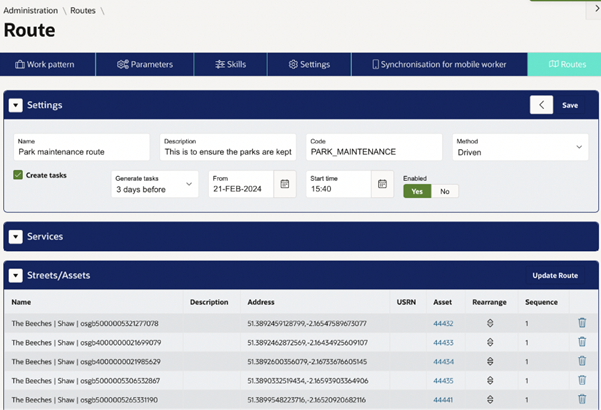
Optimising the Route
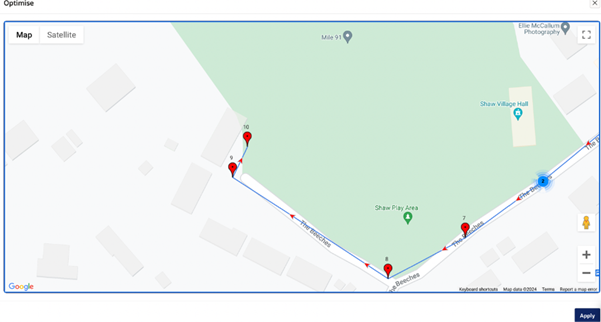
After Streets or Assets have been added to your Route, you can proceed to 'Optimise' it. This function will calculate the most efficient driving route based on the specified starting location and all locations gathered from the added Assets.
Linked Tasks
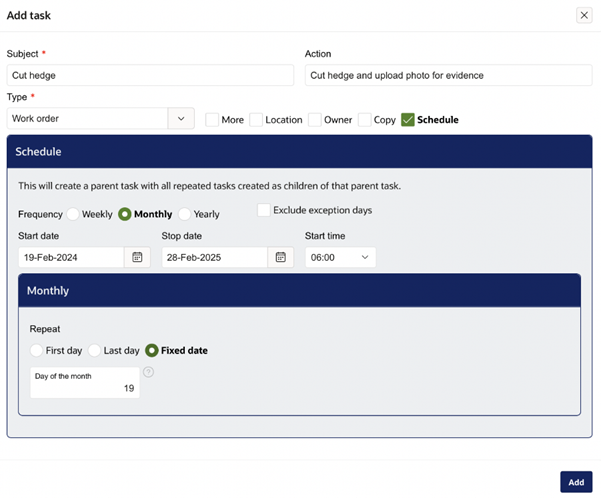
The ‘Create tasks’ option allows tasks to be generated against each asset specified in the route. ‘From’, and ‘start time’ will appear.
You will then get the screen as seen below. You can setup your tasks here and you can also add a location to the tasks and add an owner. You can also schedule these tasks to run repeatedly. For example, in this example we have configured the task so that there is a monthly task to go and maintain hedges and upload photos for video evidence. You can also choose the start and end date for these tasks and when they repeat i.e. first day, last day or on a fixed date.
Now that the service has been added it will appear against the route and will run on every single asset against the route. You can add as many services to run against a route as needed.
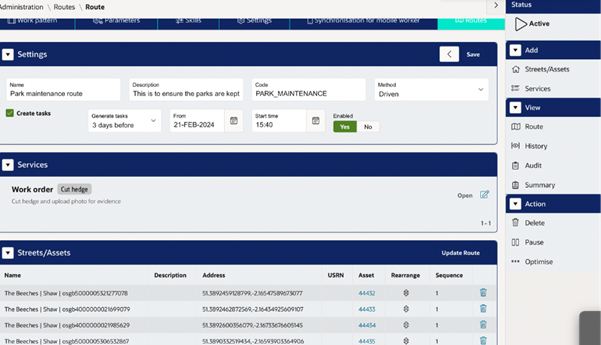
You can also view history for any changes to the route. This also shows all streets or assets that have been added to the route, if the route was optimised, paused or reactivated.
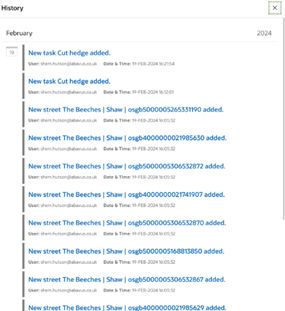
You can also view an audit, this shows all tasks that are scheduled to run on route
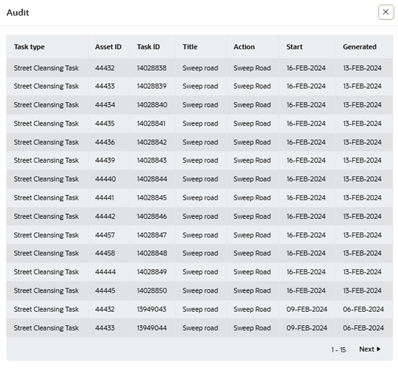
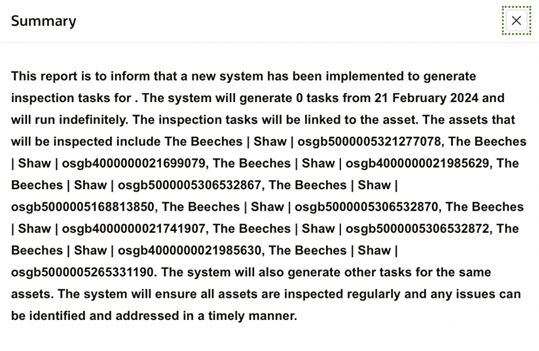
Lastly, you can also view summary. Summary gives an indication of what will happen on the route. Please see below for reference:
Action Options
The last section of route options on the right-hand side is the ‘Action’ section with the following options:
Delete – this will delete the entire route.
Pause – this will stop the route from running; the status will change from ‘Active’ to ‘Paused’.
Optimise - this will optimise the entire route by address making it easier to complete the route.
Initially, when the streets are added to the route, the streets are not in the most optimal format. You have the ability as a user to rearrange the sequence using the arrows to pull and drag in the order as needed. However, at this stage the route is not optimised.
You can optimise the route by clicking on ‘optimise’ under the action section. A map will then display the streets or assets which at this stage are un-optimised, you then need to click apply and this will optimise the map view and the list seen in the previous screen.
Was this article helpful?
That’s Great!
Thank you for your feedback
Sorry! We couldn't be helpful
Thank you for your feedback
Feedback sent
We appreciate your effort and will try to fix the article