Introduction
About this guide
The document provides instructions on how to add certificates to an asset, schedule related tasks, and manage certification details within a specified platform.
The platform offers the ability to add certificates and schedule related tasks automatically based on dates.
Pre-requisite: Adding Certificate LOVs
Firstly, certificate LOVs must be added to add certificates to assets. To do this, follow the following instructions:
- Go to Administration > General > List of values
- Add a new LOV with Type > Asset – Certification of assessment
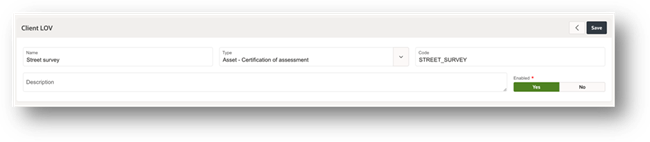
- Add the values to this type and enable under the LOV values region
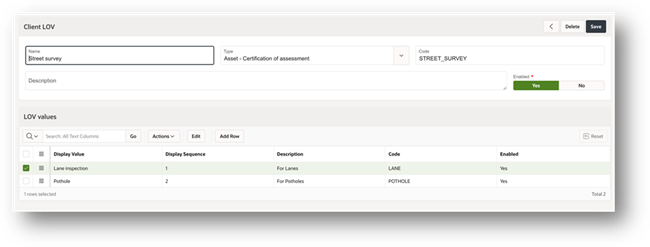
Once configured, this list will be available on Assets for selection.
Assets – Adding Certificates
You can add the certificates to the asset by doing the following:
- Go to Asset detail page. Click on ‘Add certificate’ from right-side menu
- Select the certificate type from the prepopulated list (previously configured)
- Select the start and end date as applicable
- Select the Result as Pass or Fail (These values are fixed) from the list. To set the next certificate/assessment and schedule a task, tick the box to Schedule a reminder task:
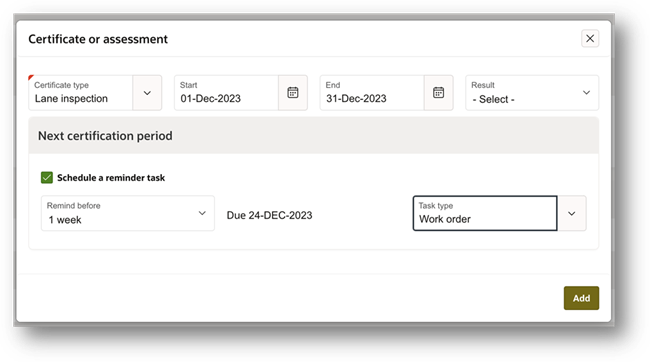
You can select the duration to set the reminder task before few weeks, and this will generate a task as selected from the list.
Lastly, click on Add button to include the certificate to the asset.
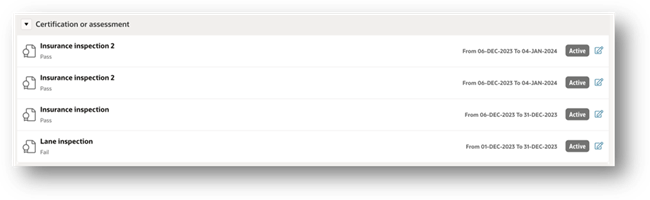
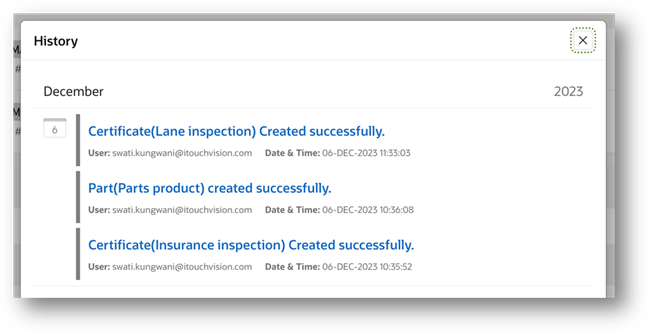
This action will be visible under Certification or assessment region and under History:
Was this article helpful?
That’s Great!
Thank you for your feedback
Sorry! We couldn't be helpful
Thank you for your feedback
Feedback sent
We appreciate your effort and will try to fix the article