Introduction
About this guide
This guide has been created in order to inform users how to create and edit observation rules, which are used alongside assets.
About Observation Rules
Observation rules are used in conjunction with Assets to trigger a rule whenever an observation is recorded against an asset. This can be useful in automating action whenever a particular observation is added to an asset.
Prerequisite 1 – Configuring LOVs
The process of creating Observations requires a few Lists of Values. So, firstly, go to Administration > General > List of values:
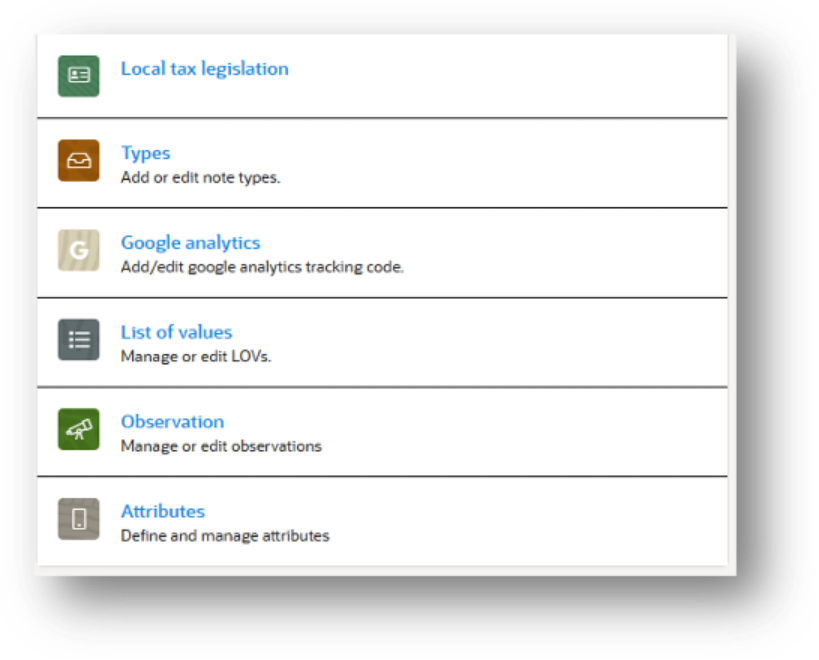
Next, go to ‘add’, and add the name of the value, as well as it’s type. The relevant types here are the following:
- Observations – Further
- Observations – Action
- Observations – Cause
- Observations – Concern
- Observations – Component
- Observations – Condition
These list of values will be used while creating observations on Assets.
Prerequisite 2 – Configuring an Observation
You can add an observation to the system by going to Administration > General > Observation. Here, you will see every configured Observation so far. To add a new one, click on ‘add’ in the top right, and you will be met with the following configuration screen:
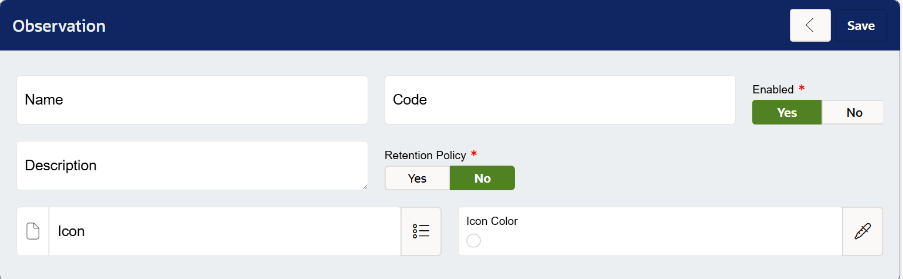
Add an appropriate name, and optionally, a description, icon and icon colour. The code will be automatically generated once the observation is created but can be manually added.
If you want to add a retention policy, you can click ‘yes’ to reveal an input for a time and unit of measurement:

Once this has been created, you can go back into the observation to add a Further observation.
Prerequisite 3 – Adding Observations to Asset Category
To do this, go to Administration > Assets > Category
Click on the asset category first, and then click ‘edit’ on the subcategory you wish to add observations to (or add a new one). Once this has been done, you will see the Observations area to add to the asset sub-category.
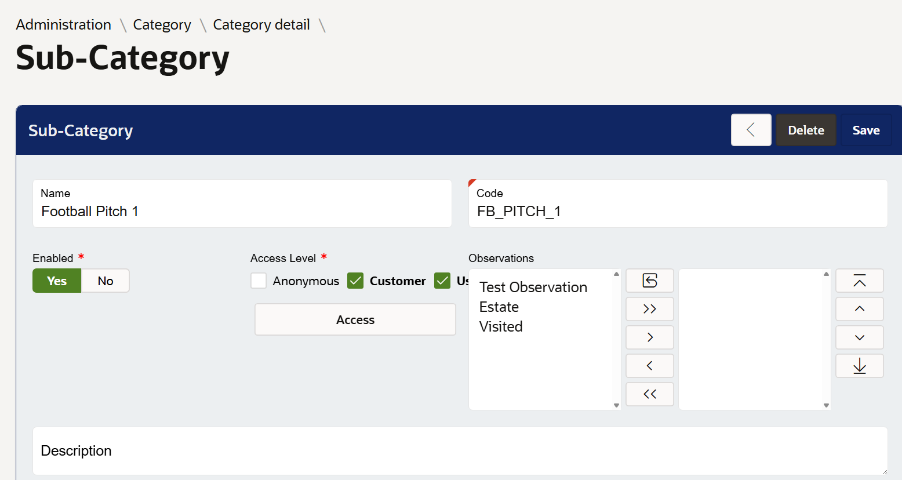
Now, we are ready to create an Observation Rule.
Configuring Observation Rules
How do I configure an Observation Rule?
Now that the pre-requisites are configured, we can begin creating an observation rule.
Firstly, go into Administration > Service Request and Case > Rules. After this, click on ‘add’ at the top right of the Rule Menu.
Create the Rule as normal, configuring its process, name, and setting the type to When. On the Options, select ‘Asset – Observation Added’ as shown below:
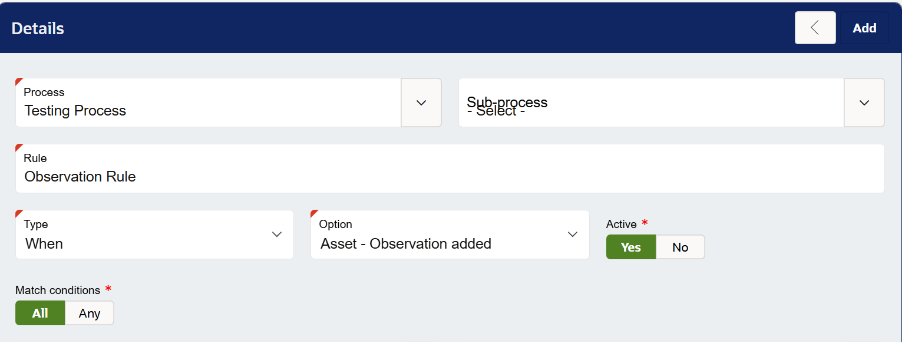
Now that the rule is created, you can configure the Conditions and Actions.
The following conditions are available to be set up:
- Asset Category
- Asset Sub-category
- Asset Further-category
- Asset Site
- Asset Sub-site
- Asset type
- Asset sub-type
- Observation Cause
- Observation Concern
- Observation Action
- Observation Component
- Observation Condition
Note – If you wish to target a sub-category or further-category, the Asset category condition must be added first. This also applies to the Asset Site and Type.
The following actions can be configured:
- Create Linked Task
- Notify Person
Once the conditions and actions have been edited, click ‘save’ on the rule. Now, when an observation is added to the asset, the rule will fire according to the configured conditions.
Was this article helpful?
That’s Great!
Thank you for your feedback
Sorry! We couldn't be helpful
Thank you for your feedback
Feedback sent
We appreciate your effort and will try to fix the article