Introduction
About this guide
This document provides guidelines on managing Highways and Lighting assets, emphasizing the prerequisites for accessing these options and detailing the process for adding relevant details to asset management systems. This guide consists of the following:
- Prerequisites for Access: Options for Highways and Lighting are available only for assets with the respective boxes checked in the Asset Sub-category settings.
- Adding Details for Highways and Lighting: The document outlines steps for adding lists of values and entering specific details under the Lighting and Highways regions, including the use of prepopulated lists and free text boxes for customization.
Pre-Requisites
Selecting Asset Information
The options will only be available to assets which have the ‘Highways’ and ‘Lighting’ boxes ticked against Asset Sub-category (Administration > Assets > Category > Sub-category).

Lighting LOVs
You will need to add List Of Values (LOVs) for different fields. The process is explained here:
- Administration > General > List of values
- Add a new LOV with Type as per the requirement
- Add the values to this type and enable under the LOV values region
- Once configured then this list will be available on Asset for selection under Lighting region
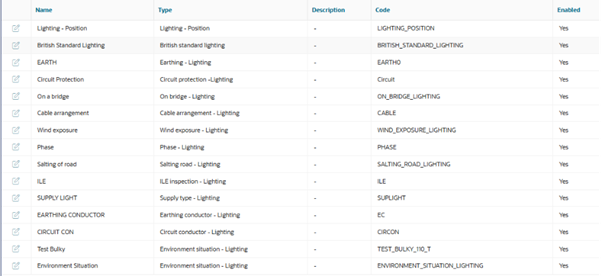
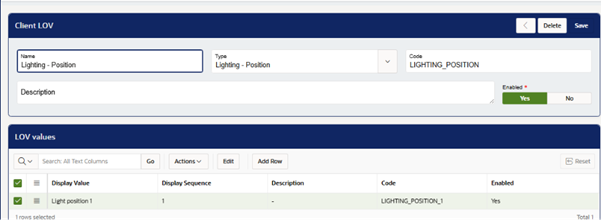
Lighting Options for Assets
Adding Lighting Details
To add the Lighting details, do the following:
- Go to Asset detail page and navigate to Lighting region (Note – this region will be visible only for the asset under relevant category/subcategory where the option is ticked)
- Lighting has three available options – General, Risk and Supply
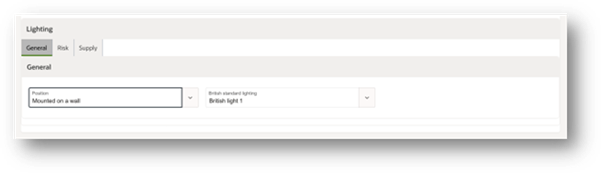
- Under General, select the Position and British standard lighting from the prepopulated list
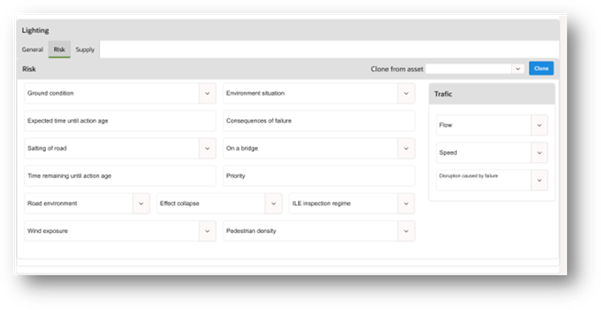
- Under Risk, the following details are available for the user to fill in as needed in free text box. The user can also use the ‘Clone’ feature to fetch and copy the risk details from existing assets.
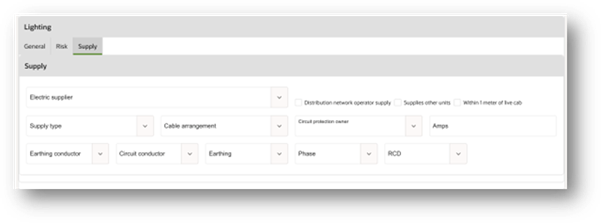
- Under Supply, the following details are available for the user to fill in as needed in the form of free text box:
Highways
Highways LOVs
Again, you will need to add List Of Values (LOVs) for different fields. The process is explained here:
- Administration > General > List of values
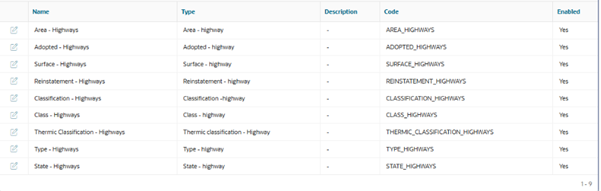
- Add a new LOV with Type as per the requirement as shown in the screenshot. (Note – These types are fixed and should be used mandatorily for the respective fields)
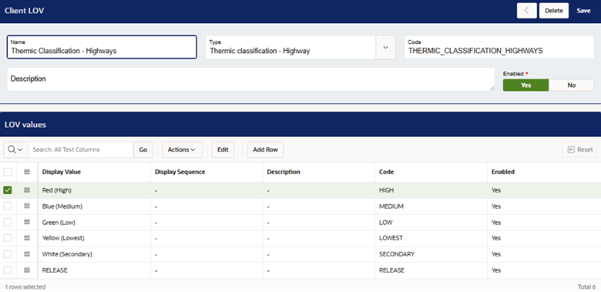
- Add the values to this type and enable under the LOV values region
- Once configured then this list will be available on Asset for selection under Lighting region
Highways Options for Asset
Adding Highway Details
To add the Highway details, do the following:
- Go to Asset detail page and navigate to Highways region (Note – this region will be visible only for the asset under relevant category/subcategory where the option is ticked)
- Highways have the following subregions – Options, No works, Features and Coordinates
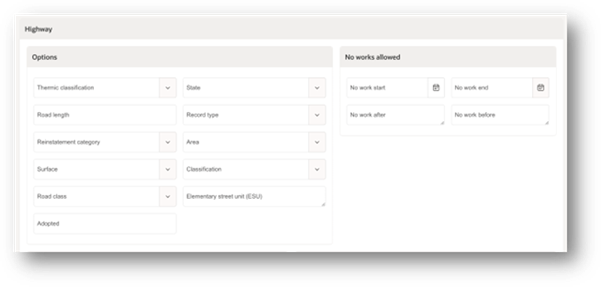
- Under Options, select the values from the prepopulated list as per the requirement
- Under No works allowed, the administrator can put a specific date range or before and after range to indicate the period when no work should be carried out.
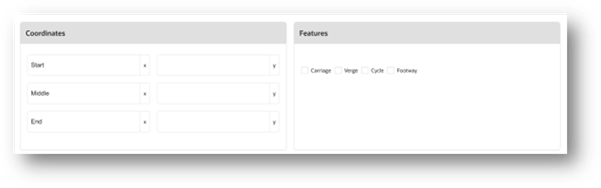
- Under Features, you can tick the box from fixed available options like Carriage, Verge, Cycle, Footway. (If any additional feature is to be added here, then the council can request us to do so.)
- Under Coordinates, enter the latitude and longitude of all the points.
Note – For now, the Highways and Lighting LOVs can be added manually only. The CSV Import functionality will be available shortly.
Was this article helpful?
That’s Great!
Thank you for your feedback
Sorry! We couldn't be helpful
Thank you for your feedback
Feedback sent
We appreciate your effort and will try to fix the article