Introduction
About this guide
This guide has been written to explain how to merge duplicate assets. If there is more than one asset, you can merge these records into one singular asset, selecting a master record.
Assets must have the same name to qualify for merging. Assets from different categories and subcategories can be merged if the names are identical.
Merging Assets
Consolidating Asset Records
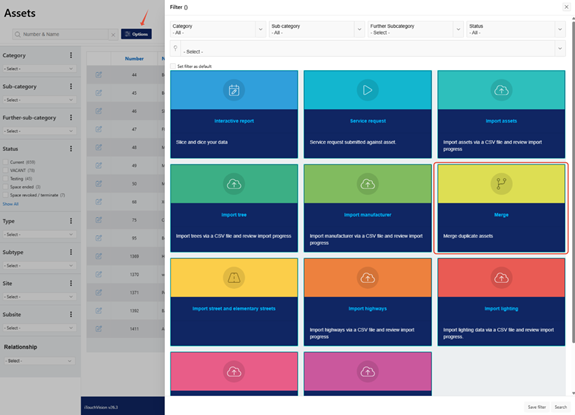
To merge assets, go to the Asset module. Then, click on ‘Options’, and select ‘Merge Asset’:
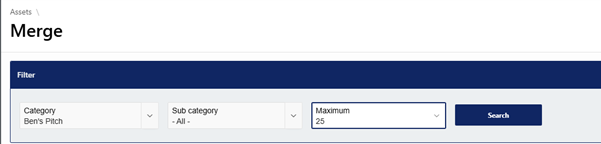
Now, you will be met with a search filter. If you want to search for duplicate assets, regardless of the Category and Sub-Category, leave these options blank and click ‘Search’.
If you want to filter the merge results, select the Category and Sub-Category of the Assets, and select the maximum result options, ranging from 25 to 500.
Once these have been selected, click Search to reveal the assets flagged as Duplicates.
If any duplicate assets are found, they will display as shown below:
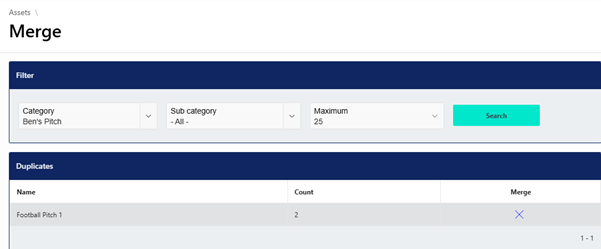
To consolidate these assets, click on the ‘X’ icon to select the Primary and Merged records.
Primary – This Asset will become the master record. There can only be one primary record.
Merge – This asset will be merged with the master record. All merging assets that is primary record must be the Merge record.
Once you have selected the Primary and Merge assets, select what information you would like to be merged into the primary asset in the ‘Merge actions’ region below:

This will combine the locations, tasks, documents and attributes of the Merge assets with the Primary asset.
When done, click on ‘Merge’ and ‘Ok’. The Assets are instantly merged.
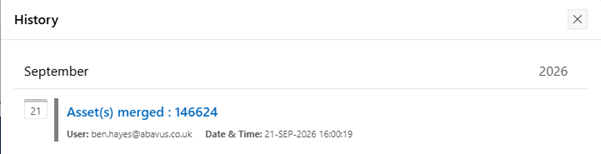
The asset merge action is visible on the Asset’s history:
Was this article helpful?
That’s Great!
Thank you for your feedback
Sorry! We couldn't be helpful
Thank you for your feedback
Feedback sent
We appreciate your effort and will try to fix the article