Introduction
About this guide
This guide has been written to describe how to import streets using the NSG format. This is used to categorise streets and sections of these streets.
Importing Street and Elementary Streets
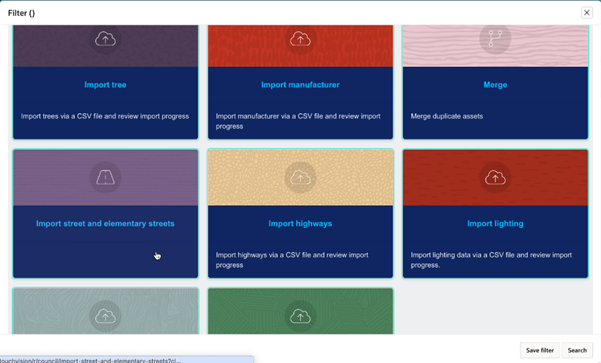
Go to Assets > Options > Import street and elementary streets
Enter the town to search. Once this is selected, enter the street to search, and then click Go.
All Elementary streets units will be visible. If ‘No Asset Assigned’ is selected, this will only display data which has not been used previously to create an Asset.
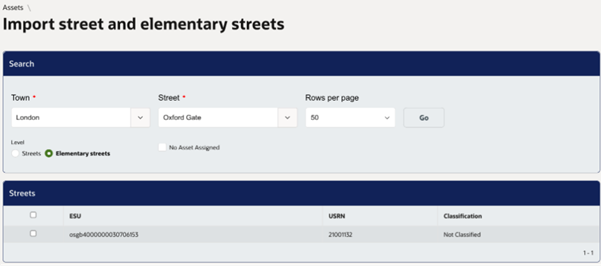
To Import a Street or ESU, select on the Streets/ESUs within the Streets section. Use the ‘All’ select to select all Assets.
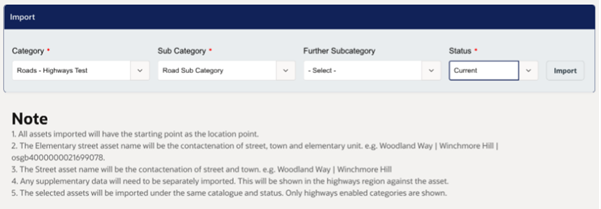
Once Streets or ESUs are selected, select an Asset Category and Subcategory.
Note - only Asset Categories will be displayed if the Highways option is enabled on the Asset Subcategory.
Select an Asset Status and Further Subcategory (if required, as this is not mandatory) then ‘Import’ to create Assets. Assets will be created within the Category and Subcategory that has been selected. The Asset will be created using the street | town | {ESU number}.
Was this article helpful?
That’s Great!
Thank you for your feedback
Sorry! We couldn't be helpful
Thank you for your feedback
Feedback sent
We appreciate your effort and will try to fix the article