Introduction
About this guide
The document provides instructions on configuring and using the Asset components in Forms Builder, detailing how to select asset categories and submit service requests using the asset dropdown component. If you want the assets to appear as pins on a map to be selected, please take a look at this guide:
Configuring the Asset Component
How do I create an Asset Component?
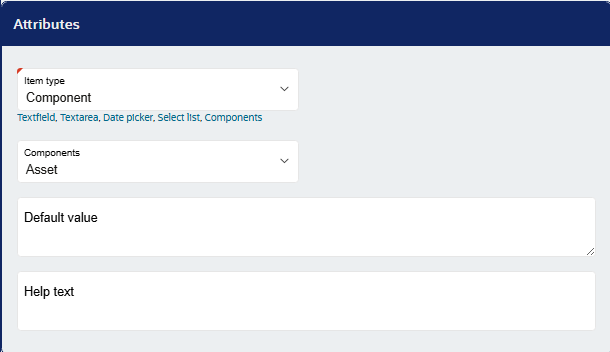
Firstly, go to Forms Builder, and add an item at the desired location. Next, select ‘Component’ as the item type, and ‘Asset’ plugin from the dropdown list:
After this, navigate to Advanced region:
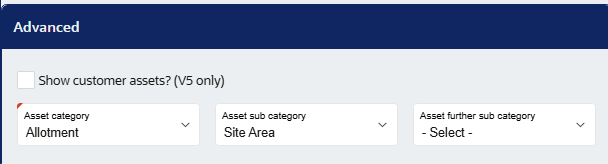
Select Asset category, sub-category and further sub-category as per the requirement and the relevant assets will be pulled through for selection when submitting the service request. Select the ‘show customer assets’ option if you would like the assets to show for customers.
Lastly, save and publish the form.
Asset Component – Submitter’s View
How does the submitter use this component?
On the Asset plugin page, a drop-down menu with the assets will appear:
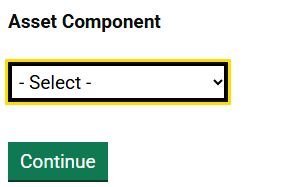
The submitter can select any asset on the list and then click on ‘view more information’. It will then display the details of the selected asset, along with where the asset is:
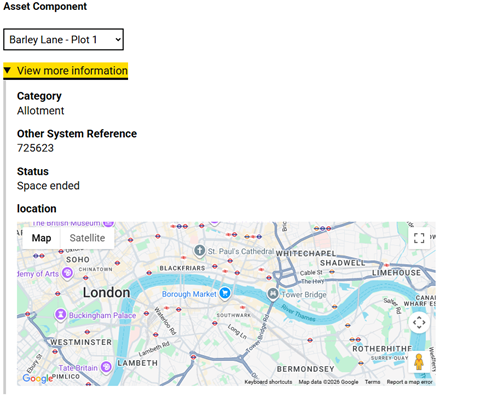
This component helps the submitter select the asset and view information about it.
Was this article helpful?
That’s Great!
Thank you for your feedback
Sorry! We couldn't be helpful
Thank you for your feedback
Feedback sent
We appreciate your effort and will try to fix the article