Introduction
About this Document
This guide explains how to configure and use the Asset and Asset Map components in Forms Builder, enabling submitters to select an asset from a drop-down list or an embedded map.
Multiple asset components and asset maps components can all be used on the same form.
Component configuration
Choose the component type, then set the asset category, sub-category and further sub-category to control which assets are available. For the Asset - Map component, also configure the button text.
List-based selection
Select an asset from the Asset component’s drop-down list. Choose “view more information” to display its details and location.
Map-based selection
Select an asset using a pin on the Asset - Map component’s embedded map. The selected pin turns blue, and the asset’s details appear below the map.
Document Contents
Asset Component
About the Component
This allows the submitter to select an asset from the Asset component’s drop-down list and choose “view more information” to display its details and location.
Configuring the Component
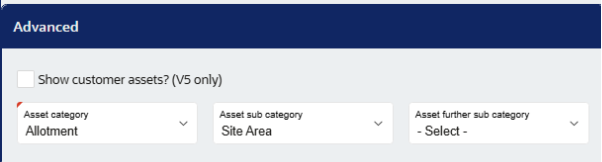
In the Advanced section of the item configuration, select the asset category, asset sub-category and asset further sub-category that needs to be displayed on the form.
Using the Component
All the associated assets are listed in a select list where the customer can select the relevant asset. This list is displayed in alphabetic order based off of the asset name.
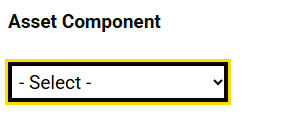
Upon selecting an asset, the information can be view by selecting the view more information hyperlink. The following information can be displayed when present on the asset:
Category
Other system reference
Status
Location view
Asset Map Component
About the Component
The asset map component allows customers to view a set of assets on a map view and select the relevant asset.
Configuring the Component
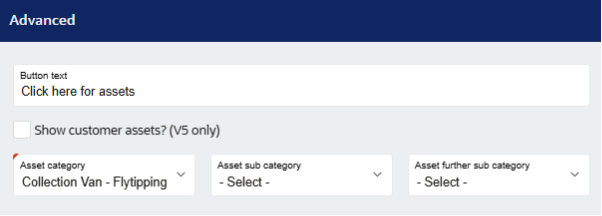
Select an asset category, only assets within the category will be shown to customers. The subcategory and further subcategory can also be selected to lock down the selectable assets further.
The show customer assets option changes the behaviour of the component so that only assets owned by the customer within the selected categories will display.
Map View
The assets display on the map as a red pin.
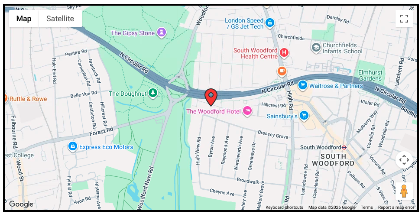
Once an asset is selected, the customer will be shown the name and categories of that asset.
Associated Asset
Asset on a service request
For each asset selected by either component, a link between the service request and the asset is created. The selected assets can be viewed and accessed under the assets section on a service request.

Was this article helpful?
That’s Great!
Thank you for your feedback
Sorry! We couldn't be helpful
Thank you for your feedback
Feedback sent
We appreciate your effort and will try to fix the article