Introduction
About this Document
This document explains how to configure and use three account components within forms:
- Guest Component
- Customer Component
- Me or Someone else Component
Topics covered:
- Access and account fields
- Updating customer information
- Organisation requests
- Profile picture guidance
- Customer portal view
Document Contents
Guest Component
About the Component
The guest component allows customers who are submitting anonymous requests to create a new account while filling in a form. Once an account is created for the customer, the service request will transfer over the account.
This component is intended to be used to give anonymous customers an option to create an account to track their requests progress or to stay anonymous. We do not recommend using this component to force anonymous customers to create accounts, instead switch off public access to the form as this will force customers to sign in or create an account before starting the form.
Component Configuration
The component will always show regardless of if the customer is signed in or not. This component is purely used for creating new accounts and cannot be used to sign into the portal; therefore, we recommend that the component is only given public access.
First name, Last name and Email are always present on the component and cannot be switched off. These fields are mandatory.
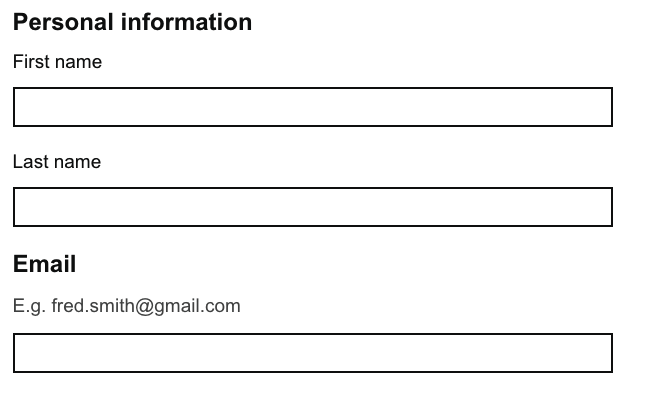
Other account fields can be displayed as required.
On the component under the advanced section is a list of fields that the component can capture. To enable a field, double click on the field name to bring it into the right-hand column.
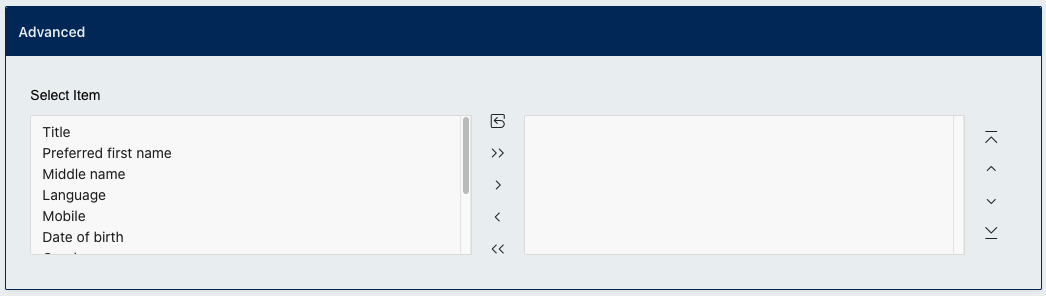
Any additional fields are optional for the customer to fill in.
Customer Component
About the Component
The customer component can be used to allow customers to update their account information while filling out a form.
This component can set certain account fields as mandatory, as well to ensure that customers have all the correct account information before continuing through a form. This is useful on forms that require a date of birth on the customer account as this component can be used to ensure that all customers have set a date of birth on their account before completing a request.
This component is only accessible to customers who are logged in. Any customer accessing the form as an anonymous customer will be prevented from continuing the form and show the following message.

Component Configuration
Enable master data update
If enabled, the component will overwrite any account information with the new information provided by the customer. Only selected fields will overwrite information on the customer’s account; any unselected fields will not be updated in any way.
If disabled, then the customers information will only be changed for that specific service request.
Please note: The account’s email address cannot be updated using this component.
Select item
A list of all possible account fields that can be shown to the customer. Select all relevant fields, there is no limit on the number of fields that can be displayed.
These fields will be treated as non-mandatory unless they are also added to the select mandatory item list.
Please note: First name and Last name are always treated as mandatory fields.
Select mandatory item
Controls which account fields are treated as mandatory. Do not select any fields here that have not been selected under the select item column as this can cause the component to break.
Both First name and Last name are mandatory by default; this cannot be changed.
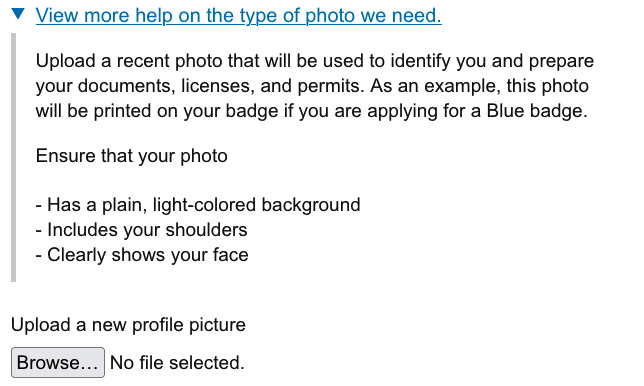
Profile picture title
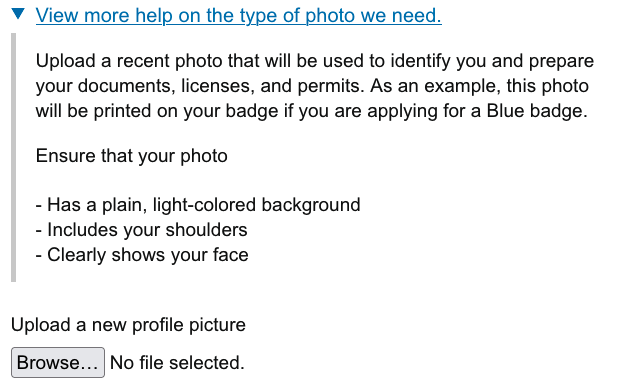
Controls the hyperlink text for the profile picture photo guidelines. By default, this is set to “View more help on the type of photo we need.”
Profile picture text
Controls the help text that is displayed when the profile picture hyperlink is clicked. This is a HTML text input box.
Organisation Options
If a customer is part of an organisation, they are presented with the option to either submit the request on behalf of their organisation, or for themselves.
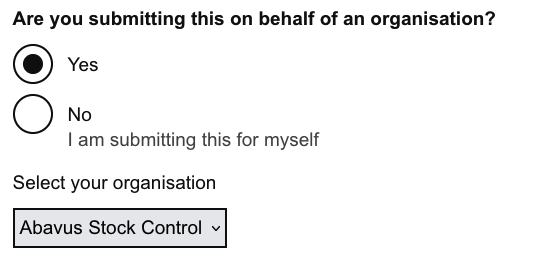
If “Yes” is selected, the customer will be presented with a select list of the organisations that are a part of. They can choose any organisation, and request will be submitted on behalf of that organisation and viewable to all other members of the organisation.
If “No” is selected, the request will only be submitted as a personal request, no organisation the customer is a part of can view that request.
Me or Someone else Component
About the Component
This component allows customers to either submit a request using their own account details or submit the request on behalf of someone else.
This component is heavily reliant on the customer relationships feature.
Component Configuration
Enable master data update
If enabled, the component will overwrite any account information with the new information provided by the customer. Only selected fields will overwrite information on the customer’s account; any unselected fields will not be updated in any way.
If disabled, then the customers information will only be changed for that specific service request.
Please note: The account’s email address cannot be updated using this component.
Select item
A list of all possible account fields that can be shown to the customer. Select all relevant fields, there is no limit on the number of fields that can be displayed.
These fields will be treated as non-mandatory unless they are also added to the select mandatory item list.
Please note: First name and Last name are always treated as mandatory fields.
Select mandatory item
Controls which account fields are treated as mandatory. Do not select any fields here that have not been selected under the select item column as this can cause the component to break.
Both First name and Last name are mandatory by default; this cannot be changed.
Profile picture title
Controls the hyperlink text for the profile picture photo guidelines. By default, this is set to “View more help on the type of photo we need.”
Profile picture text
Controls the help text that is displayed when the profile picture hyperlink is clicked. This is a HTML text input box.
Customer Portal View
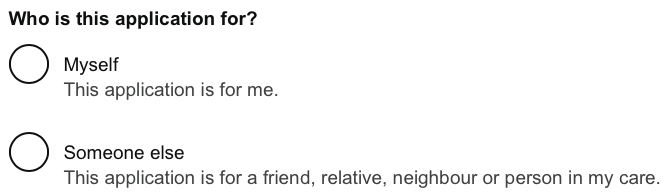
The component asks, “Who is this application for?” and presents the submitter with a radio selection of two options: Myself or Someone else.
Myself
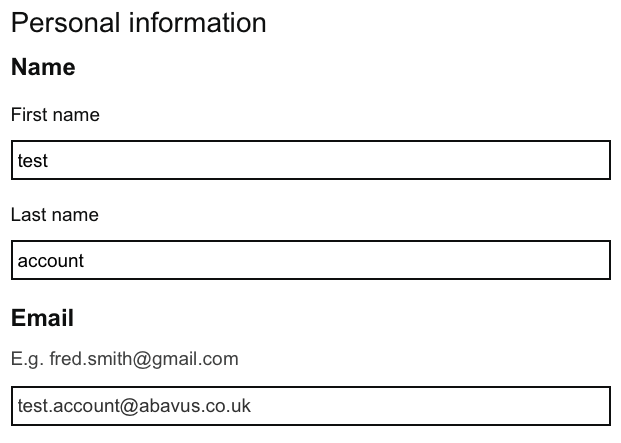
This option pre-populates the configured fields using the information held on the submitter’s account. Any details that can’t be found on the system must be completed by the submitter.
The options presented here are controlled by the select item field.
Someone else
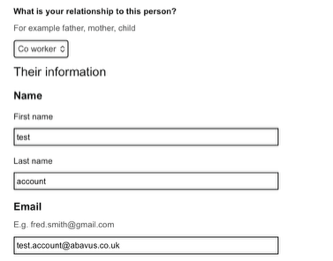
This option lets the customer either choose an existing relationship (if any are on record) or create a new one.
Please Note: The SR is still submitted under the logged-in account, not the selected relationship.
If a customer has existing relationships, they will be displayed on the relationships table. Customers can choose any of these accounts to submit on behalf off.
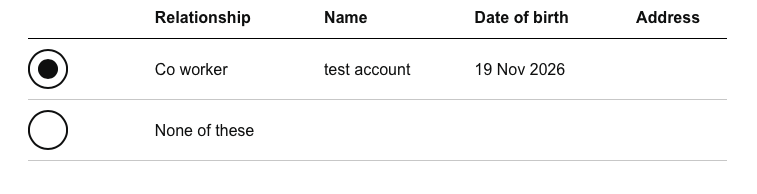
If there are no existing relationships or the customer wishes to raise the request on behalf of another customer, then they can select the “None of these” / “Add new” option.
Was this article helpful?
That’s Great!
Thank you for your feedback
Sorry! We couldn't be helpful
Thank you for your feedback
Feedback sent
We appreciate your effort and will try to fix the article