Introduction
This guide explains the date and time entry options available when building forms.
About this Document
The guide covers:
Date Pickers: the three keyboard types for selecting a date, a time, or both, along with their recorded formats and validation options.
Date Input: separate fields for entering a day, month and year.
Document Contents
Date Picker Component
Keyboard Types
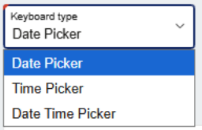
Keyboard types determine the data that can be passed into the data picker. There are three keyboard types: Date Picker, Time Picker, and Date Time Picker.
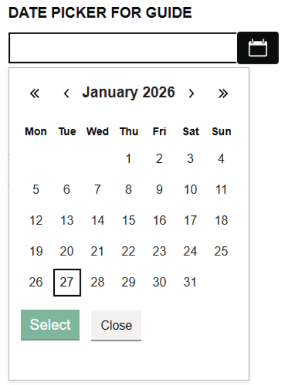
Date Picker
Selecting the item opens a calendar. Use the “<” and “>” buttons to move back or forward one month, or “<<” and “>>” to move back or forward one year. Select a date to set the item’s value. This is saved in the format DD-MM-YYYY.
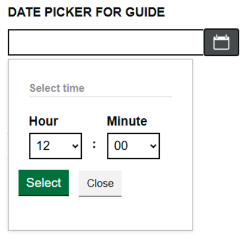
Time Picker
Selecting the item displays hour and minute selection lists. Choose the required hour and minute, then select “Submit” to set the item’s value. This is saved in the format HH:MM.
Date Time Picker
This option combines the previous two keyboard types. When selected, the following pop-up menu appears:
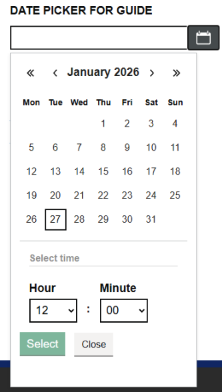
This data is saved in the format DD-MM-YYY HH:MM.
Validation options
Set validation to “Yes” to require a date before the submitter can continue.
The following validation rules are only available for the date picker and date time picker keyboard types:
Valid Date
This does not need to be used
Time Between
Restricts date entries to a fixed period defined by the “from” and “to” values.
Days From Now
Use “min value” and “max value” to set the earliest and latest selectable dates as a specific number of days before or after today.
Min value with a positive number
Sets the earliest selectable date to the specified number of days before today. Dates before this limit cannot be selected.
Example: If today’s date was the 13th and the min value was set to 5, then the earliest possible date that could be selected would be the 8th.
Min value with a negative number
Sets the earliest selectable date to the specified number of days after today. Dates before this limit cannot be selected.
Example: If today’s date was the 13th and the min value was set to -5, then the earliest possible date that could be selected would be the 18th.
Max value with a positive number
Sets the latest selectable date to the specified number of days after today. Dates after this limit cannot be selected.
Example: If today’s date was the 13th and the max value was set to 5, then the latest possible date that could be selected would be the 18th.
Max value with a negative number
Sets the latest selectable date to the specified number of days before today. Dates after this limit cannot be selected.
Example: If today’s date was the 13th and the max value was set to -5, then the latest possible date that could be selected would be the 8th.
Real configuration example
A user wants to configure a date picker so that the earliest date a user can select is one week in advance, and then the latest date the user can select is one week after the earliest day that can be selected, essentially opening up a 7-day window that it one week in the future that the user can select from.
To achieve this, the user would have to set the min value as -7, and the max value to 13.
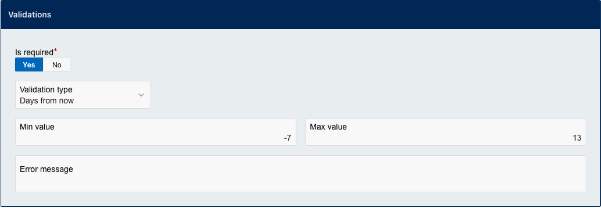
In this example, the date is the 16th of November 2026, so the dates would be displayed to the user as follows:
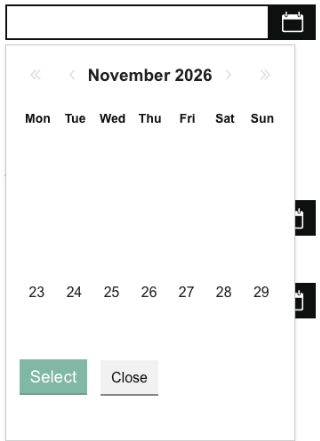
Any dates that lie outside of the configured range are not displayed to the user and cannot be selected.
Months From Now
Applies the same range restrictions in months. Dates outside the permitted range are not displayed and cannot be selected.
Years From Now
Applies the same range restrictions in years. Dates outside the permitted range are not displayed and cannot be selected.
Date Input Component
This component can be found under item type “Components” and then select “Date input”.
When this should be used
Use Date Input for dates far in the past or future, such as an older person’s date of birth. This avoids the time-consuming task of navigating through the Date Picker calendar to reach a distant date.
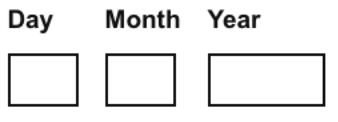
This data is saved in the format: DD-MM-YYYY.
If you cannot find this component, please contact isupport@abavus.co.uk.
Was this article helpful?
That’s Great!
Thank you for your feedback
Sorry! We couldn't be helpful
Thank you for your feedback
Feedback sent
We appreciate your effort and will try to fix the article