Contents
- Introduction
- Creating a Cemetery Asset Sub-Category
- Adding a Burial Asset
- Adding Burials to Cemetery Assets
- Configuring a Memorial Asset
- Uploading Cemetery Assets
- Importing Accounts
Introduction
About this guide
This guide has been written to explain how to configure cemeteries.
Cemeteries is a comprehensive module that allows for cemeteries, memorials, cremations, and burial data to be logged for auditing.
Creating a Cemetery Asset Sub-Category
Configuring a Cemetery Sub-Category
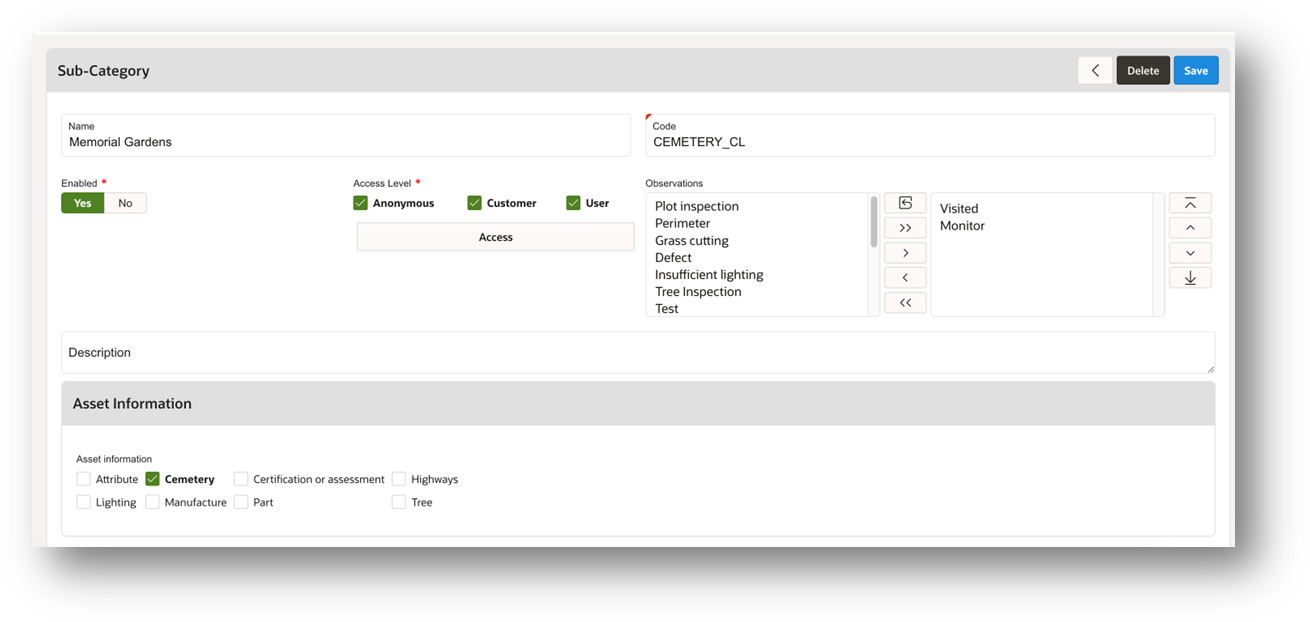
Firstly, you will need to create an Asset sub-category and configure the ‘Cemetery’ tag to the sub-category.
To do this, navigate to Administration > Asset > Category.
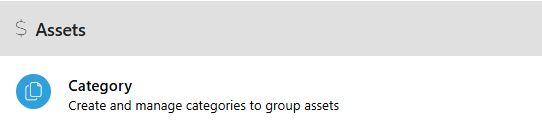
Then, add an asset category, or edit an existing one. Here you can create or edit a sub-category.
Tick the Cemetery box under ‘Asset Information’ against this sub-category:
Adding a Burial Asset
Now, an asset can be created against the cemetery sub-category configured previously.
To do this, go to the Asset module on the left-hand side menu, and then click ‘add’ in the top right corner.
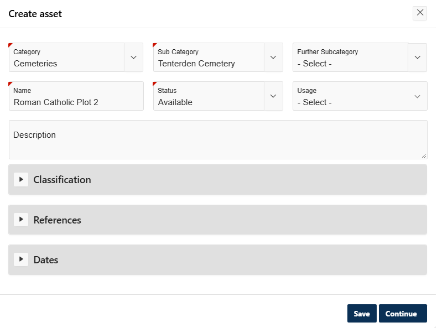
On the ‘Create Asset’ pop up, enter a name for the asset, and then select the cemetery category and sub-category:
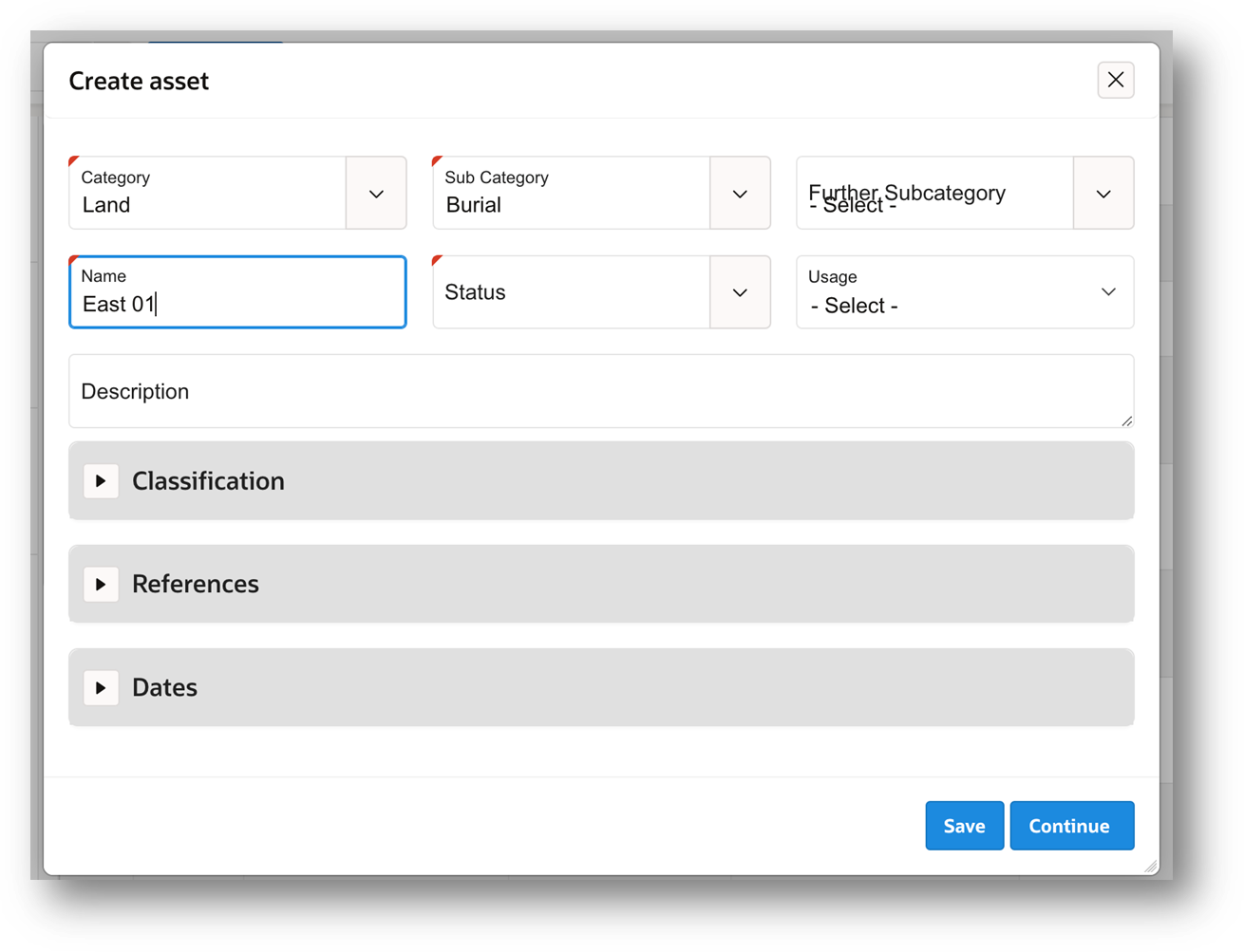
Now, click ‘Continue’ to add the burial to the asset.
Adding Burials to Cemetery Assets
Configuring Burials
Once the asset is created, navigate to Add > Burial on the right-hand side menu.
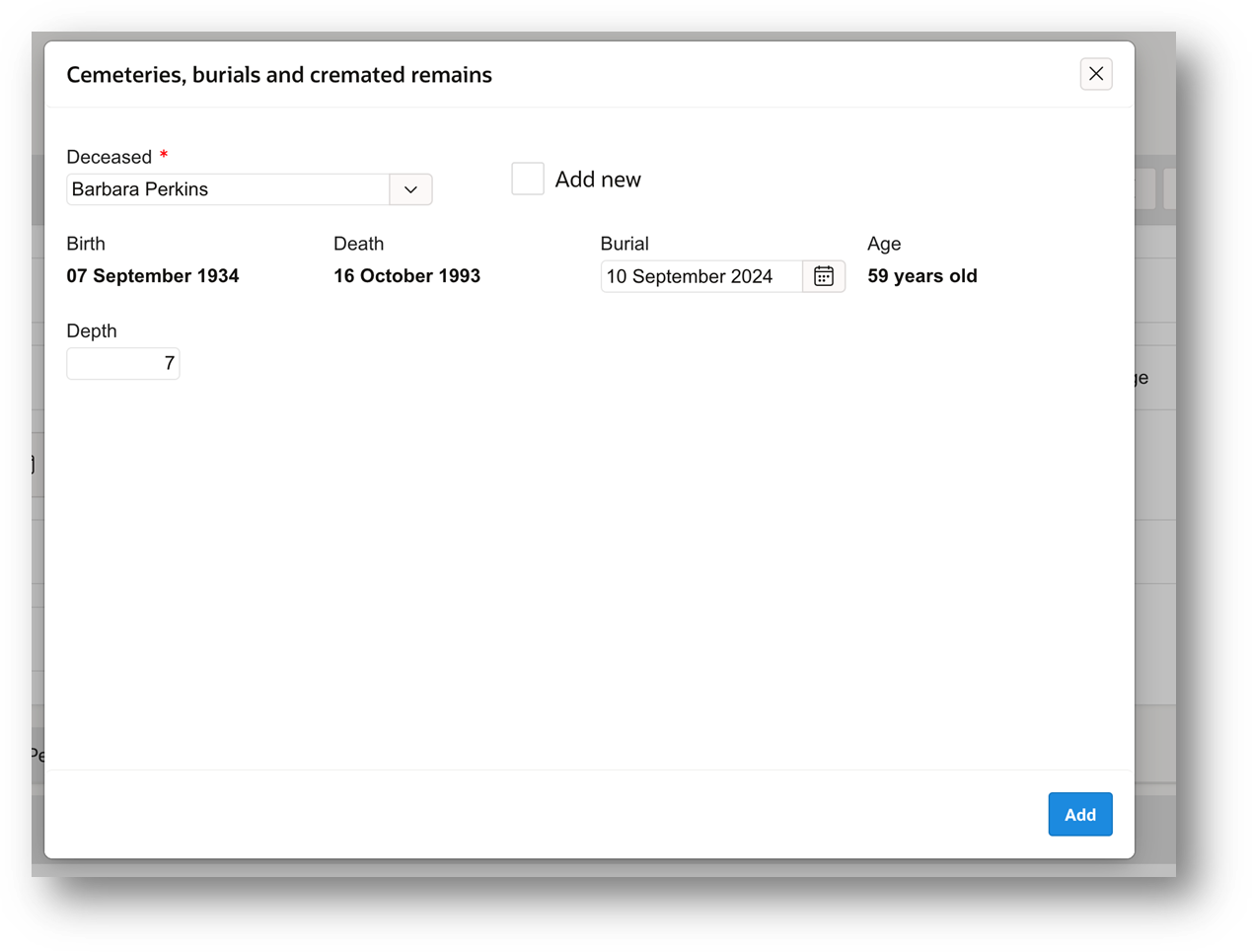
Select the person from the list or add a new record. Accounts with the ‘deceased’ status will appear here.
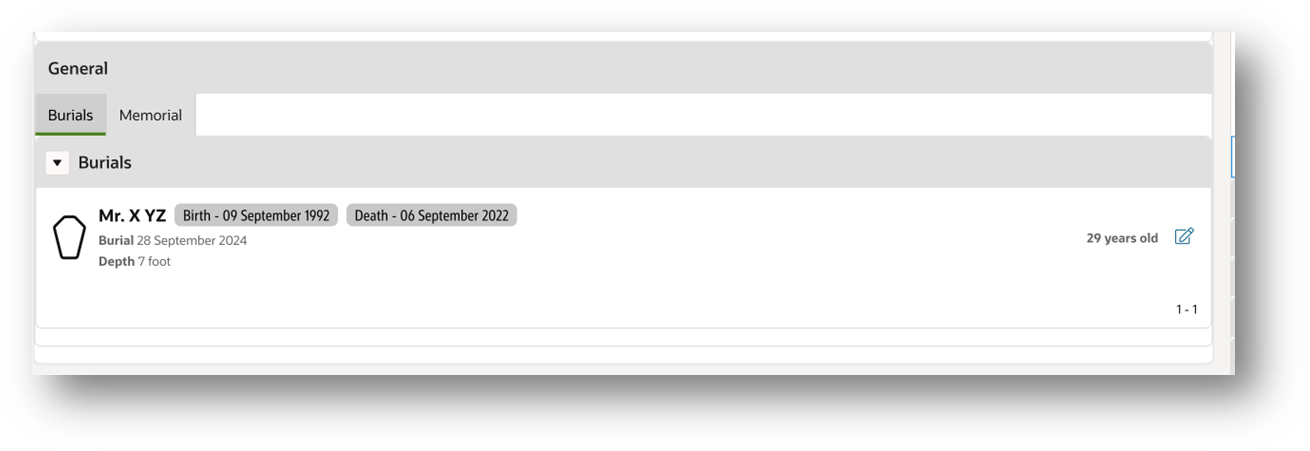
The birth and death date along with the age of that person will be shown matching the records from the system.
Now, select the burial date and then enter the depth of the burial which should be between 3 and 10 feet.
If the person is not in the system, click ‘add new’ to add the person manually:
Once added, the burial record will be displayed in the ‘General’ region of the Asset detail page:
Configuring a Memorial Asset
Creating a Memorial Asset
Now, a memorial can be added to the system to be linked to the ‘Plot’ asset.
Like the cemetery asset, you must first configure a Memorial asset category with a sub-category with the ‘cemetery’ tag enabled. It is recommended that a separate category is configured for this.
Once you have created the asset category, navigate to the Asset module on the left-hand side menu, and create another asset, selecting the memorial asset category with the configured sub-category.
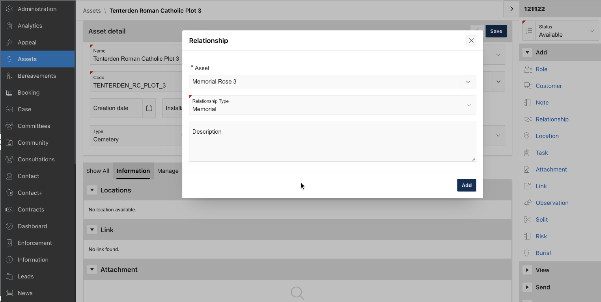
Once the Memorial asset has been created, navigate to add > relationship and select the previously created Plot asset. This will allow for the plot asset to be linked to the memorial asset.
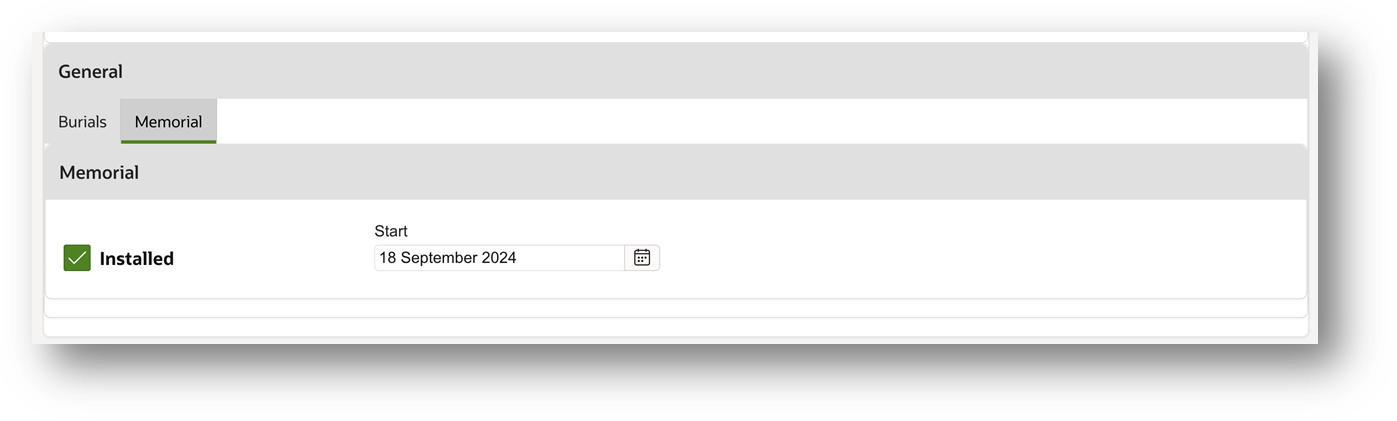
Additionally, you can mark the memorial on the plot asset with the installed check box and the start time.
Uploading Cemetery Assets
Bulk Uploading Cemetery Assets
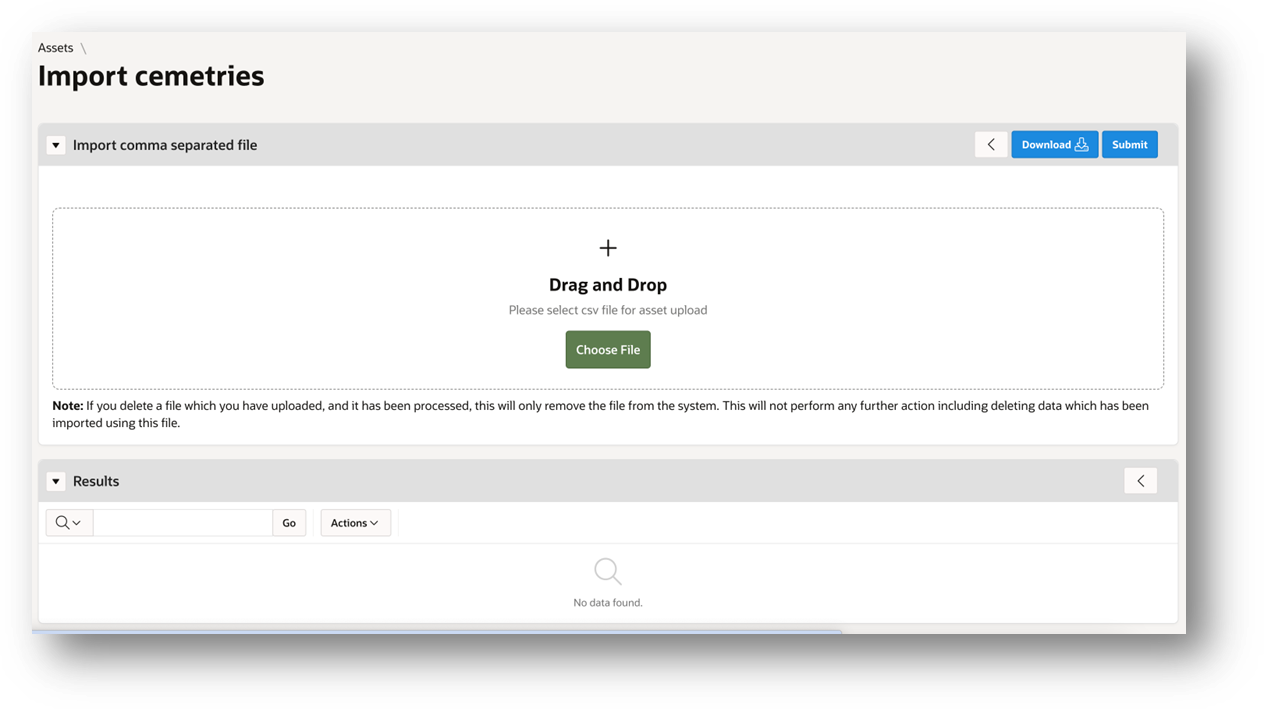
If you want to import cemetery records in bulk, navigate to Assets > Options > Import cemeteries.
Next, download the template via the ‘download’ button to check the format in which the records should be imported.
After this, configure the CSV file with the records according to the template and submit it.
Importing Accounts
Importing Deceased Accounts
You can import customer accounts onto MCS, where a date of death can be configured against each entry.
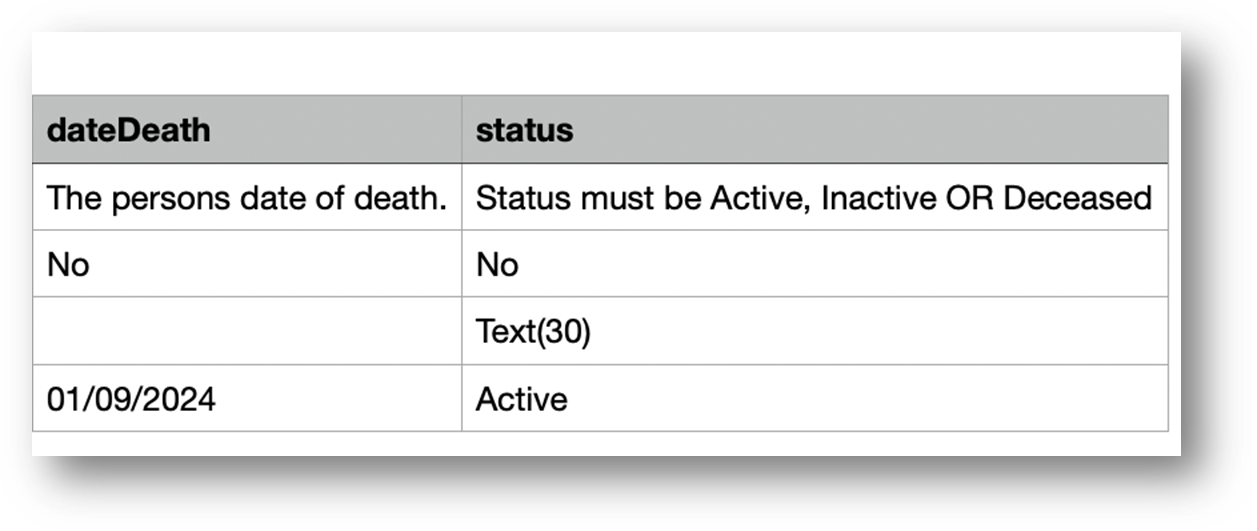
Firstly, go to Community > People > Upload. Similarly to the asset import, you can download a template .csv file to check the formatting of the upload file.
On this upload, you can configure the account’s Status and Death Date. For a person to be marked as deceased, it is necessary to set the status to ‘Deceased’. If the account exists in MCS already, you can manually set the status to ‘Deceased’.
Was this article helpful?
That’s Great!
Thank you for your feedback
Sorry! We couldn't be helpful
Thank you for your feedback
Feedback sent
We appreciate your effort and will try to fix the article