Contents
TABLE OF CONTENTS
Introduction
About this guide
This guide has been written to explain how to add products and timers to Tasks. This allows Administrators to provide more information about tasks and allows users to record how long they spend completing certain tasks.
Pre Requisite - Mapping Products to Task Types
Adding products against task types allows the product to appear in the list against tasks, both in the Admin Portal and in MobileOps.
To do this, go to the task type, then click on ‘Add > Parts or Products’ on the right-hand side menu and select the product:
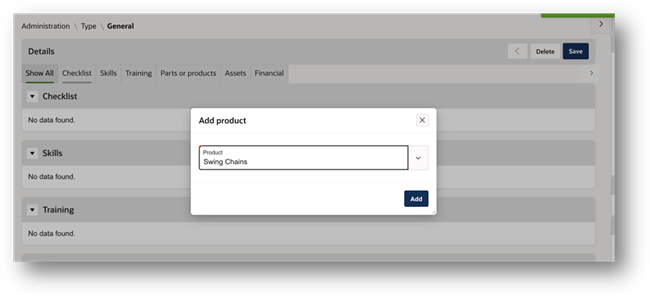
Adding Products to Tasks
Once the products are mapped against the task type, then the products can be added for the new or existing tasks.
Admin Portal
Go to the task you want to update, then select Add > Product on the task detail page:
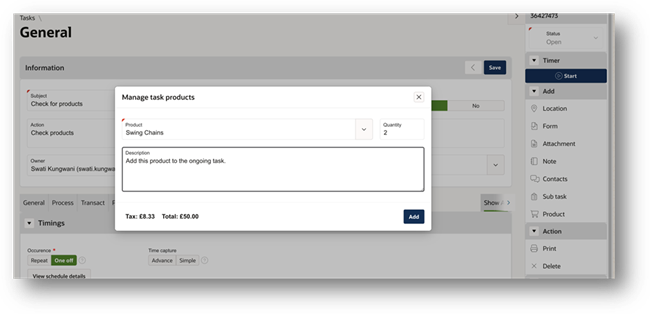
Select the product from the list, enter the quantity, and the total amount will be shown at the bottom of the screen as per the product configuration.
MobileOps
In the MobileOps app, you can add products when creating a new task or editing an existing task. Select the product, enter the quantity, and it will be added to the task:
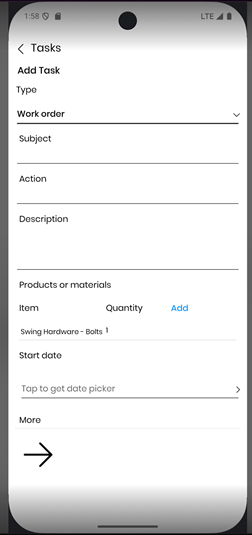
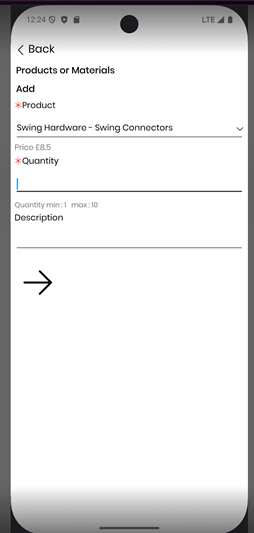
You can add a product to a task from any touchpoint where task creation is available, such as Inspect > Observations > Add task.
Adding from Task List
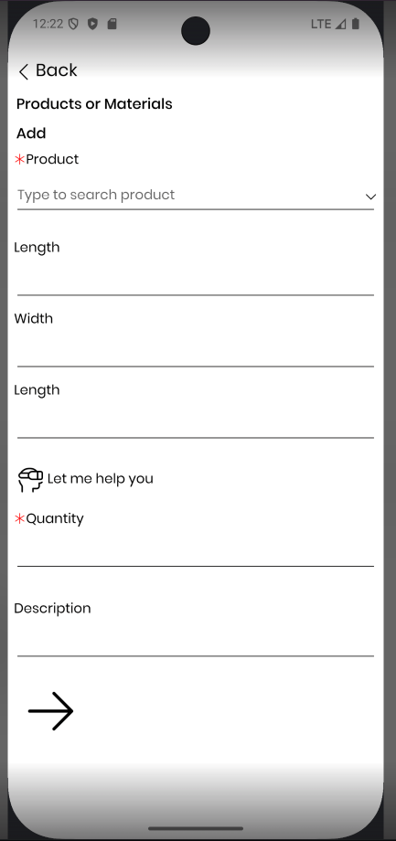
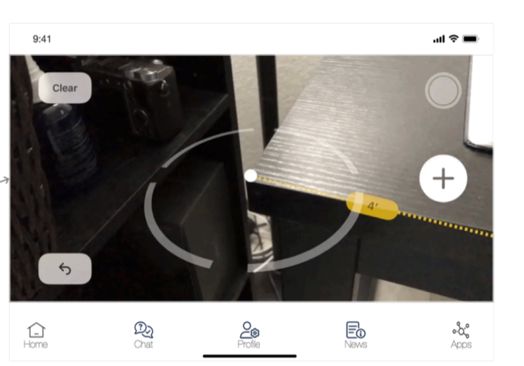
Adding a product to a task from the Work module in MobileOps provides the “Let me help you” function, which enables measurement calculation using the mobile device’s camera.
To access this function, go to Work > Task Details > Actions > Add products or materials.
Tap on ‘Add’ to add a product, then ‘Let me help you’ to enable the camera’s measurement calculating functionality:
Adding Timers to Tasks
Adding timers to tasks helps administrators record how long a task, or part of a task, takes. This supports time management and analytics, and timers can be added through both the Admin Portal and MobileOps.
Admin Portal
To add a timer to a task, navigate to the task detail page.
At the top right corner, the ‘Start’ button begins the recording of time against this task.
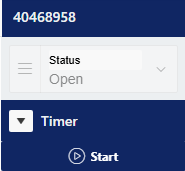
Once ‘Start’ has been pressed, you can click ‘Stop’ to stop the timer when appropriate.
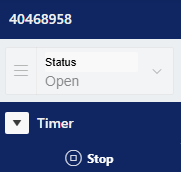
The duration will be recorded once the timer is stopped and shown in the ‘Time’ region.
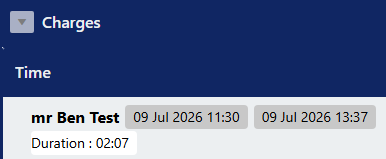
If you need to edit the recorded time, use the edit button in the Time region.
Note – The timer will only record the time against the user who is logged in via the administration portal.
MobileOps
To add a timer to a task on MobileOps, navigate to Work > Task detail > Actions > Add time. There are two ways to record time:
- Timer - Starts a timer for the selected person and records time until the timer is finished.
- Duration - This will allow the user to add a duration against the selected person for a specific date.
You can select the person from the list of Mobile Workers.
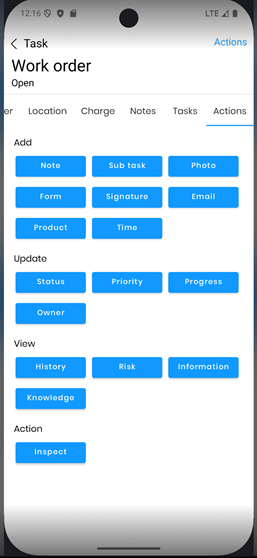
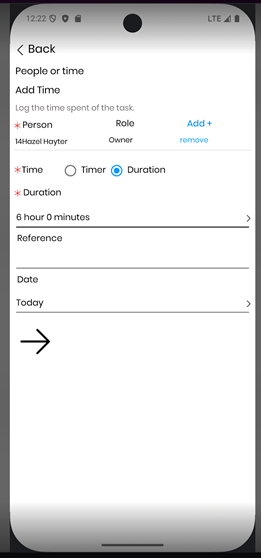
Once configured, the option is available to remove these times if needed.
When a timer is active for a Mobile Worker, the elapsed time is shown on the app home page for ease of use:
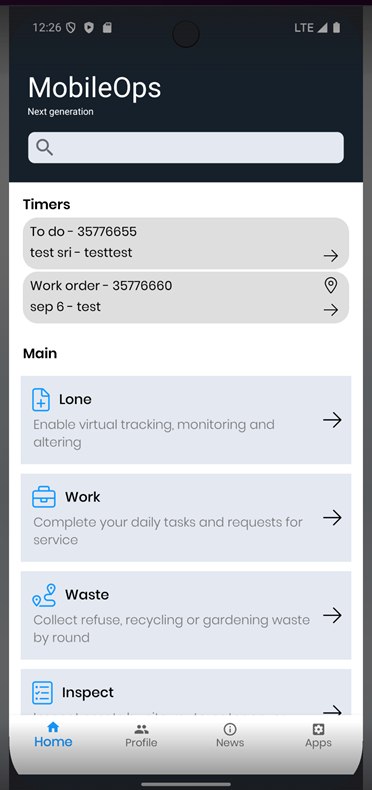
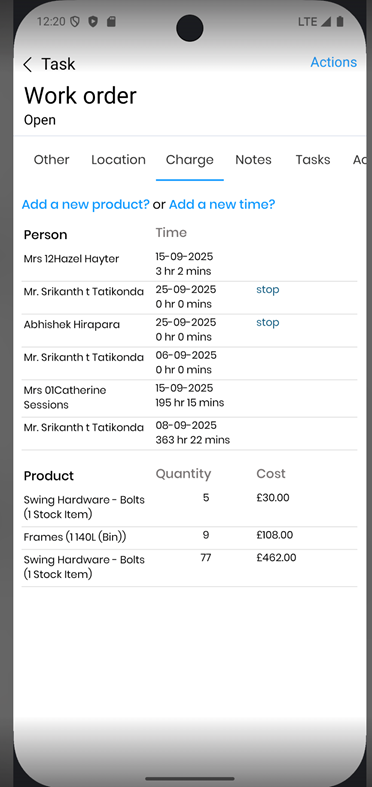
Tap “Stop” to stop the timer when required. The time is recorded under the “Charge” section of the task:
Was this article helpful?
That’s Great!
Thank you for your feedback
Sorry! We couldn't be helpful
Thank you for your feedback
Feedback sent
We appreciate your effort and will try to fix the article