Introduction
About this guide
This guide explains the main ways administrators and mobile workers can view tasks, including the Admin Portal, Task Calendar, Task Desk, Task Planner, MobileOps and linked Service Requests.
Task Module
Viewing Tasks via Admin Portal
The first way to view tasks is through the Tasks Module. To access the Tasks Module, select ‘Tasks’ from the left-hand menu.
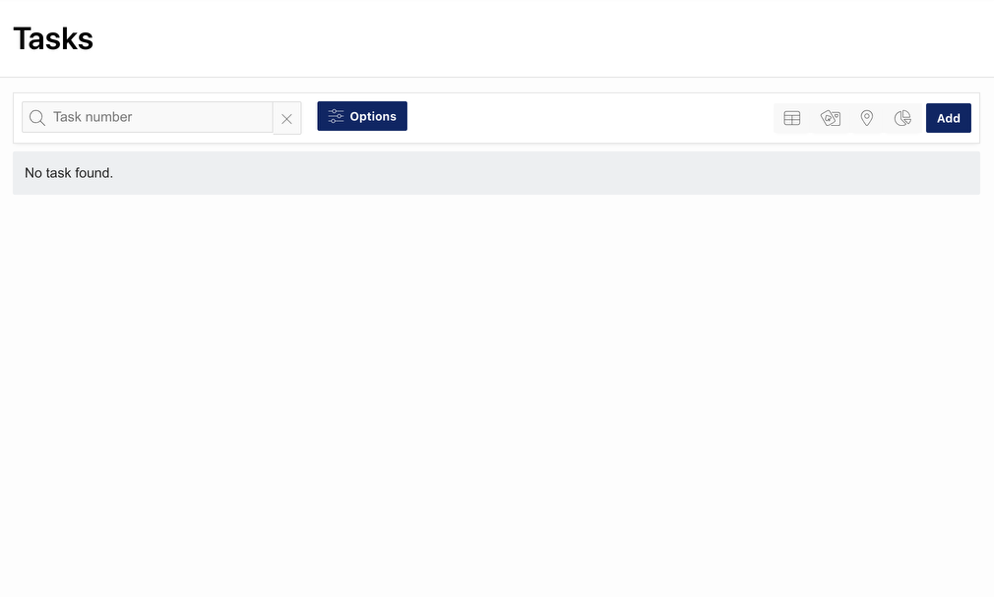
If you know the specific Task ID, enter it in the ‘Task Number’ search bar.
To search more broadly, select ‘Options’ and use the available filters:
- Type – This must be selected
- Status – This is mandatory
- Owner
- Priority
- From / To Date
After selecting the required filters, select ‘Search’ at the bottom of the pop-up.

At the top of the Task page, you can change how tasks are displayed by selecting one of the available view options:
 List View – This is the default task display:

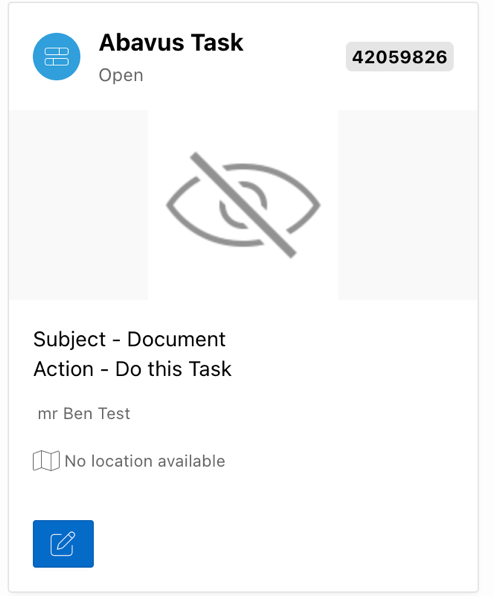
 Card View – This displays tasks as cards:
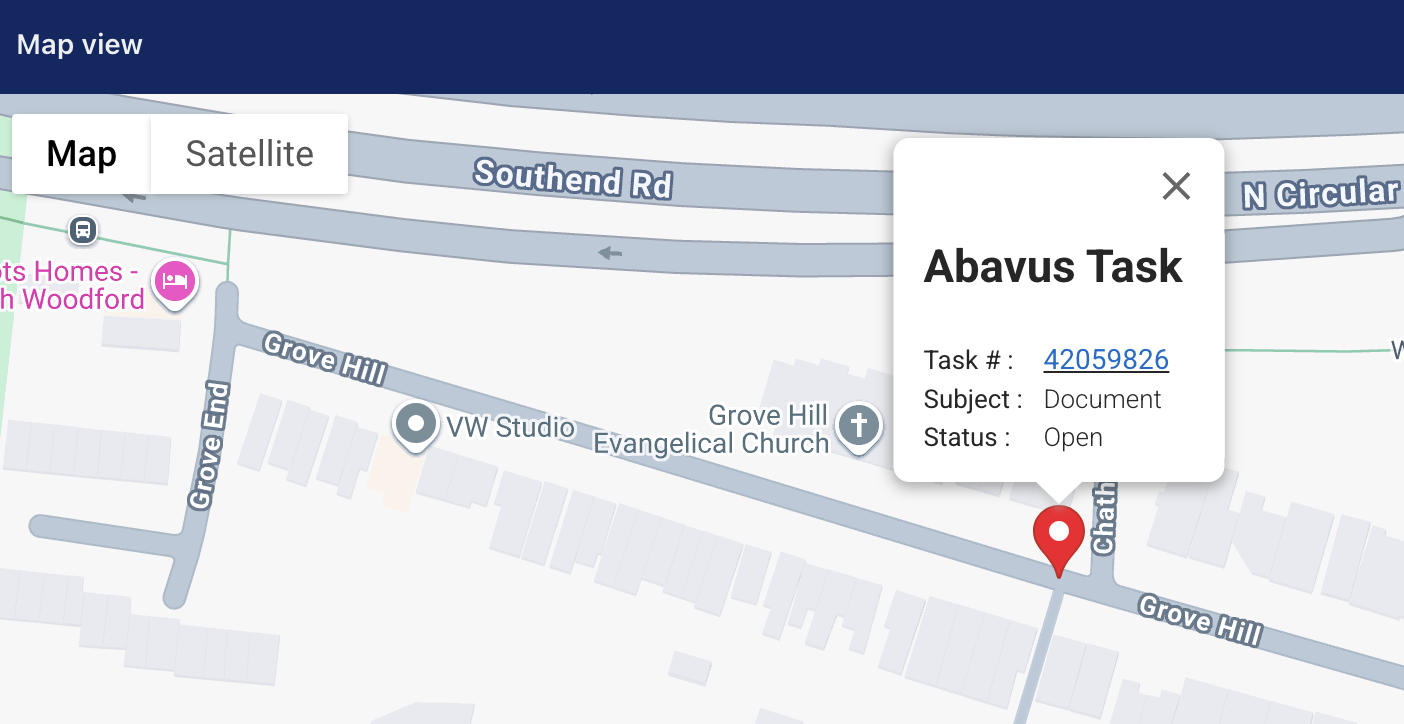
 Map View – This opens an embedded map and displays tasks as pins. Select a pin to view task information, then select the Task ID to open the task.
Task Calendar
To access the Task Calendar, go to Tasks > Options > Task Calendar. To view repeat tasks, select Repeat Tasks Calendar instead.
Use the Task Calendar to quickly identify tasks assigned to specific users and view them in a calendar format:
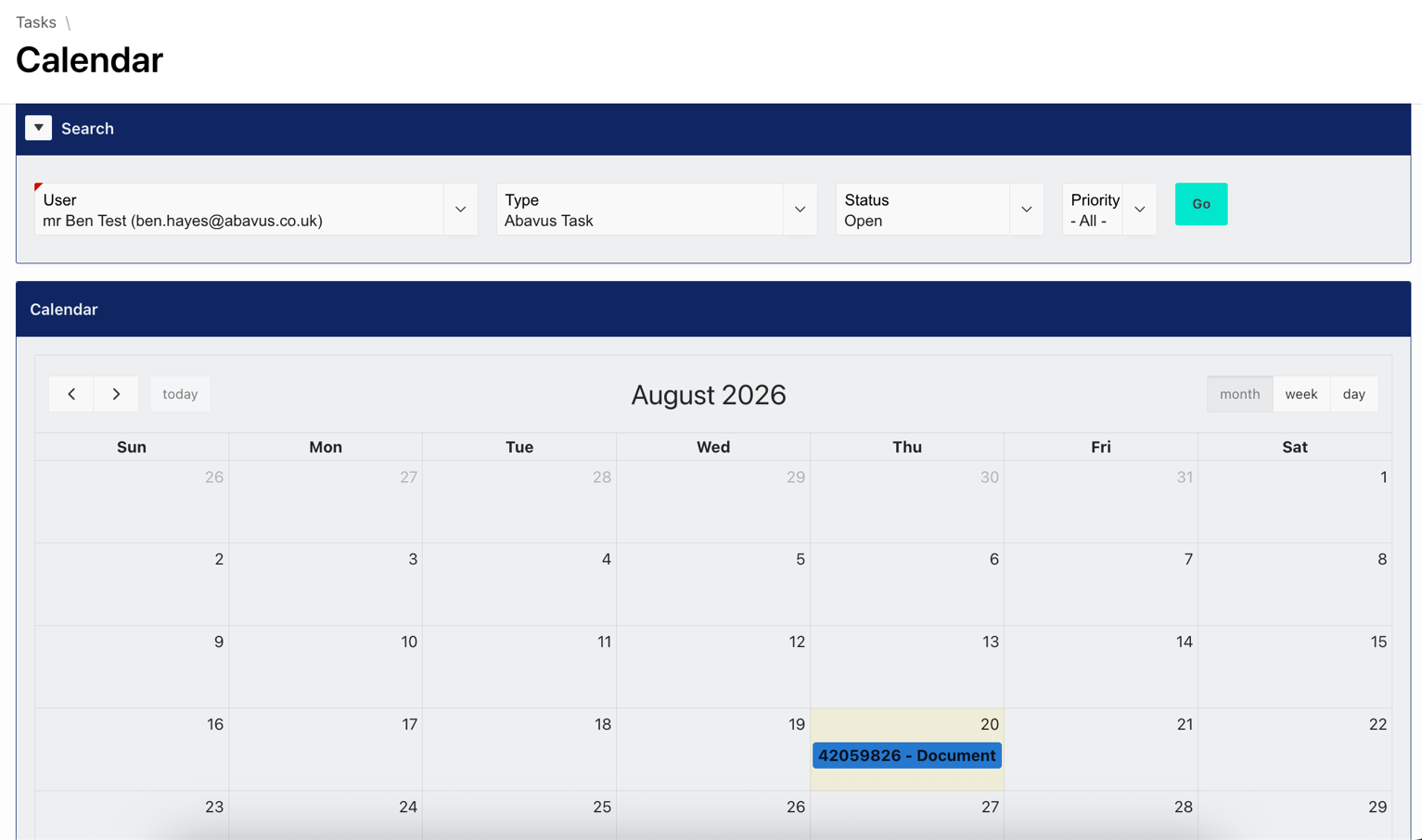
The User, Type, and Status filters must be selected before tasks appear.
Task Desk
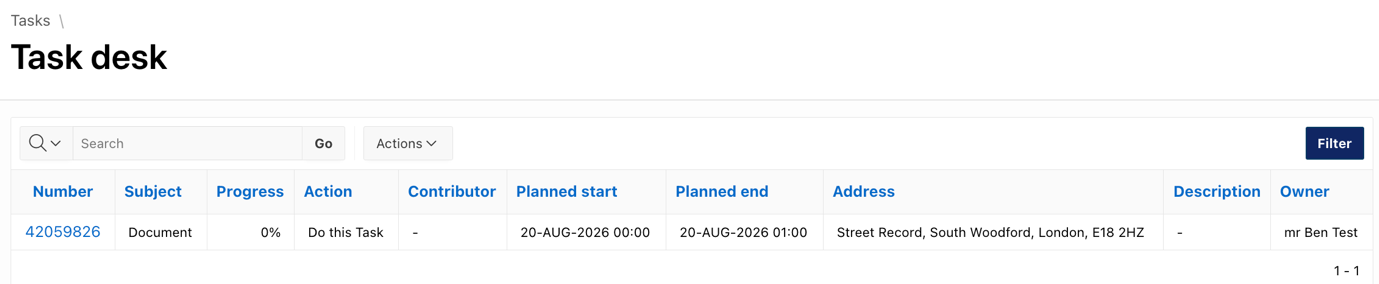
Task Desk displays tasks in a similar format to Service Desk and includes additional information such as Progress, Action, and Contributors.
To access Task Desk, go to Tasks > Options > Task Desk
Task Planner
Task Planner allows you to search for tasks assigned to multiple users at once. This is useful when you need to see what multiple mobile workers are doing.
These tasks are displayed based on the date / time:
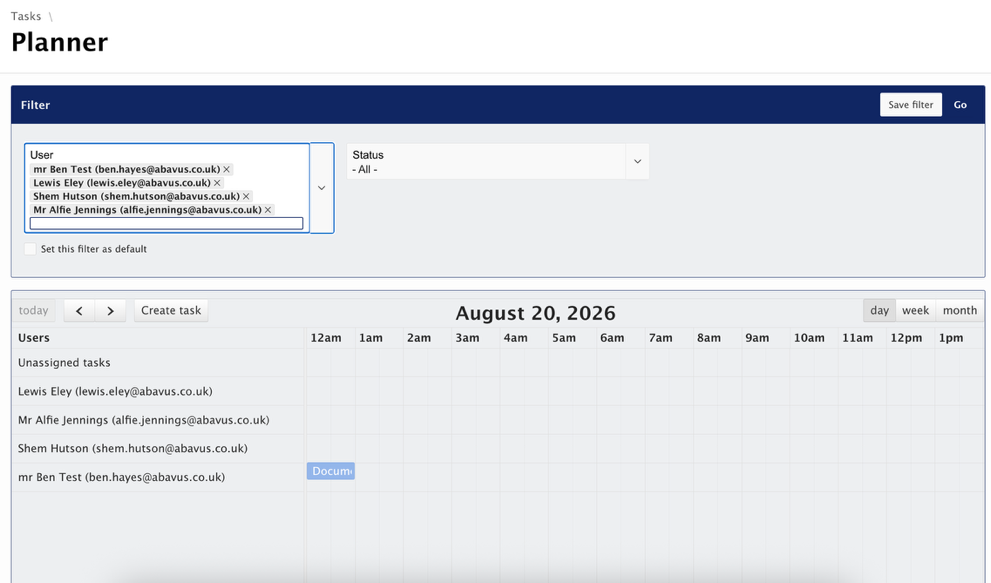
You can filter tasks by day, week, or month. Unlike other task menus, you do not need to select a status or type before searching.
MobileOps
Viewing Tasks Remotely
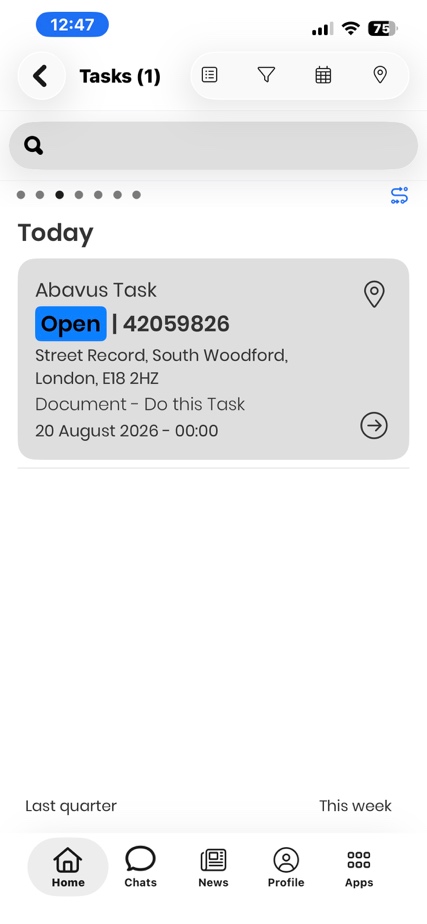
The MobileOps app connects tasks created in the Admin Portal to mobile devices, allowing mobile workers to view, update, and close tasks remotely. To view tasks in MobileOps, open the app and go to ‘Work’.
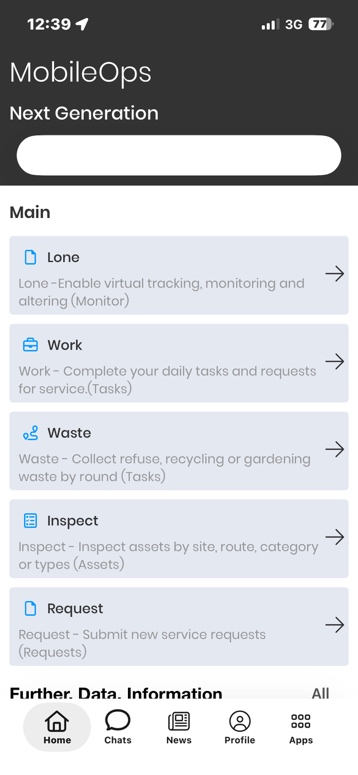
From here, mobile workers can see the tasks that meet both of the following criteria:
- The mobile worker’s user account has the required access roles.
- The mobile worker is the owner or contributor for the task.
Linked Tasks
Viewing Tasks via Service Requests
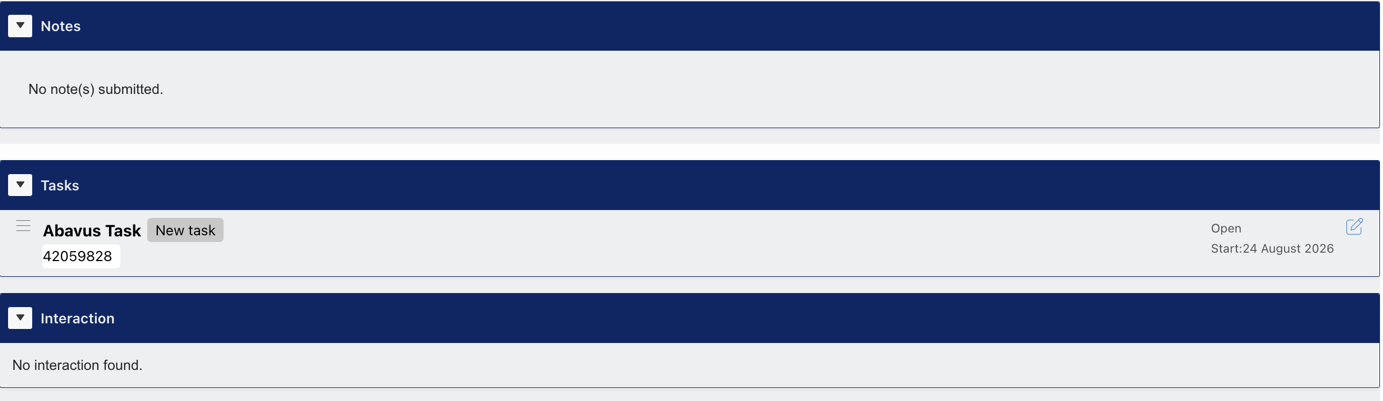
When a task is created from a rule attached to a Service Request, the task appears in the ‘Task’ area of that Service Request. This allows administrators to navigate quickly between the Service Request and its related task.
Was this article helpful?
That’s Great!
Thank you for your feedback
Sorry! We couldn't be helpful
Thank you for your feedback
Feedback sent
We appreciate your effort and will try to fix the article