About this Document
Who is this guide for
This guide is intended for operatives who use MobileOps to manage their Service Requests.
About the modules
MobileOps sends information to an operative's smartphone or tablet, allowing them to receive public reports and gather more on-site details. Operatives manage tasks, handle service requests, and conduct inspections.
To access MobileOps, download the app from Google PlayStore or Apple’s AppStore.
With MobileOps, operatives can:
- Automatically receive relevant reports
- Update and add information on site
- Take on additional work while in the field
This allows:
- Efficient work planning to minimize travel
- Elimination of report duplication (avoiding re-entry in the office)
- On-site information collection and system updates, including notifying the reporter
Internet connectivity is required, but some functions work offline, enabling operatives to record data and sync when back online.
Mobile Ops Modules
Work
When a task is assigned to a user, they can view all details including location, photos, and history. Users can update and complete the task as needed.
Waste
Users have access to collection tasks organized by round and can navigate routes turn by turn while updating collection tasks with relevant information.
Inspect
Users can make observations on assets, add notes and photos, and generate associated tasks through the inspection feature of the app.
Request
Users can submit new service requests, allowing them to report issues or request additional items.
Lone
Allows a User to set an alarm, check in and raise an alarm as necessary when working in a lone setting.
Mobile Ops - Profile
Logging in and Viewing your Profile
Install the MobileOps app on a smartphone or tablet with internet access. When you open the app, you will see the following screen:
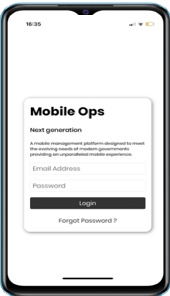
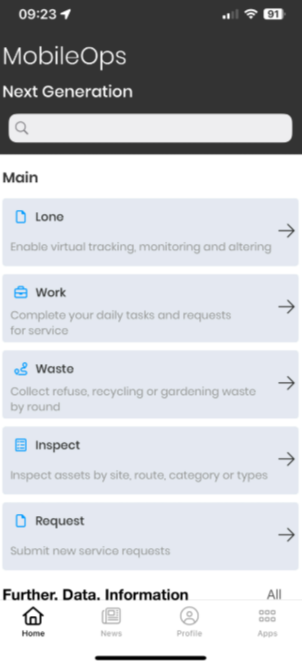
Log in using your Admin account. Once logged in, the ‘Home’ screen appears. Select the Profile icon at the bottom of the screen.
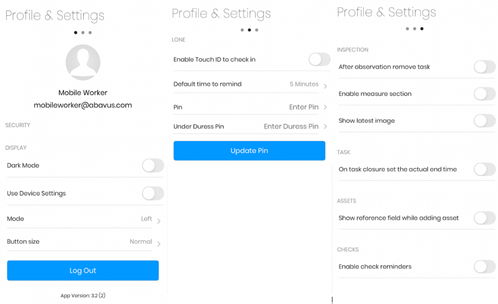
The Profile screen has three pages that you can scroll through by swiping left or right.
The initial page shows user details for the currently logged-in user. From here, a user can:
- Enable Dark Mode
- Use device settings
- Set mode to left or right
- Choose button size (Normal or Large)
- Log out
You can also view the installed app version.
Other pages offer settings for Lone Worker and Inspection, which are covered in other sections of the documentation.
Mobile Ops - Request
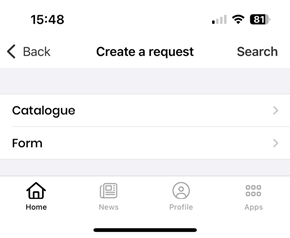
Adding New Request
Users can submit new service requests, allowing them to report issues or request additional items.
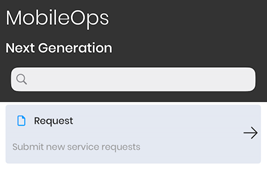
The User can select the Catalogue and Form to complete and Submit a Service Request. Any access permission will be applied to the user during completion of the Service Request.
Mobile Ops - Service
Working with Service Requests
Users can view any service requests which are allocated to them, allowing them to work with the service request and to further update.
To access Service Requests, either the User can select ‘All’ on the Home page adjacent to ‘Further, Data, Information’ or select ‘Apps’ on the profile bar. The user will be taken to the Apps page. From here, the User can select ‘Service’ to access any Service Requests allocated to them.
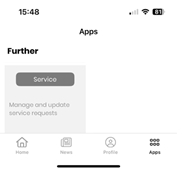
Service Requests are displayed in descending date order and are grouped into the month of the submission.
At the top of the screen, there are several options:
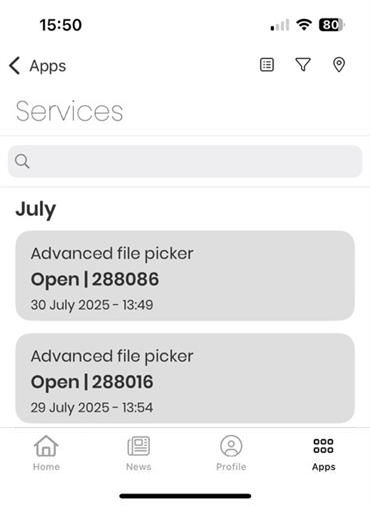
1.) The first button offers ‘Advanced search’, ‘Add task’, ‘Optimise route’, ‘View bookmarks’, and ‘Filter and sort’.
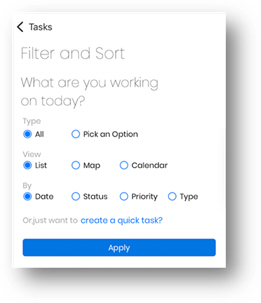
2.) The second button offers ‘Filter and Sort’ by Service Request Form, Date, Status and Priority
3.) The last button shows Service Requests on a map.
4.) A search functionality is available to search by the Service Request Id or Address.
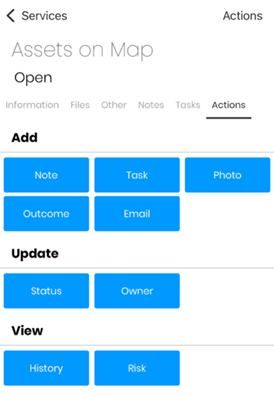
Once a Service Request is selected, different ‘tabs’ are displayed.
Information
The information tab displays information including the Service Request ID and date of submission, all question and answer values.
Files
The Files tab displays any images or documents uploaded to the Service Request. This will consider any role base access applied to the document type.
Other
The Other tab displays any locations associated with the Service Request.
Notes
The Notes tab displays any notes associated with the Service Request. This will consider any role base access applied to the note type.
Tasks
The Tasks tab displays any tasks linked with the Service Request. This will consider any role base access applied to the task type.
Actions
The Actions tab displays all actions which can be performed on the Service Request.
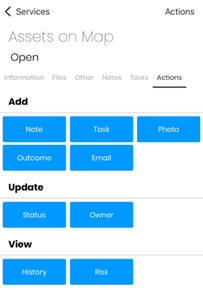
Add
- Note – add a note
- task – add a task
- Photo – take a photo or add from a library
- Outcome – add an Outcome
- Email – send an email from the task; this will send from the default email account set on the user's device
Update
- Status – update the status of the Service Request
- Owner – update the owner of the Service Request
View
- History – view all actions undertaken on the Service Request
- Risk – view any risk information recorded against the Service Request
Mobile Ops – Service - Options
Filtering and Advanced features
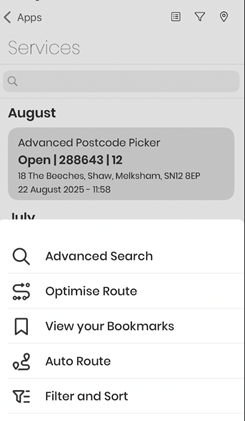
Advanced Search
- Allows users to select tasks by Status, Task Type, Allocation and Date. Allocation allows a worker to ‘pick’ work from unallocated tasks.
Optimise Route
- Service Request can be selected and optimised.
- The starting position will be taken at point of optimisation from a GPS position on the device
- Service Requests will be listed in optimum driving route based on distance
- Only Service Requests with a location are selectable here
- The device must allow access to ‘location’ through settings for MobileOps
View your Bookmarks
- Lists any bookmarked tasks
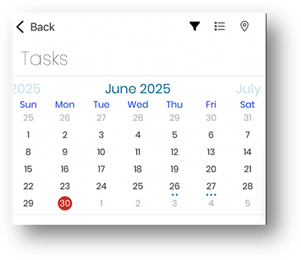
Mobile Ops – Service: Calendar view
Service Requests can be viewed using a calendar view, as shown below:
Mobile Ops – Service: Filter and Sort
Filter and sort allow a user to filter and sort by date, status, priority and type.
Mobile Ops - Work Offline
Working Offline on MobileOps
MobileOps app supports offline data synchronization for Tasks enabling users to use the app without network access.
The following steps need to be followed for a user to work offline:
- The task list must be retrieved within ‘Work’ with network connectivity.
- A user can then undertake the following operations once in offline mode
- Add notes
- Add charges
- Add/update priority
- Add sub-tasks
- Add photos
- Add task forms
- Update status
- Update checklist
- Update time
- Tasks can be updated while offline.
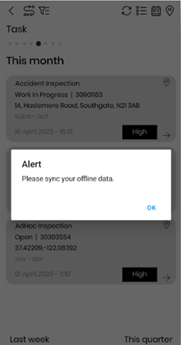
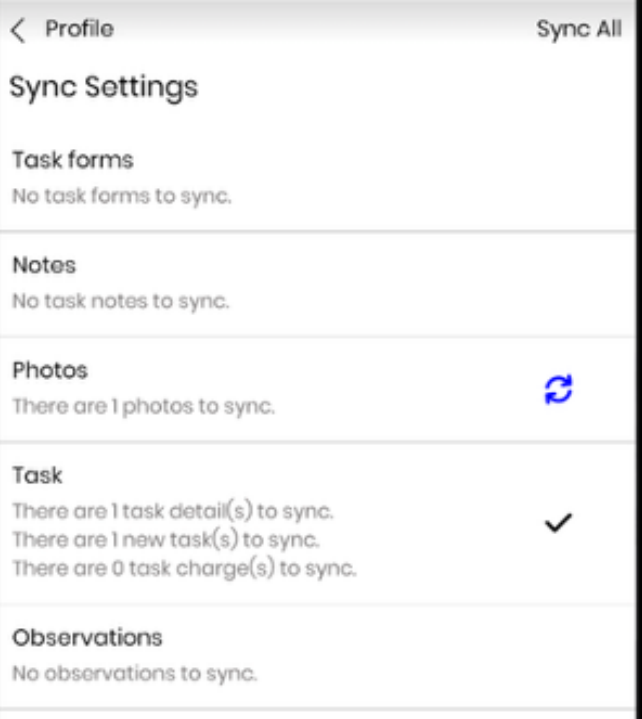
- When network connectivity is restored, the user will receive an alert to sync the data. The user can select individual tasks to sync or click Sync All on the top-right corner to sync all data with the system
Was this article helpful?
That’s Great!
Thank you for your feedback
Sorry! We couldn't be helpful
Thank you for your feedback
Feedback sent
We appreciate your effort and will try to fix the article