Introduction
About this guide
This guide has been written to explain how to update multiple tasks at once. The tasks can have their status, owner and contributors changed.
Bulk Updating Tasks
Updating Multiple Tasks at once
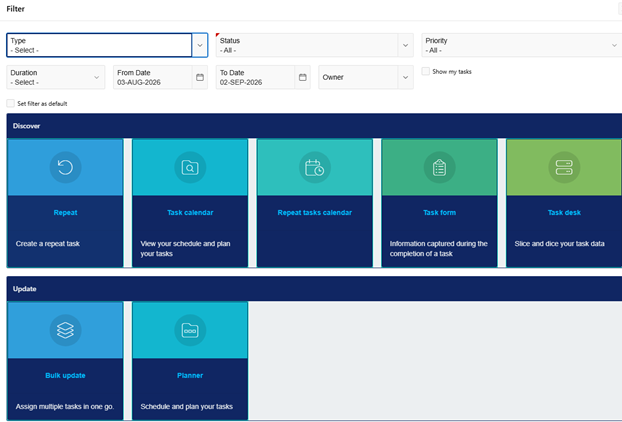
To begin, go to the Tasks Module, then click on ‘Options’ and select ’Bulk Update’

Filtering the Tasks
Once you have navigated to the ‘Bulk Update’ page, you will be met with a filter menu, where you can filter the task by user, type, area, status and more.
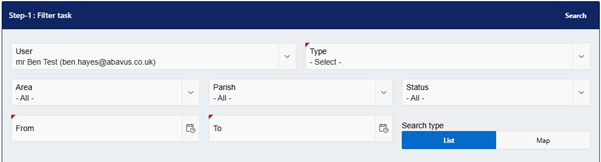
Select the parameters of the tasks that you want to search for. Most of the task properties are optional, apart from the Task Type, which must be selected.
Next, select the Search Type, and click ‘Search’ on the top right. The search types change how the tasks are displayed in the following ways:
List
As shown below, the tasks will be displayed in a list format, and will show the properties of the task, such as task number, type, status, owner and more.
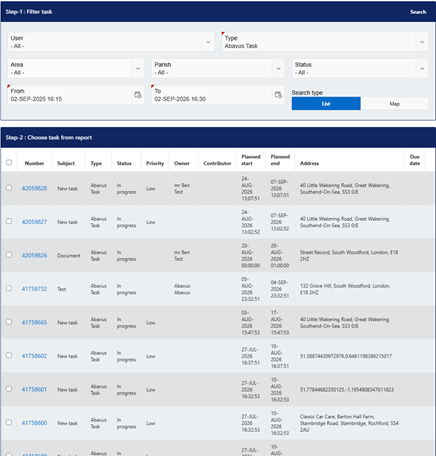
Now, you can select the tasks that you want to update or click the tick box in the header to select all of the tasks.
Once this has been done, use the ‘Update Details’ table to change the Owner, Contributor, Status or Start date of the selected tasks, and click ‘Update’.

Map
The map view will allow you to view the tasks on a map format, which is useful if you want to update tasks based on their locations.
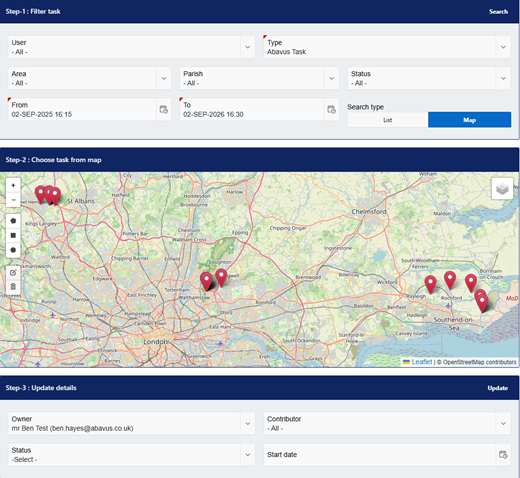
To select the tasks, use the functions on the left-hand side of the map. The pentagon, square and circle allow you to draw shapes around the tasks, that will select all encompassed tasks, turning their pins green.
For example, in the image below, I select three tasks using the polygon. Only one polygon can be drawn at a time.
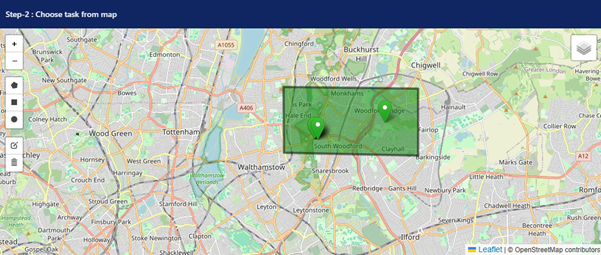
Then, like the list view, you can update the Owner, Contributor, Status or Start date of these tasks by filling the updates out and clicking ‘Update’:

Was this article helpful?
That’s Great!
Thank you for your feedback
Sorry! We couldn't be helpful
Thank you for your feedback
Feedback sent
We appreciate your effort and will try to fix the article