Introduction
About this guide
This guide will provide you with step-by-step instructions as to how to configure and add Adhoc Tasks from a service request.
Please note that this functionality is only available for MobileOps.
Prerequisites
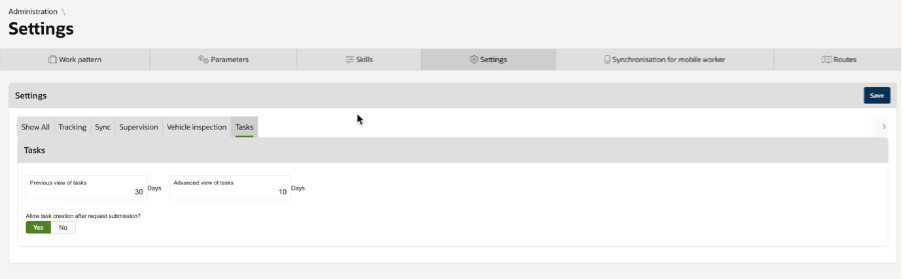
Enabling task creation after submission
First, the user must enable the mobile setting by navigating to Administration → Workforce → Settings.
Within the Settings page, locate the option under the Task section and enable it accordingly.
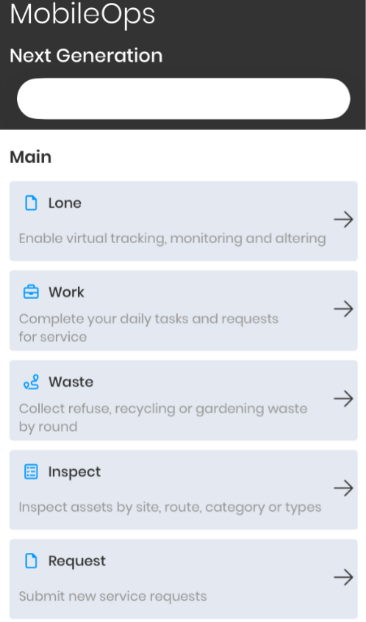
Submitting a Service Request (SR) in MobileOps
Once the setting has been enabled, navigate to MobileOps.
Within MobileOps, select the ‘Request It’ tab and submit a new service request.
Before proceeding, ensure that the required buttons have been properly configured on the selected form. Without the appropriate button configuration, the service request cannot be submitted.
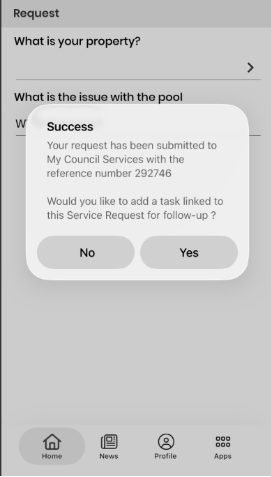
After submitting the service request, a confirmation prompt will appear. This prompt confirms that the request has been successfully submitted to the council and provides the option to create and link a task to the newly submitted service request.
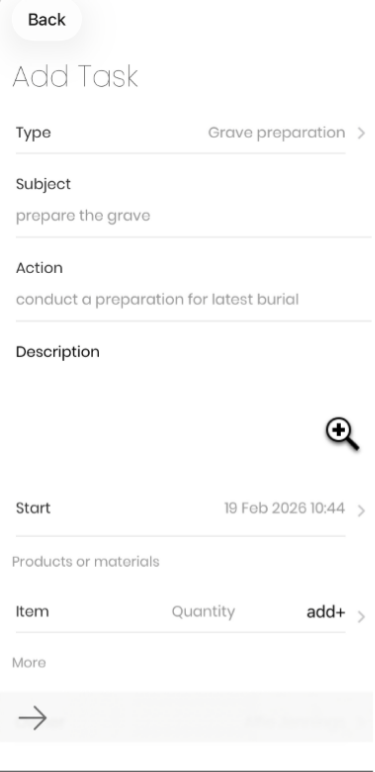
Adding and Assigning a Task to a Service Request
The user can then select Yes to add a task. Upon doing so, they will be redirected to the Add Task screen.
On this screen, the user must complete the required task fields, including Type, Subject, and Description. A Start Time must also be selected to specify when the task should commence.
Next, select the More button to assign the task to a user. Once assigned, the task will appear on the selected user’s device under the Work tab.
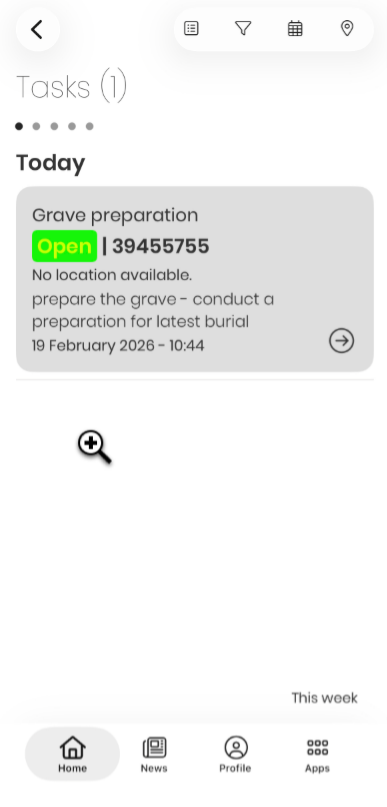
Depending on the user to whom the task has been assigned, they can navigate to the Work tab to view and complete their daily tasks and service requests. The newly created linked task will be displayed within this section.
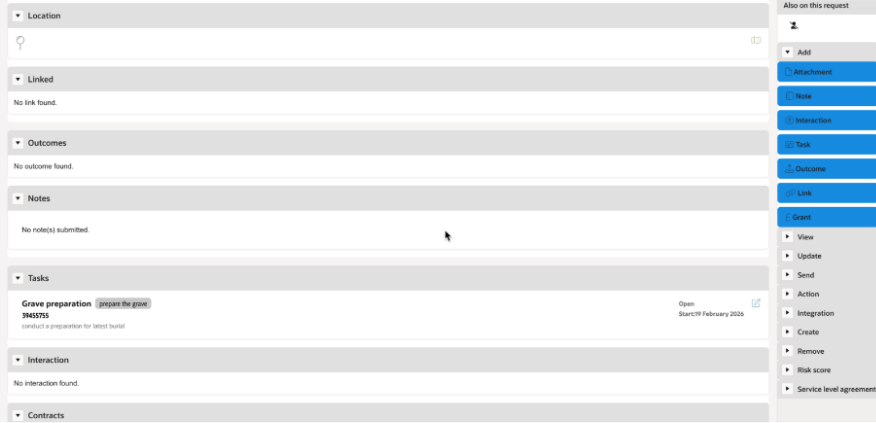
Additionally, the task will be visible in the portal under the corresponding service request, within the Tasks section of the request.
Was this article helpful?
That’s Great!
Thank you for your feedback
Sorry! We couldn't be helpful
Thank you for your feedback
Feedback sent
We appreciate your effort and will try to fix the article