Introduction
About this guide
The My Council Services platform loads new geo-spatial data from GeoPlace approximately every 6 weeks. However, on rare occasion, a property will need to be denoted that is not in the dataset.
In this case, temporary addresses can be configured in the system. These addresses are selectable across the system.
Configuring Temporary Addresses
To create a temporary address, go into Community > Temporary > Add
Next, enter as many details as possible. Please ensure that the information entered here matches with your GIS/LLPG address data:
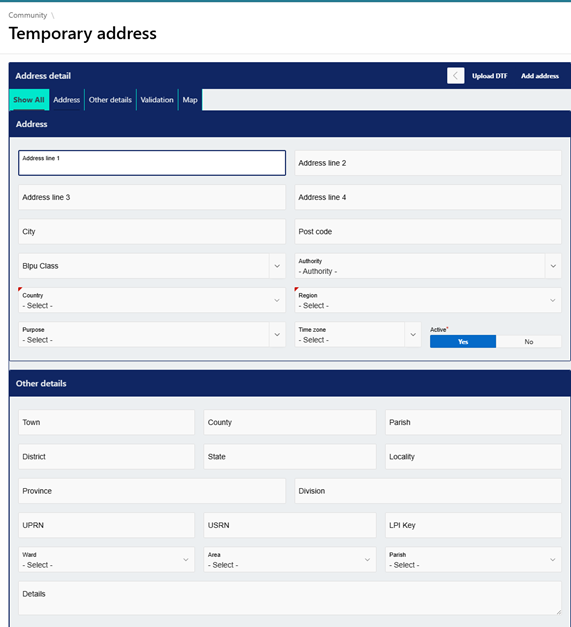
Ensure that, as a minimum, the following required fields are entered:
- UPRN
- Authority
- Country
- Region
At the bottom of the page, you will be able to configure validations for this temporary address and finalise the process by fetching the Lat/Lon co-ordinates using the details you have provided.
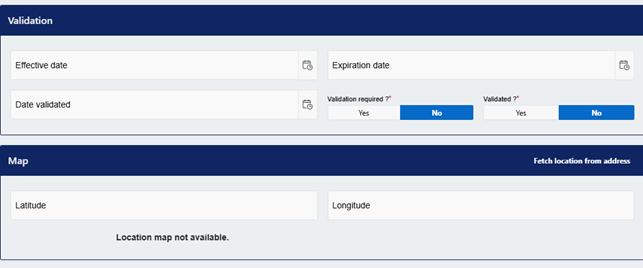
Once all necessary information is provided, scroll up and click ‘Add address’. Once added, this temporary address will be added to a list. To search for a temporary address, it is recommended to use the UPRN.
Additional Information
Once added, the system will check to see if the UPRN used is already being used elsewhere in the system.
Then, the system will check all configured address lines and, if they do not match exactly, the temporary address will remain in the system until the UPRN is included in a future Geo-Spatial dataset with the exact address lines.
If the UPRN is already in use with the exact address lines, the temporary address will be disabled and can no longer be viewed. This is to prevent the creation of duplicate addresses.
Please ensure that your GIS/LLPG information being sent to the NLPG is kept up to date.
Dataset / Temporary Address Data Matching Process
Regarding the aforementioned matching process of temporary address records and addresses from the GeoPlace ABP dataset, the temporary address will only be matched if the following conditions are met:
- Exact match on UPRN
- Both records are enabled
- Exact matches on text on all the fields below:
ORGANISATION NAME
SUB BUILDING NAME
BUILDING NAME
BUILDING NUMBER
LOCALITY
POSTCODE
TOWN
Importing Temporary Addresses via DTF files
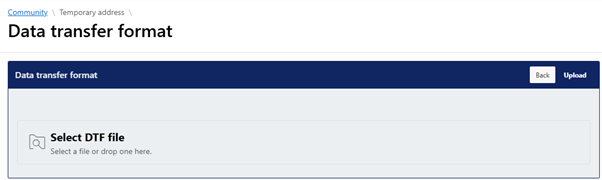
You can also import Temporary Addresses with DTF files. You can do this by going to Community > Temporary > Add, then clicking ‘Upload DTF’.
A screen will appear, where you can select the DTF file and upload using the ‘upload’ button in the top right:
Additional Information
Addresses Imported using this method will be subjected to the Data Matching Process described in the ‘Dataset / Temporary Address Data Matching Process’ section.
The DTF upload process will add both address and street records from the DTF NLPG COU file which meet certain criteria. For example, if a street descriptor is not present in the file for an address, the address will appear without a street. If the street record is uploaded in a subsequent file, the upload process will check all interim addresses and update all interim address records with the street descriptor.
If an address record is added as a ‘street’ e.g. Street Record, this will appear without the postcode. Street Records will be loaded in both English and Welsh where applicable. For English and Welsh addresses, these are added with separate LPI Keys and are updated separately.
Community – Temporary Addresses (Outside UK)
The ability to create Temporary Addresses for locations worldwide also exists. This can be useful when marking overseas addresses for customers or recording international locations that are relevant to the council, such as twin towns.
To add an address, go to Community > Temporary Address (Non UK Addresses). Here, a list of previously configured addresses can be found and edited (or deleted) if required.
Next, go to ‘Add address’. The following pop-up menu will appear:
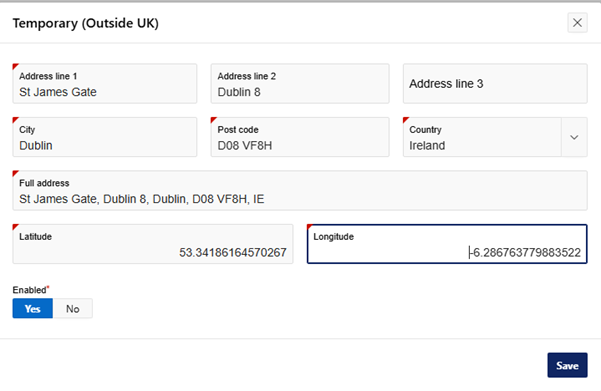
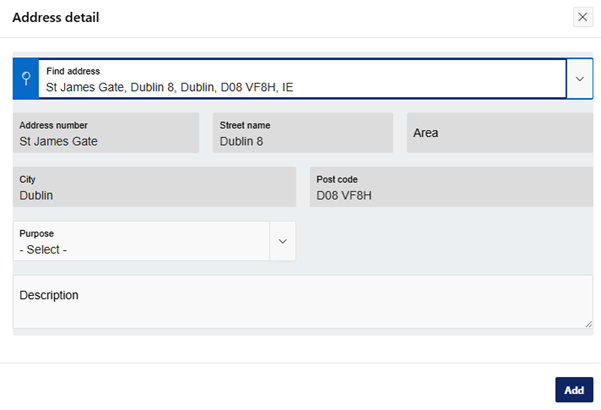
The required fields are denoted with an orange marker. Fill in as much information as you can and click ‘save’. Non-UK temporary addresses are denoted with a country code on the end of the address. In this example, Irish addresses end in IE.
Once saved, these addresses can be added to customer accounts, assets, and more:
Was this article helpful?
That’s Great!
Thank you for your feedback
Sorry! We couldn't be helpful
Thank you for your feedback
Feedback sent
We appreciate your effort and will try to fix the article