Introduction
About this guide
A group is an entity made up of 1 or more members. Groups can be assigned to SRs and can be used in Rules.
The most common implementation of Groups is shared SR ownership. This allows more than one person to see an SR if the ‘restrict access to owned items’ is enabled on their access roles. Groups cannot be imported.
Creating, Searching and Editing Groups
To create a Group, go to Community > Group. If you want to search for an existing group, type the group name into the search box. Optionally, you can click on ‘Options’ to filter the groups by Internal and External.
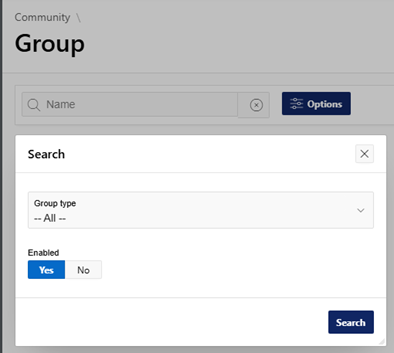
To add a group, click on ‘Add’ to be met with the following group creation menu:
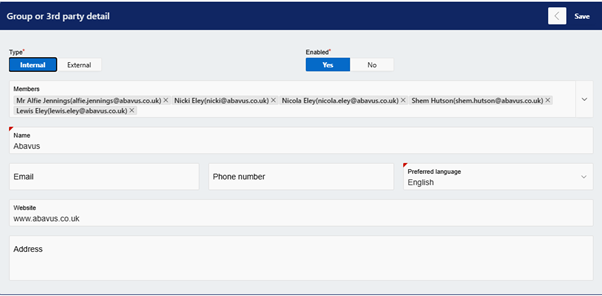
Below is an explanation of each configuration option:
Type – Set the Group to either Internal or External. Internal groups allow you to select multiple user accounts, as shown above.
Enabled – Enabled by default, groups can be disabled if needed.
Name – This is the name of the group, and how it will be displayed on MCS.
Email (Optional) – Configure the email here if required.
Phone Number (Optional) – If a phone number is needed, input it here.
Preferred Language – Configure the preferred language of the group here. This is English by default.
Website (Optional) – If the group has a compatible website, configure it here.
Address (Optional) – Input the address of the group in here if needed.
Was this article helpful?
That’s Great!
Thank you for your feedback
Sorry! We couldn't be helpful
Thank you for your feedback
Feedback sent
We appreciate your effort and will try to fix the article