Introduction
About this guide
This guide has been created to explain the Community – Address module is used to provide information about properties. Here, administrators can the following information about a property:
- Exact locations in multiple formats
- Historical information, such as previous names
- Address Information, such as locality, local authority and more
- Waste collections – Any bin collections related to the property
- Contracts – Any contracts configured against the property
- Service Requests – Any service requests reported at the property
All geospatial data is imported through GeoPlace, updating every 6 weeks.
Searching for a Property
Viewing a property’s details
To use this functionality, to go Community, then click on Address. You will be met with a location search bar as shown below:

You can search for an address with the following formats:
- Postcode
- USRN
- UPRN
Once an address has been selected, you will be met with the following menu:
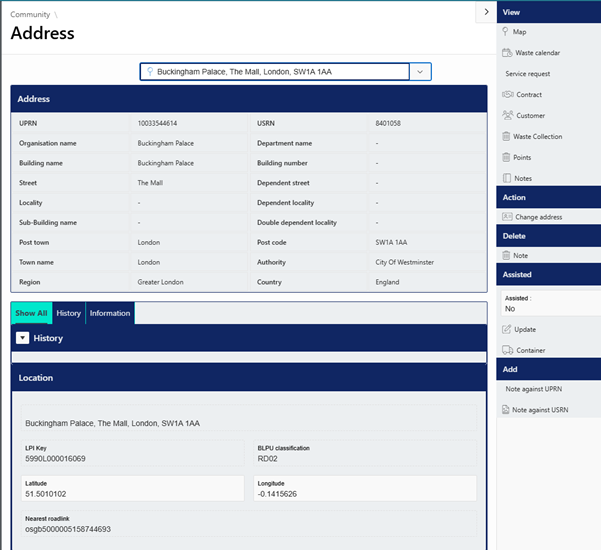
Below is a description of the address information panel:
Address – The address will fill in the information in accordance with our geo-spatial data.
History – If a property’s name has been edited, it’s previous name will display here
Location – This region provides other information in different formats for the property, such as:
- Land and Property Identifiers (LPI Keys)
- BLPU Classifications
- GPS Co-ordinates (Lat, Long)
- Nearest roadlink
Along with this information, administrators can also use the right side menu to do the following
Right Menu - View
Using the View options, Admittaturs can view the following:
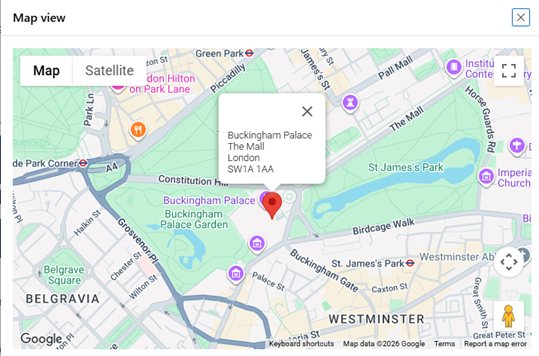
Map – A embedded Google Map pin of the location
Waste Calendar – A calendar view of when each waste collection is due for the property.
Service Request – Any Service Requests that have been located at this property (max of 93 day date range)
Contracts – Any contacts configured against the property

Customer – Any account registered to this address.
Waste Collection – Any bin collections created against this property
Points – Any waste points configured against this property
Notes – Notes configured against this property can be viewed here.
Right Menu – Action
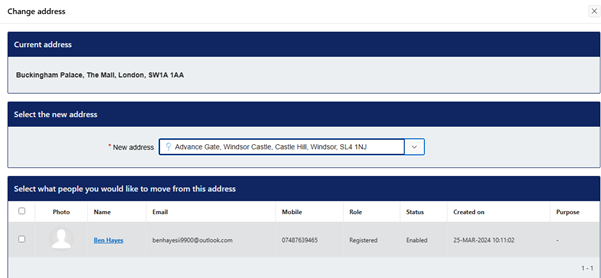
Using the action menu, Administrators can click ‘Change Address’ to move customers attributed to this address to a different address.
Select the new address, then select the customer which you wish to move to the new address
Right Menu – Delete
Using the Delete menu, the Administrator can remove any notes against the property.
Right Menu – Assisted
The ‘Update’ option allows Administrators to denote the property as an assisted collection, which can add more information for mobile workers.
The ‘Container’ option can allow waste containers to be added to the property to keep a record of what bins the property possesses.
Right Menu – Add
Lastly, the Add menu allows Administrators to create notes against the UPRN (the property selected) as well as the USRN (the street of the property). This can add more information, such as ‘abandoned property’ or ‘narrow street’.
Was this article helpful?
That’s Great!
Thank you for your feedback
Sorry! We couldn't be helpful
Thank you for your feedback
Feedback sent
We appreciate your effort and will try to fix the article