Introduction
About this guide
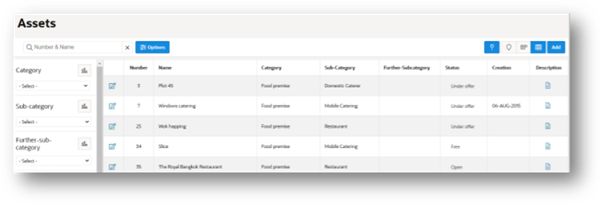
When filtering for, or creating assets, the left hand side region can be used to more effectively find or create an asset.
Finding an Asset
To find or create an asset, go to the Asset Module, then either click on ‘Add’ to add an asset or use the left-hand side filtering menu to search for an asset.
Filter Options for Assets Map
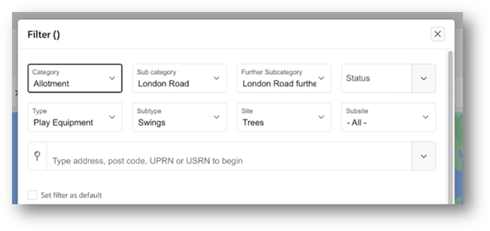
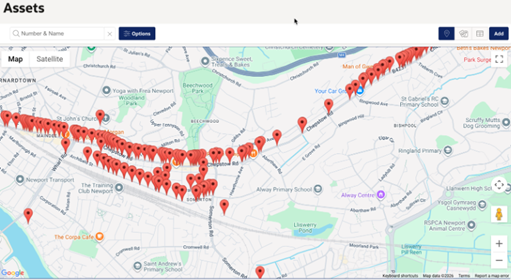
The administrator can drill down to the assets on map based on filter criteria which now includes Category, Sub-Category, Further sub-category, Type, Sub-type, Site and Sub-site options.
To do this, go the Map icon within the Asset module, then click on Options (Filter screen)
Then, select the value for filter options on Type, Subtype, Site and Subsite in this screen to narrow down the search results
Creating an Asset
If adding an Asset, along with other required details, you can select the Type, Subtype, Site and Subsite information in the Classification region. Also, you can add the Installation date along with the Creation, Checked and Expiry date:
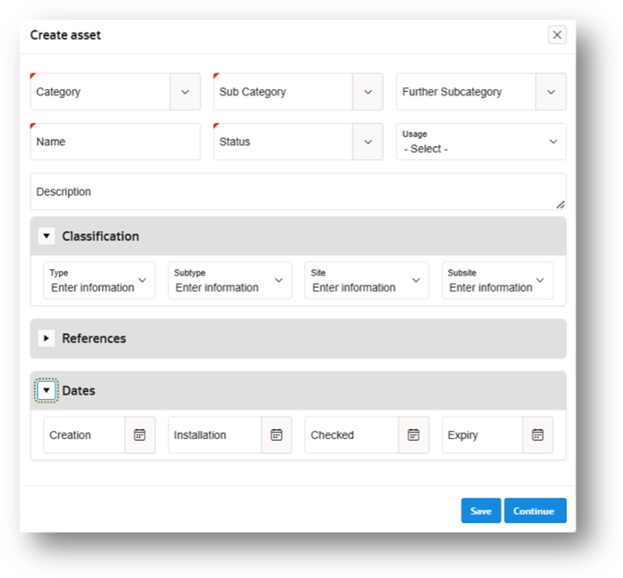
Click on the Continue button to create a new asset. If you want to edit this asset, go back to the asset list, search for the asset, and click on the edit icon.
Was this article helpful?
That’s Great!
Thank you for your feedback
Sorry! We couldn't be helpful
Thank you for your feedback
Feedback sent
We appreciate your effort and will try to fix the article