Introduction
About this guide
This guide has been written to assist with importing assets in bulk. This is useful in quickly uploading a large amount of assets.
Importing Assets
To do this, click on the Assets module, then click on Action > Import Assets
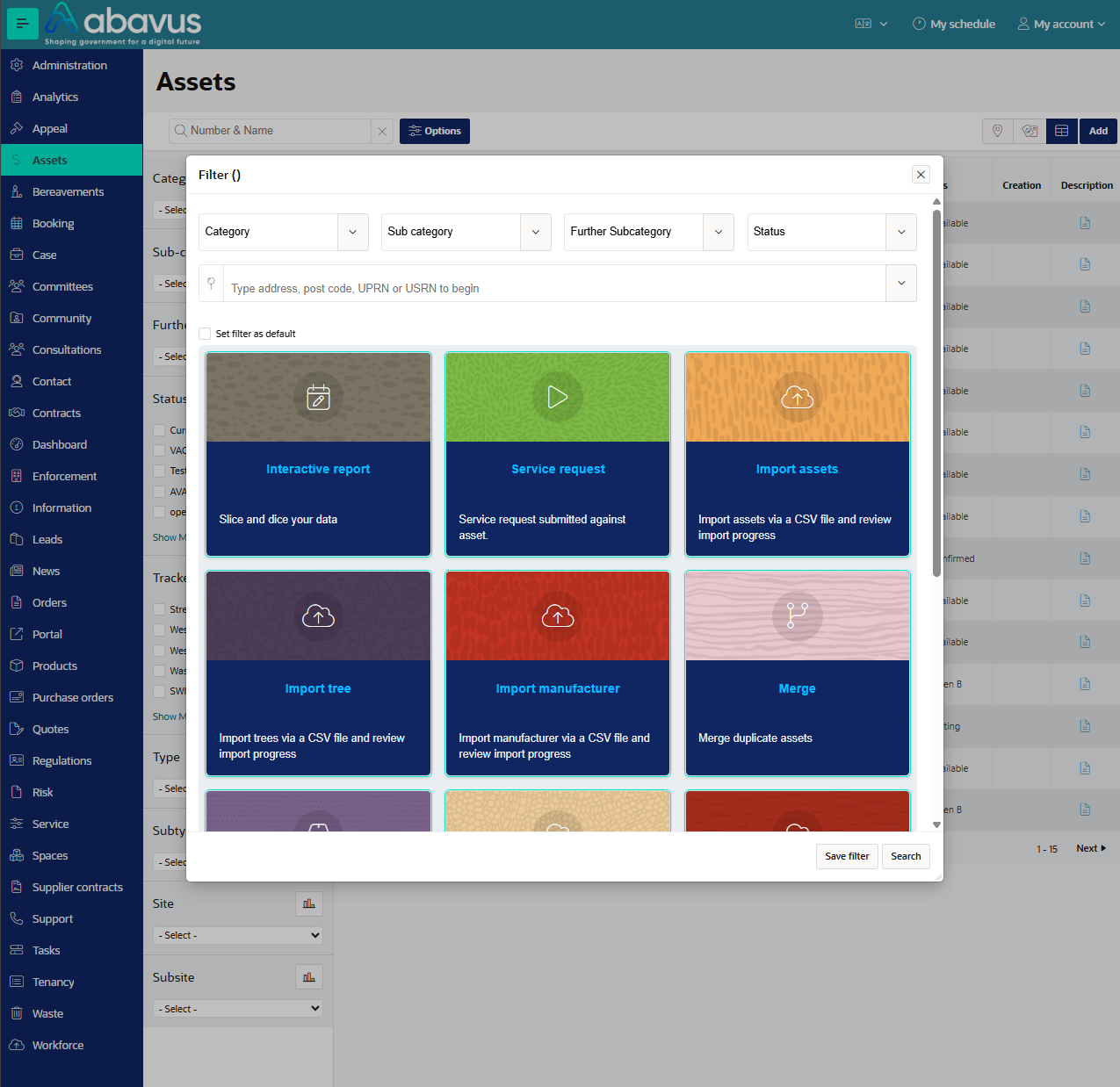
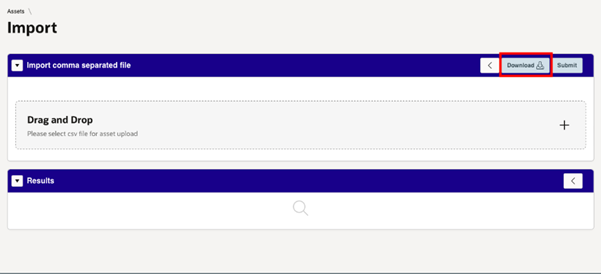
You will be taken to the following screen. This is where you can upload CSV files and view the results. You will first need to get a copy of the CSV file template needed.
Click on ’Download’ to save the template file to your computer, or download the template file that is attached to this guide.
The template file should look like the image below. There are multiple fields to fill out, which are explained in further detail below.

CSV Import – Field Descriptions
Category
The first categorisation code. This is Required.
Format = Text (limited to 50 characters)
Example = Vehicle
subCategory
The second categorisation code. This is Required.
Format = Text (limited to 50 characters)
Example = Car
furtherSubCategory
The third categorisation code. This is not required.
Format = Text (limited to 50 characters)
Example = Hatchback
name
The name of the asset. This is required.
Format = Text (limited to 50 characters)
Example = Large car
code
The code of the asset. This is required.
Format = Text (limited to 50 characters)
Example = ASSET_01
description
The description of the asset. This is not required.
Format = Text (limited to 50 characters)
Example = Manufacturer: Ford
status
The status code of the asset. This is required.
Format = Text (limited to 50 characters)
Example = TESTING
reference
The reference of the asset, normally an external system value. This is not required.
Format = Text (limited to 50 characters)
Example = XJ001
usage
The code against the usage. This is not required.
Format = Text (limited to 50 characters)
Example = USAGE_01
erpCode
The code that maps to the internal finance system. This is not required.
Format = Text (limited to 50 characters)
Example = 345
creation
The date the asset was created. This is not required.
Format = Date (DD-MON-YYYY)
Example = 02-JAN-2017
expiry
The date the asset expires and is removed from usage. This is not required.
Format = Date (DD-MON-YYYY)
Example = 31-OCT-2022
uprn
This is the location of the asset, as taken from the local land and property gazetteer. The unique property reference number of a location. This is not required.
Format = Number (limited to 12 digits)
Example = 100123456789
noteType
You can add a single note to any imported asset. The note type is the code. This is not required.
Format = Text (limited to 50 characters)
Example = ASSET_NOTE
noteTitle
The header for the note. This is not required.
Format = Text (limited to 80 characters)
Example = Condition description
noteContent
The body of the note. This is not required.
Format = Text (limited to 4,000 characters)
Example = Good condition...
Insert all the details required, then save the changes you have made to the template file. Under "Import comma separated file", upload the CSV file you have configured, then click on Submit
The data will be implemented onto your system overnight. You can return to this page to check the results of the file upload.
Importing Trees
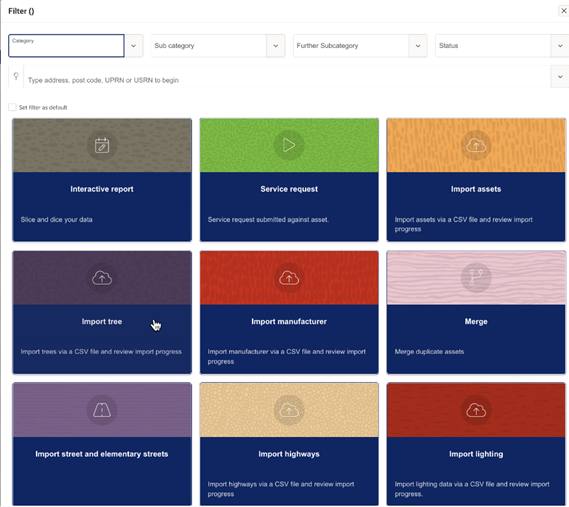
Go to Assets > Options > Import Tree
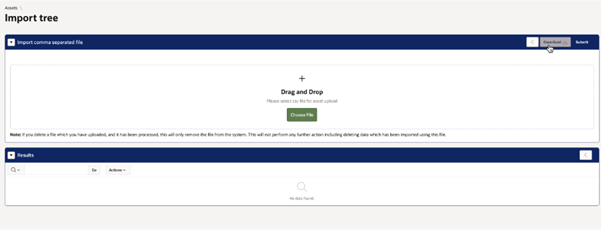
You will be taken to the following screen. This is where you can upload CSV files and view the results. First, need to get a copy of the CSV file template needed.
Click on ’Download’ to save the template file to your computer.
There are multiple fields to fill out, which are explained in further detail below.
Field | Description | Required | Type | Example |
Asset number | Internal number used to match existing records | Yes* | Number | 1234567 |
Asset reference | External reference value | Yes* | Text(50) | TREE-0001 |
Species | Species code | Yes | Text(80) | TICO |
Safe Useful Life Expectancy | SULE code | No | Text(11) | SULE01 |
Donated | Whether tree was donated (e.g. memorial scheme) | No | Text(3) | YES |
Height | Height in meters | No | Number | 30 |
Spread | Leaf coverage diameter in meters | No | Number | 30 |
Diameter Breast Height | Diameter at breast height (cm) | No | Number | 770 |
Age | Age of tree code | No | Text(11) | AGE_1 |
Risk of Harm | QTRA score code | No | Text(11) | QTRA_05 |
Insert all the details required, then save the changes you have made to the template file. Under "Import comma separated file", upload the CSV file you have configured, then click on Submit. This will be uploaded overnight.
Importing Highways
Go to Assets > Options > Import Highways
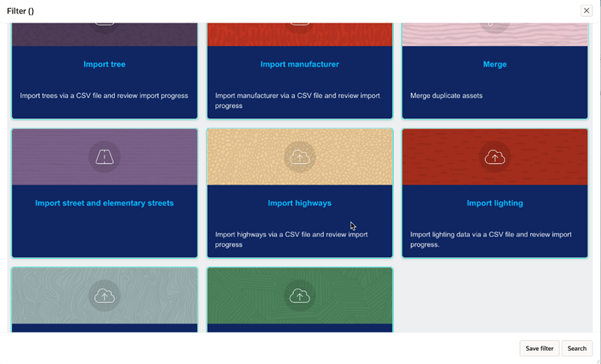
You will be taken to the following screen. This is where you can upload CSV files and view the results. You will first need to get a copy of the CSV file template needed.
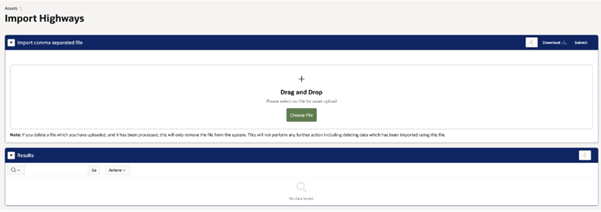
Click ’Download’ to save the template file to your computer, then fill out the csv using the fields described below:
Field | Description | Required | Type | Example |
Asset number | Internal number used to match existing records | Yes* | Number | 1234567 |
Asset reference | External reference value | Yes* | Text(100) | TREE-0001 |
Thermic classification | Thermic classification code | No | Text(100) | HIGH |
State | State code | No | Text(100) | CONSTRUCTION |
Surface | Surface code | No | Text(100) | UNMETALLED |
Reinstatement | Reinstatement category code | No | Text(100) | TYPE4 |
Record type | Record type code | No | Text(100) | 3 |
Adopted | Whether adopted | No | Text(100) | NO |
Length | Length | No | Number | 45.2 |
Area | Area code | No | Text(100) | DIS3 |
Classification | Classification code | No | Text(100) | RSTC |
Class | Class code | No | Text(100) | PRVP |
eSU | Elementary Street Unit | No | Text(100) | osgb4000000021699078 |
Start X | X coordinate (start) | No | Number | 36.673092 |
Start Y | Y coordinate (start) | No | Number | -5.020373 |
End X | X coordinate (end) | No | Number | 36.673092 |
End Y | Y coordinate (end) | No | Number | -5.020373 |
Feature - Carriage | Contains carriageway | No | Text(1) | Y |
Feature - Verge | Contains verge | No | Text(1) | N |
Feature - Cycle | Contains cycle path | No | Text(1) | Y |
Feature - Footway | Contains footway | No | Text(1) | Y |
No works start | No works before this date | No | Date | 01-Jan-23 |
No works end | No works after this date | No | Date | 01-Mar-23 |
No works after (time) | No works after this time | No | Time | 9:00 |
No works before (time) | No works before this time | No | Time | 8:00 |
Insert all the details required, then save the changes you have made to the template file. Under "Import comma separated file", upload the CSV file you have configured, then click on Submit.
Importing Lighting
Go to Assets > Options > Import Lighting
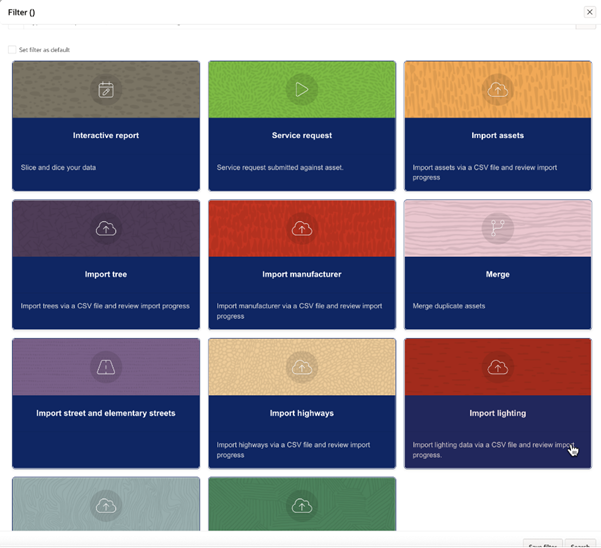
Like the other asset imports, you will be taken to the following screen, where you can upload CSV files and view the results. Firstly, click on ’Download’ to save the template file to your computer.
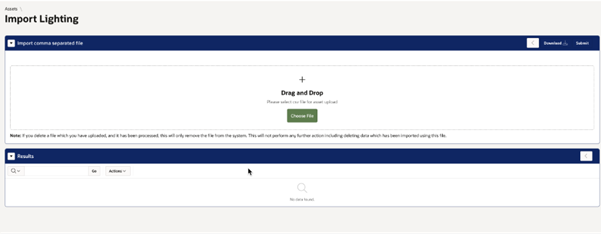
Fill the csv with information according to the fields, which are explained in further detail below.
Field | Description | Required | Type | Example |
Asset number | Internal number used to match existing records | Yes* | Number | 1234567 |
Asset reference | External reference value | Yes* | Text(100) | TREE-0001 |
Position | Position code | No | Text(100) | POS01 |
British standard lighting | British standard lighting code | No | Text(100) | BSL01 |
Ground condition | Ground condition code | No | Text(100) | GC01 |
Environment situation | Environment situation code | No | Text(100) | ES01 |
Expected time until action age | Expected time until action age value | No | Number | 3 |
Consequences of failure | Consequences of failure value | No | Number | 3 |
Salting of road | Salting of road code | No | Text(100) | SOR01 |
On a bridge | On a bridge code | No | Text(100) | OAB |
Time remaining until action age | Time remaining until action age value | No | Number | 2 |
Priority | Priority value | No | Number | 4 |
Road environment | Road environment code | No | Text(100) | RENV01 |
Effect collapse | Effect collapse code | No | Text(100) | EC01 |
ILE inspection regime | ILE inspection regime code | No | Text(100) | ILER01 |
Wind exposure | Wind exposure code | No | Text(100) | WE01 |
Pedestrian density | Pedestrian density code | No | Text(100) | PD01 |
Traffic flow | Traffic flow code | No | Text(100) | TF01 |
Traffic speed | Traffic speed code | No | Text(100) | TS01 |
Traffic disruption caused by failure | Traffic disruption caused by failure code | No | Text(100) | TDCBF01 |
Electrical supplier | Electrical supplier code | No | Text(100) | (blank) |
Distribution network operator supply | Y/N flag | No | Text(1) | Y |
Supplies other units | Y/N flag | No | Text(1) | Y |
Within 1 meter of live cab | Y/N flag | No | Text(1) | Y |
Supply type | Supply type code | No | Text(100) | ST01 |
Cable arrangement | Cable arrangement code | No | Text(100) | CA01 |
Circuit protection owner | Circuit protection owner code | No | Text(100) | CPOC01 |
Amps | Amps value | No | Number | AMPS01 |
Earthing conductor | Earthing conductor code | No | Text(100) | ECC01 |
Circuit conductor | Circuit conductor code | No | Text(100) | CCC01 |
Earthing | Earthing code | No | Text(100) | ERT01 |
Phase | Phase code | No | Text(100) | PHS01 |
RCD | RCD code | No | Text(100) | RCD01 |
Importing Cemeteries
Go to Assets > Options > Import Cemeteries
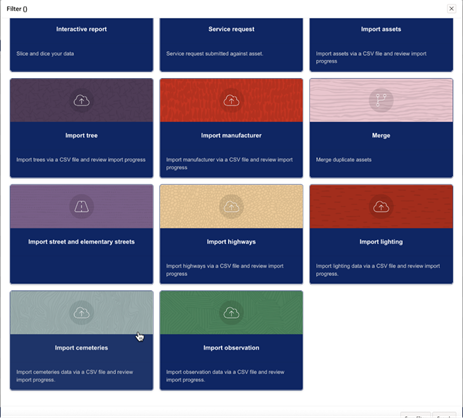
On the next screen, you can upload CSV files and view the results. Like the other asset imports, you will first need to get a copy of the CSV file template needed.
Click on ’Download’ to save the template file to your computer.
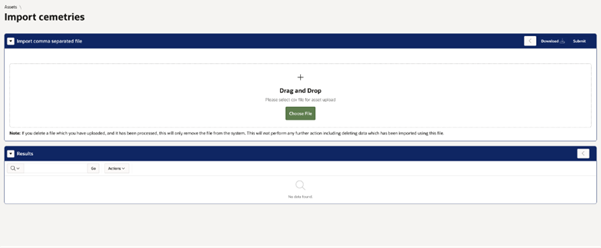
There are multiple fields to fill out, which are explained in further detail below.
Field Name | Description | Required | Data Type | Example |
Asset number | The number of the asset, an internally generated number used to match existing records to update tree information. Either number or reference required. | Yes | Number | 1234567 |
Asset reference | The reference of the asset, normally an external system value. Either number or reference required. | Yes | Text(100) | TREE-0001 |
Customer number | Deceased customer number. | Yes | Number | 123124 |
Burial date | Burial date of the customer. Use date format as DD Month YYYY. | No | Date | 22 July 2024 |
Cemetery depth | Type the depth between 3 to 10 (in feet). | No | Number | 4 |
Person reference | The reference of the citizen to identify if customer number is unknown. Either number or reference required. | No | Text(200) | Old user |
Was this article helpful?
That’s Great!
Thank you for your feedback
Sorry! We couldn't be helpful
Thank you for your feedback
Feedback sent
We appreciate your effort and will try to fix the article