Introduction
About this Guide
Buttons are only applicable to the Mobile App; buttons on the Portal are configured automatically.
Buttons are used to apply “Actions” to Forms (Save for Later, Submit Report, etc), or to allow Form submitters to move from one page to another.
How do I Add Buttons to Forms?
To add a Button to a Form Page, click on “Add Button”, as displayed.

The first Button you’ll want to add on the first Page is a “Back” Button, taking the Form submitter back to the Mobile App’s Home Screen. This will be an “Action” Button, but all other Back Buttons should be configured as “Branch to Page” to navigate between the Pages on the Form.
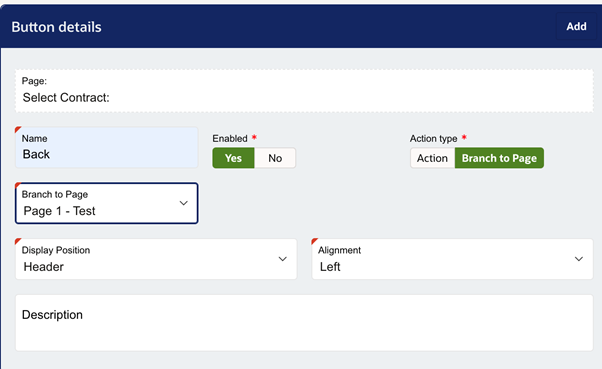
The Display Position and Alignment of Buttons are set automatically, but you can alter them if you wish.
The second Button to add to the first Page is a “Next” Button. Remember to set the Action Type as “Branch to Page” to ensure that the Button will function correctly.
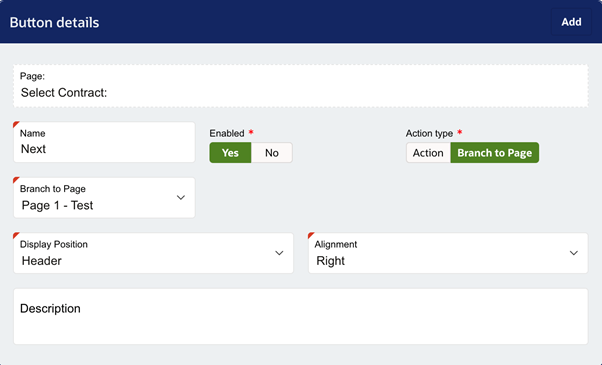
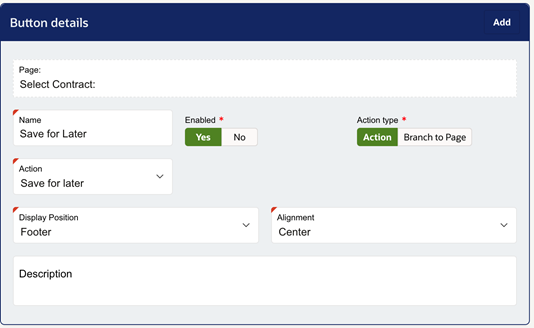
Add as many Buttons as required in order to create a smooth transition between Pages. The final Page will require a “Submit Report” Button, and there may be other Action Buttons you wish to apply across the Form as well, such as “Save for Later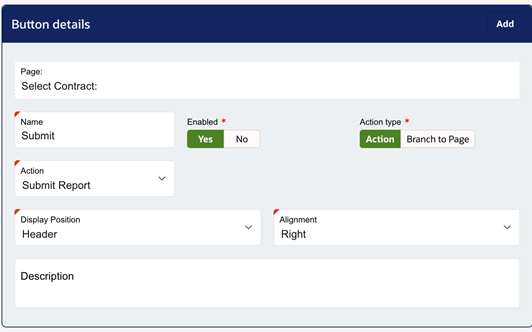
IMPORTANT
The “Submit Task Form” option applies to Mobile Workers, not Customers. As such, this Button should only be added to Task Forms.
If configured correctly, all the Buttons you have added to the Form will be displayed within the form.
Was this article helpful?
That’s Great!
Thank you for your feedback
Sorry! We couldn't be helpful
Thank you for your feedback
Feedback sent
We appreciate your effort and will try to fix the article