Introduction
About this Guide:
This guide has been written to highlight the options in the Location Picker, what they do, and how these options can be properly configured.
Configuration Options
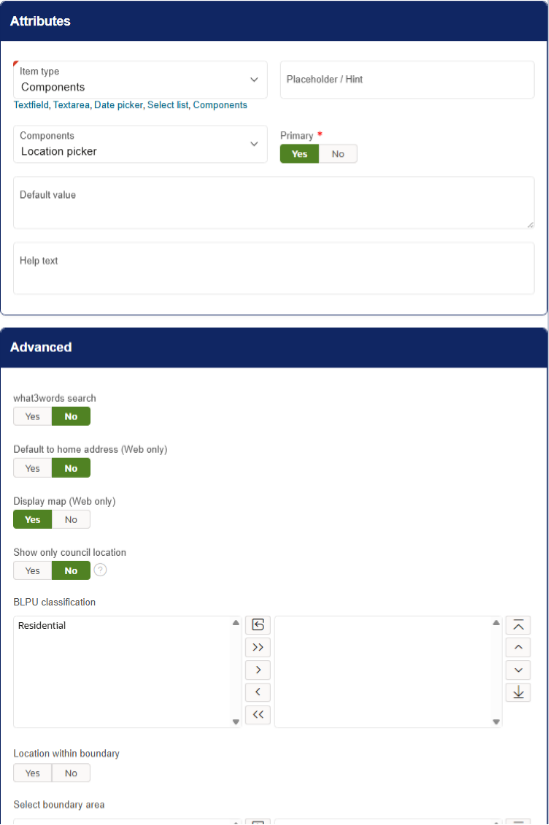
Primary
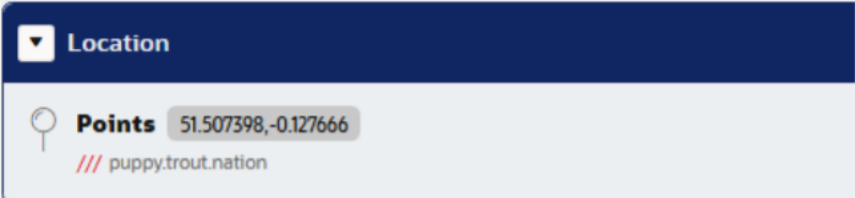
Setting the 'Primary' box to Yes will Place the location of this location picker into the 'Location' subheading of the SR, instead of the 'Information' subheading, where other form answers are. Setting the Primary box to 'No' will place the location of the SR in the SR's summary, instead of the SR's location.
Below is an example of an SR where a location picker is set to primary. Please note that only one location picker can be set to Primary per form.

Advanced:
What3Words search
The What3Words functionality works in the following ways:
When What3Words is disabled and not enabled on your client:
The dropped pin and address text will snap to the nearest available property and will show as a regular address.
When What3Words (W3W) is enabled on client level, but disabled on the location picker:
The manually dropped pin remains at the exact geo-coordinates it is dropped at, but the address text will correct to the nearest address to provide a readable reference. The pin represents the exact drop point, with the displayed text showing the closest address.
If an address is selected (e.g. via postcode lookup), the location text will display the selected address, and the pin will be positioned using the geo-coordinates associated with that address, as provided by the AddressBase dataset.
When What3Words (W3W) is enabled:
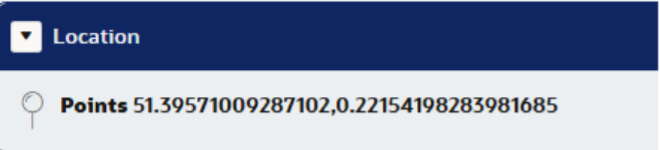
The pin is placed at the exact geo-coordinates, and the location is displayed as latitude and longitude (x,y).
If What3Words location is selected, the coordinates used are those returned by the W3W service.
If you would like the ability for report locations to be recorded as Co-ordinates or What3Words, please contact isupport@abavus.co.uk.
Default to Home Address (Web Only)
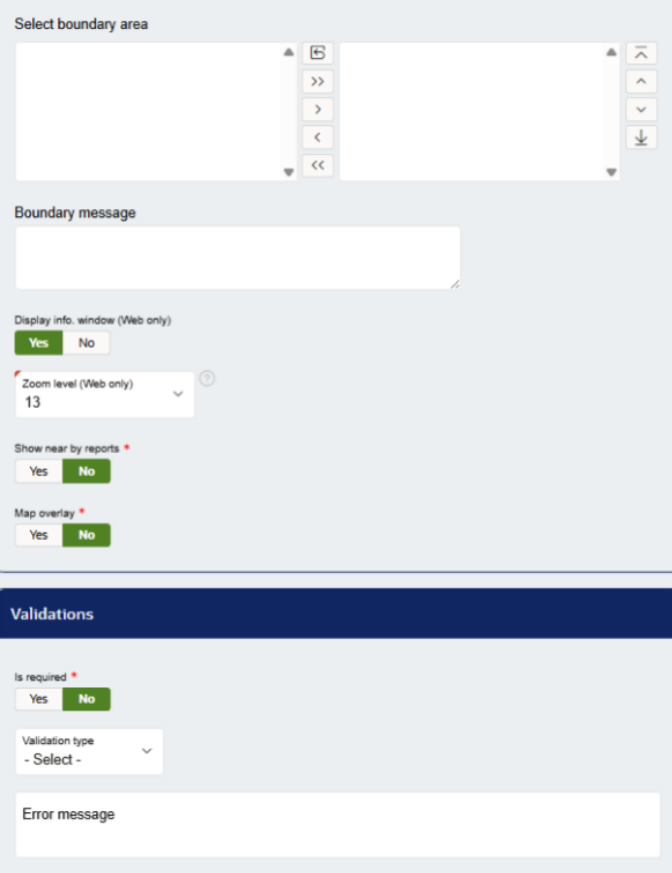
This setting, if enabled, will automatically fill the location picker with the 'home address' of the submitter. If a home address is not configured for the submitter, it will leave the location picker blank.
Display map (Web Only)
If enabled, this will display a google-embedded map in the form, which shows an arial view of the location and it's surrounding area. The map can be manipulated to allow the customer more freedom when selecting a location.
This also unlocks the ability for submitters to choose a location 'By dropping a pin on to a map'. This can be done by clicking on the map.
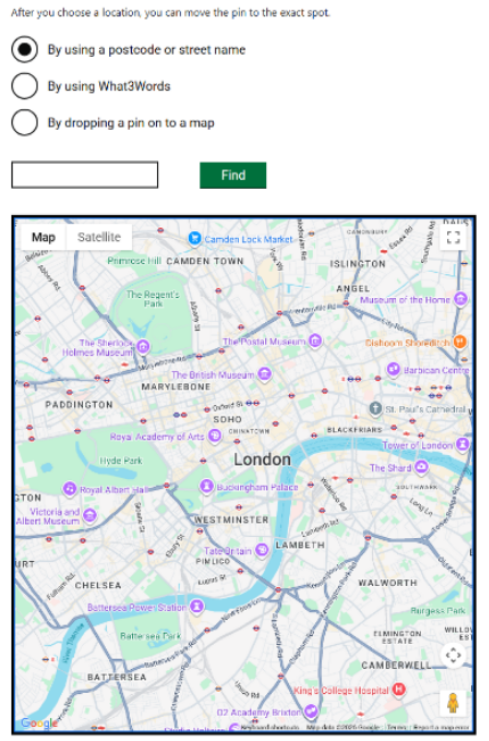
The behaviour of the pin will work as the following:
If what3words is enabled, the location can be selected anywhere, and will be denoted as co-ordinates, as shown:
What3Words is a paid feature. If you are interested in enabling this on your production client, please contact or Support team at isupport@abavus.co.uk
Show only council location
If enabled, only properties within the council's boundaries will be selectable for the submitter.
BLPU Classification
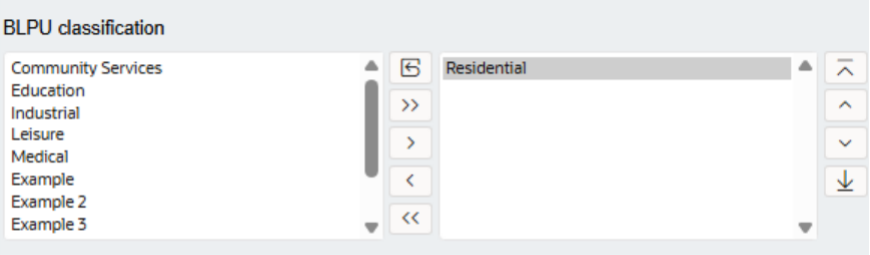
If any BLPU classification is selected (sent to the right hand area) the selectable properties will be limited to their BLPU classifications, which can be configured under Administration > Location. For example, in the below configuration, only the Residential BLPU classifications can be selected.
Location within boundary
Similarly to 'show only council location' , only properties within the boundaries that you select (selectable in the box below this option) will be shown to the submitter. Boundaries can be configured via Administration > Location.
Note - Boundaries require shapefiles, which is a paid feature. If you want to know more, please consult our support team for more information on this at isupport@abavus.co.uk
Select boundary area
Here, if 'location within boundary is enabled, the configured boundaries will be able to be selected. This is only enabled if the boundary is sent to the right hand area.
Boundary message
If 'location within boundary is enabled, and a location outside of the boundary is selected, the message written in this box will display as a pop-up to the submitter.
Show nearby reports
This, if enabled, pins will appear to represent nearby reports. This can be customised with the below menu that appears when the option is enabled:
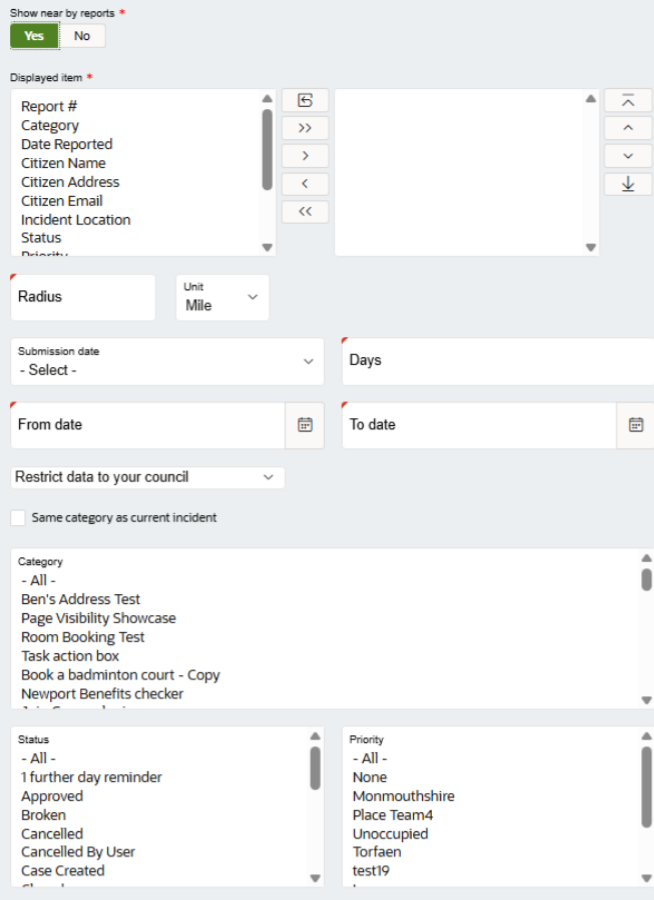
- Certain information about the report (Displayed Item)
- The range near the location where other reports will show (radius),
- The age of the reports (submission date)
- The date range of the reports (from and to date)
- Restrict data to your council - you can choose whether to include reports of nearby councils, or just your council.
- Whether the forms are limited to the category of the form (Same category as current incident)
- Manual selection of category (Category)
- Status and Priority of the nearby SRs (status and priority)
Map overlay
If enabled, you can select a map overlay for the embedded map. This can be configured via Administration > General > Plugin > Map Overlay
Then, layers from this overlay can be added as needed. This allows form creators to add landmarks, such as streetlights, bus stops, trees and more into the map for the submitter's reference.
Validations
is Required
If this is enabled, the location picker must have an answer for the submitter to proceed to the next page.
Validation Type
This is more often used for textfields and textareas, and do not necessarily apply to location pickers.
Error Message
This is the message that will appear when the submitter attempts to go to the next page without entering any information into the location picker.
Was this article helpful?
That’s Great!
Thank you for your feedback
Sorry! We couldn't be helpful
Thank you for your feedback
Feedback sent
We appreciate your effort and will try to fix the article