Introduction
About this guide
The Signature Component allows you to capture electronic signatures on forms when raising service requests. This component can be used on the Customer Portal, the Admin Portal, and within the Mobile App.
Adding the Signature Component to a Form
Add an item to your desired form. Set the Item Type as "Component", and then select "Signature" in the dropdown menu. Please ensure that the Primary toggle is set to "No".
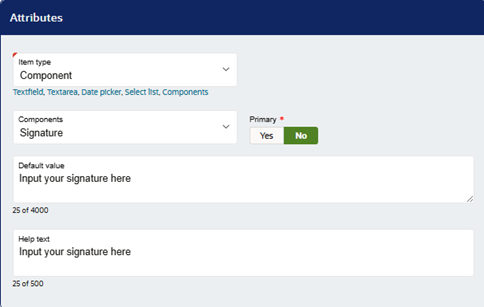
Apply the changes and publish the form.
Customer Experience
Once created, submitters will be able to provide signatures on service request forms in 3 different formats:
Type
With the Type option, you can type a string into the component, which will generate a signature style text.
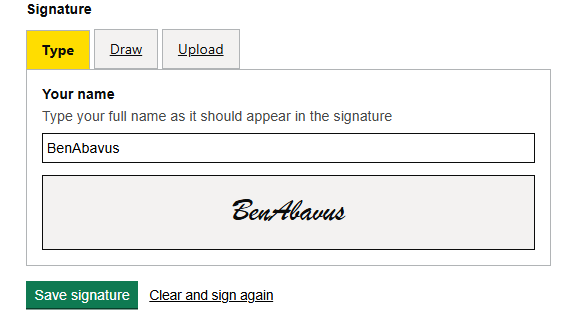
Once typed, click ‘Save’. If the submitter wants to edit the signature, they can do so by clicking ‘clear and sign again’, even once it is saved.
Draw
If the Draw option is selected, a canvas will be available for the submitter to draw on with their mouse or finger.
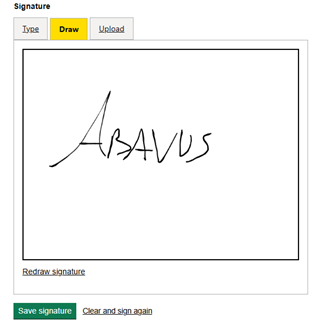
This can be reset with the ‘redraw signature’ if the signature needs to be rewritten.
Once uploaded, the submitter can clear it and draw the signature again if they wish.
Upload
When the Upload option is selected, the submitter can upload an image file (max of 2MB) as a signature.
Once submitted, the customer can remove and reselect the file if they wish.
Viewing the signature on a Service Request
If the signature component is set to non-primary, the signature is saved in the SR summary as a hyperlink to the file:

Note: Only one signature can be used per form. If more than one is used, the original signature will be overwritten.
Was this article helpful?
That’s Great!
Thank you for your feedback
Sorry! We couldn't be helpful
Thank you for your feedback
Feedback sent
We appreciate your effort and will try to fix the article