Introduction
About this guide
This guide is for council staff who are responsible for creating and managing statuses and transitions within the platform. It will include detail on how to set up and amend a status, and how to configure a transition.
What are statuses and transitions?
Statuses are used to denote a stage in the lifecycle of the transaction such as ‘Open’, ‘Under Review’. Transitions are used to determine the choice of statuses used by a Form and in which way they are ordered i.e. Open > Under Review, Under Review > Scheduled or Under Review > Complete.
For each Form the relevant statuses will need to be created, and a Transition will need to be defined.
Configuration
Setting up a status
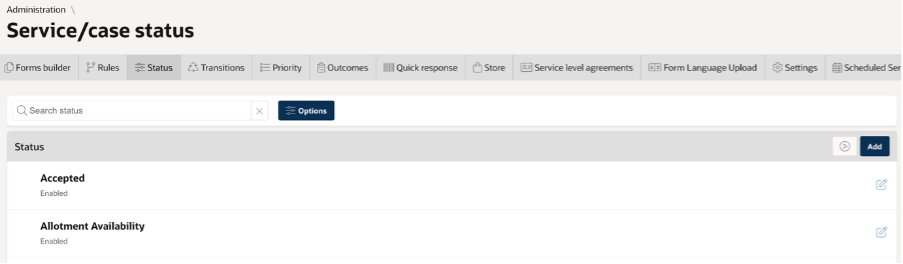
Go to > Administration > Service Request and Cases’ > Statuses
New statuses can be created, or existing statuses can be used if a status of the same name already exists on the platform. Each catalogue or form will require a Status Lifecycle (Transition) assigned before it can be created.
Select ‘add’ to create a new status or select the relevant status to edit.
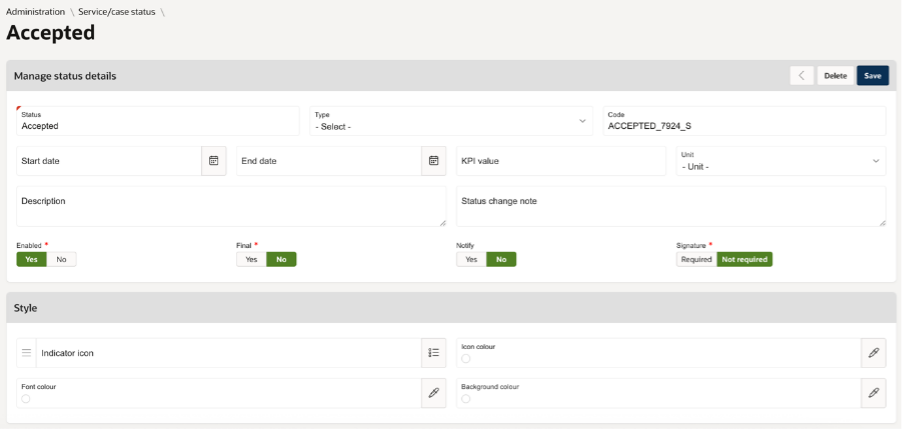
Status - enter a name.
Type - select the type of status that this is.
Enabled - Yes or No.
Notify - Yes or No to notify when a Service Request has been updated to this status.
Final - Yes or No – is this the final status in a lifecycle of an SR.
Signature – is a signature required when an SR is changed to this status.
Style – used for the branding of the status in the admin portal.
Setting up a transition
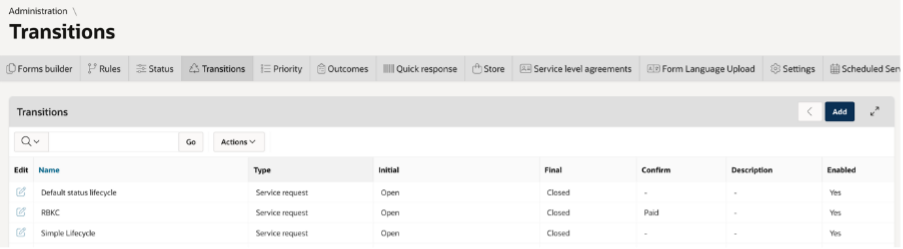
Go to > Administration > Service Request and Cases’ > Transitions.
From here you can create a new Transition using the ‘add’ button, or you can edit an existing Transition.
If creating a new Transition, enter a name and select a type. This will be applicable to either Service Request, Cases or Tasks (it cannot be used for more than one type).
Select the initial status, this will be the status which the Service Request will be on submission.
Select the Final Status, this is the last status which the Service Request can be i.e. Complete.
Once saved, you can add the statuses and define the order from which the request can move from one status to another.
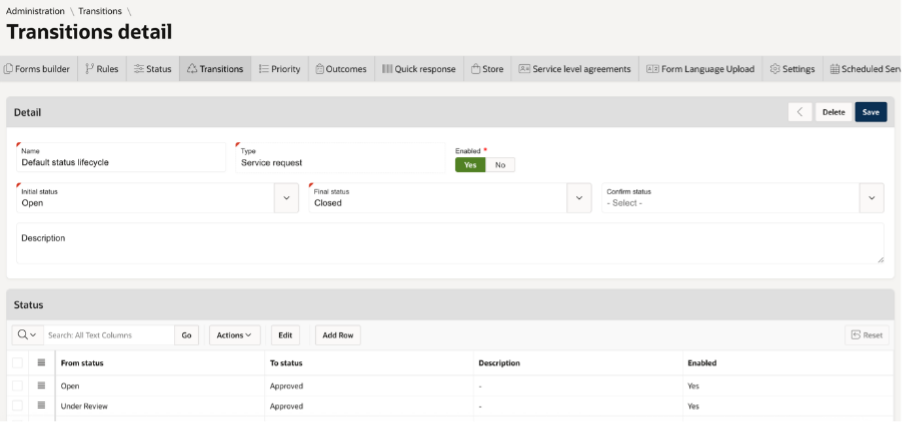
Use the ‘add row’ button to add another step in the lifecycle, such as ‘under review’ to ‘closed’. To delete a status change, click the check box to the left the line (can be more than one) and then click on ‘Delete checked’. Click ‘Apply Changes’.
Was this article helpful?
That’s Great!
Thank you for your feedback
Sorry! We couldn't be helpful
Thank you for your feedback
Feedback sent
We appreciate your effort and will try to fix the article