Introduction
About this guide
This guide has been created to explain how the table component can be used on Forms.
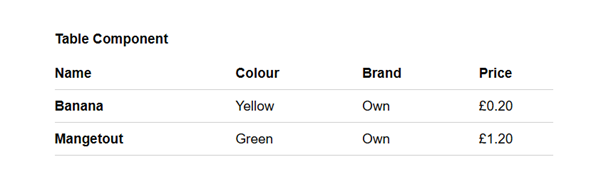
The table component allows for a table to be created, with Columns, Rows, and customisation options. This is useful when you want to provide information to submitters in a quick and intuitive way.
An example of what the customer can see if the following:
Configuration
How do I configure the component?
To create a table, navigate to the form that you wish to add it to via Administration > Forms Builder. Next, locate the page and region that you want to add the table item to.
Click on ‘add item’ and select ‘Component’ as the item type. Below this, the Components select list will be available, where you can select ‘Table Component – V5 only)’.
Now that you have selected the table item, the advanced settings can be configured:
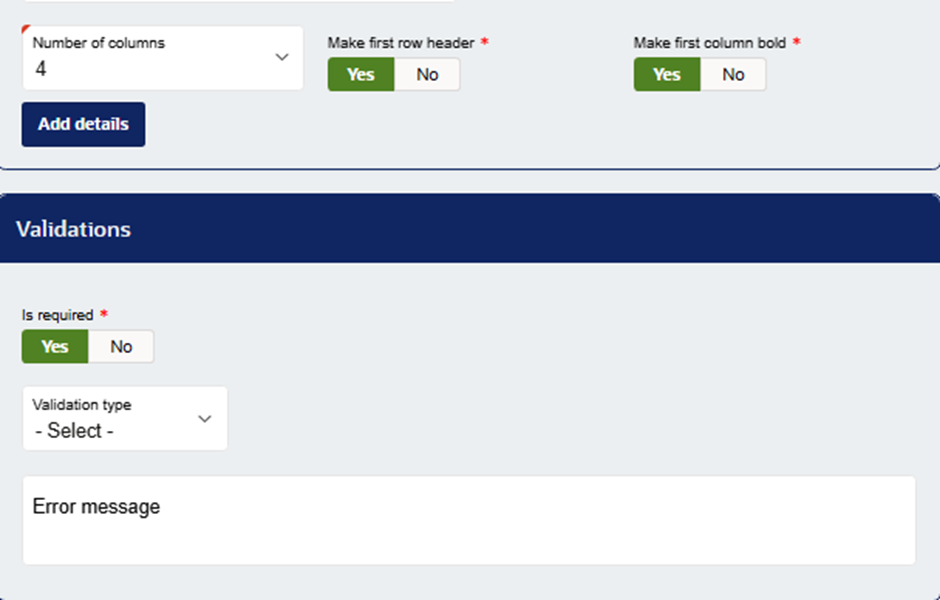
Number of Columns – There can be between 2 and 7 columns on a table.
Add details – This opens the table configuration menu:
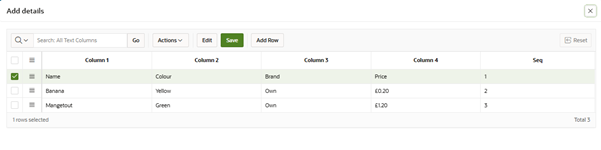
This allows you to add the contents of the table. For example, there are details of fruits, their colour, brand and prices.
The first row is used with the ‘make first row header’ option to have a header for the table. To ensure that this row is the header, set it’s sequence (seq) to 1.
In this example, the ‘make first column bold’ option is also enabled to differentiate the header from the table contents.
Please note that it is recommended to not enable validation on the table component, as this will prevent all submitters from passing the page.
Was this article helpful?
That’s Great!
Thank you for your feedback
Sorry! We couldn't be helpful
Thank you for your feedback
Feedback sent
We appreciate your effort and will try to fix the article