Contents
- Introduction
- Collection Types
- Round Types
- Waste Rounds Configuration
- Waste Collection Schedules Configuration
Introduction
About this guide
This guide has been written to assist with the configuration of Waste Collection, Waste Rounds and Schedules in MCS. These are crucial prerequisites for the Waste Module.
Creating these pre-requisites allows for the usage of Waste Collections, as the Waste Schedule uses the Collection Type to define its purpose and containers, and the Rounds to establish collection days and routes.
Collection Types
Configuring Collection Types
Before collection schedules can be added, a collection type must first be configured. This helps categorise different types of collections, such as Recycling, Garden Waste or Sharps Collections.
To add a collection type, go to Administration > Waste > Collections
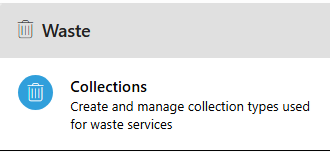
Next, click on ‘add’ at the top right of this page.
Specify a name for the collection type and decide whether tasks are to be created when a collection of this collection type is made as per the collection’s schedule.
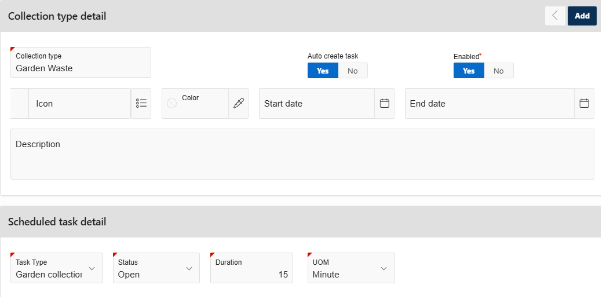
If enabled, specify the task type, the status, and the duration of the task.
Select an Icon and Colour to differentiate this collection type from others on the Know My Bin Day (KMBD) page. There is also the option to specify the start and end date for this collection type.
Once this has been completed, click Add to create the Collection Type.
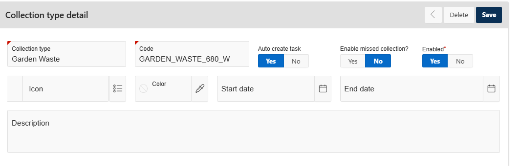
To enable Missed Collection (allowing waste collections of this type to be reported as missed) edit the collection type and enable Missed Collections.
Adding Containers to Collection Types
Now that a collection type has been created, a container can be created and attributed to the collection type. A container records details such as its purpose and dimensions and can be linked to one or more collection types. After creating a collection type, create the container and link it to the relevant collection type. A single container can be added to multiple collection types if required.
To do this, go to Administration > Waste > Containers.
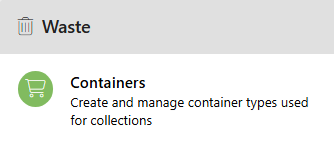
After this, click on Add on the top right of the page.
Type the name of the container, then select the previously created collection.
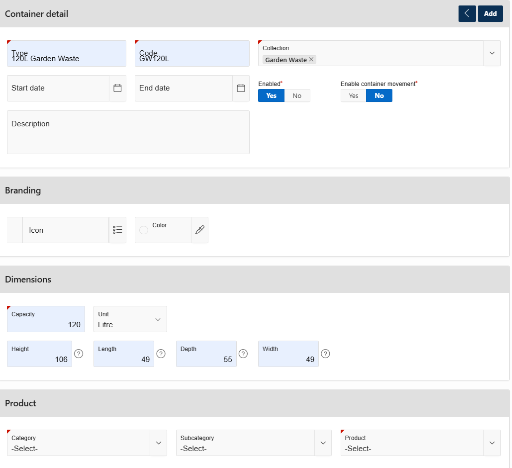
Then, optionally, enter the start and end date for this container.
If you want container movement on this container (allowing for tasks to be created when the container is ordered, replaced, removed, repaired etc), enable this option.
Under the Dimensions section, specify the capacity and physical dimensions of the container. If a product is configured for this container, select it in the Product section.
Once this has been configured, click Add on the top right of the creation page.
Round Types
Configuring Round Types
Now that a collection type and container have been added, you will need to add a round.
To do this, you must first add a round type. First, navigate to Administration > Waste > Types.
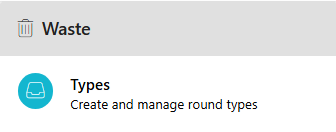
Here, select Add Row to add a new round type. Enter a name for the round type and, optionally, write a brief description of the round type.
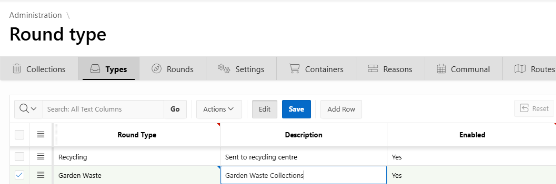
Ensure that the row is enabled and then click Save.
Waste Rounds Configuration
Configuring Rounds
Now that the round type has been added, a waste round can now be configured.
To configure a waste round, go to Administration > Waste > Round
Now, click ‘add’ at the top right of the page.
Type a name for the Round and copy the name into the ‘Number’ region. Next, select the Collection Type that was previously configured.
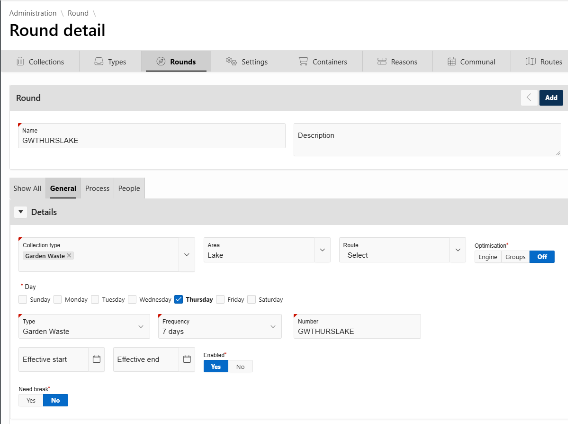
If the round serves a particular area, select the Area. If a route has been configured under Administration > Waste > Route, select it to add plotted locations to the round. These locations can then be optimised to establish the collection route.
Optimise the round if required. This can be done either via Groups or via an Engine, an algorithm that creates a time effective ordering for collections.
Select the days that you would like the Collection to be scheduled for, and the frequency in which the collections should occur. With the configuration above, the Round is for every Thursday.
Configure a start and end date for the round. If you want to add a break, select Yes on Need Break and select a time frame.
Once completed, click Add at the top right to create a round.
Waste Collection Schedules Configuration
Creating Waste Schedules
Now that the waste pre-requisites have been created, collection schedules can be configured to link a property to a collection over a scheduled period. These can be added via an import, adding them manually, or adding them through the Contracts Module.
Importing Collection Schedules
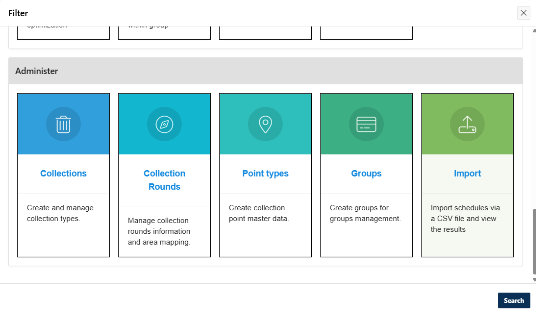
If you want to import collection schedules in bulk, go to Waste > Option > Import
Firstly, to acquire a sample file, click on Download Template. This will allow you to fill out the data to be uploaded in the correct formatting.
Parameters for file upload .csv format are as follows:
Parameter | Required Value | Notes |
<action> | Schedule number (if amendment only) | The number for the schedule. If adding a new schedule this is not required. If updating a schedule this is required. |
<collection_type> | MCS Collection type code | Alphanumeric - Code for collection type. E.g. ‘REFUSE’ |
<round_number> | Round Number | Alphanumeric - Round Number |
<container_type> | MCS container type code | Alphanumeric - Code for container type. If you are loading two different container types for one collection, these need to be separated with a vertical bar. E.g. ‘GREY240 | GREY180’ |
<no_of containers> | Numeric value | Number of the container type that needs to be added. If loading two different container types, specify the number of each by separating with a pipe symbol. E.g. ‘1 | 2’ would mean 1 x GREY240, 2 x GREY180, from the container type code shown in the above row. |
<assisted> | Y or N | Y or N default |
<start_date> | DD/MM/YYYY | Date Value as required, please note this will be determined by the Round allocated if Allocated From is set to ‘Round’ |
<end_date> | DD/MM/YYYY | Date Value as required, please note this will be determined by the Round allocated if Allocated From is set to ‘Round’ |
<round_type> | Round type code | Alphanumeric - Code for round type. |
<uprn> | UPRN | UPRN for property |
<auto_round> | Yes or No | If Yes, will determine round from UPRN, co-ordinates and allocate Round according to ‘Area’. Or No, will use round_number. |
<primary> | 0 or 1 | if the property has a communal collection from another property, you will need to insert a value of '0' and add the communal code in COMMUNAL_CODE column. If the collection is not a communal collection, you will need to specify a value of '1'. |
<communal_code> | Communal code value | If you have specified that the property has a communal collection in 'PRIMARY', you will need to specify the Communal code here (Administration>Waste>Communal Codes). |
Once you have the file, click on the Choose File button, and select the CSV file you want to upload, and then click on Submit.
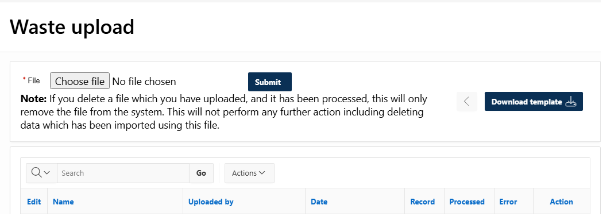
Below this, a list of previous imports can be found. Individual records can be viewed by clicking on the ‘edit’ button as shown below
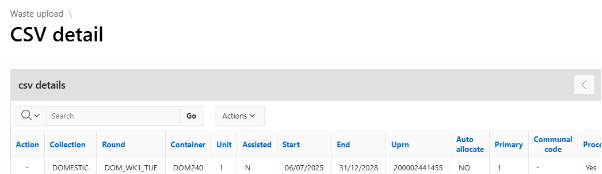
An example of a data load using a pipe character (|) to allow multiple collection types is shown below:

Configuring Collection Schedules Manually
Collection schedules can also be added manually.
Go to Waste > Add and complete all mandatory fields, including the property, collection and container. To allocate the round automatically, select Auto take Round Number. Automatic allocation uses geospatial logic and requires the round to have an Area configured.
If Auto take Round Number is set to No, the appropriate round will need to be selected.
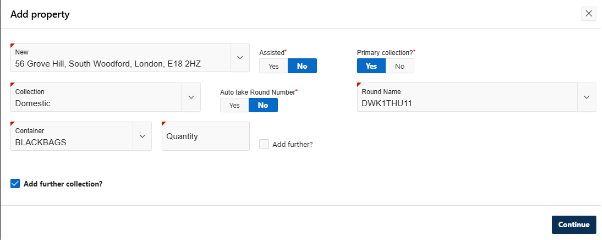
You can also opt to add another Container Type. Selecting Add further collection? will allow you to add additional collections where required. Click on Continue to finish.
After creating the collection schedule, use Searching for Collection Schedules to find the record.
Check that the property, collection type, containers, round and schedule dates match the intended configuration.
Creating a Collection Schedule from Contracts
Collection Schedules can also be created via Contract rules. This can automate the creation of collection schedules and links them to certain contracts, such as Garden Waste subscriptions.
This is configured using the following Rule options: selecting the Create or Update Waste Collection rule action, and based on the location selected in the Contract:
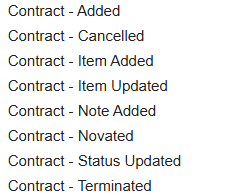
Contract - Added – Selecting the Create or Update Waste Collection rule action creates a Collection Schedule for the location specified in the Contract, using the Collection Type specified.
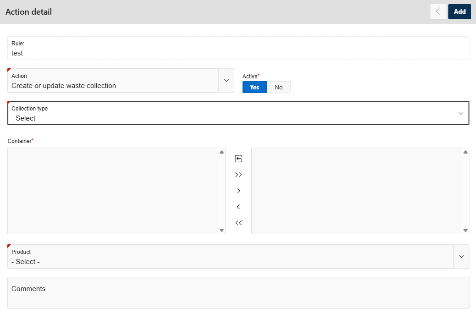
The number of containers created on the Collection Schedule is derived from the number of Items in the Contract. If Rounds have been configured for the Collection Type, the Round will be derived from the UPRN of the location in the Contract. If the Collection Type is configured to Auto Create Task, services will be created based on the Start and End Dates of the Contract and the Round frequency.
Contract Terminated - This will update the End Date of the Waste Collection Schedule for the location, based on the date when the Contract is terminated. This will remove any related services that have been created.
Contract Cancelled - This will update the End Date of the Waste Collection Schedule for the location, based on the date when the Contract is terminated. This will remove any related services that have been created.
Contract Novated - This will update the End Date of the Waste Collection Schedule for the location, based on the date when the Contract is terminated for the location, due to the novation. This will remove any related services that have been created.
A new Collection Schedule will then be created for the new location, using the Start Date from when the Contract was novated, and using the End Date of the Contract to populate the End Date of the Collection Schedule. Services will be created based on the Start and End Dates and the Round frequency.
Contract Item Created - This will add new containers to the Collection Schedule, for the location specified in the Contract. This is typically used when the Contract is renewed. If the Collection Type is configured to Auto Create Task, services will be created based on the Start and End Dates of the Contract and Round frequency.
Contract Item Updated - This will amend any container numbers in the Collection Schedule, for the location specified in the Contract. If the Collection Type is configured to Auto Create Task, services will be amended based on the Start Date of the updated Item, and the End Date of the Contract and Round frequency.
Searching for Collection Schedules
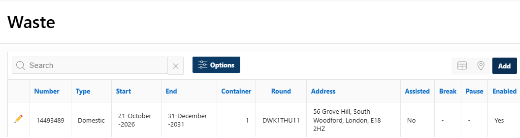
To find a particular Collection Schedule, go to Waste > Options and select the appropriate filter criteria
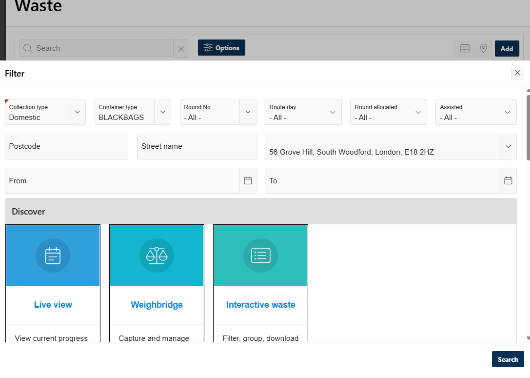
If Rounds are configured for the Collection Type selected, the Day, Round, and Frequency will be specified. If not, this will need to be entered/selected.
Was this article helpful?
That’s Great!
Thank you for your feedback
Sorry! We couldn't be helpful
Thank you for your feedback
Feedback sent
We appreciate your effort and will try to fix the article