Managing waste schedules
The administrator can now manage waste schedules by using a new option under
Waste > Options > Schedule changes
- Move
- Copy
- Extend
- Delete

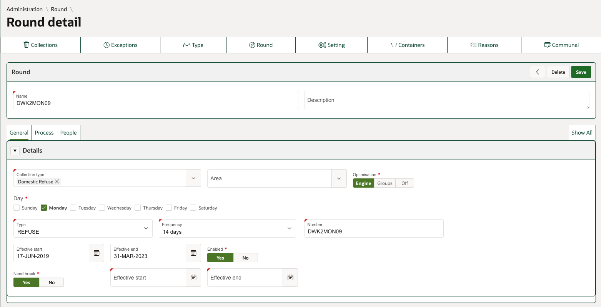
There is also functionality on the waste round configuration to add a break
Administration > Waste > Round
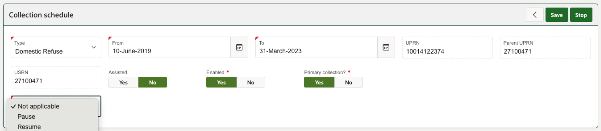
And on the Waste schedule itself for
- Stop
- Pause
- Resume
Extend, Move, Copy & Delete
These functions can be found under Waste > Options > Schedule changes

Once the configuration has been added the Create button has been selected the requested change will be added to the scheduler job list.

If you wish to delete a scheduled job before it is processed, then this can be done using the delete button.
Extend
Action
For all schedules on a specific round, this extends the schedule end date to a future date. The schedule will then continue to create collection tasks as needed up until this new schedule end date, but not exceeding the round end date.
Result
- Updates all the schedule end dates on an existing round
- Updates the schedule start date with first new collection dates (from round) and end date (from round)
- Task generation is started for schedule
- Collection displays on calendar up to new schedule end date, but not exceeding the round end date

Move
Action
Creates new schedules on another round based on the schedule data held on the existing round and then end dates the original schedules. It’s important to plan when you move the round, so collection tasks are created for the next due date.
Result
- Updates end date to the date processed on existing schedules on round moved from
- Creates new schedule with first new collection dates (from round) and end date (from round)
- Task generation is started for new schedules
- Keeps history on original schedule of MOVE. Original schedule is disabled and doesn’t display on the collection calendar
- New schedule displays on collection calendar form schedule start date

Copy
Action
Copies a collection schedule from one round to another round and keeps the original schedule unchanged. Both the old and new schedules remain active.
Result
- Creates a new schedule on another round with the same details as the original
- Original schedule remains unchanged and enabled
- Task generation is started for new schedule
- Both schedules appear on the calendar

Delete
Action
Disables the schedules on a round and removes the future collection tasks. The deleted schedules are not removed but are end dated and disabled to retain history.
Result
- Schedules are disabled
- Schedules are end dated
- Future collection tasks are removed
- Schedules do not display on the collection calendar

Stop, Pause & Resume
Stop, Pause & Resume are managed on the individual collection schedule record. Navigate to Waste > Options and user the filter to find the schedule(s) you are interested in adding the Stop, Pause or Resume to.
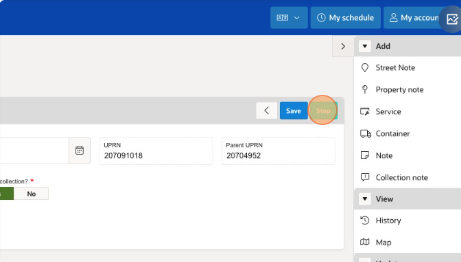
Stop
Action
Stopping a schedule updates the end date of the schedule to the date when Stop is selected. Task generation is stopped, and all future tasks are removed.
Result
- Schedule end date updated to “Stop” date
- Schedule is disabled
- Future tasks are removed
- Historic tasks remain
- Does not display on the calendar
Pause
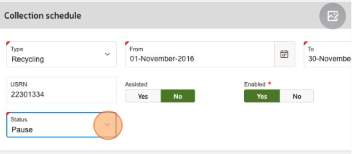
Action
Stops task generation from the Pause date
Result
- Future tasks are removed
- Historic tasks remain
- When Pause is removed, future tasks added by scheduler
- Does not display on the calendar
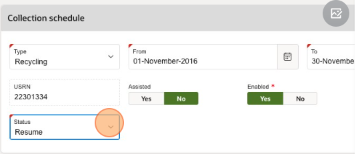
Resume
Action
When a paused schedule is resumed then task generation recommences, and collection shows on calendar.
Result
- When resumed, future tasks are produced by scheduler process
- Collections are shown on the calendar
Break
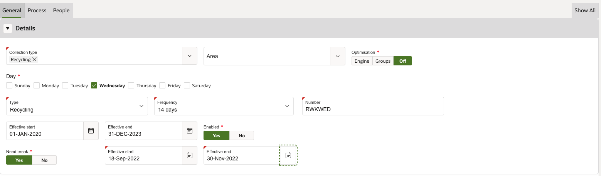
To add a break to a round navigate to Administration > Waste > Round and select the round you wish to add a break to.
Select “Yes” to need break and enter the effective start and end dates for the required break.
Action
Stops task generation for Break dates. Tasks will start to be generated again at the end of the break.
The collection is displayed on the calendar.
Result
- Schedule end date is not updated
- Schedule is not disabled
- Tasks are created during break but disabled
- Collection is displayed on the calendar before and after break
Was this article helpful?
That’s Great!
Thank you for your feedback
Sorry! We couldn't be helpful
Thank you for your feedback
Feedback sent
We appreciate your effort and will try to fix the article