Introduction
About this guide
This guide explains how to import multiple values into a select-list item on a form.
Importing values is faster and more convenient than entering them individually, particularly for long lists such as schools or bulky-waste items.
Importing Select Lists
Before you begin, ensure that you have access to Administration and permission to edit forms in Forms Builder. Prepare the select-list values you want to import, including a unique key for each value.
First, go to Administration > Service Request and Case > Forms Builder. Select the relevant catalogue and form, then use Search to locate the position where you want to add the select list.
Create the item and select ‘Select list’ as the item type. Add one value manually; this starter value will appear in the export file and provide the correct structure for adding the remaining values.
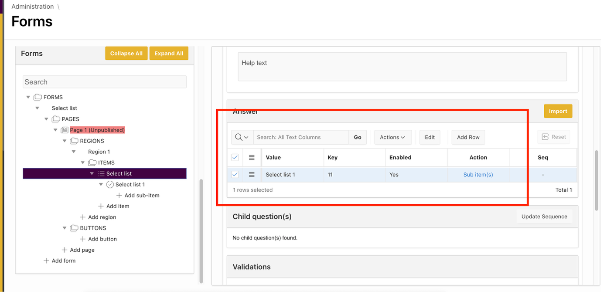
Save the item, then click ‘Import’.
Click ‘Download file with existing data’. The downloaded file will contain the value you added manually and will serve as the template for adding the remaining select-list values.
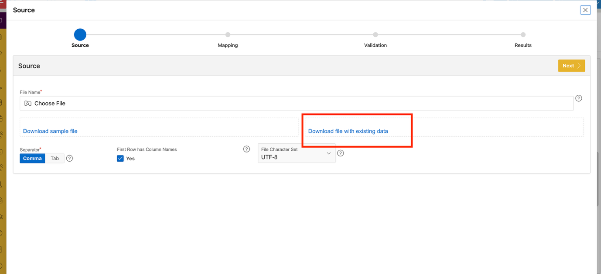
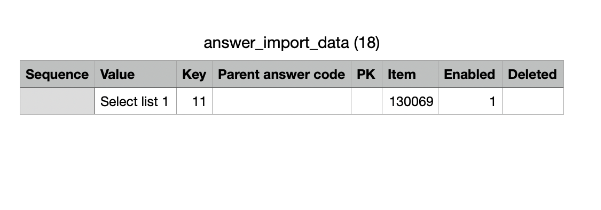
In the downloaded file, add each required option under ‘Value’. Assign a unique key to every option.Keep the item number unchanged for all rows because it links the imported values to the correct select list.
Save the completed file. In the import screen, click ‘Add file’, select the file, then click ‘Next’.
On the column-mapping page, match each source column in the uploaded file to the corresponding target column in the select list.
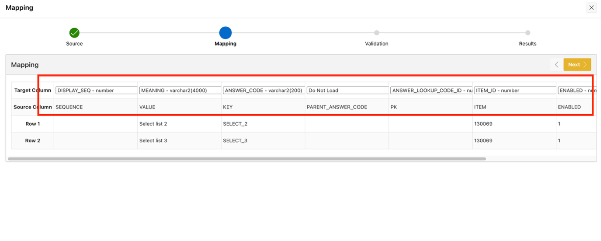
Map the columns as follows: Display sequence to DISPLAY_SEQ, Value to MEANING, Key to ANSWER_CODE, PK to ANSWER_LOOKUP_CODE_ID, and Item to ITEM_ID. Enabled and Delete are assigned automatically. When all columns are mapped, click ‘Next’.
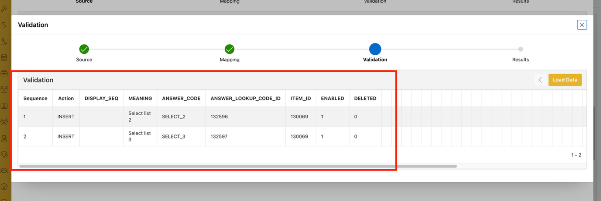
On the next page, review the values in the table. The system will generate ANSWER_LOOKUP_CODE_ID automatically. If the values and mappings are correct, click ‘Load data’.
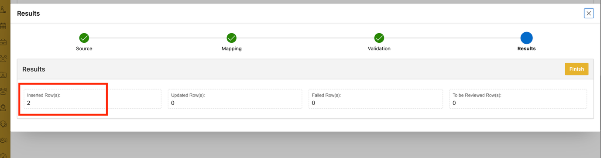
When loading is complete, review the number of rows inserted and confirm that it matches the number of values you intended to import. Then click ‘Finish’.
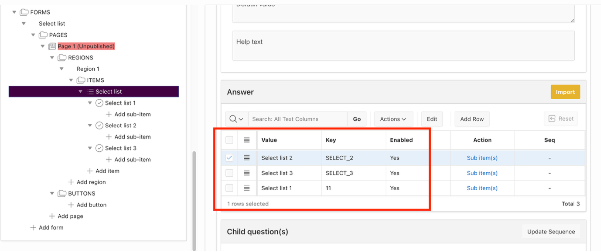
To verify the import, return to the form, open the select-list item and confirm that the imported values appear in the expected order. Save the form after completing the check.
Was this article helpful?
That’s Great!
Thank you for your feedback
Sorry! We couldn't be helpful
Thank you for your feedback
Feedback sent
We appreciate your effort and will try to fix the article