Introduction
About this guide
This guide has been written to explain how to merge customer accounts.
Within Community, you will have the ability to merge duplicate customer accounts that have been registered with your MCS system. This will place all Transactions onto a selected “Master” account from amongst the accounts selected in the merge.
Note - You can only merge customer accounts. It is not possible to merge user accounts.
Merging Customers
Merging accounts on Community
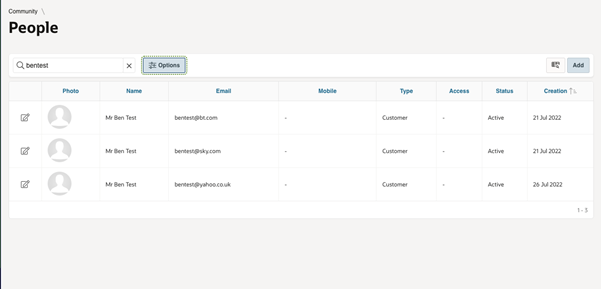
Firstly, go into Administration > Community > People
Then, enter a name or email address and search. The ‘Options’ button provides a more specific search function, where you can search for first names, last names, etc.
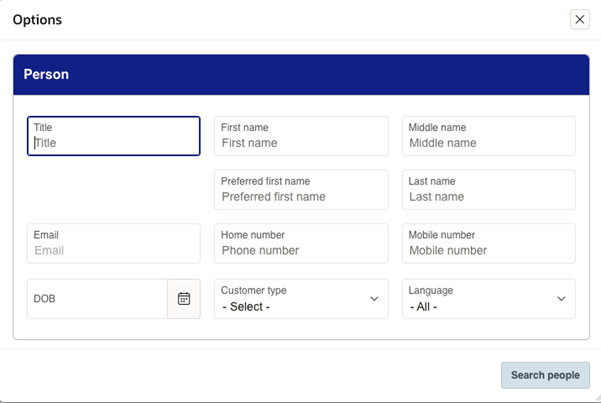
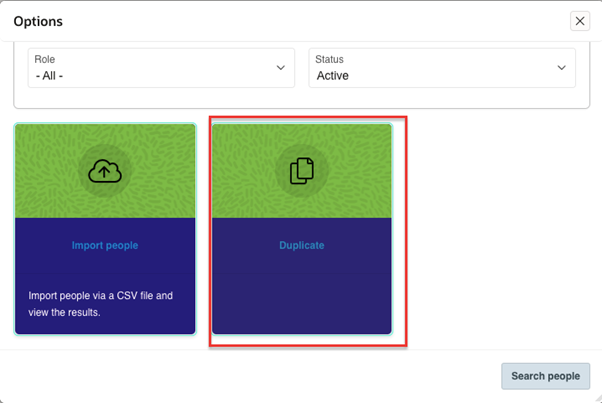
Once you've done this, click on Options > Duplicate. You will need to scroll down on the options menu to see this.
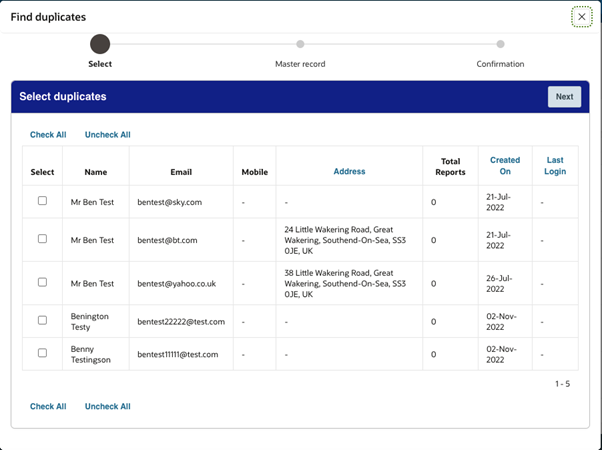
The following screen will appear, where you can select the accounts, you want to Merge. Click ‘Next’ to continue.
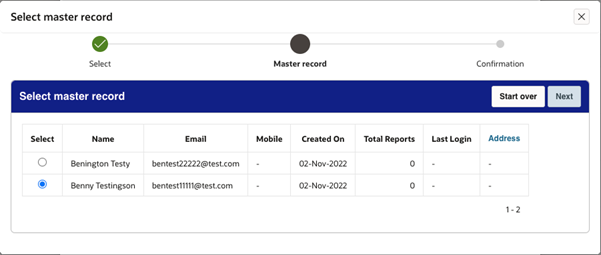
You now need to select the ‘Master Record’. All transactions from the selected duplicate accounts will be transferred over to this "Master Record". Click ‘Next’ to continue.
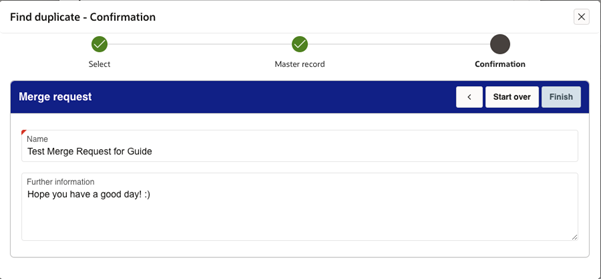
You will be brought to the confirmation page, where you'll need to enter a ‘Batch Name’. This will allow for further scrutiny and viewing of the Merge before it takes place. Click on ‘Finish’.
Validating the Merge Request
Confirming the Account Merge
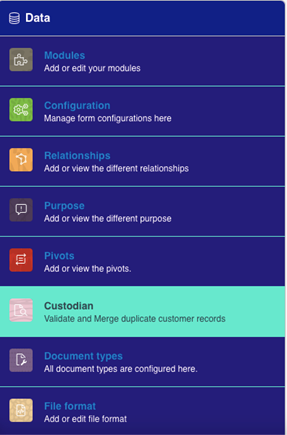
To validate this merge request, the batches that you create need to be processed. This is done via Administration > Data > Custodian.
From here, you can view all Batches that have been submitted, and those currently pending for review:
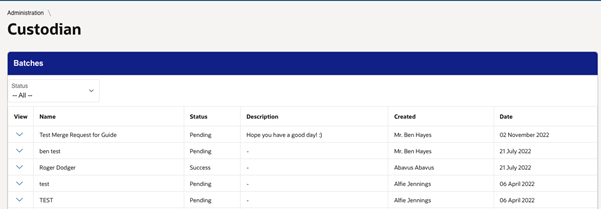
You can view Batch details before deciding by clicking on the ‘View’ Icon.
This will provide you with the audit history of the Batch. You can also view Batches by their current Status, if required.
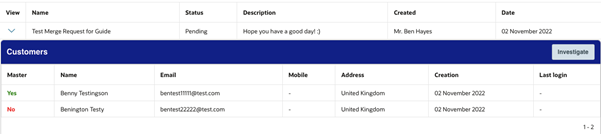
Click on ‘Investigate’ to proceed. You'll be given three options:
1. Save - This allows you to make further changes before Merging accounts.
2. Reject - This removes the Batch from the list and cancels the Merge.
3. Merge - This will Merge the accounts specified.
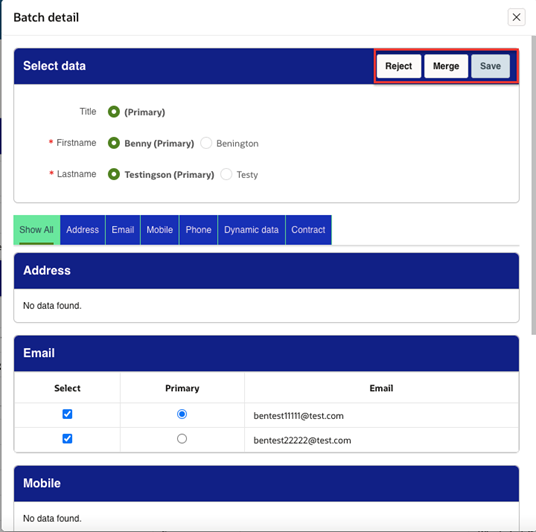
Select the relevant data to be applied to the master record, which is gathered from the selected customer records. Go through each tab to choose the data that needs to be transferred, then click on ‘Merge’ to finish.
Additional Information
Batches are processed on a scheduled basis, usually overnight.
Appropriate access roles need to be allocated against an admin user account for them to use account merge features.
Was this article helpful?
That’s Great!
Thank you for your feedback
Sorry! We couldn't be helpful
Thank you for your feedback
Feedback sent
We appreciate your effort and will try to fix the article