Introduction
About this guide
This guide has been created to outline the steps required for admin users to set up and apply SLAs to Service Requests. It should be used by admin users with this responsibility.
How are SLAs used
SLAs can be created and applied to forms to clearly display how long is remaining for actions to be completed by service teams. Reminders can also be configured at different stages of the lifecycle to inform teams that deadlines are upcoming or have passed.
Note:
Monitor rules are required to complete the set up for an SLA. These can only be set up by Abavus employees, so please contact isupport@abavus.co.uk if you required this.
SLA configuration
Work pattern
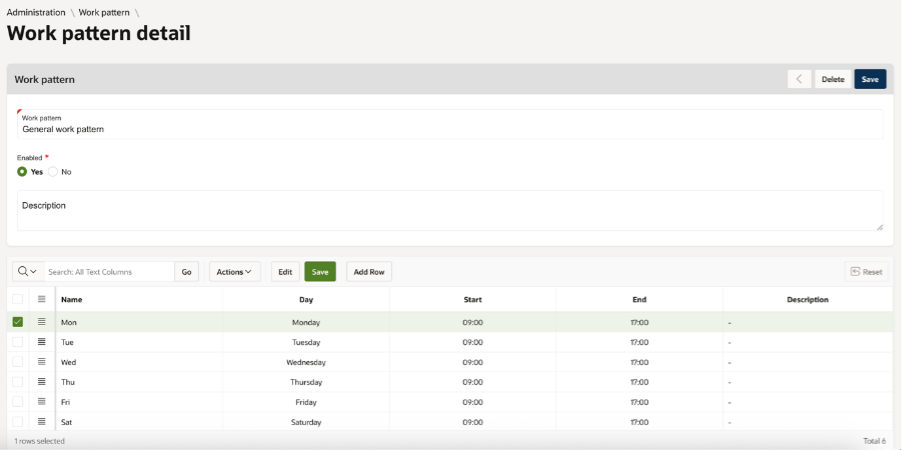
It is necessary to configure an appropriate work pattern for an SLA policy. This is so that the SLA timer can halt outside the hours of the work pattern.
To complete a work pattern the user should click on ‘Work pattern’ in the Worforce region on the admin tab. When adding a new work pattern, a name will need to be given, and the user can then proceed with adding the working hours.
Impact
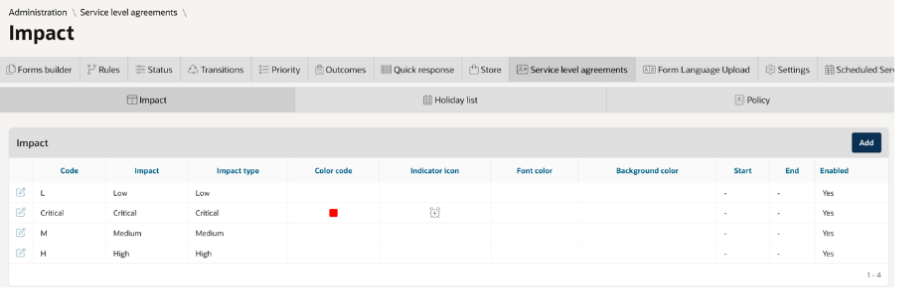
Navigate to Administration > Service Request and Case > Service Level Agreements > Impact.
The initial impact screen provides a list of the types of impact that have been developed so far. Impact simply means the priority or urgency of a report. The type of impact will be included in the SLA as appropriate.
Click on ‘Add’ to create a new impact and configure the name and branding as required.
Holiday list
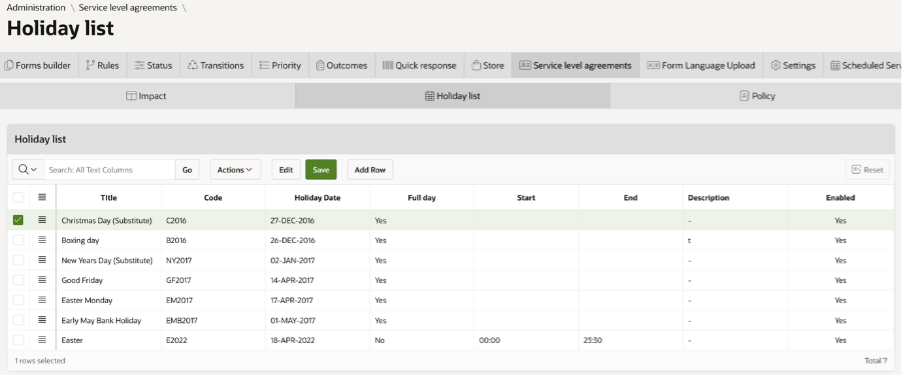
Navigate to Administration > Service Request and Case > Service Level Agreements > Holiday List.
Users can use this page to add holidays into the platform. A holiday is a day that will not be counted as part of the SLA. Holidays added here must be added against the specific policy as part of the policy configuration.
Use the ‘add row’ button to create a new holiday. The start and end time columns can be used if the date should only ignore the SLA during a specific period of time.
Policy
To create a new policy or edit an existing one, navigate to Administration > Service Request and Case > Service Level Agreements > Policy.
First configure the policy name, type, and start and end dates if required.
Timer
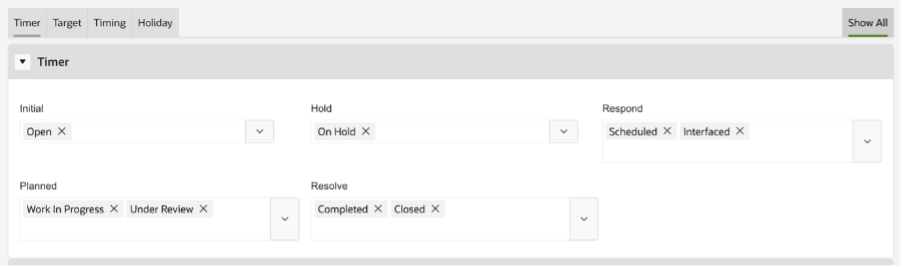
The next area to set up is the timer region. The timer can be set by clicking on the appropriate title and statuses will appear in each field. This means that the SLA will correspond with the status set in the appropriate field. For example, as in the screen below on the initial field the the SLA will commence upon the service request etc having the open status. Hold would stop the timer against the SLA when the SR is in the On Hold status.
It is not mandatory for each field to be completed.
Target
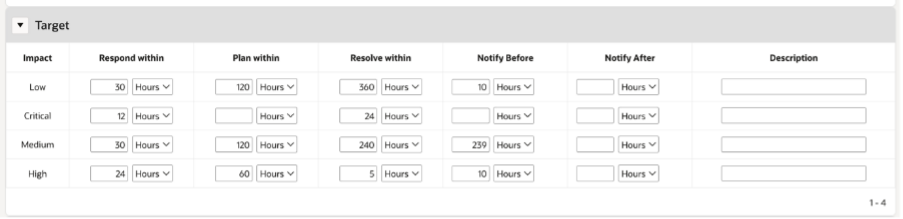
The target region is user to dictate how much time a user has to move a SR on to the next stage. The SLA countdown will display the time remaining for the stage the report is currently in when viewed on the Service module. You do not need to complete the fields for all impacts here, as all are displayed by default.
Timing
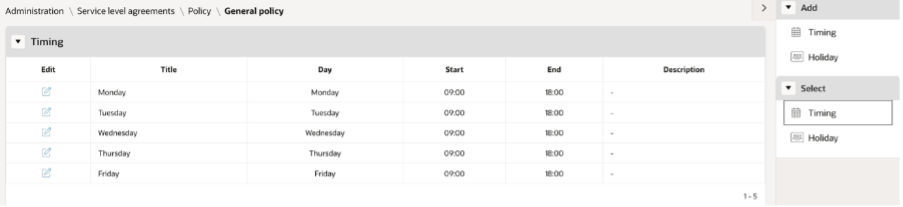
The timing area will display the selected work pattern. A work pattern can be added to the SLA using Select > Timing on the right-side menu. If you have chosen not to set up a work pattern, you can use Add > Timing to add individual days manually
Holiday
The holiday region will display the holiday days that have been applied to this SLA. These can be added from the options on the right of the screen.
Rule configuration
Applying an SLA
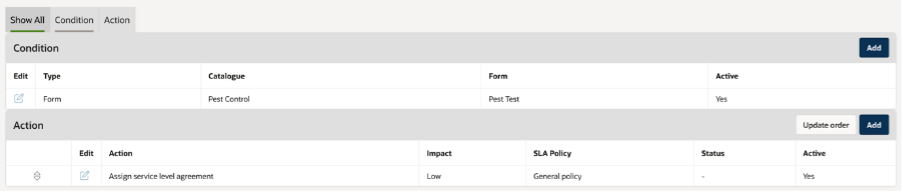
For an SLA to be applied to a form, a rule must be used. The rule should be configured for when – service added, assign service level agreement. You can choose the starting impact at this stage also.
Note
Monitor rules are required to complete the set up for an SLA. These can only be set up by Abavus employees, so please contact isupport@abavus.co.uk if you required this.
Was this article helpful?
That’s Great!
Thank you for your feedback
Sorry! We couldn't be helpful
Thank you for your feedback
Feedback sent
We appreciate your effort and will try to fix the article