Introduction
About this guide
This guide has been written for new users of MCS in understanding rules, what they do and how to set them up, or to assist users in understanding default behaviours.
What are Rules?
Rules are automatic processes that perform actions when certain conditions are met. These can be applied to the following modules:
- Assets
- Cases
- Contracts
- Information
- Service (Forms)
- Tasks
Rules help you:
- Reduce manual work
- Ensure consistency
- Improve response times
- Automate service requests, case management, tasks, notifications, and more
Think of rules as an ‘if statement’. If conditions are met, then action is taken. There are two types of rules:
When Rules
Triggered instantly when an action occurs (e.g., “Service Request Added”).
Monitor Rules
Check conditions on a schedule (e.g., every hour). Useful for SLA tracking and time‑based escalations.
Rule Configuration
Where can I configure a Rule?
To create or edit a rule, go to Administration > Service Request and Case > Rules
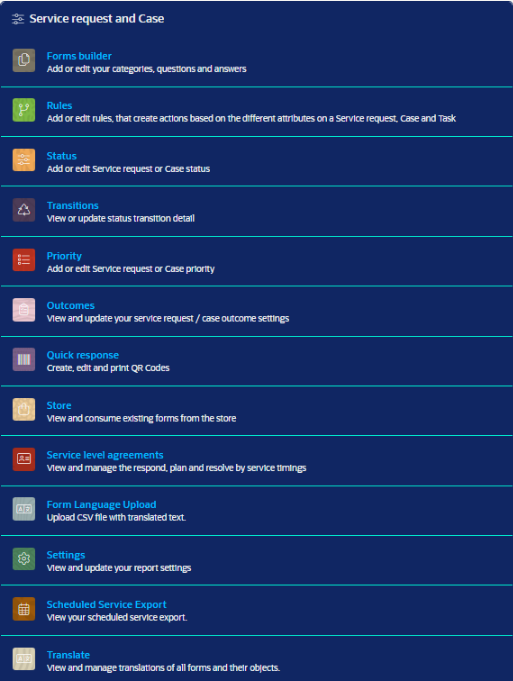
There, you will encounter the rule menu, which will allow you to do the following:
- View all rules
- Create and edit rules
- Create processes and subprocesses
- Copy rules
- Bulk update rules
Rule Processes and Subprocesses
Like forms with their catalogues, rules have processes, that must be created and assigned to the rule for a rule to be created. These can be configured by going to Administration > Service Request and Case > Rules, and then going to ‘Process’
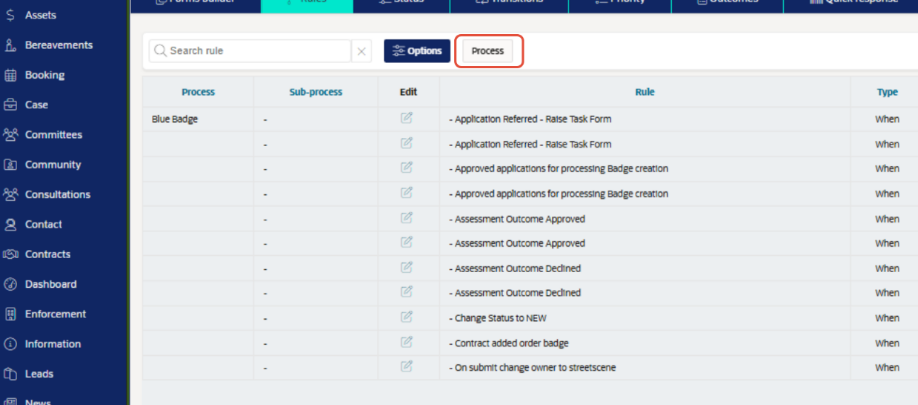
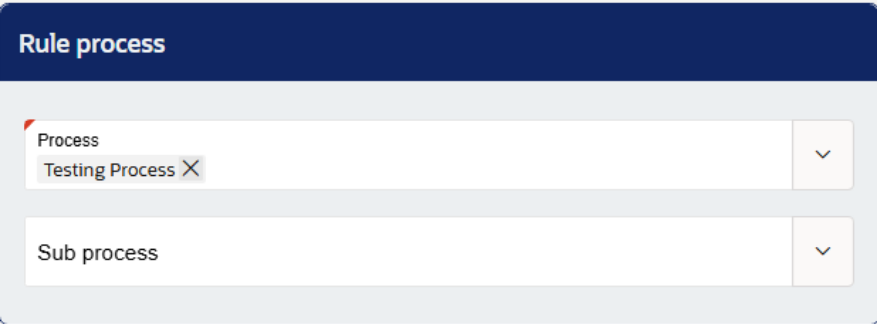
Next, Click on ‘add’ to open the following menu:
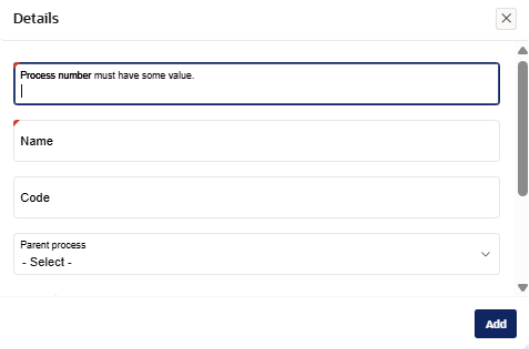
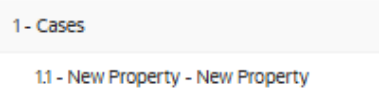
Process Number - This is used to help with the categorisation of rules. Denoting a Process as 1, and it’s subprocess as 1.1, helps with categorising the rules:
Name – This decides what the process is called.
Code – This is a unique code that is used to refer to the Process. It can be manually added or is automatically generated on creation.
Parent Process – If you are creating a sub-process, reference your Parent Process here.
For a Rule to be triggered, a process will need to be allocated in ‘Process’ within a Service Request Form. This can be found in the Form’s configuration menu in Administration > Service Request and Case > Forms Builder.
Creating a Rule
Initial Creation
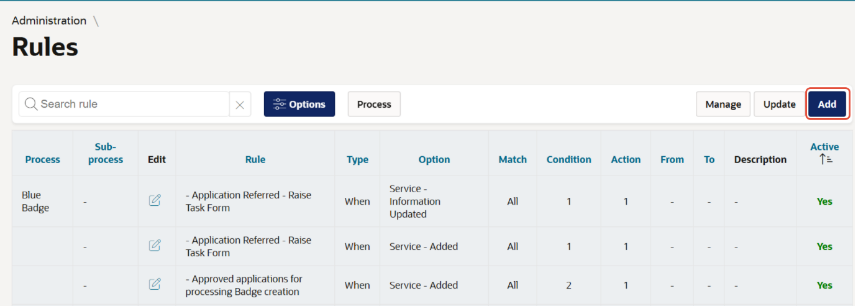
You now have the pre-requisites needed to create a rule. Go back to the Rule Menu and click on ‘Add’.
The following Configuration options will be available to you for the rule upon creation:
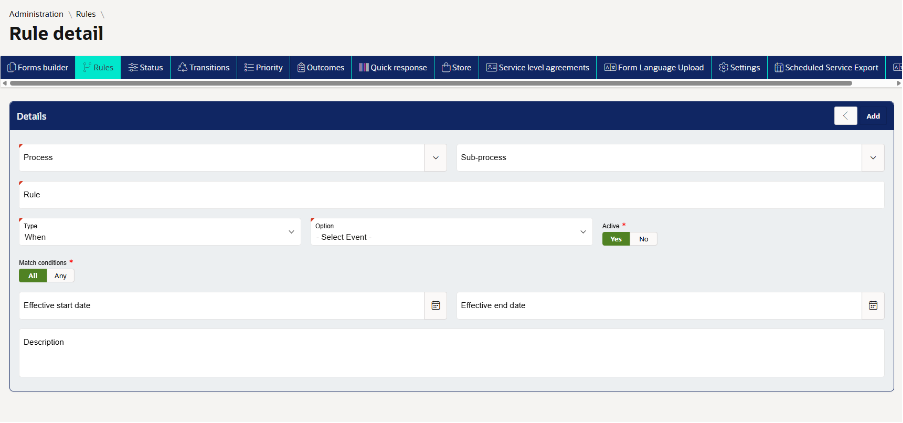
Process
This is the categorisation for the rules so they can be easily found and sorted.
Sub-process (optional)
If this rule needs to be categorised further, a sub-process can be used.
Rule
This is the name of the rule. We recommend naming this according to its conditions and purpose or actions, so it is clear what the rule does.
Type
This decides whether the rule is a monitor rule or a standard rule. There is a standalone guide on Monitor Rules if required.
Option
This is the action that is taken to trigger the condition check for the rule. For example, for ‘Service – Added’, the rule will check for conditions if an SR is added to the system. This cannot be changed once saved.
Active
This is the ‘on-off’ switch for the rule, enabling and disabling it as needed.
Match Conditions
If selected to ‘all’, then all configured conditions must be met for the rule to trigger. If set to ‘any’ then any one of the conditions can set the rule off.
Effective Start & End Date (optional)
If configured, limits the rule to a certain time range. If not configured, the rule will be active until disabled or deleted.
Description (optional)
Gives additional information for Users regarding its purpose.
Now that these are configured, you can click ‘add’ at the top. This will allow you to configure the conditions and actions for this rule.
Conditions
Additional configuration options are now available to you – Conditions and Actions:
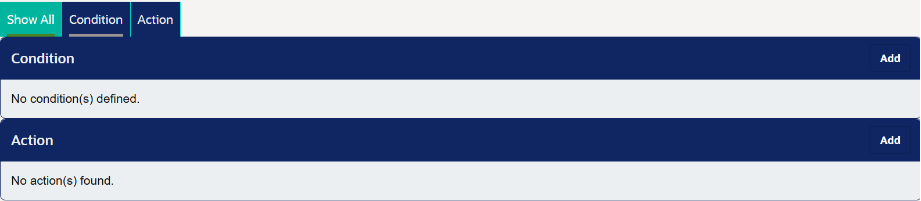
Firstly, add a condition by clicking on ‘add’. There will be several ‘types’ for the conditions based upon the ‘Action’ that you have selected for the rule. For example, for Service > Add, there are the following Types:
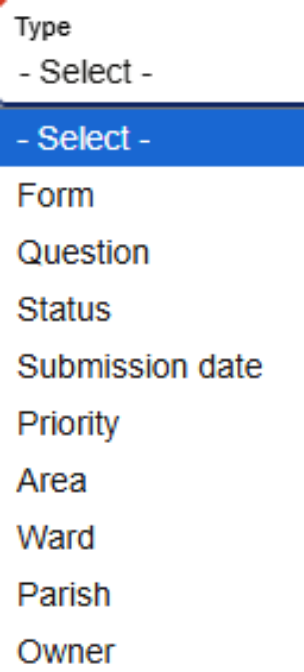
Form
This allows you to configure the Form that the rule is for. Multiple forms can be selected here and only allows the rule to trigger for the selected forms.
Question
This allows the user to allow the rule to only trigger when certain multiple items with set answers (select list, radio groups, tick boxes etc) are answered.
Status
This restricts the rule’s activation to certain statuses.
Submission date
This restricts the rule’s activation to various dates and date ranges.
Priority
This filters the rule’s activation based on the priority of the Service Request.
Area, Ward and Parish
This can filter the rule’s activation to certain areas. This is useful when certain SRs need to be sent to different teams depending on location.
Owner
This restricts the rule’s activation depending on the configured owner, whether that be an organisation, a group or an individual, useful for delegating information and tasks according to who the SR is assigned to.
Configure as many conditions as you wish and then create actions.
Actions
Actions define what happens automatically when all rule conditions are met. These differ depending on the ‘option’ setting on the rule.
For example, for Service – Added, you can:
- Change the status, priority, and form answers
- Create linked tasks and integration events
- Notify submitter(s), owner(s) and certain people via the following methods:
- SMS
- Push Notifications
- Letter
- Assign owners, outcomes or Service Level Agreements
Once these have been assigned, and you are happy with the rule’s configuration, click ‘Save’ on the top right of the Rule Detail Menu.
Managing Rules
How do I Copy Rules?
If you are attempting to add many rules with slight differences, such as rules that send an SR’s information to different individuals based upon the location of the SR, you can copy the rule, and then make the alterations as needed, which significantly increases the rule creation process.
To do this, once a rule has been created, you can click on ‘copy’ on the top right where the save button is. This will create a rule, which is automatically disabled (to prevent duplicate rule activations).

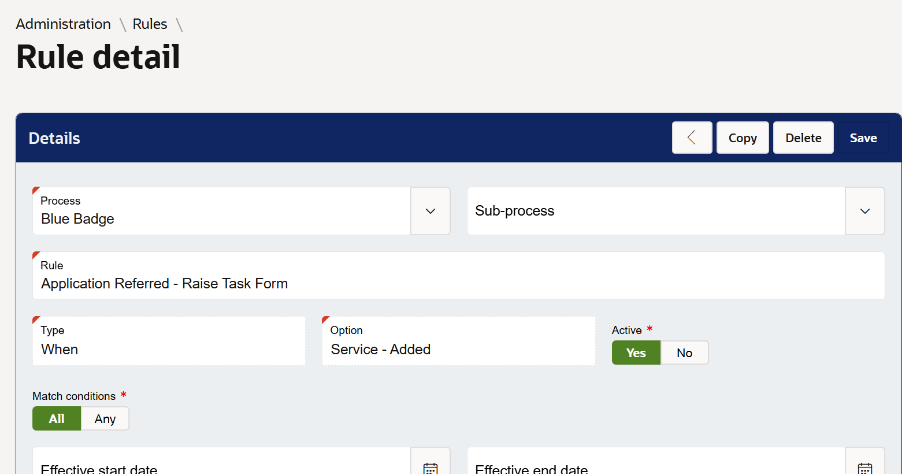
The new rule will be called ‘Copy of _’ where ‘_’ is the name of the rule that is copied. The rule will be found in the same process - and subprocess if configured - so that it can be found easily.
How do I Bulk Update Rules?
If you would like to make substantial changes to many rules, such as enabling, disabling and deleting, you can do this by clicking ‘update’ on the Rule menu.
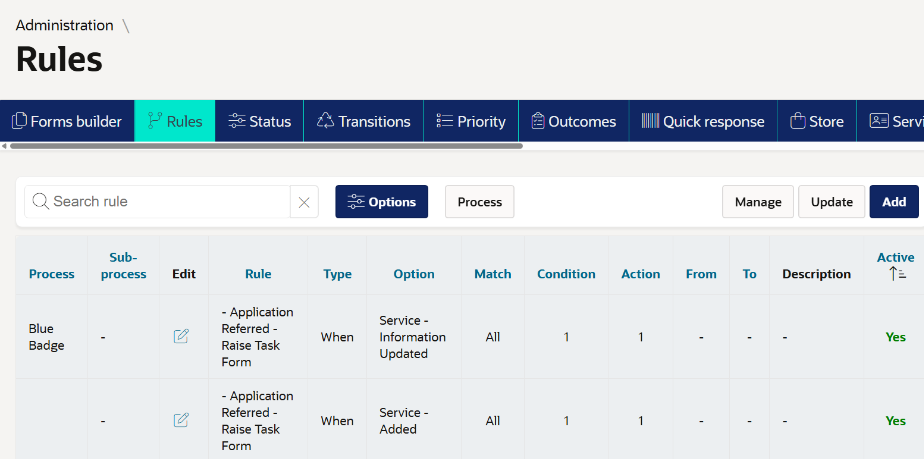
You will be met with a page that can filter rules to identify the rules that you can update. Any one or multiple of the following filters can be used at once to filter the rules:
- Rule type
- Event (also known as ‘action’ when first creating the rule
- Main Process
- Sub-Process
- Condition
- Match Conditions (Y/N)
- Action
- Start / End dates
- Active (Y/N)
Once you have filtered for the rules you wish to update, you can perform the following actions:
- Make all active – This activates every rule that fits the set criteria
- Make all inactive – This stops every rule fitting the criteria from running, but keeps the rules configured in case you wish to re-activate the rules.
- Delete all – This deletes all the rules in the criteria. There is a pop up confirming this action in case of accidental clicking.
Was this article helpful?
That’s Great!
Thank you for your feedback
Sorry! We couldn't be helpful
Thank you for your feedback
Feedback sent
We appreciate your effort and will try to fix the article