Who is this guide for
This guide is intended for council staff who are responsible for managing, processing, or overseeing submissions received through customer-facing or internal forms.
About the module
The Service module is the main area for managing all form submissions that have been received by the council. Whether a report is submitted through a public-facing form or entered internally by a staff member, it will appear in this module with the most recent submission appearing at the top of the list.
The Service module allows users to work on reports that have come in from the point of submission to the final resolution. Council staff can use it to view and manage incoming reports, send notification to submitters, add notes, update statuses, and more. Some users may have access to all form types, while others will only see those relevant to their role, based on the access which has been set by the system administrators.
Service: Home Screen
Overview
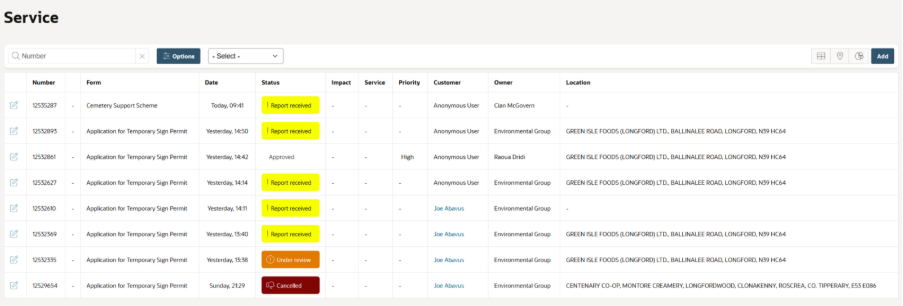
When users log in, they will normally land directly on the Service module home screen, which displays a list of all reports they have access to within a single catalogue. If not, it can be accessed at any time by clicking the Service button in the left-hand menu.
The main part of the home screen displays a list of reports submitted by residents or staff. Each entry in the list includes key details such as:
- Service Request number (unique ID)
- Type of form submitted
- Submission date
- Current status
- Assigned user (if any)
- Priority (if any)
Newly submitted reports will appear at the top of the list as a user refreshes the page.
There are also a couple of different views available, for example clicking on the pin icon in the top corner will switch to a map view of received Service Requests.
Filtering and saving views
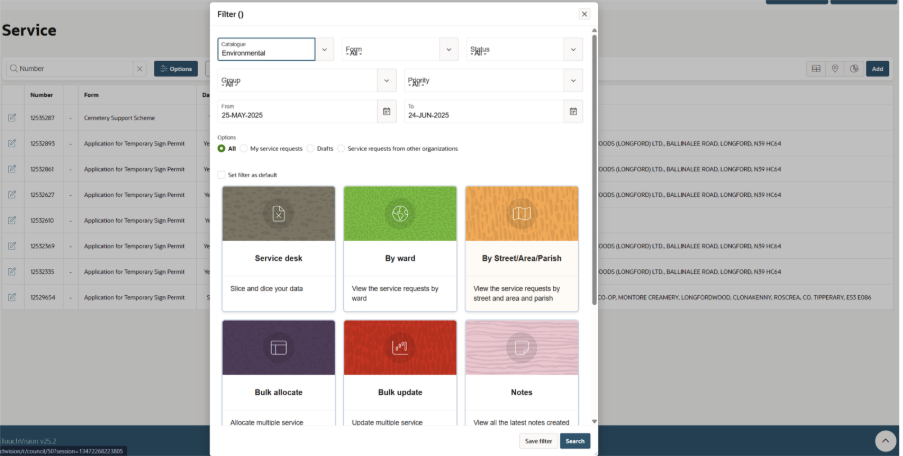
On the home page of the Service Module, users can customise the list of reports using the ‘Options’ button located at the top of the page. This allows users to complete basic filtering actions and save these views if required. More advanced filtering can be found here by using the ‘Service Desk’ button and then using the ‘Filter’ option in that subsequent view. To use the filter options, a user must first click the ’Options’ button, and can then filter by criteria such as:
- Catalogue (e.g. specific department forms)
- Form name (e.g. Environmental Complaint, Planning Application)
- Status (e.g. Report Received, Closed)
- Assigned owner
- Date Range
Once filters are applied, the report list will update to match the selection.
When applying a filter, users can click the ‘save filter’ button to create a quick-access view for future use.
Saved views appear as a dropdown option on the home page of the Service module and allow you to switch between views quickly and easily. This is especially useful for users who regularly manage specific types of submissions or need to monitor reports at a particular stage in the workflow.
Service: Managing a Request (SR)
Within an SR
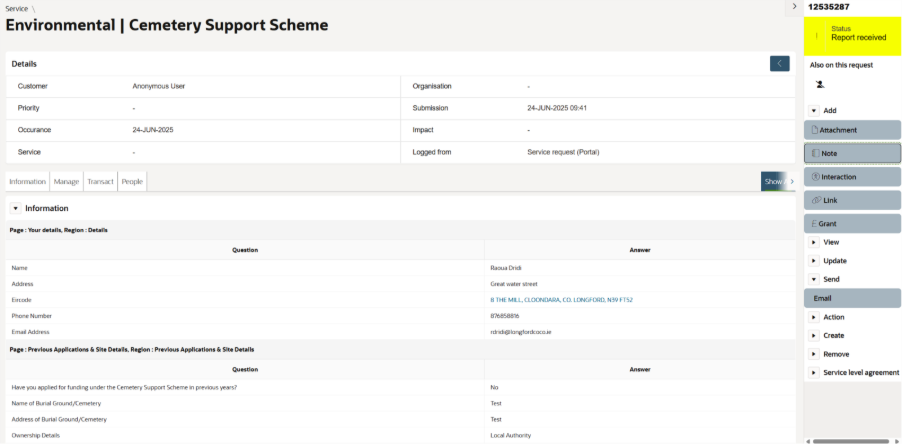
When you click on a report from the Service list, you’ll be taken into the detailed Service Request view. This is where you can see all information related to that specific submission and can manage it as required.
At the top of the SR page, you’ll find the key submission details, including:
- Submitter details – name and contact info of the person who submitted the report
- Date submitted
- Priority
- Channel received through
Scrolling down the page, you’ll see:
- Form content – the information provided by the submitter that makes up the content of the report
- Attachments – any files or photos included with the submission
- Location – if the report includes a location
- Owner – the staff member or team assigned to manage the report
- Notes – any internal comments added by users
On the right-hand side of the screen, you’ll find:
- Status panel – showing the status of the report
- Action buttons – to manage the SR, including:
- Add Note
- Send Email
- Update Owner
- Generate Documents
- View History (a full audit trail of all actions taken)
Adding a Note
Inside a report, click Add Note from the menu on the right.
Select a note type. To begin with ‘internal note’ should be used.
Enter your note content.
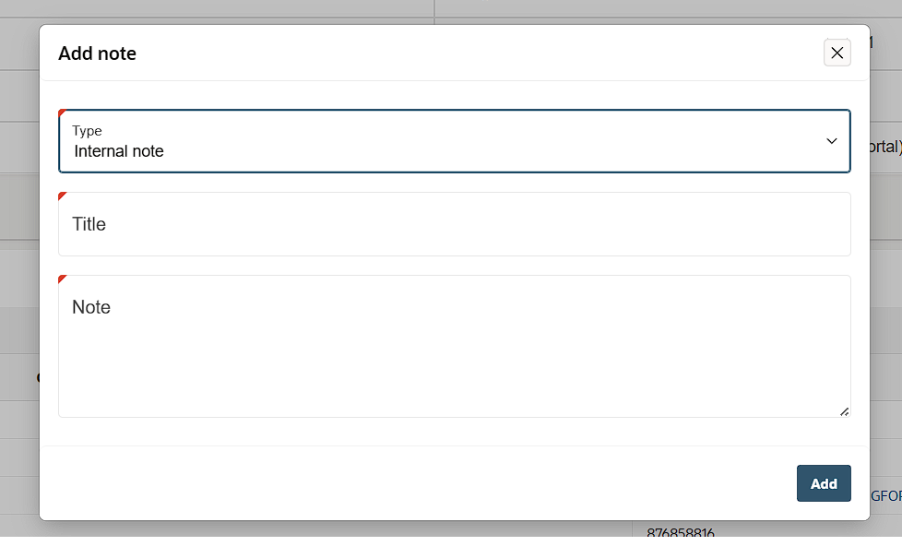
Note types work with role based access control and can also be visible to the report submitter if required.
Sending an Email
If sending an email to the customer, the email associated with the submitters account will automatically populate. If it has been submitted by the guest account, you can copy the email address from the SR details.
Click Send Email and paste the customer email in to the ‘to’ field if required.
Choose from available email templates or write a custom message.
Changing a Status
Click on the current status in the top right to move the report through its workflow.
Changing the status may trigger automations—e.g., a notification email to the submitter confirming the report has been received or closed.
Assigning a Report
Use the Update Owner button to allocate a report to yourself, another user, or another team.
The assignee will receive an automated notified.
Updating SR Content
Use the ‘Update Information’ button to change content in a Service Request.
Some processes may have specific fields for an admin user to update as part of the process.
Once the required information has been updated, click on ‘save’. You do not need to navigate through the whole form.
Generating a Document
Some reports have associated templates that allow you to generate a document (e.g. certificates).
To create these, use the Action – Print button. The printed template will download to your system as a PDF and can then be attached to an email manually if required.
Was this article helpful?
That’s Great!
Thank you for your feedback
Sorry! We couldn't be helpful
Thank you for your feedback
Feedback sent
We appreciate your effort and will try to fix the article