Introduction
About this document
Abavus and iTouchVision are committed to keeping the My Council Services platform running smoothly to ensure a comfortable Customer experience.
This handbook outlines details of the support provision for all customers.
Support Overview
Support centre
Abavus operates a support centre including a dedicated support team and an online Self Service Help Centre. Support users will submit tickets for issue reporting along with other requests for support assistance and enhancement requests.
Support Users may also use our online Self Service Help centre for Knowledge searching. Our Community Forums also enable customers to follow and contribute to specific topics relating to the Product and Support process such as Release documentation.
Support hours
Business support hours are 9:00 am to 5:30 pm GMT / BST Monday to Fridays and not including any observed U.K. holidays.
Requesting support
Users can request support by submitting a ticket. Once submitted, this ticket will be allocated with the appropriate classification and prioritisation by the Support team.
The classifications are as follows:
- Issue - Any disruption or downtime to normal service (an incident),
- Question - Any questions relating to the system,
- Change Request - Any requests for a standard change to the configuration of your system or an enhancement request where further development is required (a change request).
If a customer has a support issue and/or question, there are two ways to contact the Support Centre:
1.) Web Widget within the My Council Services Platform.
Within the platform a ticket can be created using the ‘support’ button from the list of modules on the left. This will allow the ticket details to be entered, and up to five attachments to be added.
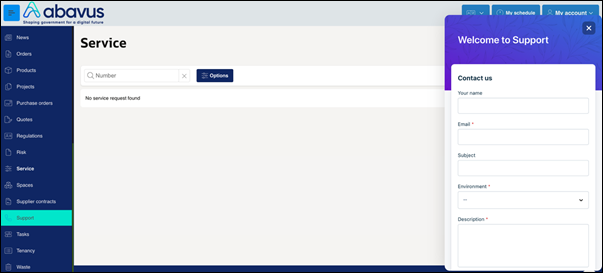
On first use, an account will automatically be created for you in the system. From this widget, the system will automatically populate your name and email address from your system User account.
2.) Tickets can also be raised by emailing the support team email - isupport@abavus.co.uk.
Issue Resolution
Notification of ticket updates
On ticket creation a support user will receive confirmation of their ticket via email from iSupport@abavus.co.uk. Any further updates from this ticket will also be received from this email address.
To respond to any questions or comments a support user can reply to the email address at any point. If they require an update at any stage or wish to provide more information they should also reply to the email.
Response and resolution timelines
To ensure any issues are responded to and resolved within the appropriate time frames response and resolution times are in place according to the classification and prioritisation of the ticket as outlined:
Ticket Type | Action | Urgent Priority | High Priority | Normal Priority | Low Priority |
|---|---|---|---|---|---|
Issue | Initial Response | 1 hour | 4 hours | 8 hours | 1 day |
| Expected resolution | 4 hours | 8 hours | 5 days * | 7 days * |
Standard Change Request | Initial Response | n/a | n/a | 1 day* | n/a |
| Expected resolution | n/a | n/a | 5 days * | n/a |
Enhancement Request | Initial Response |
|
| 5 days * |
|
| Expected resolution |
|
| 28 days * |
|
Question | Initial Response | n/a | n/a | 1 day * | n/a |
| Expected resolution | n/a | n/a | 5 days * | n/a |
Prioritisation will be based on impact and urgency.
These are based on our business support hours. 8.5 hours is considered as 1 working day.
Issue Diagnosis Process
In order for an issue to be fully investigated and diagnosed, it is imperative that a support user provides sufficient information. With this in mind, we ask all support users to follow a few simple guidelines to ensure that the process is kept as efficient as possible:
- When an issue has occurred, check to see if it can be replicated. Some issues may be a temporary error caused by something as simple as a brief internet disruption.
- If the issue continues to occur, a support ticket should be created. When doing so, as much evidence as possible should be provided. This will assist in our investigations and will reduce the amount of time in the resolution process. For example:
- Provide the exact steps taken to replicate the issue
- Provide the names of affected system objects (Catalogue, Form, Item, Rule, etc)
- Provide screenshots and/or video footage of the issue occurring, with the page URL and browser clearly visible. We do not support .msg files.
- Provide the email addresses and/or Account numbers of affected Users
- Provide the login details of affected Users so that we can test directly from their Account, though we understand that this may not always be possible
Where possible, we will resolve the issues within the timeframe providing regular up to date information throughout the process.
To assist with issue resolution, we will require the support user to be responsive and may lower the incident of the priority of the ticket if the support user is unresponsive.
If needed, we will recommend a workaround to ensure business continuity whilst further work is carried out to resolve the incident fully.
Pending incidents
Where tickets are set to “Awaiting your reply” it is because we require further information or require further testing to see if the issue has been resolved. The support user should follow any instructions that we provide, as we need to rule out any possibilities when investigating system problems.
Please be aware that “Awaiting your reply” iSupport tickets that have not been responded to for 5 business support days or more they will most likely be resolved, as we will assume that the issue has either been resolved, or is of minimal impact to agreed service levels.
Resolved Incidents
Where tickets have been 'Resolved”, these can be re-opened by the submitter within 7 days. After 7 days, these tickets will be automatically updated to “Closed” and cannot be reopened after that point. A new ticket will need to be submitted for any ongoing enquiry or issue.
Where escalation is required
The Support Centre aims to respond and resolve all incident tickets within the timeframes set out in this document. There may be tickets where escalation is required for the following reasons:
- The time frame for resolution has not been met
- The business impact of the incident has changed.
In these circumstances, an escalation may be activated. This is applicable to Urgent, High and Normal Priority incident tickets only.
A request for escalation is not a substitute for shortened response times and does not imply a firm resolution time.
To notify us of an incident ticket escalation request, the submitter should send a reply to the support ticket or contact a member of the Abavus team directly.
Additional support & information
Account management
If an account has been created for you by the support team, an email should be received containing a link to activate the account and set a password. If the account has been created through the support function on the administration portal, you may need to set your password by using the ‘forgot password’ option on the support login page. This is accessible at https://mycouncilservices.freshdesk.com.
After logging in the account profile information and other related activities can be accessed through the profile page.
Help Centre
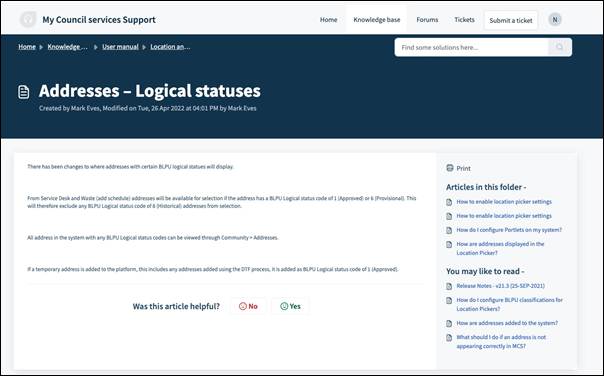
Support users may also use our online help centre to access knowledge articles and other documentation such as release information.
Users are encouraged to access our online help centre using before submitting support tickets. Our help centre is available at https://mycouncilservices.freshdesk.com.
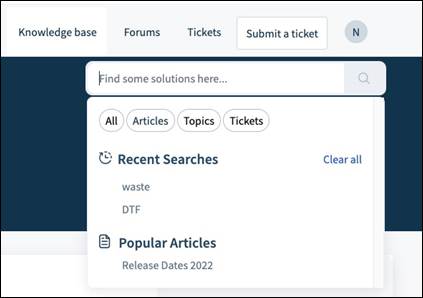
To search for knowledge articles and other required information, enter a search term into the search box. Alternatively, relevant sections can be navigated to from the home page.
When using the search bar, articles related to the searched term will be available to select, as well as available support tickets.
Enhancement requests
We categorise enhancement requests into two distinct types:
1. Change Requests
These are client-specific, chargeable enhancements that follow a defined specification and assessment process.
Once the scope is agreed upon, we provide a formal quote. Upon approval, the work is typically scheduled to begin within 2–6 weeks, depending on complexity and current priorities.
Change requests can be submitted either via a support ticket or directly to the Abavus Consultancy team. They generally follow the standard release cycle and are deployed to all customers as part of the relevant release.
2. Roadmap Enhancements
Roadmap enhancements are evaluated based on the following criteria:
- The impact of current functionality on your organisation’s operations or service delivery.
- Whether similar requests have been submitted by other customers.
- The broader value the enhancement could bring to the customer base and its potential to improve the platform.
If approved, we will notify the support contact and, if necessary, engage further to refine the requirements. We will also confirm the targeted release date and provide an estimated delivery date.
If a request is not approved for the roadmap, it may still be considered as a change request. In such cases, we can provide a quote and proceed through the change request process outlined above.
How we manage your data (GDPR)
We will manage all support information data in accordance with our GDPR compliance documentation. This can be found on our website at https://abavus.co.uk/how-my-council-services-supports-gdpr-compliance/.
Where personal data is present on a ticket, this can be requested to be redacted. This can be requested through the ticket on which the data is present.
Was this article helpful?
That’s Great!
Thank you for your feedback
Sorry! We couldn't be helpful
Thank you for your feedback
Feedback sent
We appreciate your effort and will try to fix the article