Introduction
Who is this guide for
This guide is designed for council staff responsible for using the Contact module to manage customer profiles, submit requests on behalf of customers, and carry out associated customer service activities.
About the module
The Contact module is the main area for managing all customer-related activity within the My Council Services platform. It provides staff with a single, comprehensive view of a customer’s profile and supports a wide range of customer service tasks.
Staff using the Contact module can:
- Create and manage customer accounts
- Submit Service Requests on behalf of customers
- View and complete draft Service Requests
- Log interactions and view the full history of customer interactions
- Access customer information and active contracts, within the limits of their access level
The module is primarily used for handling inbound enquiries, such as phone calls, emails, or face-to-face contact. It allows staff to quickly access relevant customer information, take appropriate action, and maintain accurate records within the platform.
Any forms submitted through the Contact module will follow the same workflow as those through self-serving customers. For example, if a submission is made by a Contact centre agent on behalf of a customer, the customer will still receive the relevant automated notifications.
Contact: Home Screen
Overview
When a Contact Centre operative logs in in, they will likely land directly on the Contact module home screen, which displays the following quick-search tabs:
- People – search for an existing customer profile. The operative can search on name, phone, email, address.
- Service – input a Service Request number to bring up details of the report.
- Address – view an address and any associated reports or customers.
- Knowledge – access knowledge articles, if previously set up on the platform.
- Organisation – search for an existing organisation and view related details.

Additional options are also available to the right of the search bar, these are:
- Reset – used to return to the Contact home screen.
- Advanced search – search on additional parameters. This button is also used to create a new account. Depending on the administrator configuration, agents may be required to perform an advanced search before the button the add a new customer appears.
- Myself – view the profile of the signed in account.
- Guest – open the guest profile. This option is used for submitting reports anonymously, for example if a resident calls to report an issue but does not wish to receive updates.
Advanced search
Searching for a customer
If an account cannot be located from the search function on the ‘people’ tab, the advanced search button can be used to search using additional parameters.

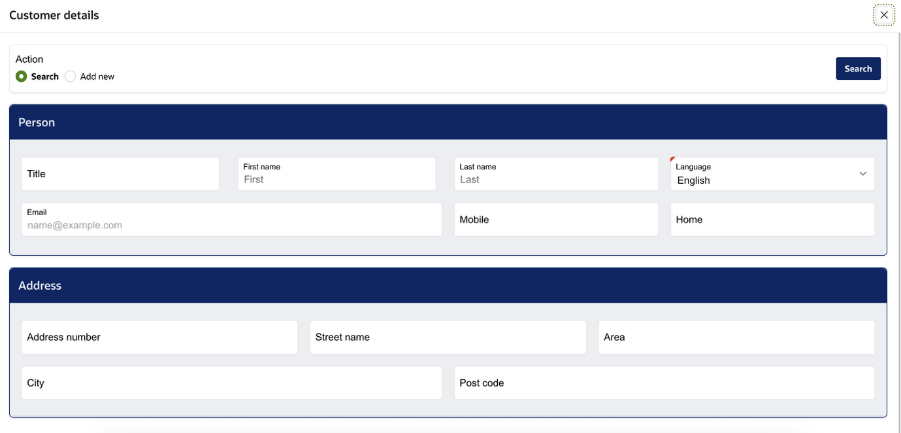
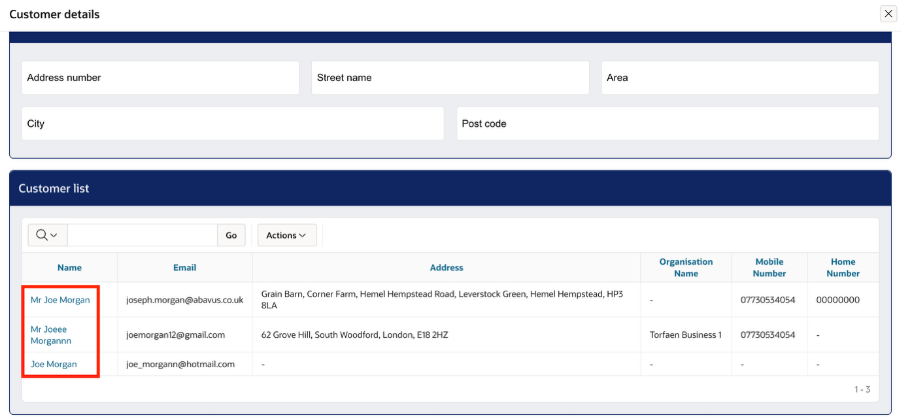
After inputting the known terms, pressing the search button with return a list of accounts which meet those parameters, displaying the key information against each account so the correct one can be identified.
To open a located account within Contact Centre to begin transacting, the name of the profile should be clicked.
Creating an account
If an account does not exist for the customer, a new account will need to be created. From within the advanced search option, ‘add new’ can be selected to enter the details and create a new account.
Note: depending on the configuration under Administration > (Service Request and Case) Settings, a search may need to be made before the ‘add new’ button becomes visible.
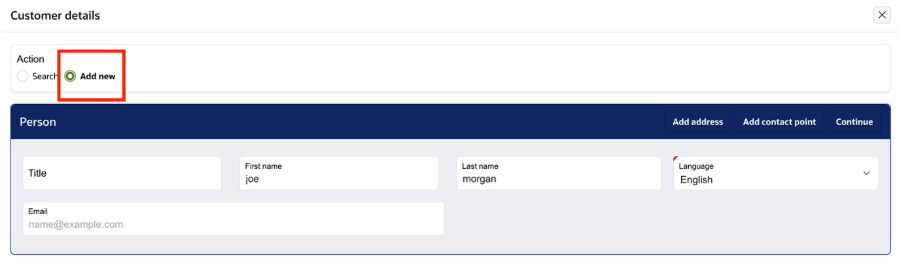
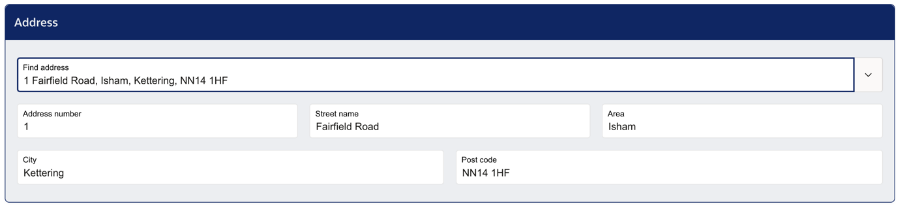
After clicking ‘add new’ the displayed fields will appear. The details of the customer should be added, and additional regions will be made visible if ‘add address’ and/or ‘add contact point’ are selected.
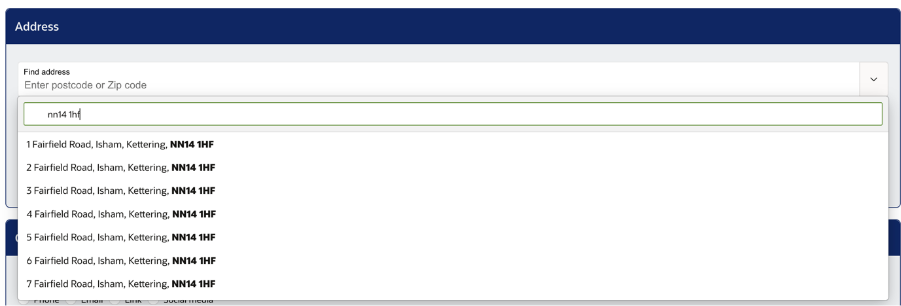
When using the ‘add address’ option, address parameters can be inputted into the first address box and this will display a list of matching addresses for selection. The subsequent address boxes should be treated as view only, as these will populate when an address is selected.
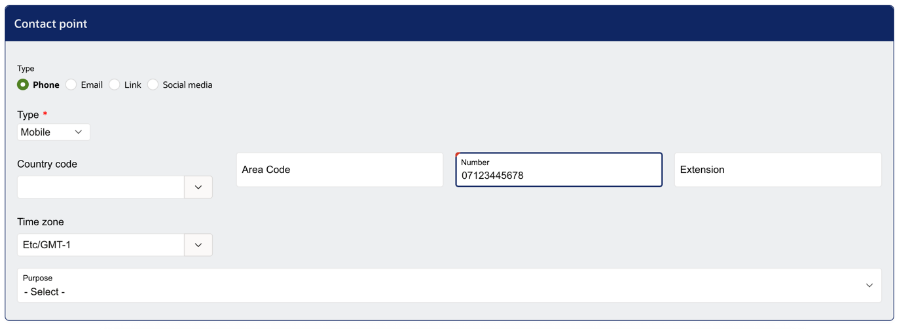
Various contact points can be entered when ‘add contact point’ is selected. These include:
- Phone – add one or more phone numbers against the account.
- Email – add a secondary email address against the profile. The email address entered in the first region will be the contact email.
- Link – add a link to a website.
- Social media – add social media account information.
When adding a mobile number against a profile, only the ‘number’ field is required.
Within an account
Viewing reports and drafts
After either creating a new account or searching for and selecting an existing one, the user will be taken into the profile view for that customer, and numerous options will be available.
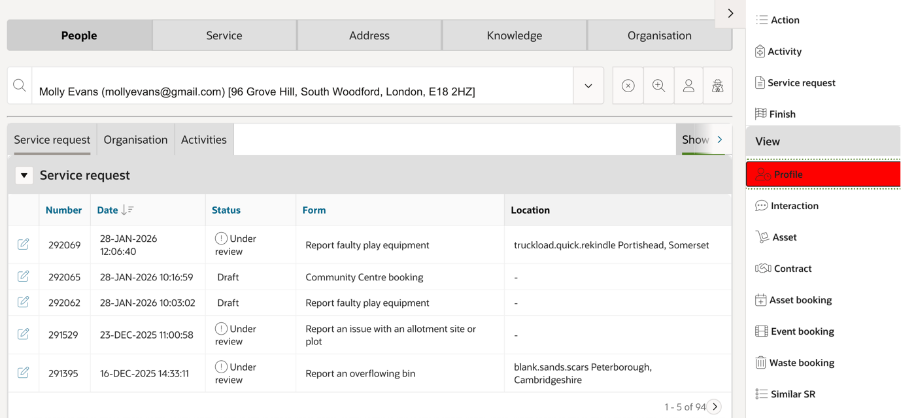
The main section within a customer profile is the Service Request region where submitted requests and draft reports can be viewed and accessed. The edit button to the left of each request can be clicked to either drill down into a submitted request or continue submitting a draft on behalf of the customer.
Additional options
On the right-hand side of the screen there are several additional options. The main ones are detailed below:
- Action – contains additional options, including:
- Send email – send an email to the customer account, using either free text or available email templates.
- Validate customer – MFA can be used to verify a customer’s identity.
- Activity – an interaction can be manually logged against a customer’s account.
- Finish – end the call and create an interaction.
- Profile – view and/or edit the customer’s profile.
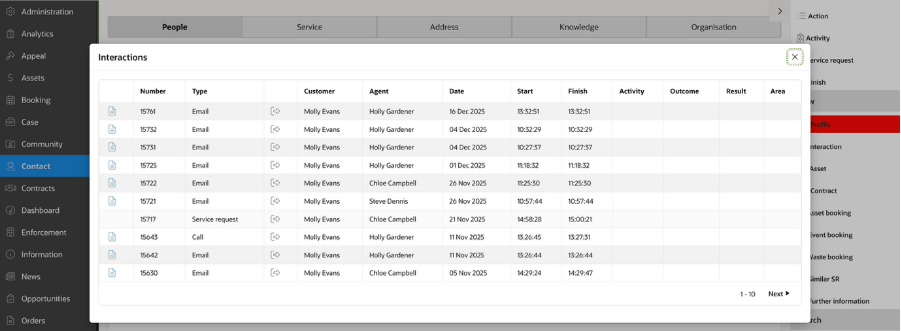
- Interaction – view previous interactions logged against the customer’s account.
Submitting a report
When within a customer’s account or the anonymous account, agents can use the ‘service request’ button on the right side of the screen to begin logging a report.
A catalogue must then be selected, and the required form from within.

The agent can then progress through the form on behalf of the customer, recording the provided answers as they go. Within the form there is also a ‘customer’ button available which will bring up the profile of the user that the form is being submitted on behalf of.
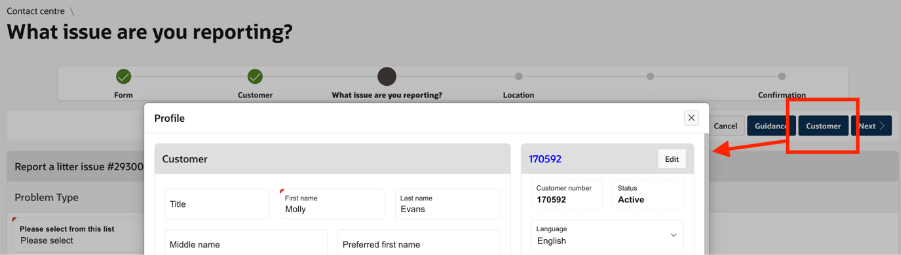
Once the form has been submitted, the form will be available through the Service module and will follow the same workflow as forms submitted through other channels.
Was this article helpful?
That’s Great!
Thank you for your feedback
Sorry! We couldn't be helpful
Thank you for your feedback
Feedback sent
We appreciate your effort and will try to fix the article