This knowledge article outlines three methods for deploying the MobileOps app via InTunes: linking the public app on Google PlayStore to an organization's InTunes account for approval and device download without separate updates; adding the public app via URL under Android Apps in Microsoft account for dedicated user groups without separate updates; and uploading a private APK under the Microsoft account for assigned users, which incurs recurring costs and is not publicly available on PlayStore.
Public App – via PlayStore to InTunes
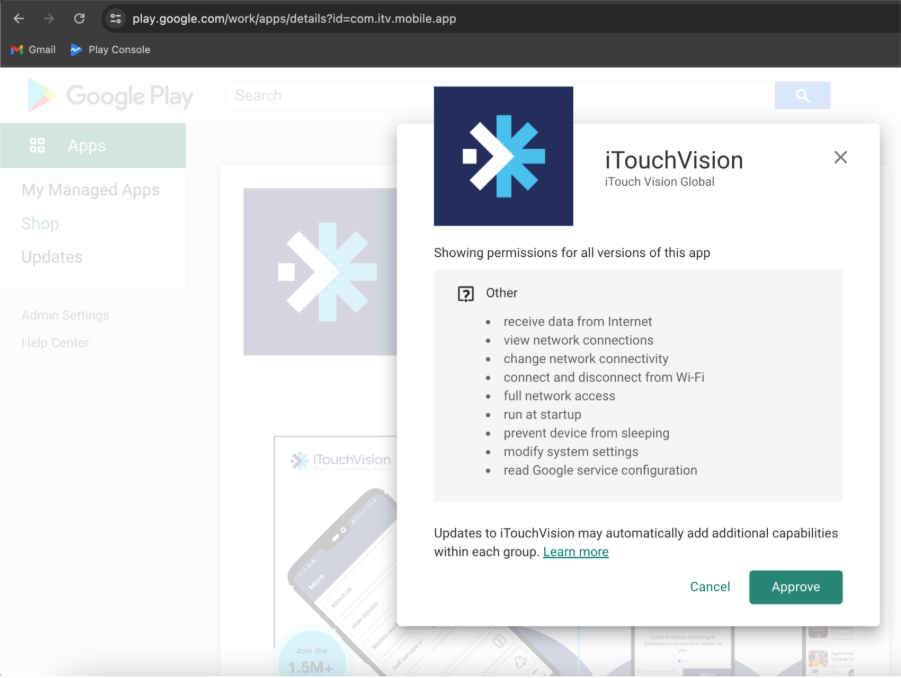
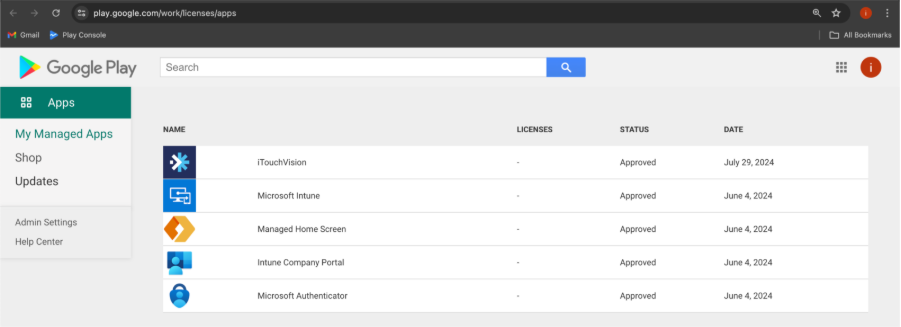
Linking your organisation’s InTunes account to MobileOps on Google Play allows you to approve the app, enabling users on your devices to download it even with existing restrictions. This will only work for Production only.
The app remains publicly accessible, and no separate updates are needed.
Public App – via URL to InTunes
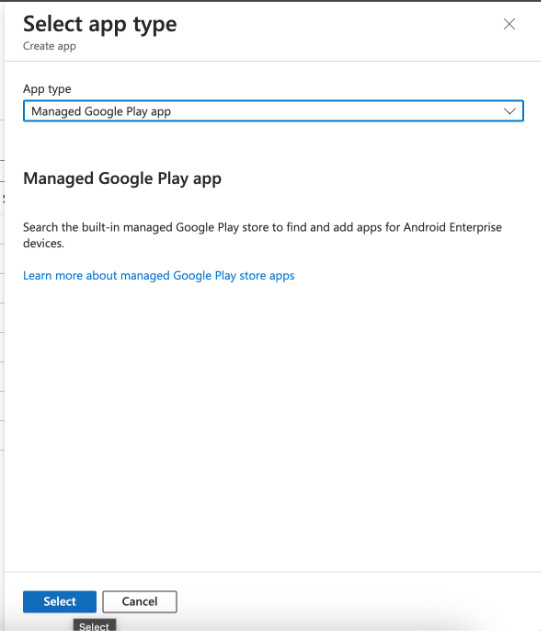
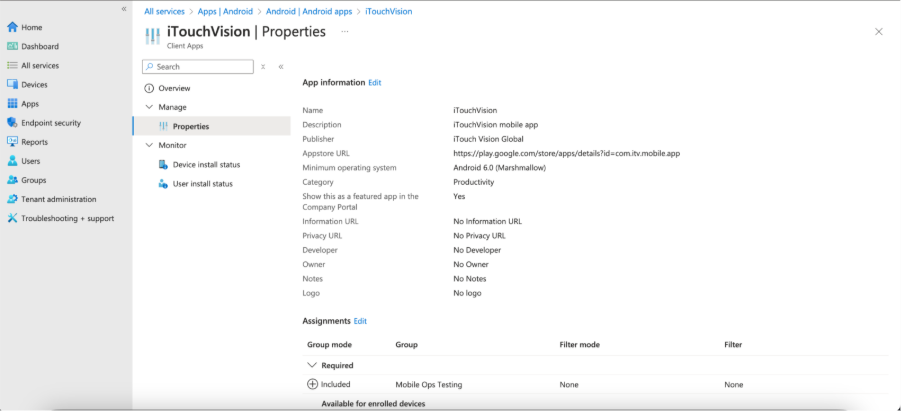
This process requires adding the current MobileOps application, available on Google PlayStore, to your organisation’s InTunes via URL under Android Apps within your Microsoft account as shown in the screenshot. This will only work for Production only.
The app will stay public, allowing designated groups or members to test and use it.
No additional updates are necessary.
Private App – via APK (Bundle) to InTunes
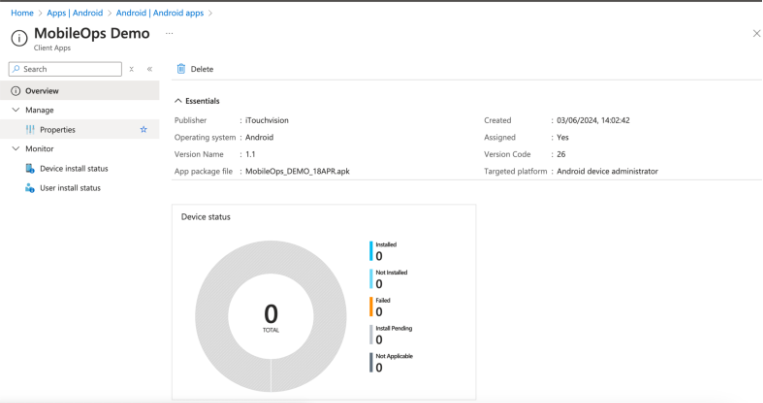
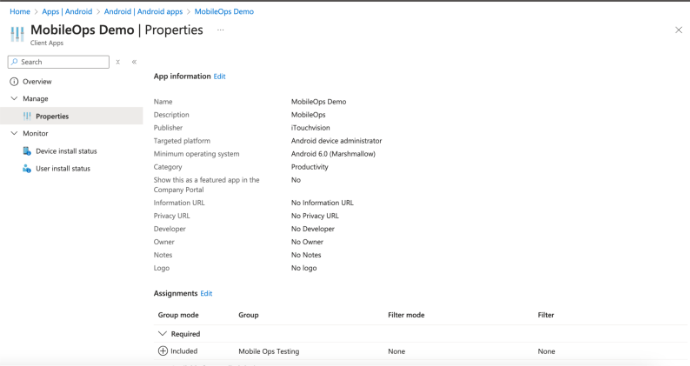
This method requires you to upload the APK(Bundle) to your Microsoft account, assign users, and distribute the app privately (not via the public Play Store).
This process is the only method available to deploy a demo version of MobileOps.
When deploying an APK through Intune, each M365 tenant must use a unique bundle ID (also referred to as the package name). If two tenants attempt to deploy APKs with the same bundle ID, Intune may treat them as the same application, potentially resulting in:
- Deployment conflicts
- Update issues
- Policy misalignment
A unique bundle ID will be provided for each client upon request. There are ongoing costs associated with this method. Contact isupport@abavus.co.uk for further information.
Was this article helpful?
That’s Great!
Thank you for your feedback
Sorry! We couldn't be helpful
Thank you for your feedback
Feedback sent
We appreciate your effort and will try to fix the article