About the Customer Component
What is the Customer Component?
This component allows submitters to view their account details within the form, rather than having to go elsewhere. Also, submitters can edit their details from within the service request itself.
Please note that you can only implement one Customer Component per form. Set the Component as non-Primary if you want the information to display on the summary page at the end of the form.
Configuring the Component
How do I configure the Customer Component?
Go into Administration > Forms Builder, then select any form, and add a new Item, selecting ‘Component’ as the item type. Select the new "Customer" Component Item, and then scroll down to the Advanced section for further configuration.
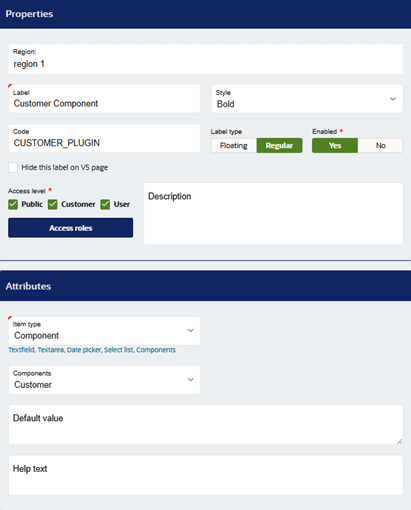
Please ensure that Master data update is enabled so that the customer details are updated to the profile after submission. Also, select the items that you want to be available for the submitter, and what items you wish to be mandatory.
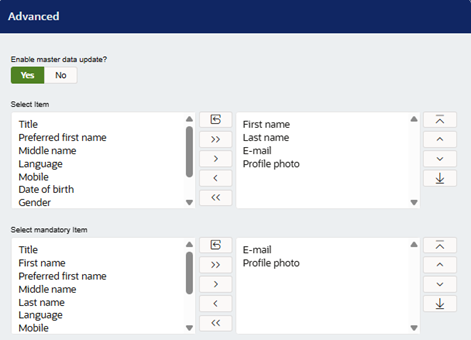
Save and publish the changes.
When a user starts filling out this form, the component will be available on the page specified. By clicking on it, you will be able to view your account details.
Please note that, if the Master Data Update option is set to Yes, all changes made will update your account information in the system. For example, if your email address is changed, this will update your primary email contact point. If your living address is changed, this will update your primary location information.
If the submitter is part of an organisation, a pop-up will appear at the bottom of the component asking if the submitter would like to submit the SR on behalf of the organisation:
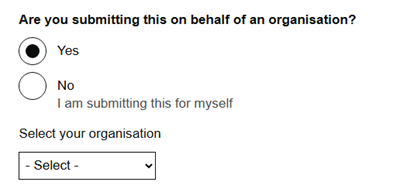
This is a mandatory question and only appears to submitters within an organisation.
Was this article helpful?
That’s Great!
Thank you for your feedback
Sorry! We couldn't be helpful
Thank you for your feedback
Feedback sent
We appreciate your effort and will try to fix the article