TABLE OF CONTENTS
- Introduction
- Text Field
- Textarea
- Display – Plain Text
- Display – HTML text
- Select List
- Select List – Dynamic
- Radio Group
- Check box
- Password
- Number
- Component
- Hidden
- Display Image (Portal v5 Only)
Introduction
About this guide
This guide has been created to provide you with an overview of some item type available on a form, how the item behaves and some examples of when they are best used.
Please note that there are separate standalone guides on Date Pickers and Components.
Text Field
About Textfields
A Textfield allows the submitter to enter freetext responses. It is the most commonly used item type and is typically used for simple questions and for collecting contact or basic information.

There are a few key configuration options that can change the way that a Textfield behaves:
Keyboard Type – This determines what type of input the system will accept. For example, string is the standard keyboard input, but there are also options for Numbers, Emails and Phone Numbers.
Placeholder / Hint – This can be configured to give more clarity to the submitter, and will be positioned above the Textfield, as shown above.
Default Value – This can be used to pre-populate Textfields. This can be used with calculative fields or dynamic fields.
Dynamic fields are information that can be pulled from the system into the form. For example, the dynamic field #LAST_NAME# will automatically fill the Textfield with the last name of the submitter. This can quicken the form filling process for submitters, as information can be pulled from their accounts onto the form.
Merge Fields – The answer recorded in the Textfield can be pulled through later in the form, or in emails. For example, if a Textfield was configured with #MERGE_CUST1# and another item on the form had a default value of #MERGE_CUST1# then the answer in the Textfield will automatically apply to the second item.
Prefix and Suffix – These can be used to ensure that the submitter’s answers are correctly formatted, such as including a ‘£’ prefix for a price, or a ‘cm’ suffix for a measurement.
Max Length – This defines how long an answer can be in a Textfield.
Textarea
About Textareas
A Textarea is similar to a Textfield, but offers a larger box, allowing the submitter to enter a larger string of text. This is commonly used when the form is asking the submitter a question that merits a longer answer, such as explaining an issue.
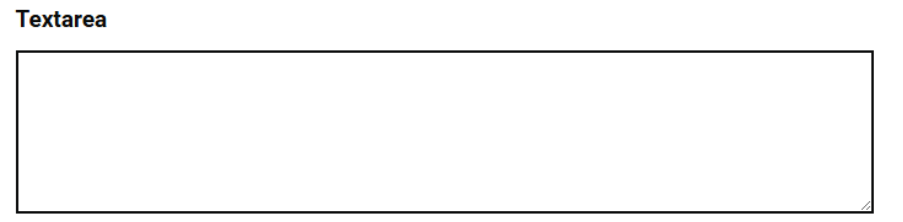
A maximum length can be implemented, like the Textfield. However, if this is not configured, the system will take 3750 characters as a maximum length.
Default Value – This can be used to pre-populate Textarea.
Display – Plain Text
About Plain Text Display
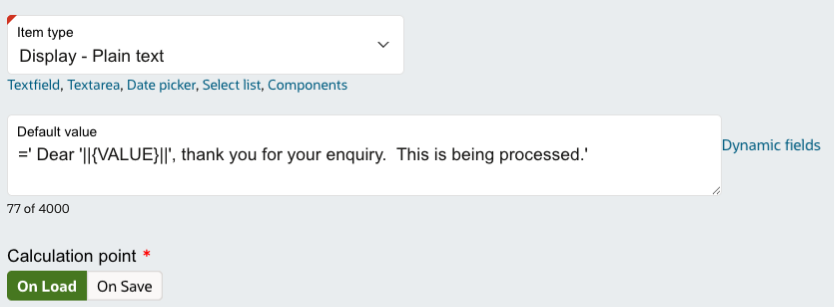
Display Text simply displays text in the Item and cannot be changed by the submitter. This is useful in instances where you wish to inform the submitter about any additional pieces of information or context that will assist them in completing the Form as required.
Display Text cannot be formatted, and is limited to the configured system’s default font and size.
Default Value – This can be used to pre-populate Plain Text. This can be used with calculative fields or dynamic fields.
Display – HTML text
About HTML Text Display
Display - HTML Text items can be used to provide information or instructions through the insertion of content via HTML (URLs, images, etc).
Default Value – This can be used to pre-populate Plain Text. This can be used with calculative fields or dynamic fields.
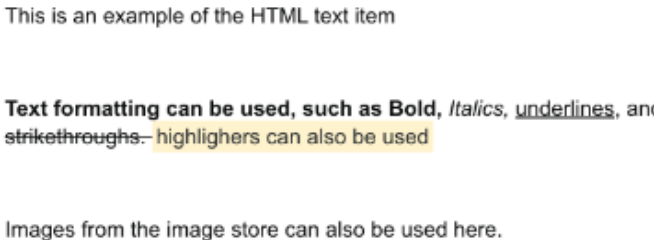
Unlike Display Text, HTML Text can be formatted, as shown below:
Select List
About Select Lists
A Select List item provides the submitter with a multiple-choice question, from which they can choose a single option. This is useful in Forms where the submitter must select a location, such as a preferred school.
To add an answer, click on ‘add row’ on the Answer list:
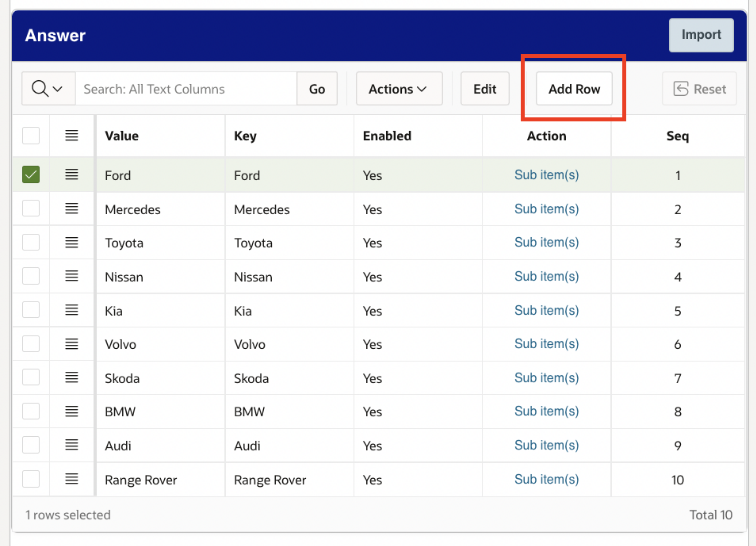
Default Value – This can be used to pre-populate the select list by using the key value for the answer in the ‘Default Value’ box.
It also allows for follow-up ‘Sub-Items’ (or Child Questions), which enable further collection of data through additional questions. You can add follow-up Sub-Items as many times as needed via the Form tree on the left hand side.
To rearrange the answers, set the number order under the "Seq" (Sequence) column. You can also add dynamic select list as a child item, which will be covered below:
Select List – Dynamic
About Dynamic Select Lists
The dynamic select lists allows an answer to be pre-configured so that once a specific answer has been selected for the parent item, only certain answer items will be available to choose from for the dynamic select list.
Please note that the dynamic select list is for web use only; you will not be able to use the dynamic select list on the mobile devices
You will need to create a select list item and populate the answer values first. If you have not done this, please refer to the Select List part of this guide.
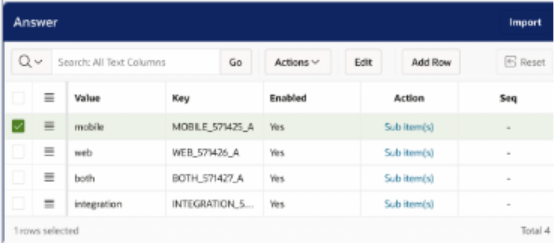
Next, create a new item, and select "Select list- Dynamic (Web only)". Below item type, you will find "Parent Item”, and this will be the name of the select list you created. Once this has been selected, click ‘add’ at the top, and you can begin adding your answers.
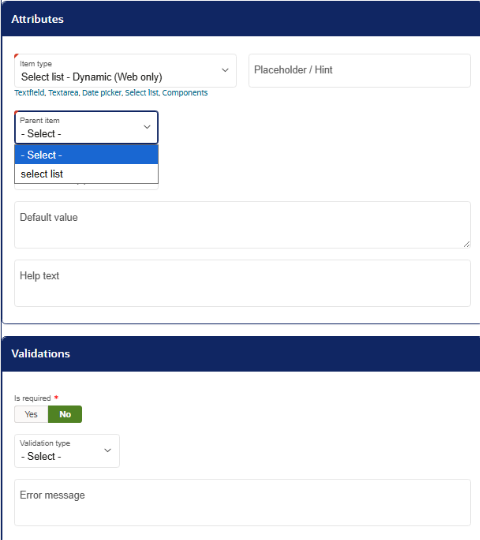
As shown below, when adding the answer in the answer section, parent answer is one of the fields. This is linked to the normal select list that you have just selected.
For example, ‘yes’ has been selected as the parent answer field, which means that then only the answer ‘proceed’ will be available to select in the dynamic select list.
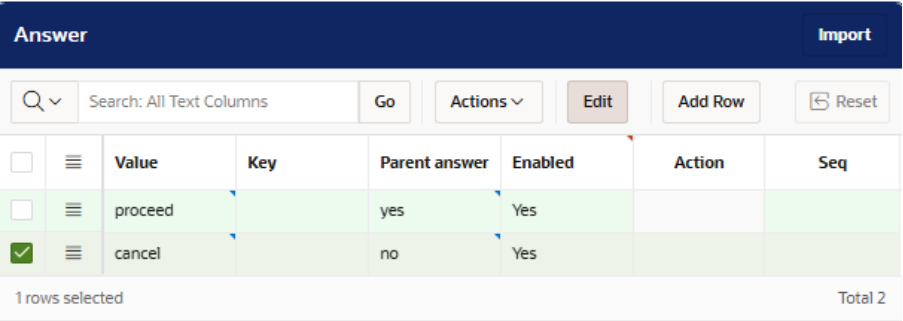
Multiple answers can be selected per parent answer is required.
Default Value – This can be used to pre-populate the select list by using the key value for the answer in the ‘Default Value’ box.
Radio Group
About Radio Groups
A Radio Group, like a select list, can offer secondary questions based upon what is selected. A Radio Group only allows for one item to be selected.
Once the item has been named and selected as a radio group, click on add to reveal the answer menu.
Now, you need to add your answer values by going back into the item and scrolling down to the answer section. Similarly to a select list, click on ‘add row’ to add an answer for the submitter to select.
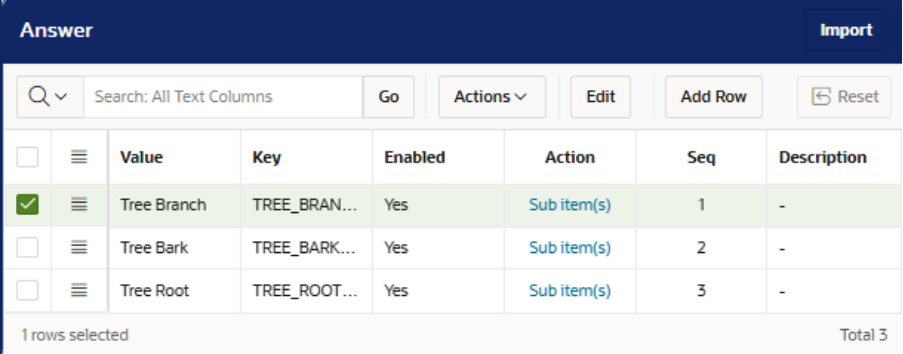
When you have completed the answer values, click on the save button. On the form tree, you can add a sub item if you want another item to appear when the submitter selects a particular option.
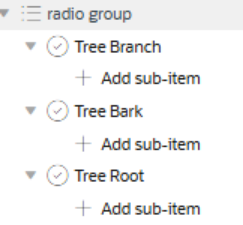
Default Value – This can be used to pre-populate the Radio Group list by using the key value for the answer in the ‘Default Value’ box.
Check box
About Check Boxes
A check box is very similar to a radio group but allows for multiple different answers to be selected.
To create a check box, add an item to the form and select ‘Check Box’ as the item type. Then, click ‘add’
Similar to Select Lists and Radio Groups, there is an answer menu where multiple answers for the check box can be created. Click ‘add row’ to add a new option.
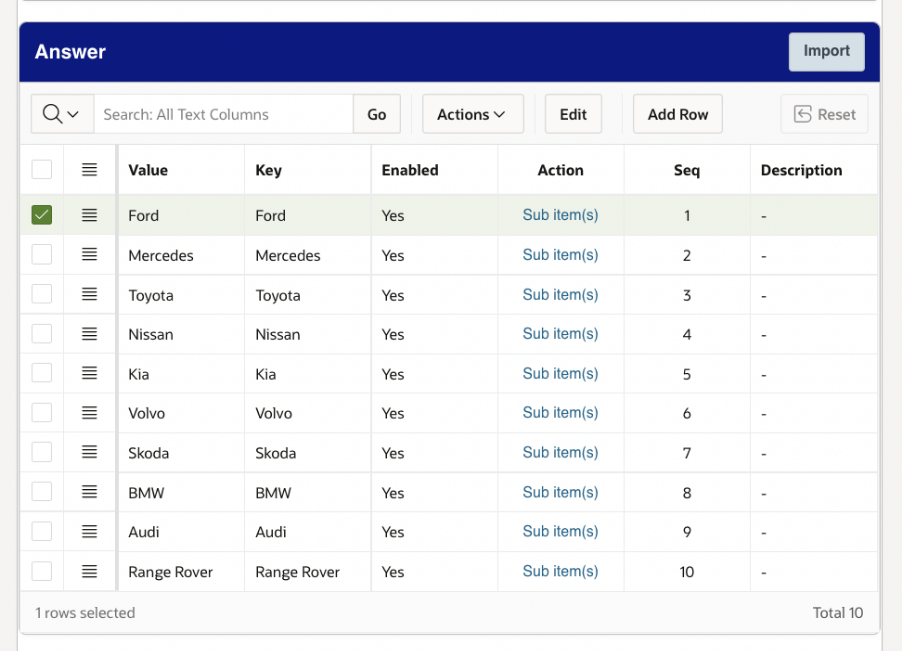
The sequence, if not manually assigned, will be automatically created in order of the top answer to the bottom, as shown above.
Default Value – This can be used to pre-populate the Radio Group list by using the key value for the answer in the ‘Default Value’ box.
Password
About the Password Item
The Password Item Type acts like a Textfield, but any input will be replaced with dots, only revealing the string in the SR’s summary before submission and in the Service Module. A maximum limit can be set on the password item type, and validation with regex can be used to enforce password validation, such as including special characters or capital letters.
Please note that this is not available on V5 customer portals.
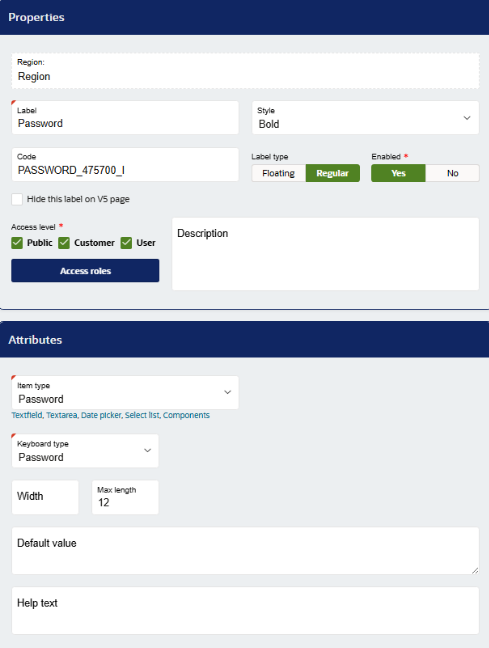

Number
About the Number Item Type
The Number item type behaves like a Textfield with a numeric keyboard, allowing users to enter numbers only.
Like the Textfield prefixes and suffixes are able to be configured, making this item type useful for when submitters must enter numbers like measurements or costs, such as below:

Component
About Components
Components item types offer more complex functionalities for form building. Because of this, components have their own guides. Some examples of Components include:
File Pickers, where submitters can upload files.
Location Pickers, where submitters can report locations in multiple formats depending on configuration.
Booking Items, allowing customers to create bookings using our Bookings functionalities
You can find these guides on our guides list, or by requesting them.
Hidden
About Hidden Fields
Hidden fields are items that do not appear for any submitter, regardless of Access Level.
These are used in conjunction with Default Values, Dynamic Fields or Calculative Fields to store data that can be used for Page Visibility Conditions or Web Integrations.
Access Levels in the Hidden Field will determine when the Hidden Field is enabled for that form submission.
For example, if a Hidden Field only has user access enabled, has a default value of 1, and a user is submitting the form, the Hidden Field will have a value of 1. If a customer or an anonymous submitter fills the form out, the Hidden Field will not populate. This can be used alongside page visibility conditions to allow for a different user experience depending on who is submitting the form.
Hidden Fields will be shown in the SR Summary in the Service Module if ‘Show in summary’ is yes.
Default Value – These can be used with calculative fields or dynamic fields. The ordering of hidden fields in any calculation is determined by it’s ordering i.e. Hidden Field 1 is before Hidden Field 2 in the sequence on a page, Hidden 1 can be used a
Display Image (Portal v5 Only)
About Image Display Items
A Display Image (V5) item allows for an image to be shown to the submitter. Select ‘Display Image (Portal v5 Only) to create this item type.
To use this item type, you will first need to upload an image to the Image Store. This can be found in the Administration module under the ‘Branding’ Section:
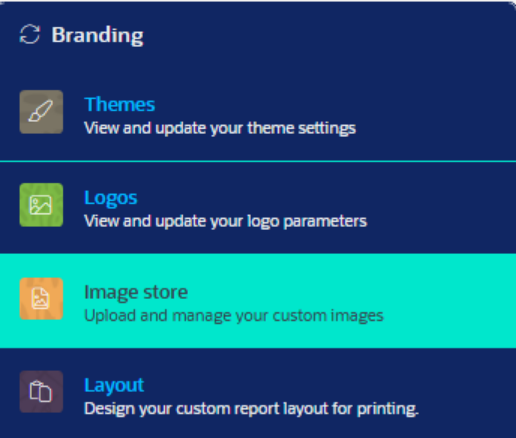
Click on ‘Upload Images’ to upload one or multiple images. Only image files are allowed to be uploaded.
Once an image has been uploaded, copy the image URL from the Image Store, and return to the Display Image (v5) item type.
In the ‘guidance’ section of the item configuration, click on the three vertical dots, then on the image icon. Paste your aforementioned image URL in the pop-up prompt.
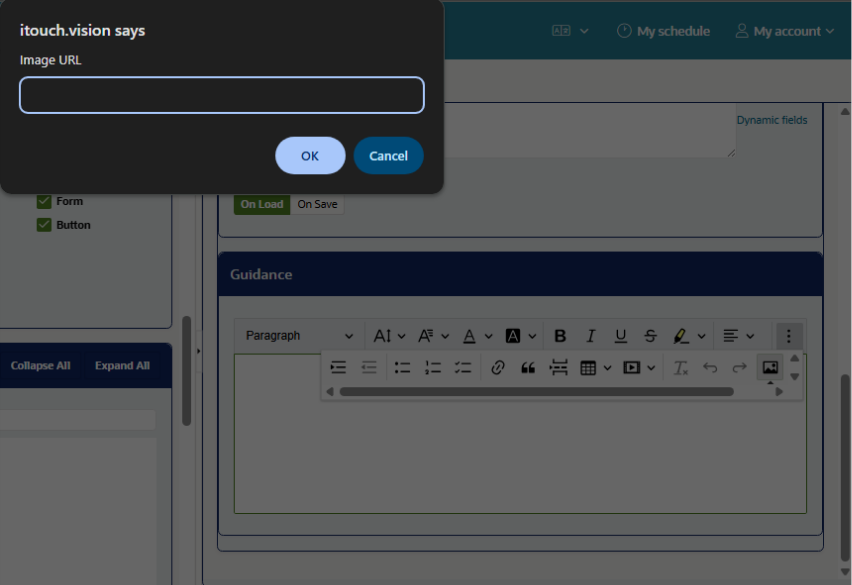
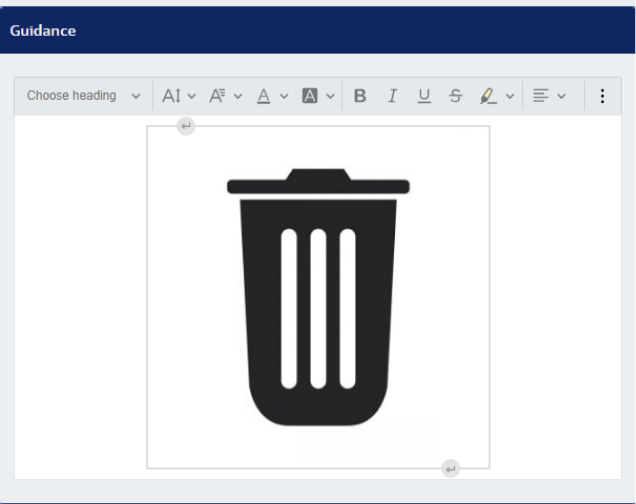
Click ‘ok’ and the image should generate in the box. This image can have it’s size and alignment edited as required.
Was this article helpful?
That’s Great!
Thank you for your feedback
Sorry! We couldn't be helpful
Thank you for your feedback
Feedback sent
We appreciate your effort and will try to fix the article