Repeater Field Components
About Repeater Fields
Repeater Fields allows you to add multiple records of a similar type on Forms. We recommend sticking to one Repeater Field component per form, if possible.
Prerequisite – Creating Repeater Fields
Firstly, you will need to configure a Repeater Field to use in the Form. Go to Administration > General > Plugin, then click on "Repeater Fields".
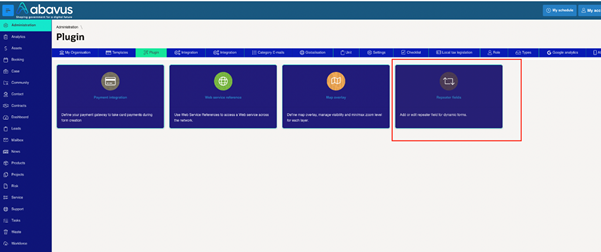
The following screen will appear. Click on Add to create a new entry. Next, give the Repeater Field a Name and a Description, and click on Add

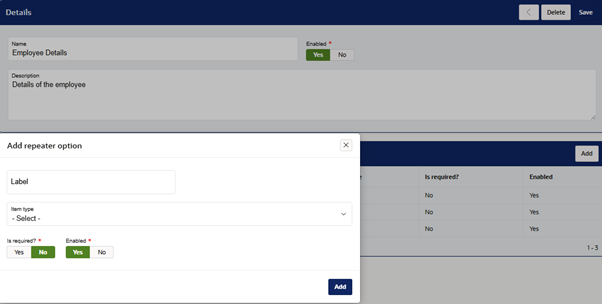
The new Repeater Field will be added, and you will be taken back to the previous screen. Click on the button to go back into the Repeater Field, and a new "Repeater Fields" option will be available. On this tab, click on ‘Add’.
A menu will appear, allowing you to configure the Repeater Field options. Provide a Label (Name), and the relevant Item Type (Textfield, Select List, Radio Group, Check Box, or Date Picker).
Click on ‘Add’ to apply the changes.
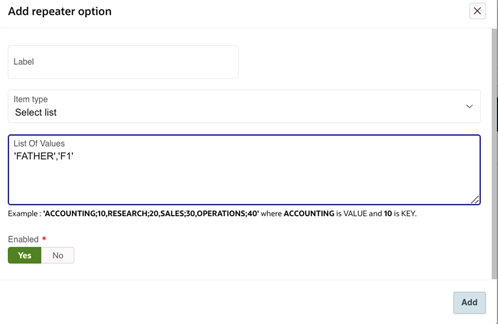
Please note that, for Select List, Radio Group, and Check Box Items, you will need to specify the Answer Value and the Code for that Value. Separate different Value/Code with a comma. See example below: 'FATHER' is the Value, and 'F1' is the Code for that Value.
Adding the Repeater Field to the Form
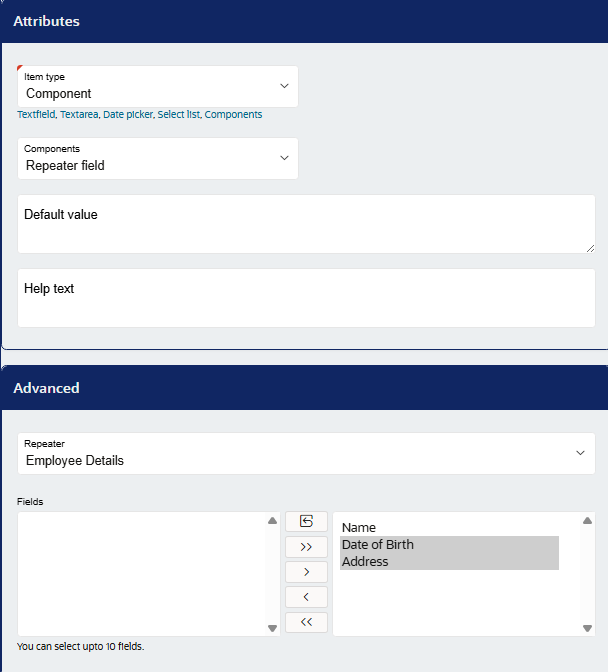
Go to your desired form and create a new item where you want the repeater field. Set this item type as ‘Component’ and the Component to ‘Repeater Field’
Scroll down the page to configure the component itself. Select the relevant Repeater Field type, and then select the Repeater Field you want the submitter to see.
Scroll up and click ‘Save’ to apply the changes and then publish the form.
Was this article helpful?
That’s Great!
Thank you for your feedback
Sorry! We couldn't be helpful
Thank you for your feedback
Feedback sent
We appreciate your effort and will try to fix the article