Introduction
About this guide
This guide has been written to fully explain the Date Picker item type, and to inform form builders on what each of the Date Picker configuration options do.
Date Pickers
This is the most common way to select a date for submitters. You can find this when setting up an Item in a form and selecting the Item Type as ‘Date Picker’.
Keyboard Types:
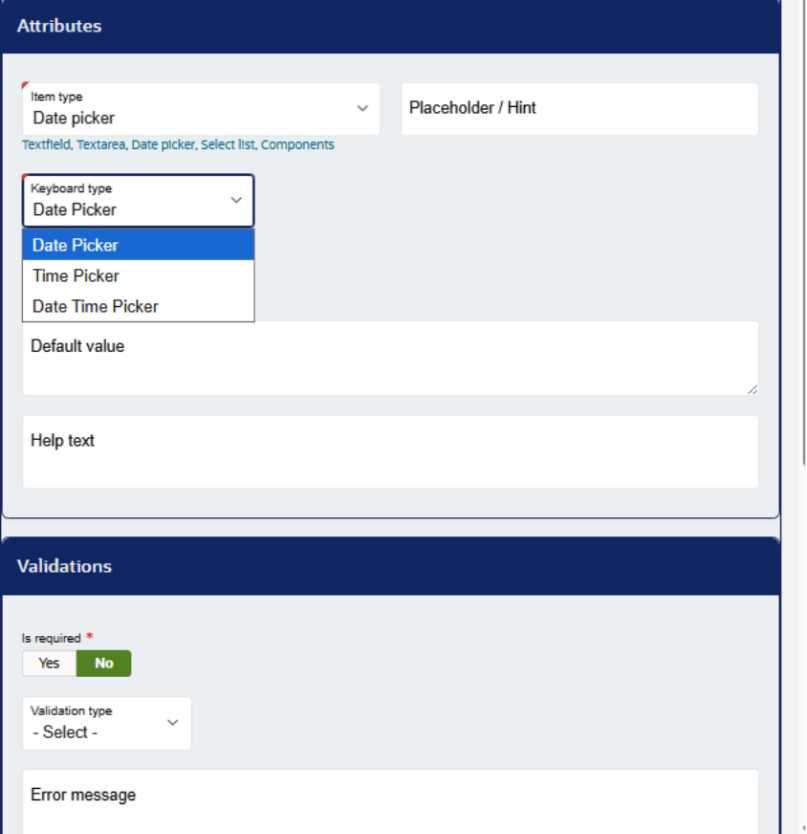
Keyboard types determine the way that the Date Picker allows submitters to select the date / time. Below are the three different types, what data they collect, and how they look to the customer:
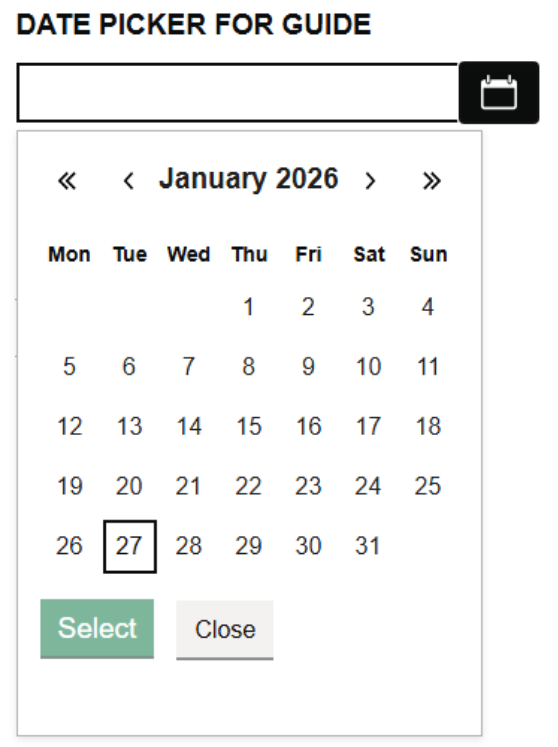
1.) Date Picker
When selected, a calendar icon is displayed, which allows submitters to open the below pop-up box. When a date is selected, the item will display the date in DD-MM-YYYY format. The single angle brackets (< and >) allow submitters to change the calendar by a month per press, and the double angle brackets (<< and >>) change the calendar by one year per press.
2.) Time Picker
When ‘Time Picker’ is selected, a different pop-up box appears when the calendar icon is pressed:
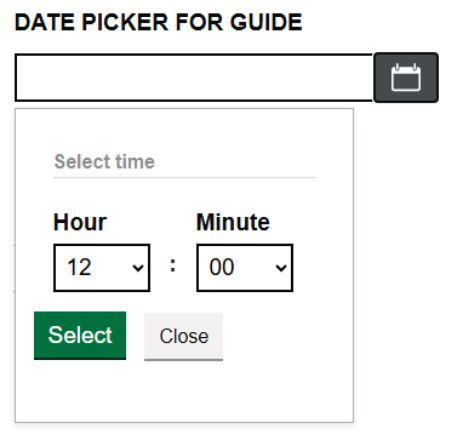
This allows for specific times to be submitted, and records the time as HH:MM.
Please note that there are no validation options for this specific type of Date Picker.
3.) Date Time Picker
This option combines the previous two keyboard types. When selected, the following pop-up menu appears:
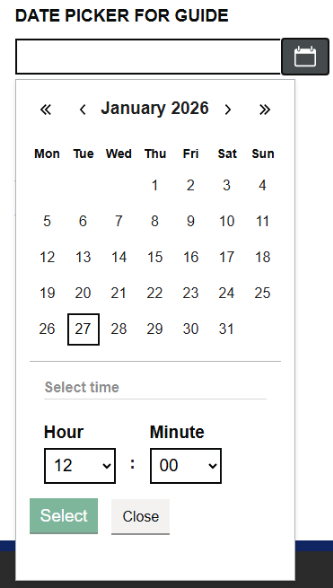
When a date and time is selected, the submitted date and time is recorded in the following format: DD-MM-YYYY HH:MM (where the second MM represents ‘Minutes’).
Validations
This item type features unique validation types to restrict erroneous date entries. If validation is set to ‘Yes’ (meaning that the date picker must be answered in order for the submitter to proceed) the following validations are available:
Valid Date – This ensures that the DD-MM-YYYY format is met (DD-MM-YYYY HH:MM if enabled on the Date Time keyboard type)
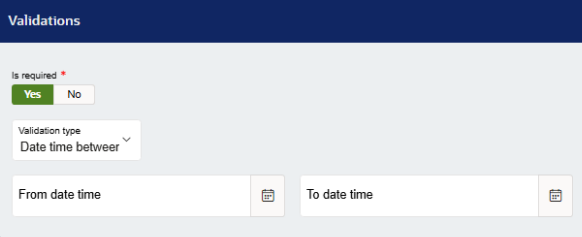
Time Between – When selected, a ‘from’ and ‘to’ option is able to be customised to restrict date entries (date and time if the item has the Date Time keyboard type) to a certain set period of time.
Days From Now – When selected, a ‘min value’ and a ‘max value’ is able to be configured.
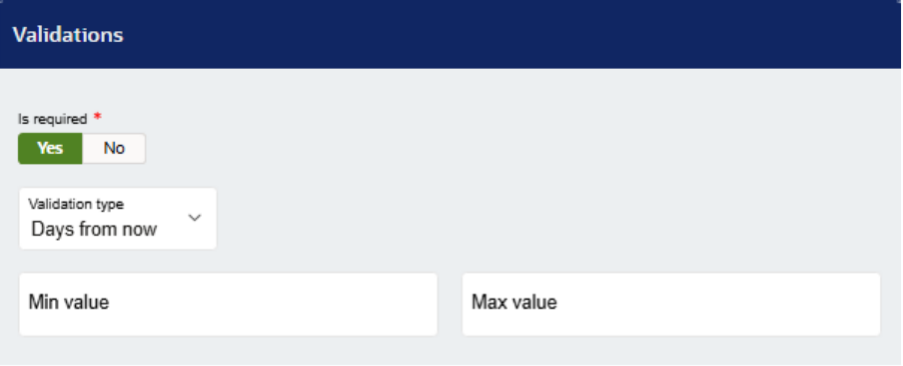
When these values are set, only the days between these are selectable. For example, if my min value is 1, and my max value is 10, I can select one day before today, and 10 days after today.
Months From Now – The same logic from the Days From Now is applied, but this time on the months scale. Calendar entries that do not follow these rules are greyed out, and cannot be selected.
Years From Now – The logic from the Days and Months from now applies here also.
Error Message:
As with other item types, when validation is enabled, and an attempt is made to continue the form without answering the date picker, a customisable message pops up.
Date Input
This component can be added by selecting the item type ‘component’ and then selecting Date Input from the select list. Instead of opening a calendar pop-up menu, this component has three text boxes where the submitter can type in a Day, Month and Year in the DD-MM-YYYY format.
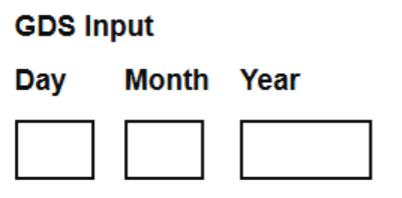
Please note that this component only works on the GDS customer portal.
If you have any more questions regarding form building or date pickers specifically, please contact isupport@abavus.co.uk
Was this article helpful?
That’s Great!
Thank you for your feedback
Sorry! We couldn't be helpful
Thank you for your feedback
Feedback sent
We appreciate your effort and will try to fix the article