User Account Registration & Activation
This guide explains how to register for an MCS account and activate it so you can access services and submit requests.
Before you start
You will need:
- An email address you can access
- A valid phone number
Registration takes only a few minutes.
Step 1: Go to the MCS homepage and register
- Go to the MCS homepage.
- Select Register.
This will take you to the registration page.
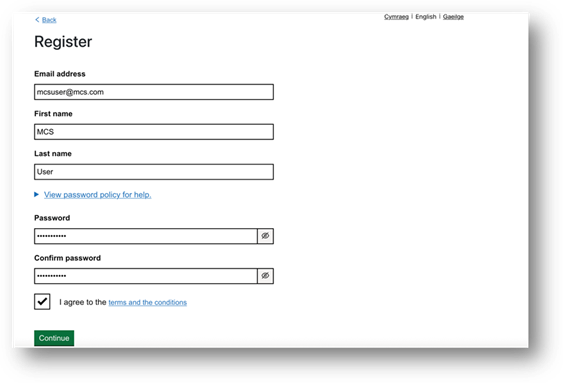
Step 2: Enter your basic details
On the first registration page:
- Enter your basic details as shown on the screen.
- Set the password as per the policy.
- Check your details carefully.
- Select Next to continue.
Step 3: Add your contact details
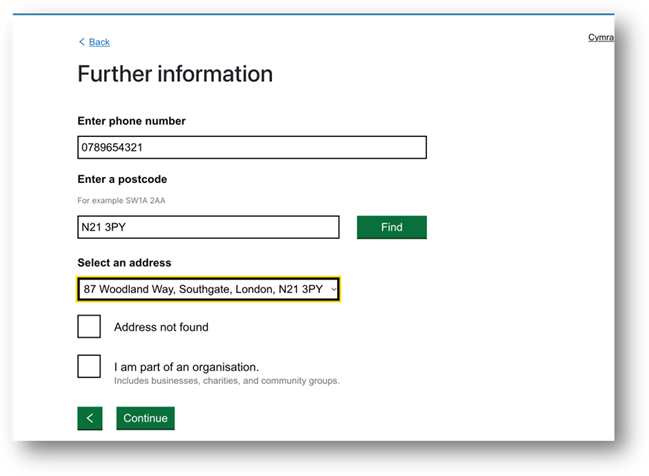
On the next page:
- Enter your phone number.
- Enter your postcode and select address.
- Select Next.
These details are used to contact you and support your use of MCS services.
Step 4: Choose subscription groups (optional)
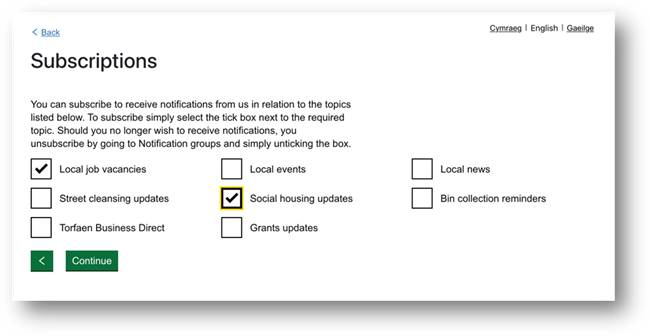
On the next page:
- Select any subscription groups you want to join.
- This step is optional.
- Select Next to continue.
Step 5: Confirm registration
You will see a confirmation page telling you that:
- Your registration is complete
- You now need to activate your account
An activation email is sent to the email address you provided earlier.
Step 6: Activate your account
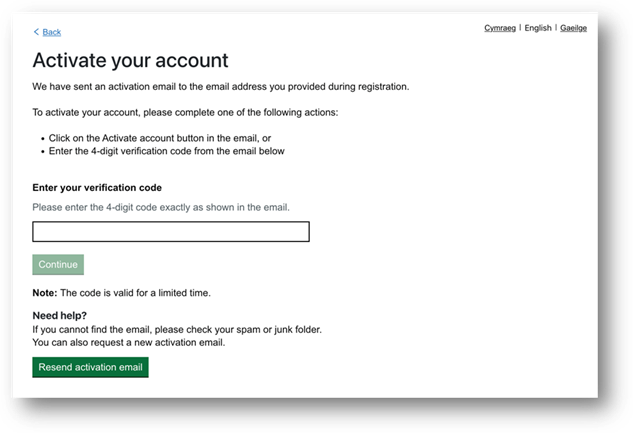
You can activate your account in one of two ways.
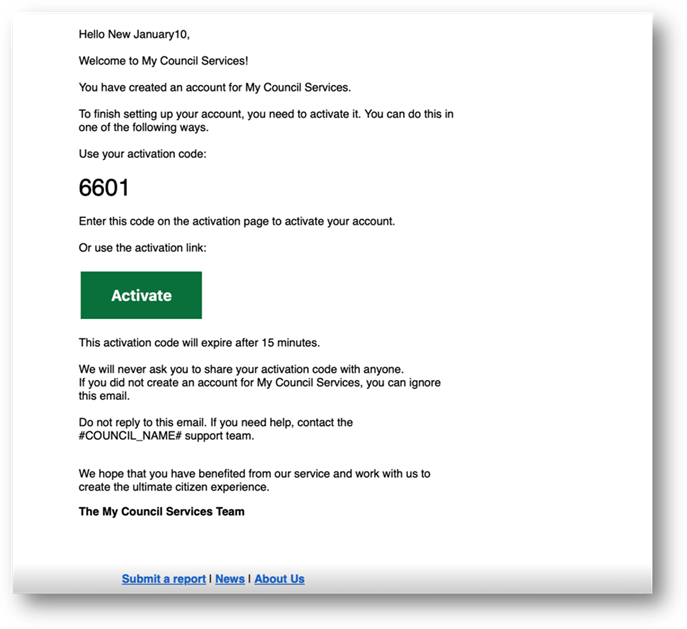
Option 1: Enter the 4-digit OTP code
- Open the email from MCS.
- Copy the 4-digit one-time passcode (OTP).
- Return to the activation page.
- Enter the OTP code.
- Submit the code.
If the code is correct, you will be signed in automatically.
Option 2: Use the activation link
- Open the email from MCS.
- Click on the activation link in the email.
- The link will activate your account and allow to sign you in.
After activation
Once your account is activated and you are signed in, you can:
- Access the MCS platform
- Submit requests
- Use available services
You do not need to activate your account again.
If you have problems
- Check your email inbox and spam or junk folder.
- Make sure you entered the correct email address during registration.
- If your OTP code does not work, request a new one from the activation page.
Why activation is required
Account activation:
- Confirms your email address
- Keeps your account secure
- Removes the need for additional follow-up or manual checks
This helps simplify the registration process and improves the overall user experience.
Was this article helpful?
That’s Great!
Thank you for your feedback
Sorry! We couldn't be helpful
Thank you for your feedback
Feedback sent
We appreciate your effort and will try to fix the article