GDS - Homepage Design & Menu Configuration Guide
Overview
Portal V5 introduces new configuration options that allow administrators to align the portal homepage design more closely with the GOV.UK homepage style. These enhancements focus on improving usability, consistency, and flexibility, while remaining simple to configure through the administration interface.
This guide covers:
- New Grid and List display options for the Services region
- Enhanced menu positioning and mapping across portal pages and regions
All configurations can be managed without technical development effort and take effect immediately once saved.
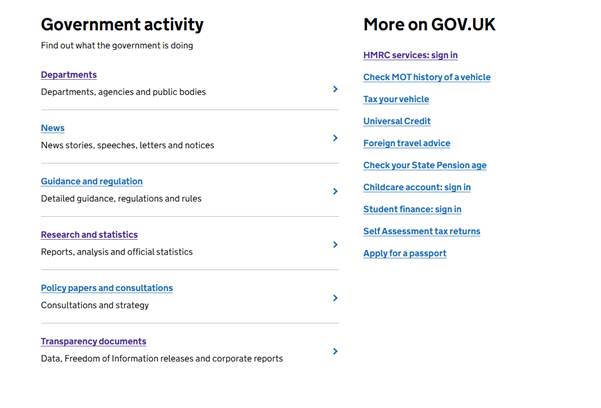
Services Region Display Options (Grid & List View) on Gov.uk:
Summary:
A new List View display option is now available for the Services region on the portal homepage. This option mirrors the GOV.UK homepage layout and provides a cleaner, more content-focused presentation. Administrators can choose between the existing Grid View and the new List View, depending on their design preference.
Configuration Path:
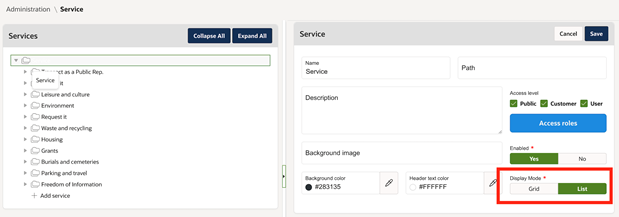
Administration → Portal V5 → Service
Available Display Modes
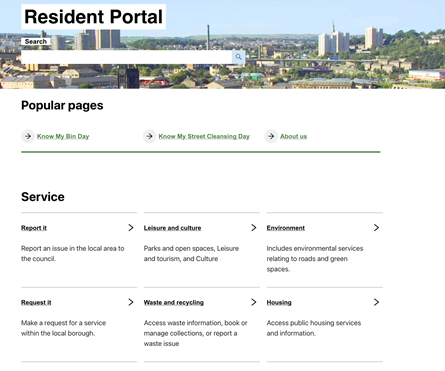
- Grid View (Current / Default)
Displays services in a tiled grid layout, suitable for visual browsing. - List View (New)
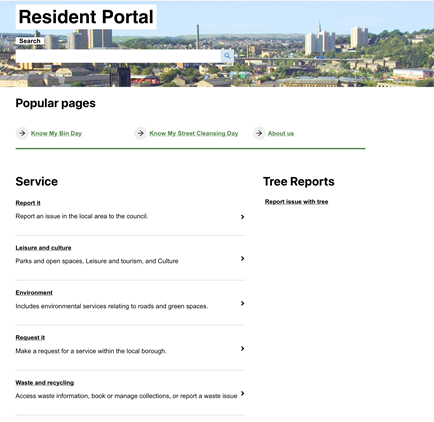
Displays services in a vertical list format, aligned with GOV.UK design principles and optimised for clarity and accessibility.
How to Configure
- Navigate to Administration → Portal V5 → Service
- Select the preferred display mode:
- Grid
- List
- Save the configuration
Note: Only one display mode can be active at a time for the Services region on the homepage.
Grid mode
List mode
Menu Positioning and Mapping
Summary
Portal V5 now allows administrators to configure and map custom menus to specific pages and regions across the portal. This provides greater control over navigation structure and content placement without requiring code changes.
Prerequisites
- One or more menus must already be created and available in the system.
- Administrator access is required.
Configuration Path:
Administration → Portal V5 → Menu → Menu Mapping
Creating or Editing a Menu Mapping
- Navigate to the Menu Mapping section
- Click Add to create a new mapping, or Edit an existing one
- Select a menu from the dropdown list of configured menus
- Choose a Target Type (see below)
- Select the appropriate Target and Sub-target
- Save the mapping
Target Types Explained:
- Page
Maps the menu to one of the existing portal pages.
- Navigation Bar
Displays the menu in the top navigation bar.
- Home Page
Allows placement within specific homepage regions.
- Councillor App
Refers to sub-sections within the governance portal.
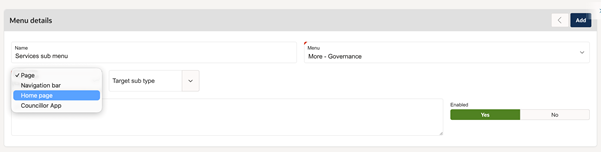
Home Page Sub-Targets
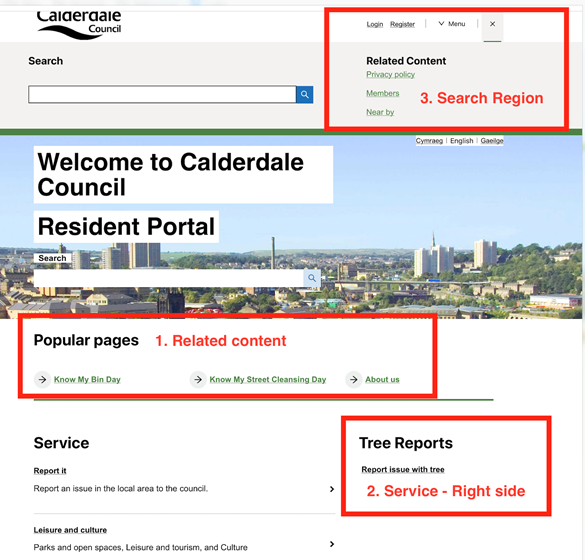
When selecting Home Page as the target, the following sub-targets are available:
- Related Content
- Service – Right Side
- Search Region
These options correspond to defined areas on the homepage, allowing precise control over where each menu appears.
Governance Module
Similar menu mapping options are available for the Governance module, enabling consistent navigation placement across both the main portal and governance sections.
The screenshot below shows the homepage and the three mapping options on it:
Impacts
- No breaking changes
- Existing configurations remain unchanged unless updated by an administrator
- Changes take effect immediately after saving
Key Benefits:
- Aligns portal design with GOV.UK standards
- Improves homepage clarity and accessibility
- Enables flexible navigation placement
- Requires no development or technical setup
- Fully configurable through the admin interface
Was this article helpful?
That’s Great!
Thank you for your feedback
Sorry! We couldn't be helpful
Thank you for your feedback
Feedback sent
We appreciate your effort and will try to fix the article