Introduction
About this guide
This guide has been created to explain how access levels work within forms. This will allow form builders to correctly assign the roles to each guide, ensuring that internal forms (such as Mileage claims for Mobile Workers) stay internal.
Configuration of Access Levels
Access levels can be configured on the following aspects of a form:
Catalogue
Form
Region
Item
Access Levels can be allowed / disallowed by ticking or unticking the ‘Access Level’ setting below.

Public – This refers to submitters who are not signed in. These are also known as guests. If you are creating a form where it is imperative for the submitter to sign in, such as Blue Badge forms, this can be disabled, which forces submitters to log in before the form can be accessed:
Customer – When ticked, this allows logged in submitters to access the form and view the regions / items where the customer box is ticked.
User – This access level applies to the user accounts, including those who have access to the Admin Portal. When this box is ticked, there is an option to select specifically what access roles can access the catalogue / form / region / item. Access roles can be configured via Administration > Access > Access Control.
Please note that any form, region or item created will automatically assign the same access levels as its parent until changed manually. So, Items will share the same access level as regions, regions with forms and forms with catalogues.
Bulk Updating Access Levels on Forms
Updating Access Levels on Forms Quickly
If you would like to update the access levels for a form quickly, you can do so in bulk by using our Form Access feature. This is useful when changing the access of entire forms or pages.
How do I do this?
Firstly, you will need to go to Administration > Access > Form Access
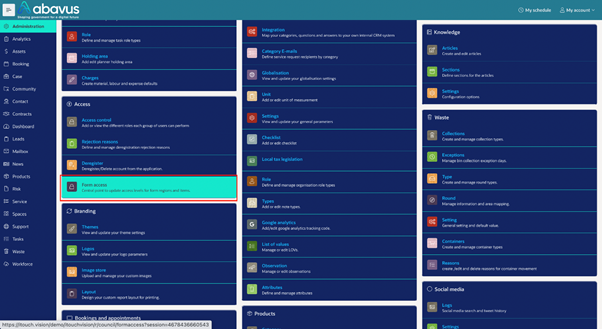
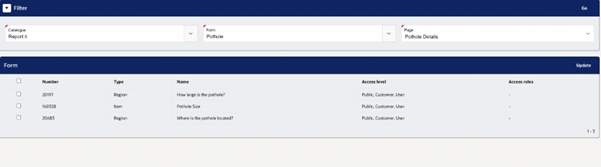
Once opened, the below page will appear. You will now need to select the specific catalogue, form and page and then click on the ‘go’ button.

After clicking on the go button, all the regions and items within the page you selected will show. You can then select all the regions and items to update or you can just select the particular ones you would like to update.
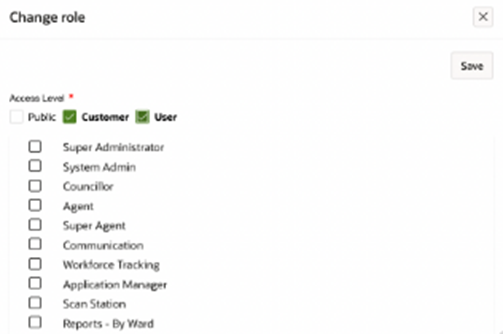
After clicking on the update button, the following screen will appear which will show you the access roles. From here you can select the access roles which you would like to be assigned on the regions and items you have just selected. Once you have selected the access roles, please click on the update button to bulk update access roles.
Use Cases:
Below are a few examples of how Access Levels can be configured on forms:
A combination of access levels on forms can be useful in changing the submitter’s experience based on their access. For example, a Blue Badge form could have user-only regions and items so that CSAs (Customer Support Agents) can fill out information that can trigger rules to start the form’s flow.
Configuring certain user-only forms with certain access roles can help in optimising and decluttering the user’s workspace. For example, an Environmental Agent’s Service Requests can be hidden from the Blue Badge agents, and vice versa.
Hiding Employee only forms from customers and anonymous submitters, such as Equipment Hiring forms for Tree Agents, can ensure that there are no erroneous submissions that would hinder productivity or confuse CSAs.
If you have any other questions regarding the Access Levels and their use cases, please consult isupport@abavus.co.uk .
Was this article helpful?
That’s Great!
Thank you for your feedback
Sorry! We couldn't be helpful
Thank you for your feedback
Feedback sent
We appreciate your effort and will try to fix the article