Public Consultations
1.) Introduction
The Consultations module is a modern, easy-to-use and fully integrated solution designed to help local authorities manage public consultations efficiently and transparently.
The module provides a single, one-stop system for configuring, creating, managing and publishing consultations. It removes the need for multiple tools or manual processes, ensuring that all consultation information is held in one place and presented consistently to the public through the front-end portal.
The system has been designed with:
- Simplicity – intuitive screens and clear actions
- Modern usability – minimal clicks, logical workflows
- Accessibility – aligned with WCAG 2.2 and GOV.UK standards
- Public sector needs – transparency, accountability and auditability
Administrative users do not need technical knowledge to use the system. By following this guide, you will be able to start using the Consultations module confidently, from initial configuration through to publishing consultations and managing outcomes.
2.) Getting Started
Purpose of the Consultations module
The Consultations module allows administrators to:
- Configure consultation categories and statuses
- Create and manage consultations
- Publish consultation details to the public portal
- Update information during the consultation period
- Record outcomes and next steps after closure
Access requirements
To use this module, you must have:
- Administrator access
- Permission to access Administration and Consultations areas
If these options are not visible, contact your system administrator.
3.) Administration Configuration
Configuration is typically completed during initial setup, but can be updated at any time.
You must configure Categories and Statuses before creating consultations.
3.1.) Categories Screen
Purpose
Categories help organise consultations by topic, making them easier for both administrators and the public to understand and find.
Examples include:
- Environment
- Planning
- Transport
- Health
- Community Services
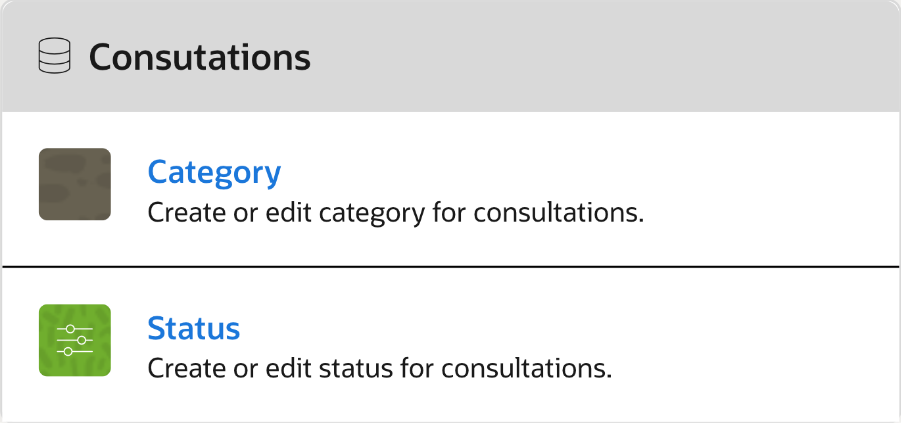
How to add a category
Navigate to Administration -> Consultations.
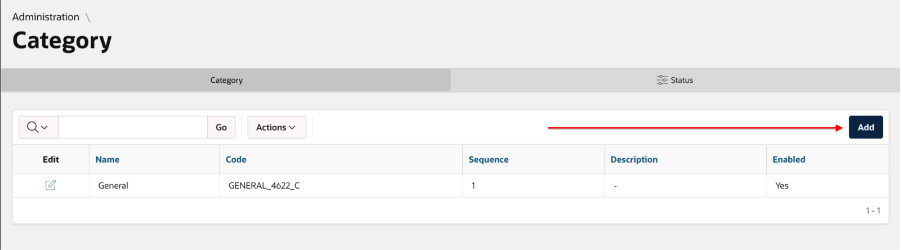
Select Category.
Click Add.
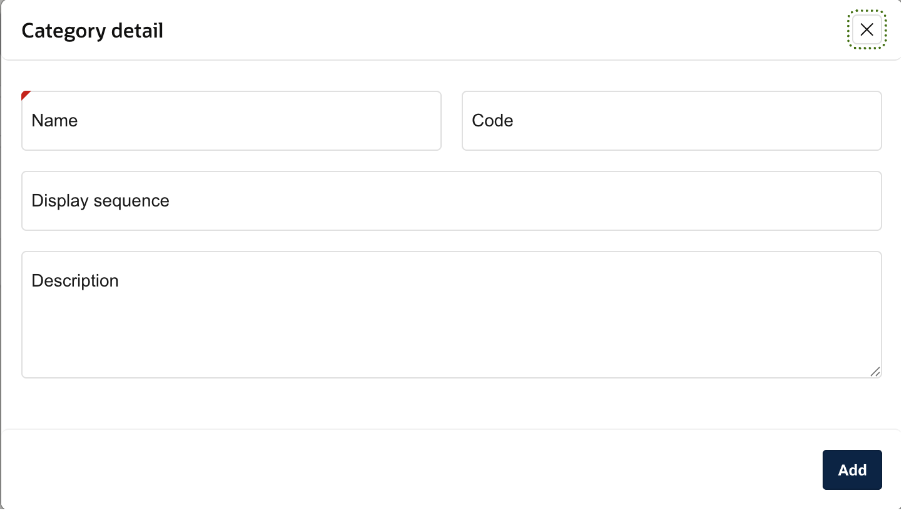
Enter the following details:
- Category name – clear and concise
- Description (optional but recommended)
Click Add to save.
3.2) Status Screen
Purpose
Statuses show the current stage of a consultation and help users understand whether they can still respond.
Common statuses include:
- Planned
- Open
- Closed
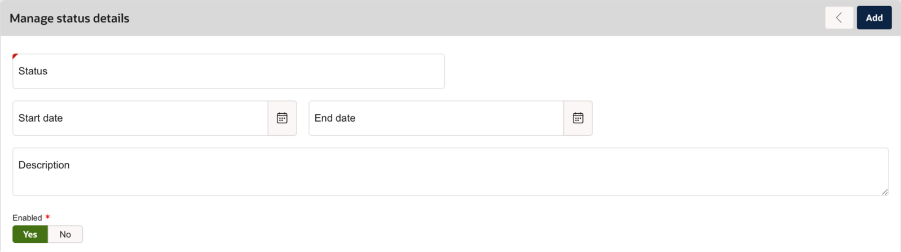
How to add a status
Navigate to Administration -> Consultations.
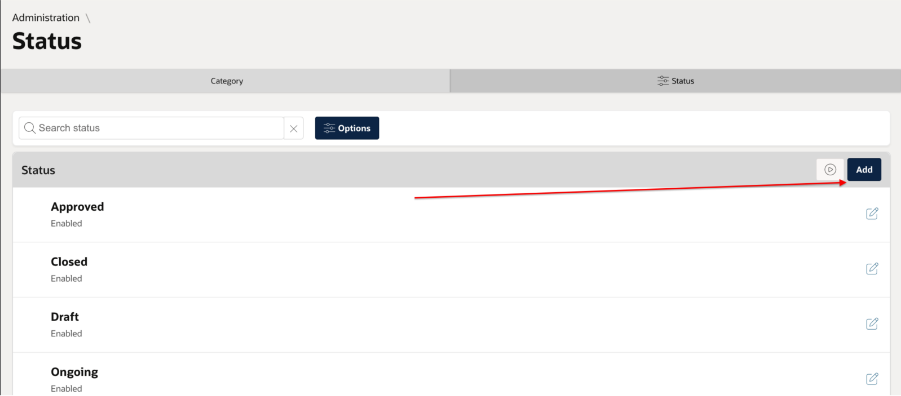
Select Status.
Click Add.
Enter the status name and details as shown in the screenshot.
Click Add to save.
4. Consultations – Main
Once the pre-requisites are completed, navigate to the Consultations tab from the left menu.
Purpose
The Consultations list screen is the main management area for all consultations. The page displays
- A list of consultations
- Consultation title
- Category
- Status
- Options to Add or Edit
You may also see filtering or search options, depending on your configuration.
Key actions
Add – create a new consultation
Edit – update an existing consultation
5. Add Consultation Screen
Purpose
This screen is used to create a new consultation record.
You will typically be asked to provide to add a new entry:
- Consultation title
- Category
- Status
- Start date
- End date
- Summary or introductory text
How to create a consultation
- From the Consultations page, click Add.
- Complete all required fields.
- Review the information for accuracy.
- Click Add to create the consultation.
Important notes
- The consultation can be edited at any time
- Additional content is added after creation
- Ensure dates are correct before publishing
You can click on the edit icon to view a specific Consultation record from the existing list.
6.) Consultation Details Screen
Purpose
The Consultation details screen allows you to fully manage the content and presentation of a consultation.
Page overview
The details page includes:
- Main consultation details
- A right-hand menu for managing additional content
Available actions
From this screen, you can:
- Add detailed descriptions
- Upload supporting documents
- Add location
- Add “What happens next” information
- Link surveys or response forms – The admin can configure the form from forms builder and link it here to enable end users filling out the survey form.
- Update consultation details
- View and update status
- View History
Viewing Consultations on the Public Portal
This section explains how consultations created and managed in the admin system are presented to the public on the council portal.
It completes the full lifecycle from backend configuration to public engagement.
The public portal has been designed to be clean, modern and accessible, following GOV.UK design principles and ensuring a consistent experience for all users.
Accessing the consultations page
- Visit the council homepage.
- Select Menu.
- Choose Consultations.
This opens the main consultations landing page, where users can view current and past consultations.
Filtering and searching consultations
Users can:
- Select a Stage (for example, Open or Closed).
- Select a Year.
- Select Search to apply filters.
- Alternatively, users can select View all consultations to display the full list.
- Filtered results are displayed immediately below the search area.
The results list displays:
- Consultation title
- Category
- Stage
- An option to view more details
Each consultation row includes a More link, allowing users to access full consultation details.
Opening a consultation
From the consultations list, select More next to a consultation.
The consultation details page will open.
This page displays all information configured in the backend system.
Consultation details page – screen overview
The consultation details page includes:
- Consultation title and category
- Consultation period (start and end dates)
- Full consultation content
- Supporting documents
- “What happens next” information
- Survey access (if enabled)
- Current status
All content is displayed in a clear, readable layout designed for accessibility and ease of use.
If a survey has been configured:
- Users select Start now.
- The consultation survey opens.
- Users can complete and submit their response online.
The survey experience is fully integrated with the consultation record.
Using the right-hand menu
The right-hand menu provides quick access to:
- Committees and meetings
- Members
- Consultation statistics
- Other related council services
This supports transparency and allows users to explore related information without leaving the consultation.
Viewing consultation statistics
The statistics section may display:
Number of open consultations
Number of closed consultations in the past 12 months
Participation or attendance information (where applicable)
This reinforces openness and public accountability.
The Consultations module provides a single, modern and reliable solution for managing public consultations from start to finish.
By connecting backend administration with a clear and accessible public portal, the system:
Improves transparency
Reduces administrative effort
Enhances public trust and participation
This end-to-end approach ensures councils can engage with their communities effectively while meeting governance, accessibility and digital service standards.
Was this article helpful?
That’s Great!
Thank you for your feedback
Sorry! We couldn't be helpful
Thank you for your feedback
Feedback sent
We appreciate your effort and will try to fix the article