Introduction
About this module
The Governance module provides a comprehensive framework for managing committees, meetings, and related governance processes. It supports configurable workflows for agenda preparation, document distribution, minute management, and action tracking, ensuring compliance, transparency, and efficiency within the digital governance ecosystem.
The Committees module and the Councillor Portal addition to the customer portal make up the Governance product for the My Council Services platform.
Prerequisites
List of values
The administrator first needs to configure the following List of Values (LOVs) prior to using the module. These values are dynamic and allows the administrator to use them as needed.
First navigate to Administration > LOVs
This includes the following:
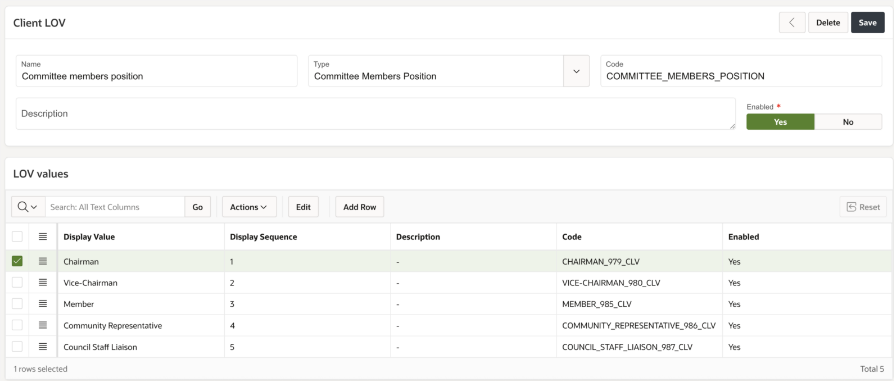
Committee members position – This includes the value for the position of the committee members like Chairman, Staff, Member.
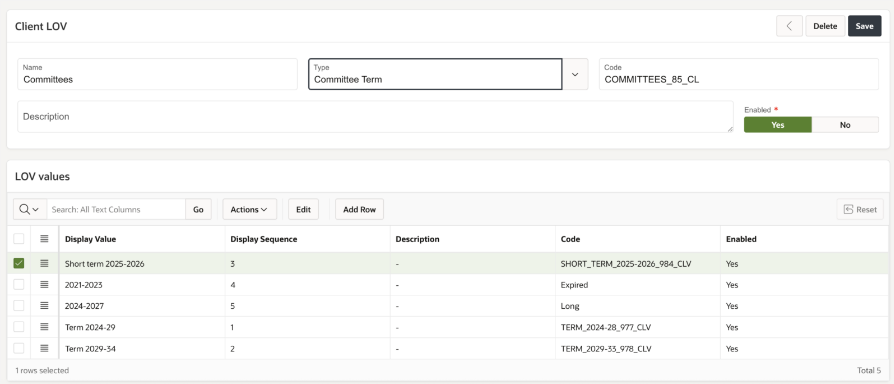
Committee term – This defines the options for the tenure of the committees such as 2024-2029 or 2025-2026.
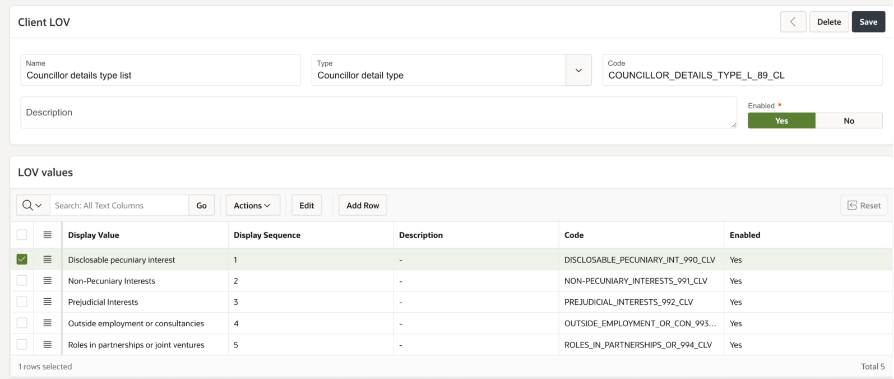
Councillor details – This will be used to capture ‘Declarations’, ‘Gifts and Hospitality’ and ‘Register an interest’.

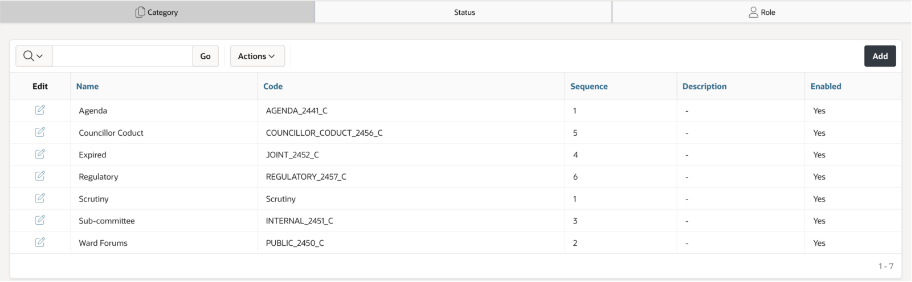
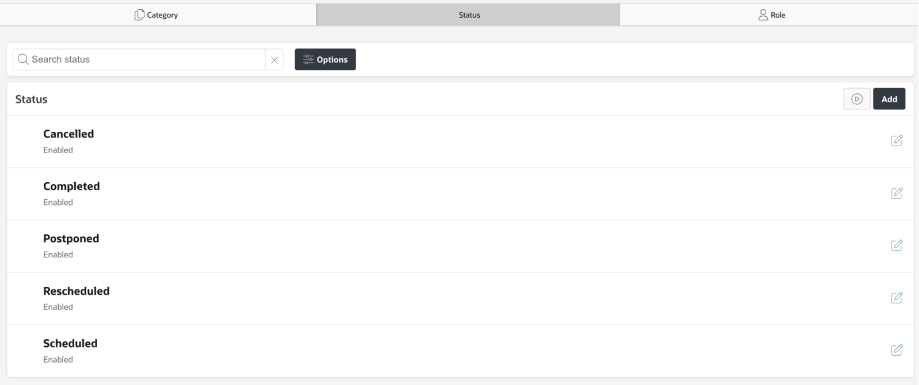
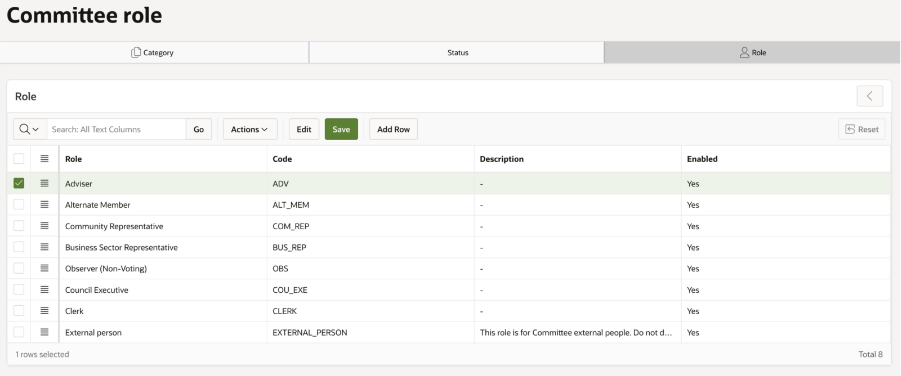
Committees – Category, Status and Role
The available tabs under Administration > Committee:
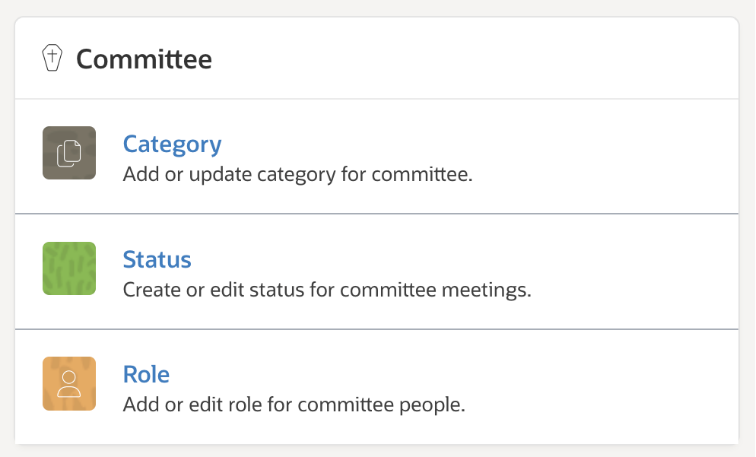
Category – Used to configure the committee categories like Regulatory, Scrutiny, etc.
Status – Used configure the statuses for the committee meetings.
Role – Used to configure the roles of people added to the meeting.
Templates
The administrator will need to configure the templates for emails and/or letters that would be used for notification purposes. These can be configured through Administration > General > Templates.
Members
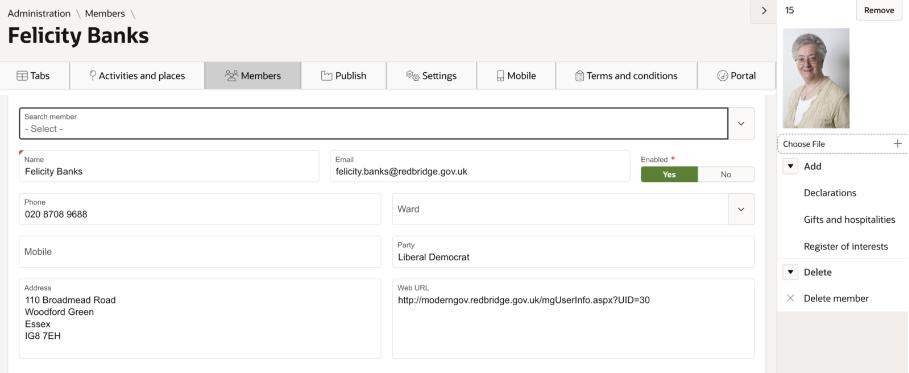
Members will need to be added to the platform before they can be added to a a committee. To do this:
Navigate to Self-Service > Members.
Click on the ‘Add’ button.
You can select a member from the list (this list contains the admin users from Community) or add a new member by entering the details.
Declarations, Gifts and hospitalities, Register of interests and a photo can also be added from the right-side menu.
Committees
Creating a committee
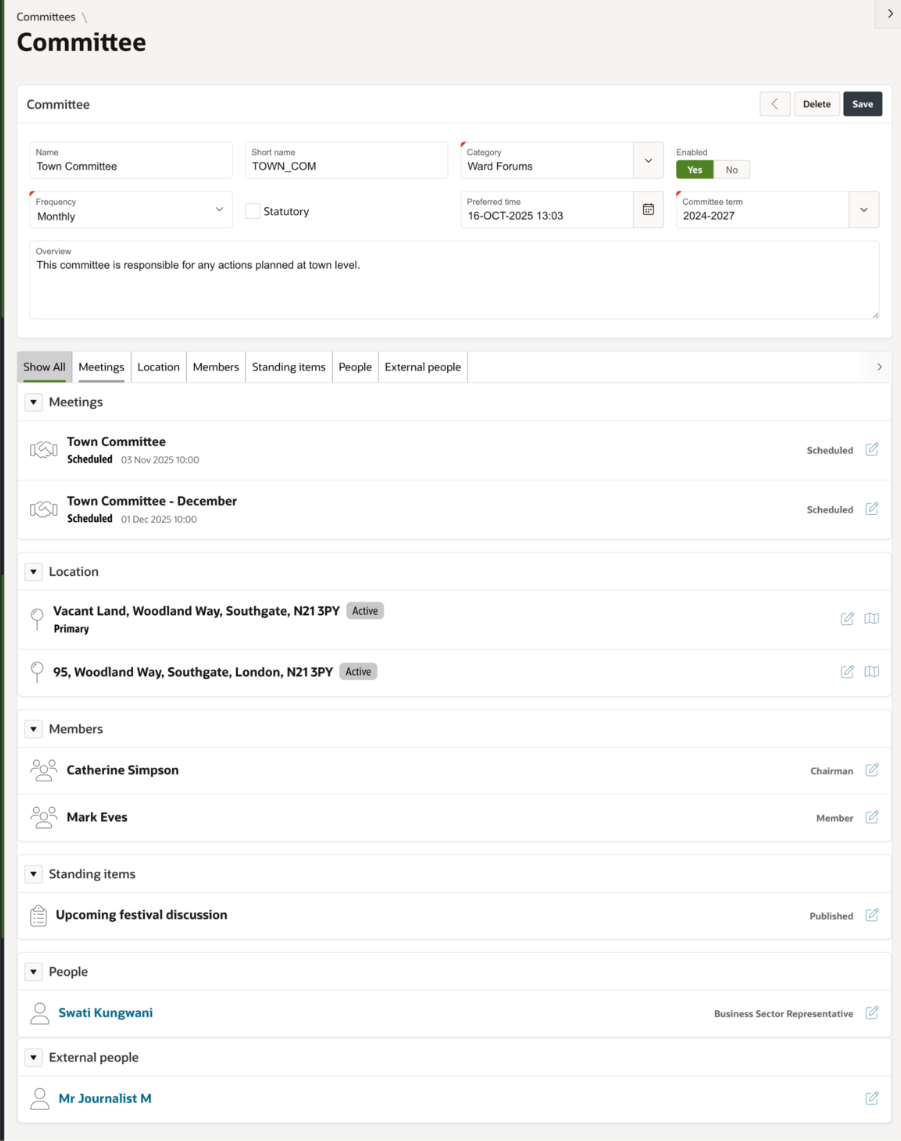
Click on the Committees tab to add, view and manage the actual committee items.
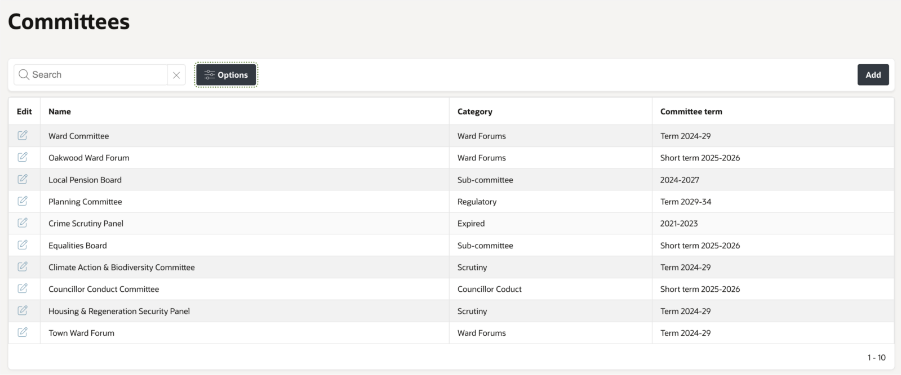
All the existing committees will be shown here.
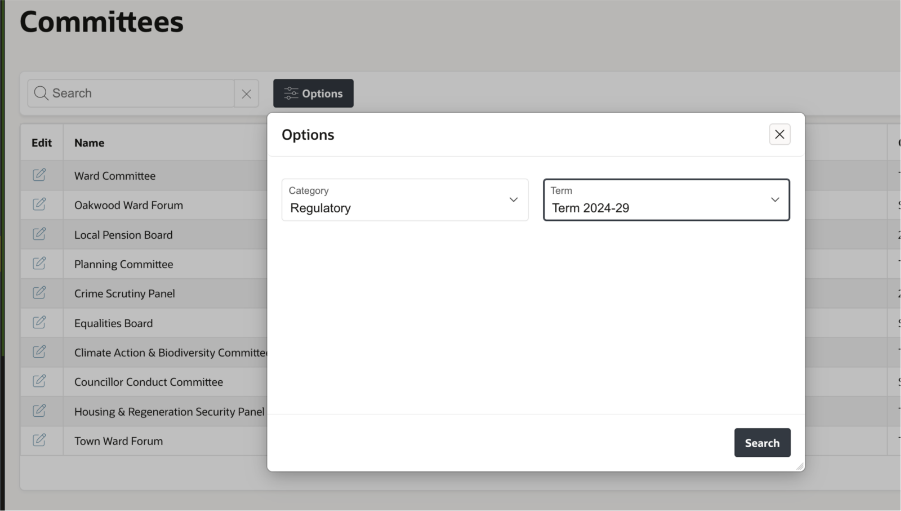
You can search by the name of the committee or filter the results by category and term.
Click on ‘Add’ to add a new committee.
Enter the details such as the name of the committee and the frequency of meetings.
Click on Create and it will add a new committee. Further details can then be added from the menu on the right.
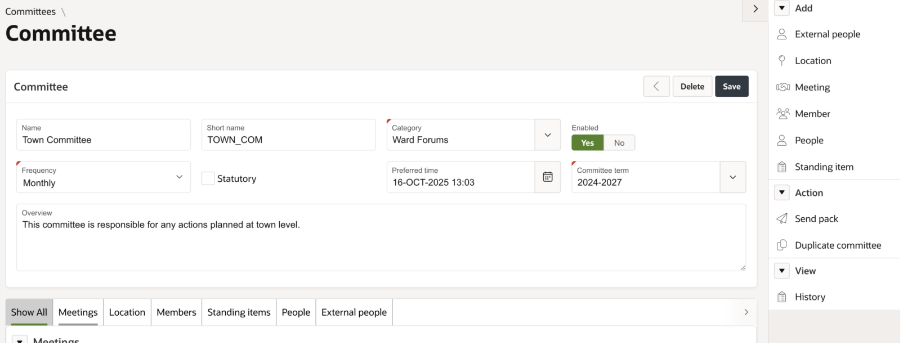
‘Add’ menu
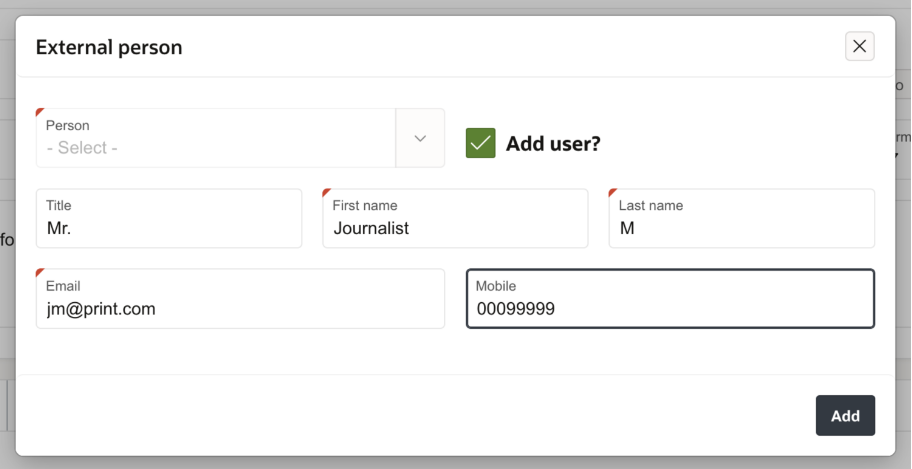
External people – Allows you to add an external person (other than the members) to the meeting. You can select the person from the list (customers from the Community module), or a new record can be created by clicking the ‘add user’ button.
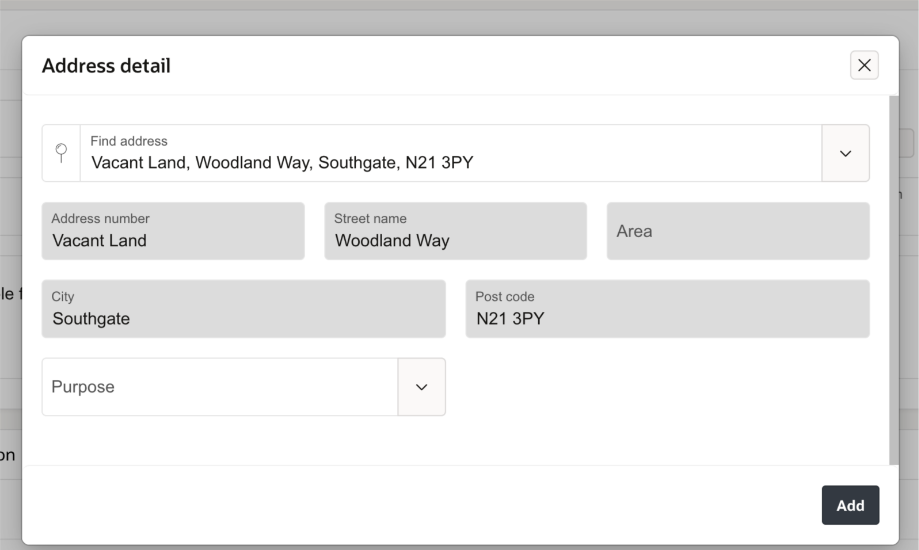
Location – Allows you to add a location for the committee meetings.
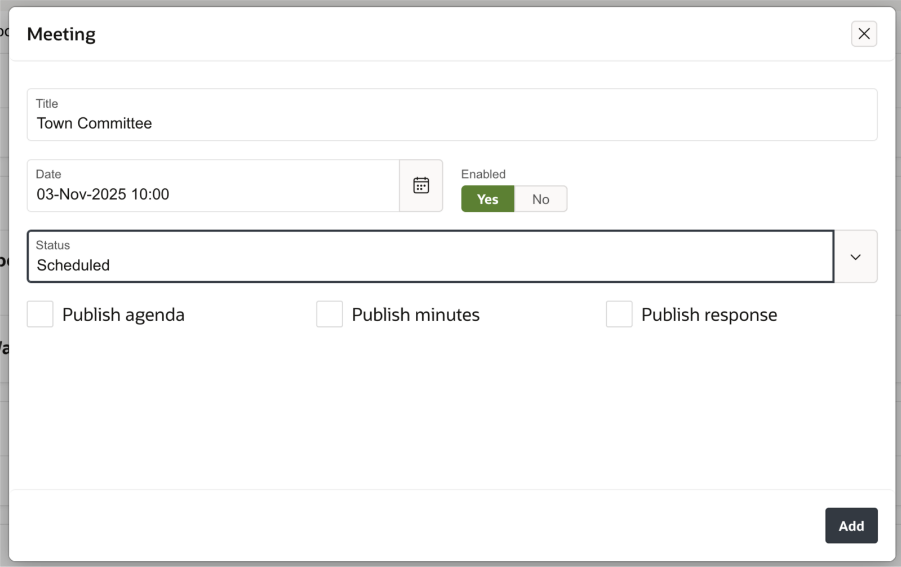
Meeting – Allows you to add a new meeting for this committee.
Title – This will default to the name of the committee but can be amended as needed.
Date and Time of the meeting
Status – Select the status from the list. (It has static values, if any other values are required to be added, please contact support).
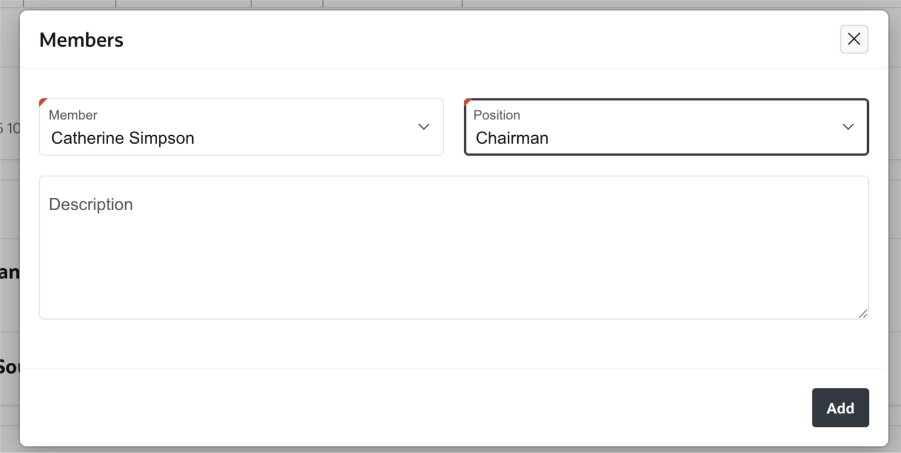
Members – Add the members to the meeting from the prepopulated list and select their position (taken from the LOV configuration).
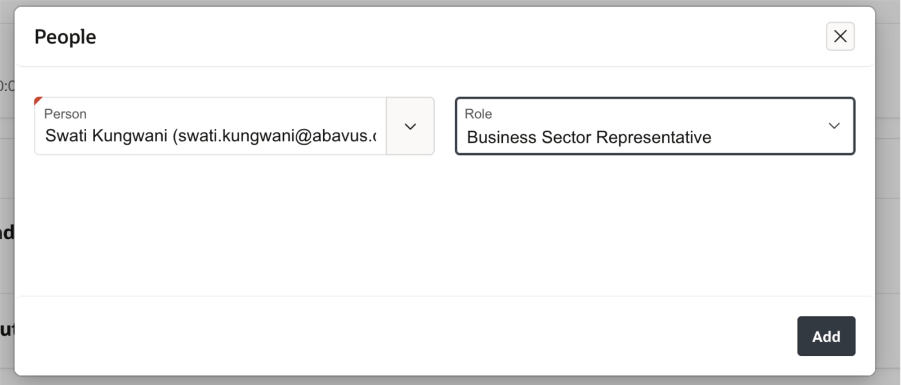
People – An administrator can be added to the meeting. These display admin users from Community > People.
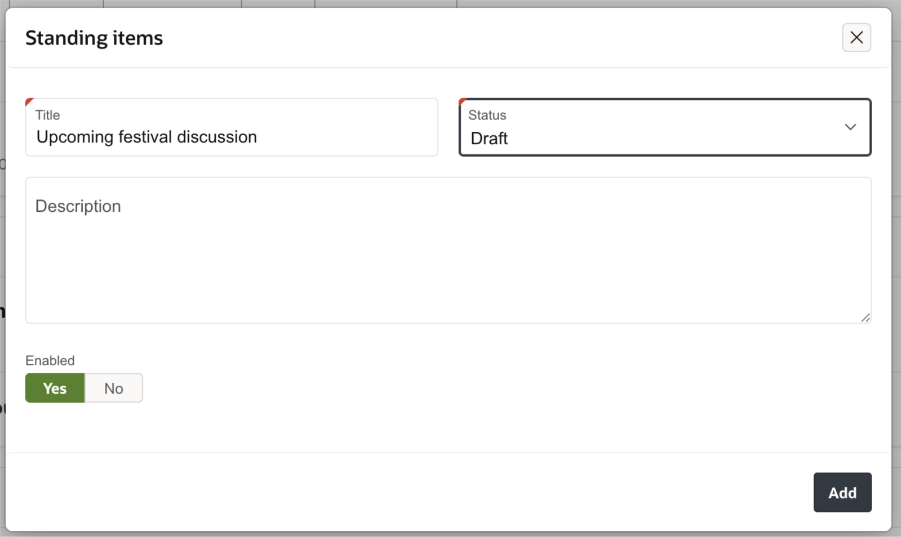
Standing items – Add a standing item which would be carried over to the next meeting. Existing meetings will not be updated when a new standing item is added.
‘Action’ menu
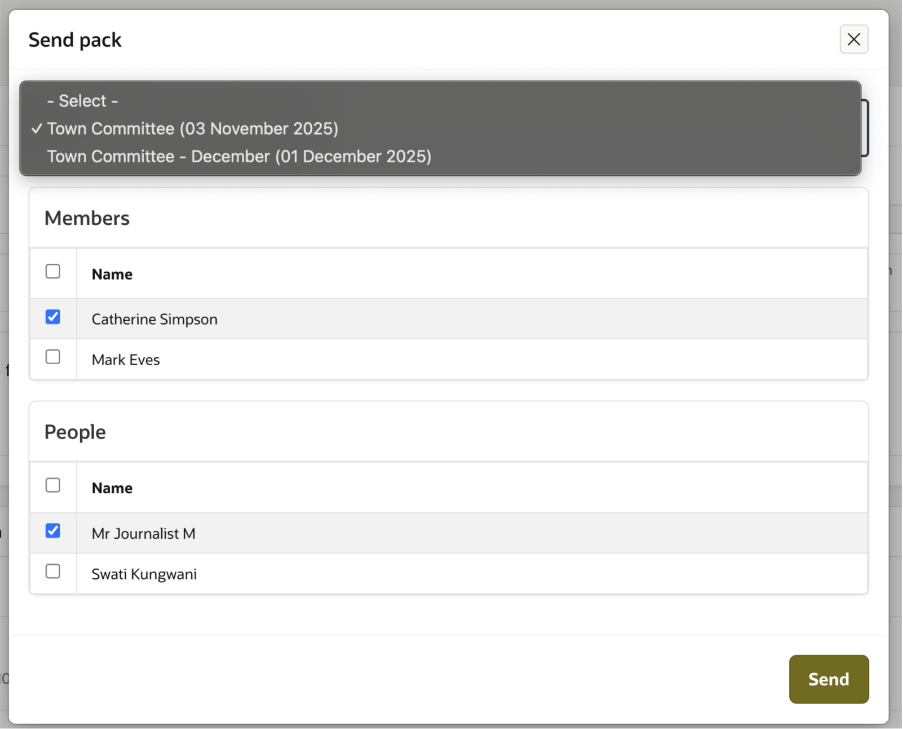
Send Pack – Any of the existing meetings can be selected and sent to the chosen members or people. This will send the full meeting pack in a PDF format.
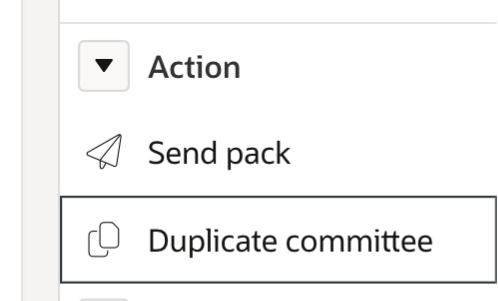
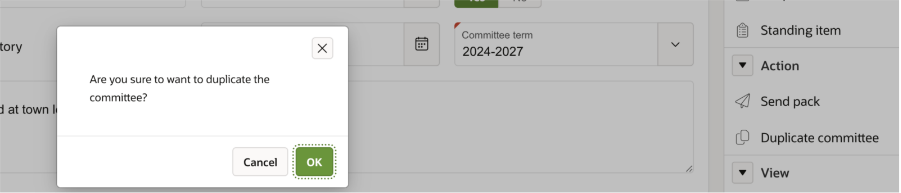
Duplicate committee – The administrator can create another committee which is copy of this committee using this option. It will copy over the details of the selected committee to create a new one.
‘View’ menu
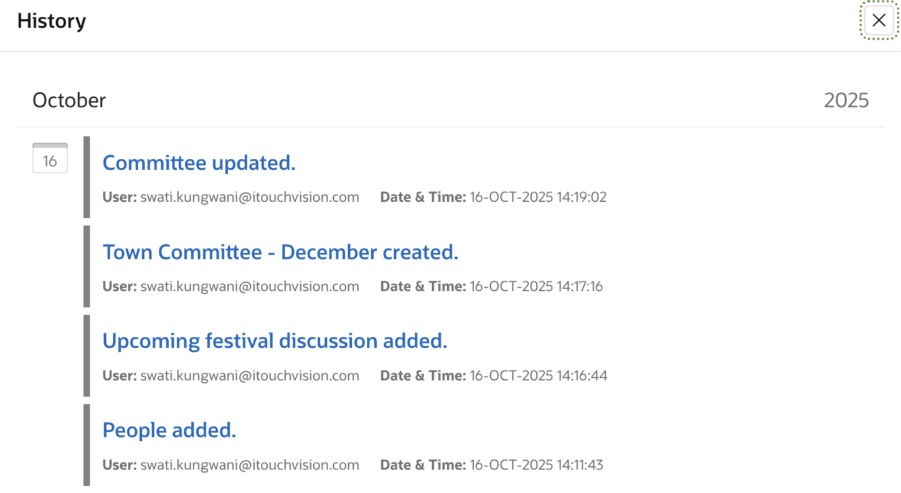
History – This option will show an audit trail of actions taken against the committee.
Meeting details
Accessing the meeting
Once a committee has been set up, and a meeting has been added, additional details can be added against the meeting.
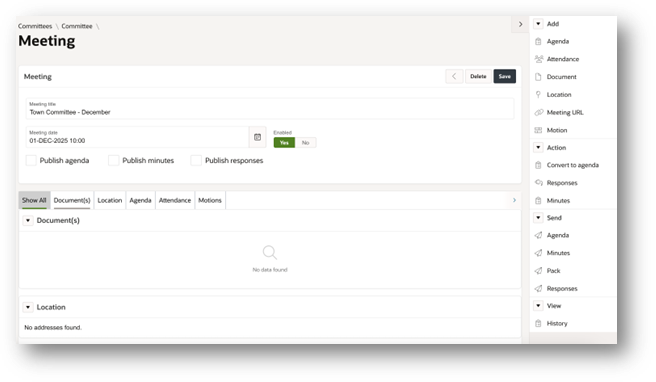
‘Add’ menu
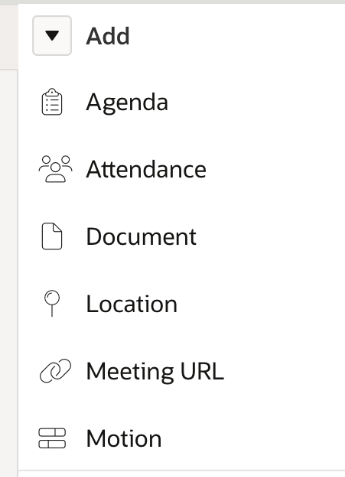
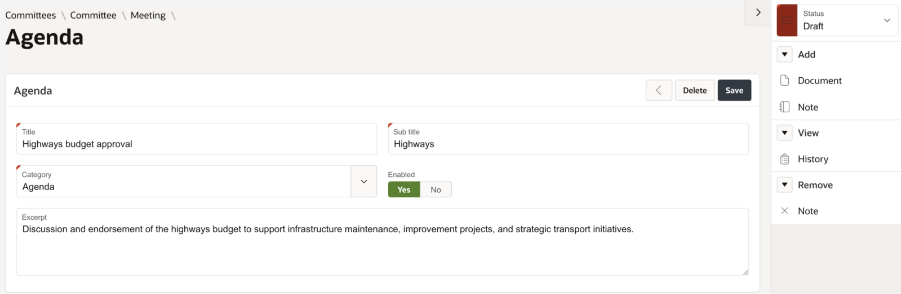
Agenda – This is used to add a new agenda item. Any standing item added to the committee before this meeting is created, will be added as an agenda item for this meeting.
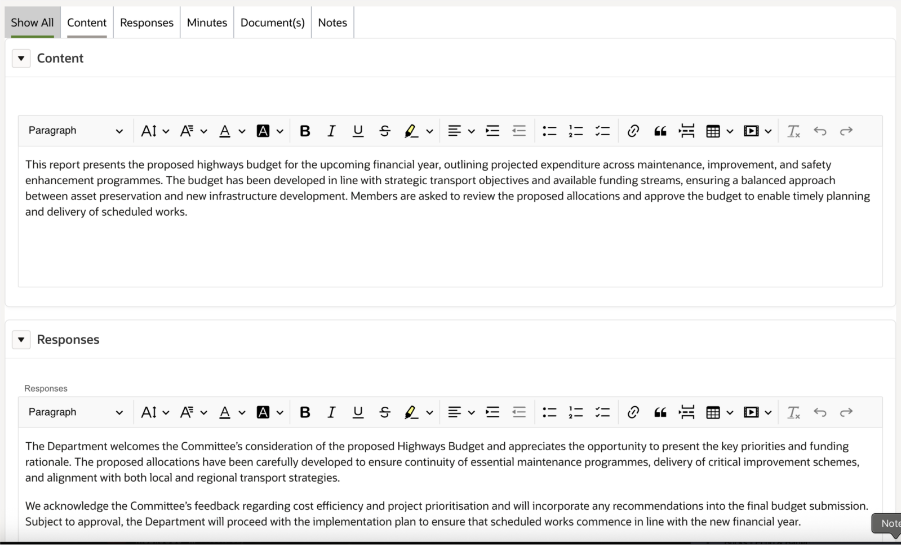
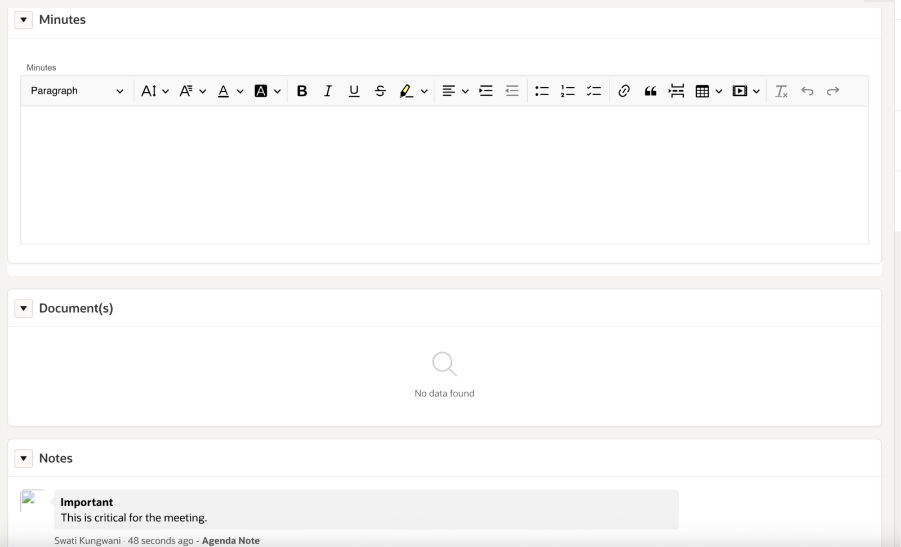
On the agenda details, you can add content, response, minutes as well as any document and notes to this agenda item.
You can also delete a note, if required.
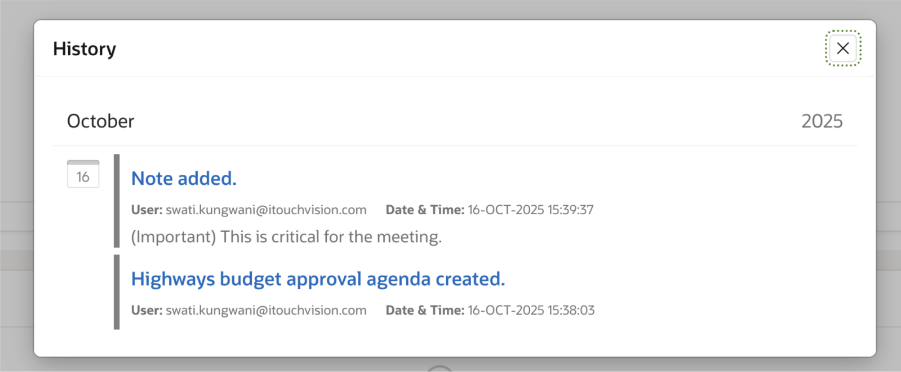
The history can be viewed.
Click on status at the top-right corner to change the status.
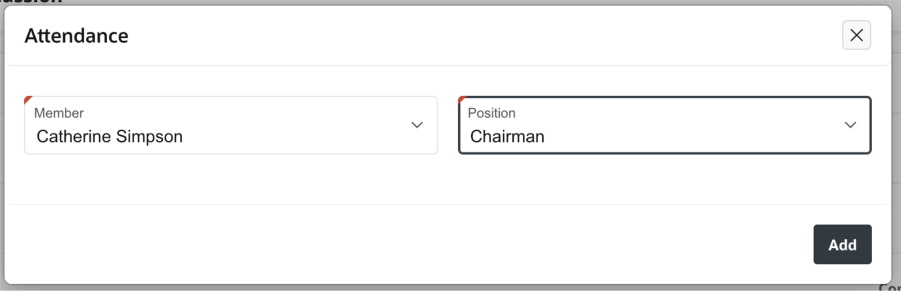
Attendance – The attendance of the members can be recorded.
Document – Add any document to the meeting. This document will be included when sending pack.
Location – The location of the meeting can be added if it is an on-site meeting.
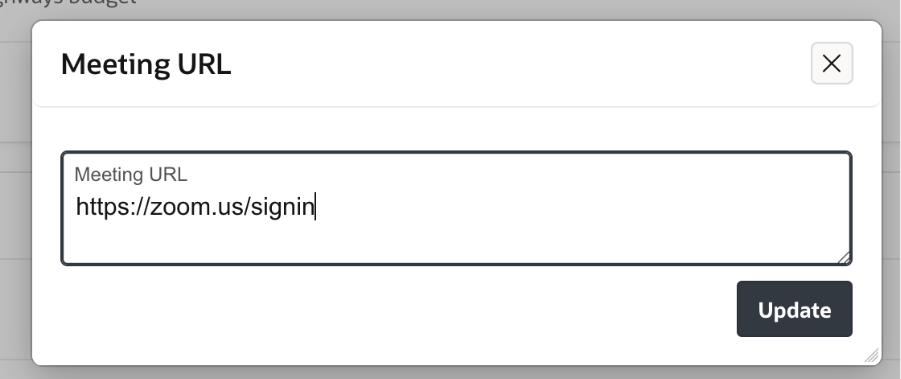
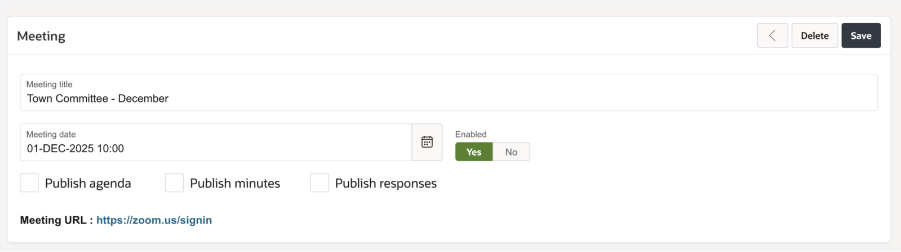
Meeting URL – If the meeting will be taking place online, the link to the meeting should be added.
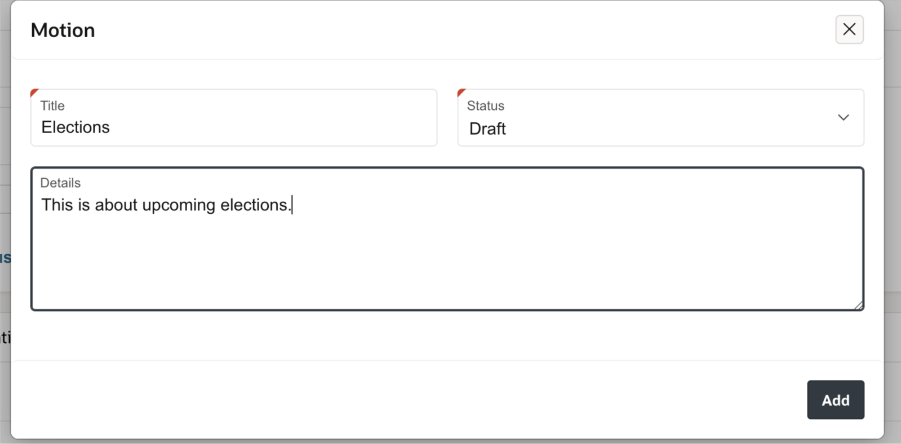
Motion – A new motion can be added against the meeting. The initial status of this motion will be set to ‘Draft’. This motion can then be converted to agenda as required.
‘Action’ menu
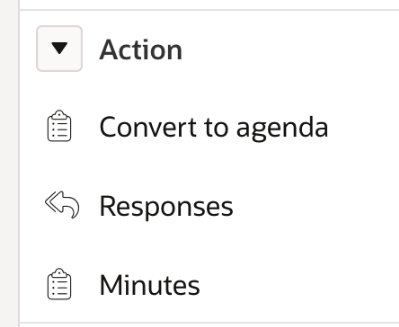
Convert to agenda – This option will display the list of all the motions. These can be selected and then converted into agenda items as required.
Responses – This option will display all the agenda items and allows responses to be added.
Minutes – This option will display all the agenda items and allow minutes to be added against them.
‘Send’ menu
The administrator can choose to send the agenda, minutes, pack or responses documentation.
The required people and members to send the documentation.
A file containing all the information selected will be sent to the recipients.
‘View’ menu
History – This option will show all actions that have been performed against the meeting.
Was this article helpful?
That’s Great!
Thank you for your feedback
Sorry! We couldn't be helpful
Thank you for your feedback
Feedback sent
We appreciate your effort and will try to fix the article