Introduction
About this guide
This guide has been written to inform you how to configure the following pre-requisites needed to use Tasks:
- Task Statuses and Transitions
- Task Types
- Access Roles
Create Task Status and Transitions
Creating Task Statuses
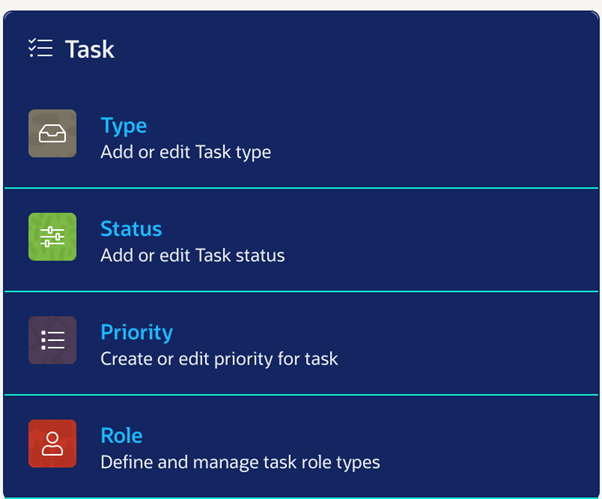
To begin, we must first create task statuses. To do this, go to Administration, then, in the Task tab, click on ‘Status’:
Next, you can edit or add Statuses that apply to Tasks. To add one, click on ‘Add’ in the top right of the page:
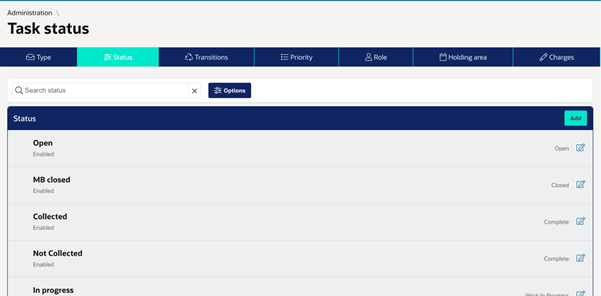
Each Status needs a name, and a status type. Status types are based on the defaults provided by the system (Open, Under Review, Work in Progress, etc).
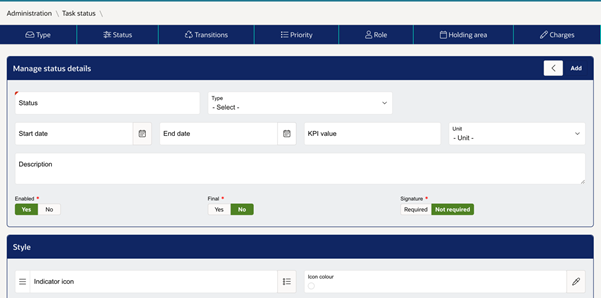
Any "Closed" or "Complete" statuses should have their ‘Final’ setting set to Yes, as they denote the end of a task lifecycle.
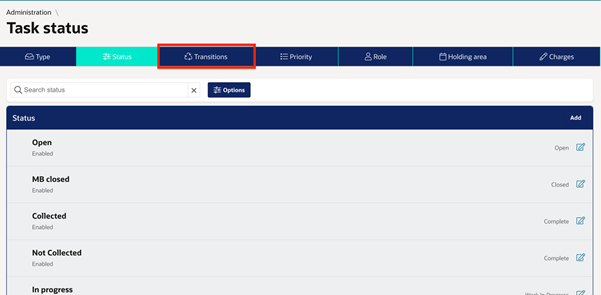
Create the statuses that you require for this transition. Once all Statuses have been configured and saved, click on the ‘transitions’ tab marked below:
Creating a Task Transition
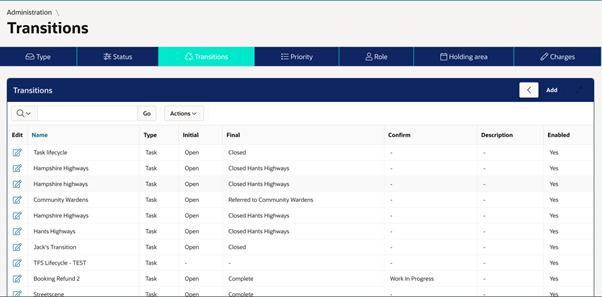
From here, you can edit the Status Lifecycle Transitions that apply to Tasks, or create a new one by clicking on ‘Add’.
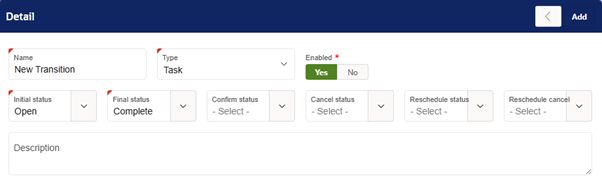
Each Transition needs a name, with a Type specified as "Task". Denote what the Initial (First) status should be in this Transition, and the Final (Last) status should be. Then, click on ‘Add’ to continue:
Scroll down, and you will see the following. From here, you can configure which Statuses can be changed to others (Open to Under Review, Under Review to Work in Progress, Work in Progress to Closed, etc).
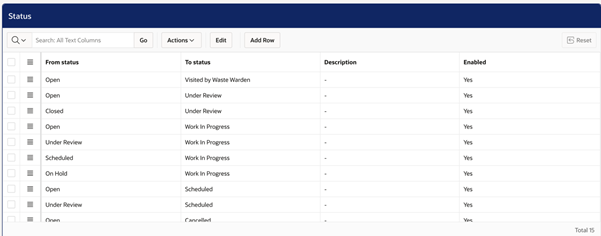
You need to do this, otherwise you will not be able to change a Task's Status.
Scroll back up and click on ‘Save’ once finished.
Configuring Task Type
Adding Task Types
To set up a Task type, go to Administration > Task, then click on ‘Type’ as shown below:
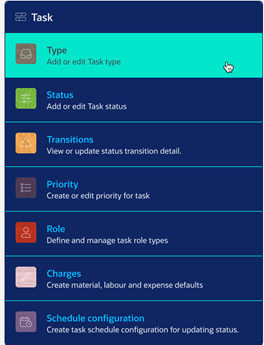
You will then be able to view existing task types, or you can add a new type by clicking on ‘Add’.
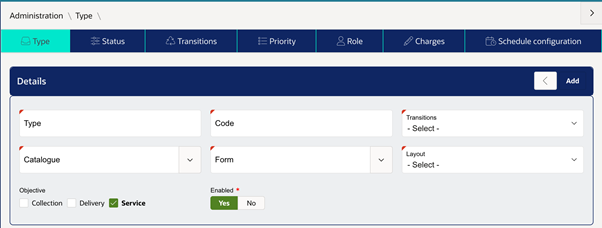
When adding a new task type, you will need to add the required fields as shown in the menu below:
- Type – For example, Garden Waste or Potholes
- Code - If one is not inputted, this will be automatically generated
- Transition – Select as previously configured
- Catalogue and Form - Only select if this task type is going to be used for task forms
- Layout - Only select if required, otherwise default will be assigned
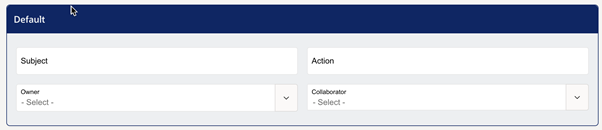
After adding the task type, you will then find additional options show which you can add if required.
- Subject - The subject of the task which the worker will view to identify the job
- Action - The action required to complete the task
- Owner - Main user who is responsible for the task. When a task is created, this user will be the owner of the task by default.
- Collaborator - Additional users who will be involved with this task
Access Roles (Task Type)
Allowing Users to See Tasks
Task types must be assigned through Access Roles. To configure this, navigate to Administration > Access > Access Control.
Within this section, you can either select an existing Access Role or create a new one by clicking Add New Role.
When creating or editing an Access Role, locate the Task section. Use the dropdown menu to select the Task Type that the role should have permission to view. For example, Dog Fouling is selected here:
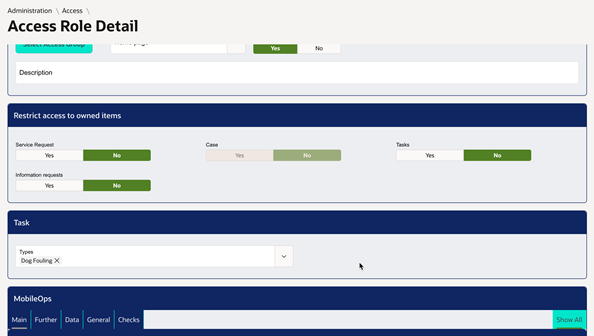
Users who are assigned this Access Role will then be able to view the selected Task Types, provided the task has been assigned to them.
Was this article helpful?
That’s Great!
Thank you for your feedback
Sorry! We couldn't be helpful
Thank you for your feedback
Feedback sent
We appreciate your effort and will try to fix the article