Introduction
About this document
This document explains the file picker options available for uploading and attaching documents, and how to configure them.
What this document covers
Picker Type Comparison
- Differences between the File Picker and the Advanced File Picker
- Options common to both: allowed file types and maximum file size
File Picker
- Primary setting
- Maximum number of files
- Document type applied to uploads
Advanced File Picker
- Saving attachments against a record (Service Request, People (Community), People (Education))
- Selecting document types
- Required documents
Document Contents
Picker Type Comparison
Picker type comparison
A file picker will only categorise uploaded file into one type. In contrast, the advanced file picker can categorise files into multiple document types and contains validation to ensure that specific types have at least one associated file selected.
Common options
The following options are available on both the file picker and the advanced file picker.
Allowed file types
Control which file type extensions can be uploaded against each picker. This can be used so that customers can only upload image files, for example.
Each option must be formatted so that each option is preceded by a dot, each option ends with a comma.
The following example restricts the file uploads to the most common image types only.
.png,.jpg,.jpeg,.heif,.heic
Please note: .exe and other executable files cannot be uploaded to the system for security reasons.
Max file size
Restricts how large each uploaded file can be in MB. Any files larger than this limit cannot be uploaded.
File Picker
Primary
This option is no longer changes the components functionality. If you are unable to add a second file picker then please ensure that the file picker you are trying to add does not have this option enabled.
Max files
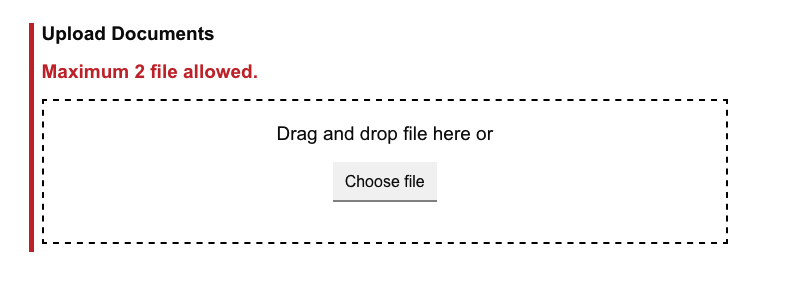
Restricts the number of files that a customer can upload to the system. Attempting to upload more documents than this value results in the following error.
Document type
Select a document type configured on the system and any documents uploaded to the file picker will be associated with that document type.
Leaving this value blank will not associate any uploaded files with a document type. These files will be displayed under the “Others” folder on any service requests attachments section.

Advanced File Picker
The advanced file picker allows for councils to request specific document types from customers and automatically place them in the correct area on the system.
Please note: This component is restricted to one per form.
Save attachment against
This option specifies where any uploaded documents should be placed on the system.
Service Request
Uploaded documents are saved directly against the submitted service request under the appropriate document type folder.
Required document type “Type” option: Service
People (Community)
Uploaded documents are added directly against the customer’s account. These can be accessed by navigating to Community > People and search for the submitters account. The documents are stored under the attachments section under the relevant document type folder.
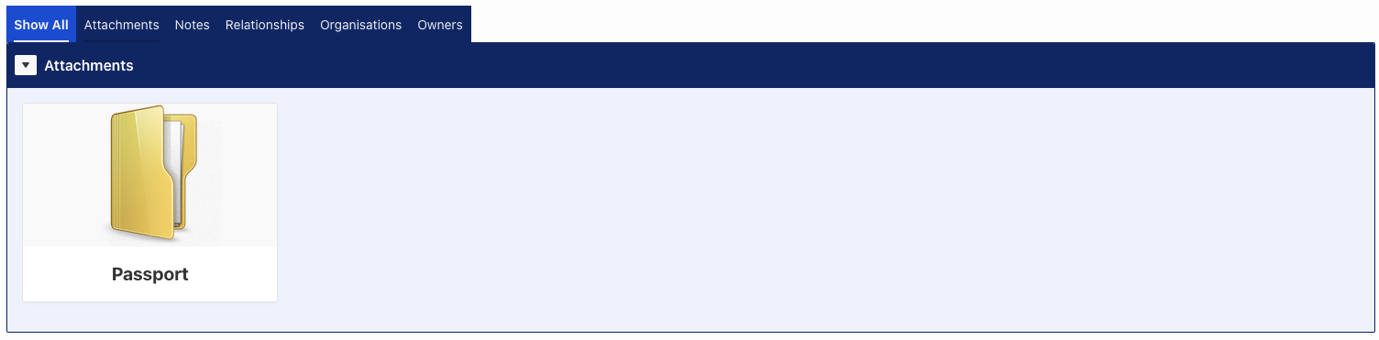
Required document type “Type” option: Customer
People (Education)
Like People (Community) these documents are found on the customer’s account under the “Education” sub-page. The documents are stored under the attachments section under the relevant document type folder.
Required document type “Type” option: Education
Select document types
In order to complete the upload for each document, the customer will need to select a document type from the provided list. This option controls this select list.
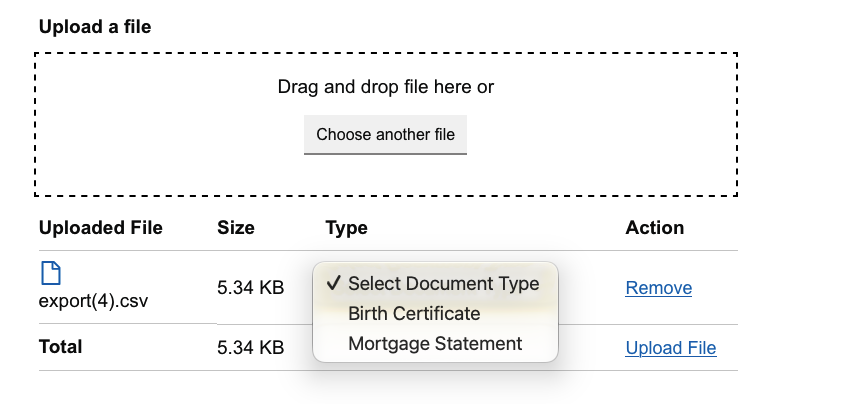
Customers can select as many documents under each document type as required.
The types displayed here are dependent on the “type” option of each document type and are listed below.
Save attachment against | Type option required |
Service Request | Service |
People (Community) | Customer |
Education (Community) | Education |
Required documents
This option controls if at least one document is required to be uploaded against each document type.
- All – Each document type must have at least one document uploaded against for the customer to continue
- Any – Only one file under any document type needs to be uploaded for the customer to continue
Was this article helpful?
That’s Great!
Thank you for your feedback
Sorry! We couldn't be helpful
Thank you for your feedback
Feedback sent
We appreciate your effort and will try to fix the article